

How to Reset a Schlage Encode After a Failed OTA Update
- OTA update interrupted (WiFi drop or low battery)
- Batteries too low to finish the update
- WiFi dropped mid-update
Problem Description
Schlage Encode can stall or fail during over-the-air firmware updates, leaving the lock unresponsive. This guide walks through the correct factory reset, safely pulling it off the door, and re-onboarding to Schlage Home without losing programming prep.
Why This Happens in Real Homes
A failed OTA on the Encode usually leaves the lock in a half-updated, unresponsive state because the update lost power or WiFi partway through — the two things a firmware flash can't tolerate. Since the update is battery- and signal-dependent, low AAs or a weak door signal are the root cause more than a bad update file.
Start by installing fresh alkaline AA batteries and confirming solid 2.4GHz WiFi at the door, then reseat the battery pack to restart the lock. Re-trigger the update from the Schlage Home app with your phone nearby, and don't interrupt it. If the lock stays stuck, factory reset it (reset button under the battery cover) and re-add it; contact Schlage if it still won't recover.
Symptoms
- Encode stuck after a firmware update
- Update stalled or failed
- Lock unresponsive post-update
- Keypad not working after OTA
- App shows updating forever
- Lock offline since the update
- Partial update state
- Won't take commands
Recognize these? Here's what usually causes it.
Common Causes
- OTA update interrupted (WiFi drop or low battery)
- Batteries too low to finish the update
- WiFi dropped mid-update
- Lock stuck in a partial firmware state
- App and lock out of sync
- Corrupted update needing a retry
- Power interruption during flashing
- Firmware server hiccup
Most fixes happen in the first 3 steps.
Do not remove batteries during an active firmware update. Interrupting mid-flash often corrupts the bootloader and forces support replacement.
Tools & Requirements
These tools will help you complete this fix.

As an Amazon Associate we earn from qualifying purchases.
Step-by-Step Solution
Use Mechanical Key
Use the mechanical keyed override to unlock the door if needed so the lock is safely accessible from both sides. Remove the interior cover. Confirm the lock is in a safe state before performing a reset so the deadbolt does not end up stuck in a partially thrown position.
Swap in Fresh Batteries
Remove the current batteries and install a full set of new premium AAs. Low voltage is the most common cause of stalled updates. With fresh cells, the Encode has enough headroom to complete the reset and reconnect to WiFi on retry.
Factory Reset Sequence
With the battery compartment open, press and hold the Schlage button on the interior while reinserting one battery. Continue holding for ten seconds until you hear the reset tone. Reinstall remaining batteries. The keypad test confirms the reset completed successfully.
Re-Onboard in Schlage Home
Open Schlage Home, tap Add Device, and follow prompts to add the lock. Connect on your 2.4GHz WiFi. Enter the programming code from the lock label. Let the lock pull the current firmware fresh, which may take several minutes to download and install fully.
Verify and Retry OTA
After re-onboarding, lock and unlock three times from the app. Confirm the lock stays connected. Check firmware version in-app. If another update is queued, run it only when battery level is above 80 percent and your WiFi signal at the door reads strong.
Quick Solutions
Still having issues? This is usually the deeper cause below.
If the keypad rejects valid codes, a lockout timer may be running — five failed entries locks most keypads silently for 5–10 minutes.
Keep spare premium AAs in a nearby closet. Fresh batteries are required before any Schlage firmware update to avoid repeating the same failure.
Battery-related failures are almost always flagged too late — the device degrades silently for days before the app catches up to what's actually happening.
- OTA update interrupted (WiFi drop or low battery)
- Batteries too low to finish the update
- WiFi dropped mid-update
- Lock stuck in a partial firmware state
- App and lock out of sync
Before you go — try one of these (they fix most cases).
Most popular upgrades chosen by Schlage Encode Smart WiFi Deadbolt owners.
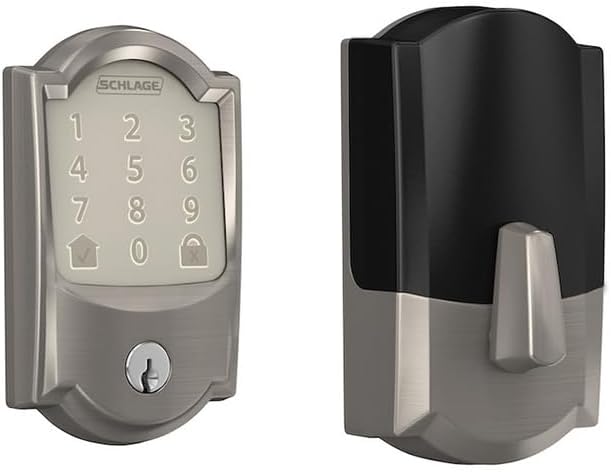
Schlage Residential BE489WBCCAM619 Camelot Encode Smart W...
Schlage Lock Company BE489WB CAM 716 Schlage Encode Smart...

Schlage Encode Smart WiFi Deadbolt Lock for Front Door - ...
As an Amazon Associate we earn from qualifying purchases.
Official Manufacturer Manual
If you need the complete manufacturer documentation for advanced setup, wiring diagrams, or detailed specifications, you can download the official manual below. The manual includes full technical instructions directly from the manufacturer and may help if your issue requires deeper troubleshooting.
Download the Official Schlage Encode Smart WiFi Deadbolt ManualSource: schlage.com
Need More Help? Schlage Support
Note: The contact information below connects you directly to Schlage's official customer support team, not Trunetto. They can help with warranty claims, device replacements, and advanced technical issues.
How Does Schlage Compare?
Before replacing your Schlage device, see how it stacks up against alternatives in our full comparison guides.


