

How Do I Set Up Schedules on My Meross Smart Plug?
- Wrong timezone set
- Device offline (can't run cloud schedule)
- Daylight-saving shift
Problem Description
Meross smart plugs run schedules and timers to turn devices on and off automatically. This covers schedules not running, firing at the wrong time, or being lost.
Why This Happens in Real Homes
A Meross plug schedule that won't run is usually a timezone or connectivity issue — schedules depend on the correct timezone and on the plug being online to execute (many run through the cloud), so a wrong timezone or an offline plug at the trigger time makes them misfire. Daylight-saving transitions cause the classic "off by an hour."
Confirm the timezone is set correctly in the Meross app, keep the plug reliably online with a stable 2.4GHz connection, and set your location if you use sunrise/sunset triggers. Remove any conflicting schedules, check behavior around daylight-saving, and make sure the schedule is enabled. Re-create it and update firmware if it still won't fire. A plug with the right time that's online when the schedule runs fires reliably.
Symptoms
- Schedule doesn't run
- Runs at the wrong time
- Schedule lost
- Off by hours
- Only some fire
- Remote schedule fails
- Sunrise/sunset wrong
- Stopped after an outage
Recognize these? Here's what usually causes it.
Common Causes
- Wrong timezone set
- Device offline (can't run cloud schedule)
- Daylight-saving shift
- Location not set for sun times
- Conflicting schedules/timers
- Firmware issue
- App/account sync
- Schedule not enabled
Most fixes happen in the first 3 steps.
Never exceed the smart plug maximum wattage rating listed on the device or packaging. Do not use smart plugs with space heaters, high-wattage appliances, or devices that must not be interrupted like medical equipment. Smart plugs are not designed for outdoor use unless specifically rated for it.
Tools & Requirements
Step-by-Step Solution
Create a schedule in the Meross app
Open the Meross app > tap the plug > Schedule tab > + Add Schedule. Set the time, days of the week, and action (On or Off). You need two schedule entries for a timed window: one to turn on and one to turn off. Example: 'On at 6:00 PM, Monday-Friday' and 'Off at 11:00 PM, Monday-Friday.' Schedules run on the Meross cloud — the plug must be connected to WiFi for cloud schedules to trigger.
Use countdown timers
The Meross app has a countdown timer: set a duration (e.g., 2 hours) and the plug turns off automatically when the timer expires. Useful for: leaving a space heater on for a set time, turning off a child's TV after a period, or running a holiday decoration for a few hours. The countdown starts when you set it and works even if you close the app. Only one countdown can be active at a time per plug.
Set sunrise and sunset schedules
In the schedule creation screen, you can choose Sunrise or Sunset instead of a fixed time. The Meross app calculates sunrise and sunset based on your location and adjusts automatically as seasons change. You can add an offset: '+30 minutes after sunset' or '-15 minutes before sunrise.' This is ideal for outdoor lights that should turn on at dusk and off at dawn without manual adjustments throughout the year.
Use voice assistants for quick timers
If the plug is connected to Alexa or Google Home, use voice timers: 'Alexa, turn off the porch light in 2 hours' or 'Hey Google, turn on the fan for 30 minutes.' These create one-time timers without opening the Meross app. For recurring schedules, the Meross app or Alexa routines are better — voice timers are one-shot only and do not repeat.
Fix schedules not triggering
If a schedule does not trigger at the set time: check the time zone in the Meross app (Settings > Time Zone). A wrong time zone causes schedules to fire hours early or late. Check that the plug is online — schedules do not execute if the plug loses WiFi connection. In the schedule list, verify the schedule is enabled (toggle is on) and the correct days are selected. If schedules work inconsistently, your WiFi connection is dropping — check signal strength at the plug location.
Quick Solutions
Still having issues? This is usually the deeper cause below.
Schedules that skip randomly are usually a daylight-saving holdover — delete and recreate the schedule to clear the corrupted entry.
Use smart plugs with energy monitoring to track exactly how much electricity each appliance uses. Set up Away Mode schedules that randomly toggle lamps on and off to make your home look occupied when you are traveling.
Thermostat issues that keep returning are often caused by stale backup-battery memory holding old settings across power cycles without the user realising.
- Wrong timezone set
- Device offline (can't run cloud schedule)
- Daylight-saving shift
- Location not set for sun times
- Conflicting schedules/timers
Before you go — try one of these (they fix most cases).
Most popular upgrades chosen by Meross Smart Plug owners.

meross Smart Plug Mini Support Apple HomeKit, Siri, Alexa...

Meross Smart Plug Mini Support Apple HomeKit, Siri, Alexa...
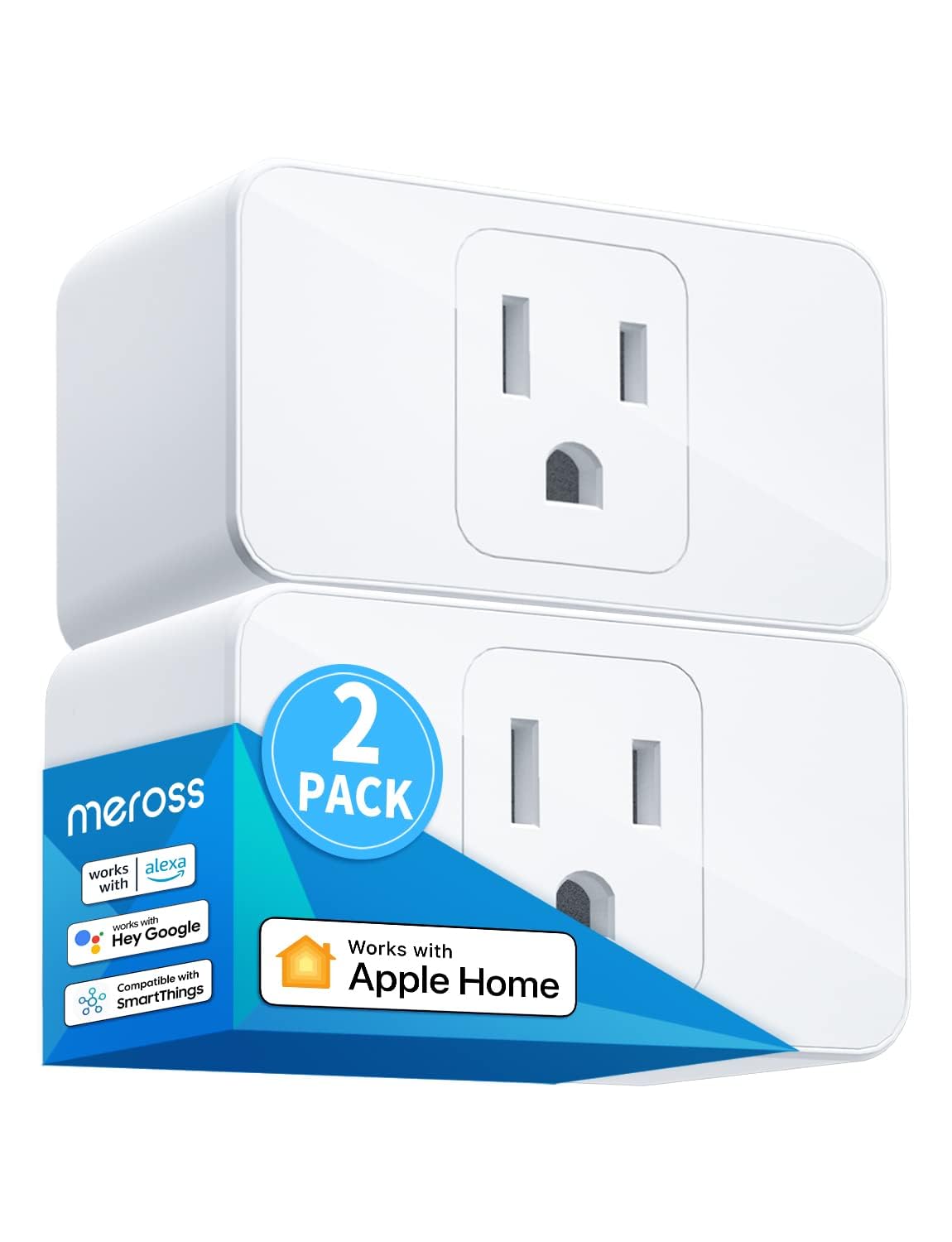
meross Smart Plug Mini, 15A & Reliable Wi-Fi, Support App...
As an Amazon Associate we earn from qualifying purchases.
Official Manufacturer Manual
Meross provides official product documentation through their online manual rather than downloadable PDF. Access setup guides, troubleshooting steps, and product specifications for your Meross Smart Plug.
Source: meross.com
Need More Help? Meross Support
Note: The contact information below connects you directly to Meross's official customer support team, not Trunetto. They can help with warranty claims, device replacements, and advanced technical issues.
Accessories owners commonly pair with Meross Smart Plug.

Sengled Alexa Light Bulb, S1 Auto Pairing with Alexa Devi...

Sengled Smart Light Bulbs, Color Changing Alexa/Bluetooth...

Ring Rechargeable Quick Release Battery Pack
As an Amazon Associate we earn from qualifying purchases.


