

Meross Devices Keep Disconnecting from WiFi Network
- Weak 2.4GHz coverage
- Band steering / 5GHz push
- Router IP/DHCP churn
Problem Description
Multiple Meross smart devices in your home keep randomly disconnecting from your WiFi network. They go offline in the app, become unresponsive to voice commands, and require manual intervention (like a power cycle) to come back online. This happens frequently, sometimes multiple times per day.
Why This Happens in Real Homes
Multiple Meross devices repeatedly disconnecting points at the network rather than the devices — they're all 2.4GHz WiFi, so weak coverage, a band-steering router pushing them toward 5GHz, IP churn, or a router hitting its device limit affects them all at once. When many smart devices drop together, look at the router.
Improve 2.4GHz coverage with a mesh node or extender, keep the devices on the 2.4GHz band with band steering off, and reserve DHCP IPs so the router stops churning addresses. Reduce 2.4GHz interference by changing channels, check whether the router is hitting a device limit or rebooting on a schedule, and distribute devices across access points if you have many. Updating router and device firmware clears known drop bugs.
Symptoms
- Multiple Meross devices dropping WiFi
- Devices keep disconnecting
- Frequent offline events
- Devices drop together
- Intermittent connectivity
- Reconnect then drop
- All devices unstable
- Recurring disconnects
Recognize these? Here's what usually causes it.
Common Causes
- Weak 2.4GHz coverage
- Band steering / 5GHz push
- Router IP/DHCP churn
- 2.4GHz interference/congestion
- Router device limit reached
- Router firmware/reboot cycles
- Too many devices on one AP
- Firmware issue
Most fixes happen in the first 3 steps.
Assigning static IPs outside of the DHCP range can cause conflicts. Ensure your reserved IPs are within the DHCP scope or configure a separate static IP pool on your router.
Tools & Requirements
Step-by-Step Solution
Increase DHCP Lease Time
Login to your router's admin panel. Find the DHCP settings. The DHCP Lease Time determines how often a device must renew its IP address. A short lease time (e.g., 1 hour) can cause devices to drop offline during renewal. Increase the lease time to 24 hours or longer (e.g., 86400 seconds or a week). Save and reboot the router.
Disable Access Point Isolation
Access Point Isolation (also called Client Isolation or AP Isolation) is a router setting that prevents wireless devices from communicating with each other. This can break smart home device discovery and control. In your router's wireless settings, find and disable this option. It may be under advanced wireless settings.
Assign Static/Reserved IP Addresses
Instead of relying on dynamic DHCP, assign a reserved or static IP address to each Meross device. In your router's DHCP settings, find the list of connected devices. For each Meross device, note its MAC address and assign a fixed IP (e.g., 192.168.1.150). This prevents IP conflicts during lease renewals.
Update Router and Meross Firmware
Check your router manufacturer's website for firmware updates. Outdated router firmware is a common cause of WiFi instability. Also, open the Meross app and check each device for firmware updates. Apply all available updates. Firmware updates often contain stability improvements for WiFi connectivity.
Improve WiFi Signal and Reduce Congestion
If devices far from the router drop more often, signal strength is an issue. Consider adding a WiFi mesh system or range extender. Also, if you have many smart home devices (30+), your router may be struggling. Some consumer routers have a limit on the number of connected devices. Check your router's specifications and consider an upgrade if needed.
Quick Solutions
Still having issues? This is usually the deeper cause below.
This usually happens right after a router reboot or ISP change — the device rejoins the network but drops its cloud session silently.
If you recently changed your ISP or router, your new equipment may have different default settings. Always check DHCP lease time, AP isolation, and band steering settings on new routers.
Most WiFi drop-offs happen right after a router reboot or ISP swap — the device reconnects to the network but silently loses its cloud registration.
- Weak 2.4GHz coverage
- Band steering / 5GHz push
- Router IP/DHCP churn
- 2.4GHz interference/congestion
- Router device limit reached
Before you go — try one of these (they fix most cases).
Most popular upgrades chosen by Meross Smart Devices owners.

meross Smart Plug Mini Support Apple HomeKit, Siri, Alexa...

Meross Smart Plug Mini Support Apple HomeKit, Siri, Alexa...
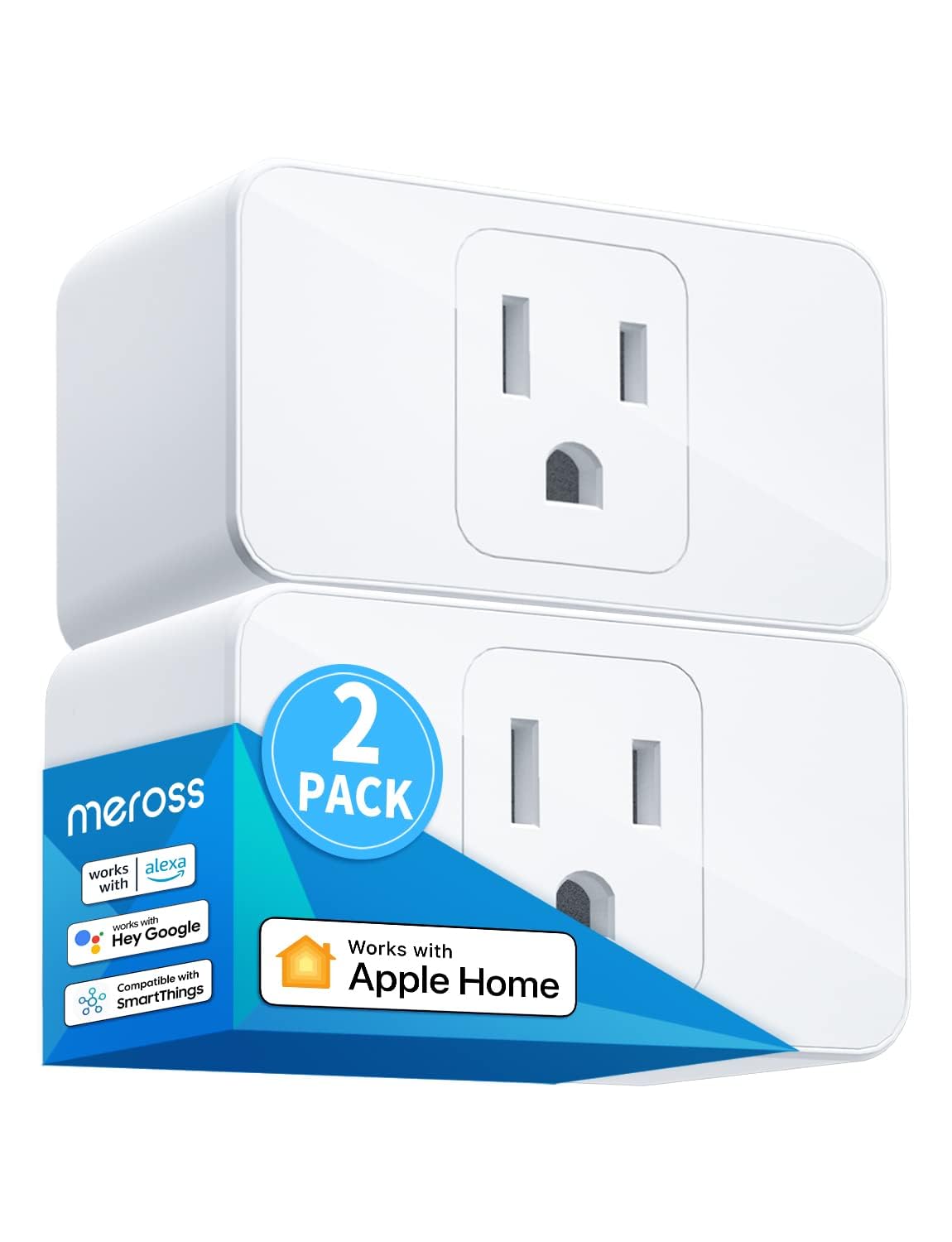
meross Smart Plug Mini, 15A & Reliable Wi-Fi, Support App...
As an Amazon Associate we earn from qualifying purchases.
Official Manufacturer Manual
Meross provides official product documentation through their online manual rather than downloadable PDF. Access setup guides, troubleshooting steps, and product specifications for your Meross Smart Devices.
Source: meross.com
Need More Help? Meross Support
Note: The contact information below connects you directly to Meross's official customer support team, not Trunetto. They can help with warranty claims, device replacements, and advanced technical issues.
Accessories owners commonly pair with Meross Smart Devices.

Sengled Alexa Light Bulb, S1 Auto Pairing with Alexa Devi...

Sengled Smart Light Bulbs, Color Changing Alexa/Bluetooth...

Ring Rechargeable Quick Release Battery Pack
As an Amazon Associate we earn from qualifying purchases.


