

Meross Smart Plug Flashing Green and Orange
- Plug is in pairing/config mode (normal during setup)
- Not yet connected to WiFi
- Setup not completed
Problem Description
Your Meross smart plug is flashing green and orange (or amber) alternately. This indicates a connection or pairing issue. The plug is not working normally, may not be controllable from the app, and is stuck in this flashing state.
Why This Happens in Real Homes
A Meross plug flashing green and orange is signaling that it's in pairing/configuration mode — waiting to be connected to WiFi. That's normal during setup, so the "problem" is usually just that setup hasn't been completed, or the plug can't join your network (a 5GHz push, wrong password, or weak signal).
Open the Meross app and complete the WiFi setup, connecting the plug to a 2.4GHz network with the correct password and your phone nearby. If it keeps flashing green/orange and won't finish, reset the plug (hold the button) to restart pairing cleanly, ensure strong 2.4GHz coverage at the outlet, and install any firmware. Once it successfully joins WiFi, the LED settles to its normal connected state.
Symptoms
- Plug flashing green and orange
- Alternating green/orange LED
- Stuck flashing after setup
- Won't stop flashing
- Flashing during setup
- Green/orange blink
- LED pattern confusion
- Not connecting, flashing
Recognize these? Here's what usually causes it.
Common Causes
- Plug is in pairing/config mode (normal during setup)
- Not yet connected to WiFi
- Setup not completed
- Connecting to 5GHz not 2.4GHz
- Wrong WiFi password
- Weak 2.4GHz signal
- Firmware update pending
- Needs a reset to pair fresh
Most fixes happen in the first 3 steps.
Do not continue to use a plug that is behaving erratically or has shown signs of failure. While unlikely, faulty electronics can pose a potential fire risk.
Tools & Requirements
Step-by-Step Solution
Perform a Factory Reset
The most reliable way to clear the flashing status is a full factory reset. With the plug plugged into a power outlet, press and hold the button on the plug for about 10-15 seconds. The LED will change pattern, and eventually, it should start flashing rapidly in a single color (usually green or orange), indicating it is in pairing mode and ready for setup.
Verify 2.4GHz WiFi Network
Meross smart plugs only work with 2.4GHz WiFi networks. If your router combines 2.4GHz and 5GHz under the same network name (SSID), the plug may fail to connect. Before re-pairing, go to your router settings and either create a separate 2.4GHz SSID or temporarily disable the 5GHz band to make sure the plug connects to the correct band.
Re-Add the Plug in the Meross App
Open the Meross app on your phone. Make sure your phone is connected to your 2.4GHz WiFi network. Tap the '+' icon to add a new device and select your smart plug model. Complete the setup prompts to put the plug in pairing mode (if not already) and enter your WiFi password. The app will configure the plug.
Check for Meross Cloud Outages
If the plug keeps failing to connect even with correct WiFi credentials, the Meross cloud servers may be temporarily down. Check Meross's official social media pages or Down Detector for any reported outages. If there is a service issue, you will need to wait for it to be resolved before the plug can successfully connect.
Update the Meross App
An outdated Meross app can have bugs that prevent successful device pairing. Go to your phone's app store and check for updates to the Meross app. Install any available updates, then try the pairing process again from the beginning.
Quick Solutions
Still having issues? This is usually the deeper cause below.
If this comes back after following these steps, check whether a recent app or firmware update reset a default setting — the fix works, but the setting gets reverted silently.
Write down your WiFi password exactly as it is, including capitalization and special characters. Incorrect passwords are one of the most common causes of pairing failures for smart plugs.
This issue almost always looks more complex than it is — the majority of cases trace back to a single setting, a stale credential, or a default that shipped wrong.
- Plug is in pairing/config mode (normal during setup)
- Not yet connected to WiFi
- Setup not completed
- Connecting to 5GHz not 2.4GHz
- Wrong WiFi password
Before you go — try one of these (they fix most cases).
Most popular upgrades chosen by Meross Smart WiFi Plug owners.

meross Smart Plug Mini Support Apple HomeKit, Siri, Alexa...

Meross Smart Plug Mini Support Apple HomeKit, Siri, Alexa...
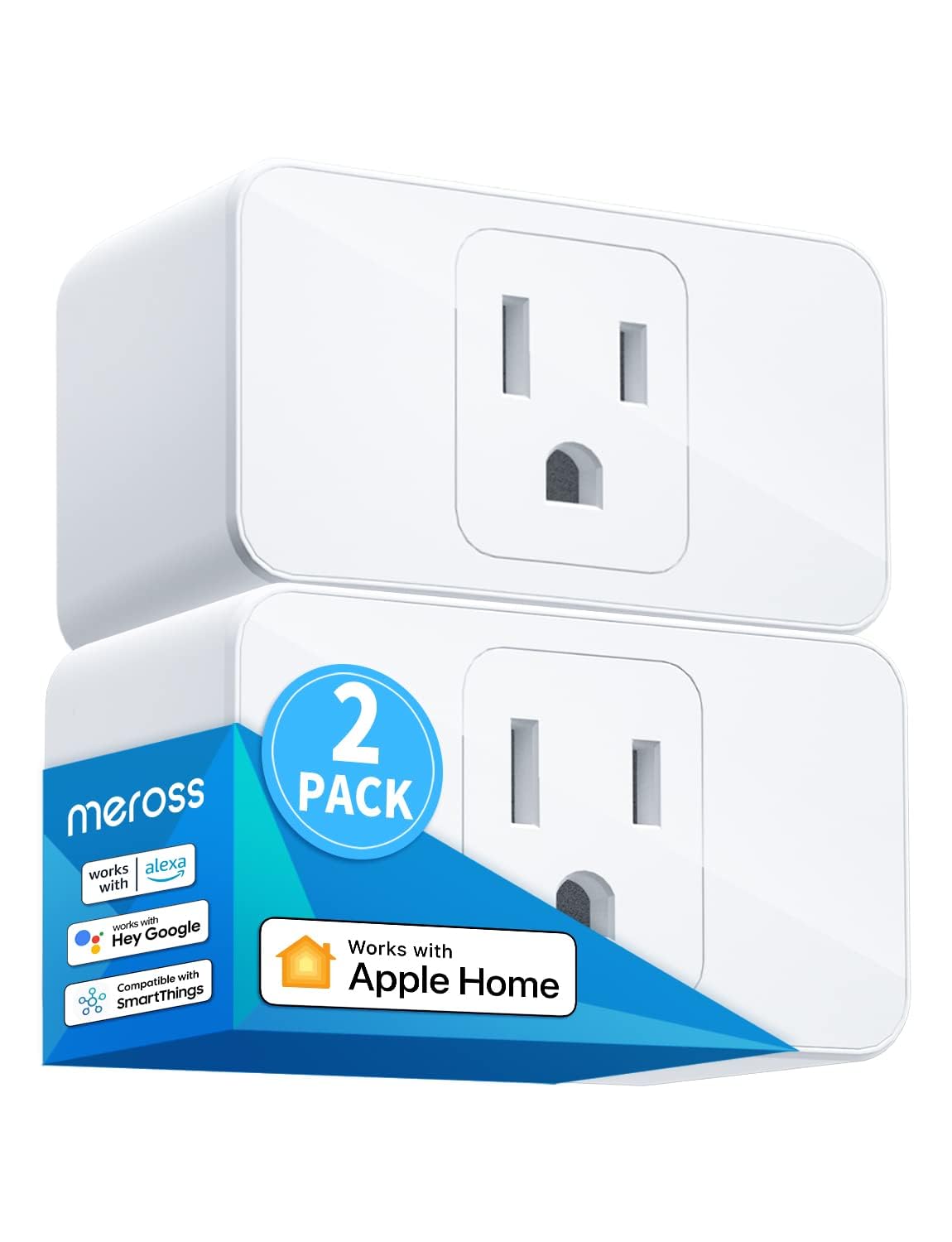
meross Smart Plug Mini, 15A & Reliable Wi-Fi, Support App...
As an Amazon Associate we earn from qualifying purchases.
Official Manufacturer Manual
Meross provides official product documentation through their online manual rather than downloadable PDF. Access setup guides, troubleshooting steps, and product specifications for your Meross Smart WiFi Plug.
Source: meross.com
Need More Help? Meross Support
Note: The contact information below connects you directly to Meross's official customer support team, not Trunetto. They can help with warranty claims, device replacements, and advanced technical issues.
Accessories owners commonly pair with Meross Smart WiFi Plug.

meross Smart Garage Door Opener Remote with External Ante...

meross Smart Garage Door Opener Remote, Compatible with A...

meross Smart WiFi Garage Door Opener Remote, App Control,...
As an Amazon Associate we earn from qualifying purchases.


