

How Do I Reset the Eve Door/Window Sensor?
- Reset button is inside the housing (needs a pin)
- Reset not held long enough (needs ~10 seconds)
- Sensor still paired to a previous home
Problem Description
You need to reset your Eve door/window sensor to factory defaults. The reset button is located inside the sensor housing — use a pin or paperclip to press it. Hold the reset button for 10 seconds until the LED flashes. This clears all pairing data and puts the sensor back into setup mode. This guide covers locating the button and completing the reset.
Why This Happens in Real Homes
Resetting an Eve Door & Window sensor to factory defaults clears all its pairing data and puts it back into setup mode - which is what you need when re-pairing fails, when moving it to a new home, or when it's stuck. The reset button is recessed inside the sensor housing, so you'll need a pin or paperclip to press it, and you have to hold it for about 10 seconds until the LED flashes to confirm the reset took. A quick tap won't do it, which is the most common reason a 'reset' doesn't work.
A clean reset-and-re-pair has a couple of supporting steps. If the sensor was previously added to Apple Home (yours or a previous owner's), remove it from Home as part of the process, since a device still associated with a home can resist a fresh setup. Make sure the battery has enough charge for the reset and subsequent pairing - a weak battery can cause a reset to fail or the re-pair to drop. After the reset, add the sensor in setup mode within Bluetooth range of a home hub, and update its firmware once it's back in the Eve app. This same procedure clears a firmware glitch that's left the sensor unresponsive.
Symptoms
- Need to factory reset the sensor
- Sensor won't re-pair without a reset
- Sensor stuck / unresponsive
- Moving the sensor to a new home
- Removing a previous HomeKit pairing
- Reset button hard to locate
- LED won't flash to confirm reset
- Setup mode not entered
Recognize these? Here's what usually causes it.
Common Causes
- Reset button is inside the housing (needs a pin)
- Reset not held long enough (needs ~10 seconds)
- Sensor still paired to a previous home
- Low battery preventing a clean reset
- Removed from the app but not factory reset
- Firmware glitch requiring a reset
- Not removed from Home before re-adding
- Sensor out of range during re-pair
Most fixes happen in the first 3 steps.
Do not rely solely on smart sensors for life-safety alerts like smoke or carbon monoxide detection. Always maintain dedicated code-compliant smoke and CO detectors. Smart water leak sensors can alert you but cannot stop a leak so know where your water shut-off valve is located.
Tools & Requirements
Step-by-Step Solution
Locate the reset button
The Eve Door & Window sensor has a small reset button on the side or bottom of the sensor body, depending on the generation. On the latest Thread-enabled models, the reset button is a pinhole on the back — you need a paperclip or SIM ejection tool to press it. On older Bluetooth-only models, it is a small physical button under a removable cover near the battery compartment.
Perform a soft reset
Press the reset button briefly (1-2 seconds). The LED blinks once. This restarts the sensor without clearing pairing data. The sensor reconnects to your HomeKit setup automatically within 30 seconds. Use this when the sensor is unresponsive or stuck on one status but you do not want to lose your HomeKit configuration and automations.
Perform a factory reset
Press and hold the reset button for 10 seconds until the LED flashes rapidly. Release. The sensor is now wiped — all HomeKit pairing data, history, and settings are cleared. The sensor is ready to be added as a new device. You need the original HomeKit setup code (printed on the sensor or included in the box) to re-pair it. If you lost the code, check the Eve app under Accessories > your sensor for a saved copy.
Remove the sensor from HomeKit before re-pairing
After a factory reset, the sensor is cleared on its side, but HomeKit may still show the old entry. In the Home app, long press the sensor tile > scroll down > Remove Accessory. This removes the stale entry from HomeKit. Then add the sensor fresh through the Eve app or Home app. If you skip this step, HomeKit may reject the re-pairing because it thinks the sensor is already registered.
Reconfigure after reset
After re-pairing, set the sensor name, room assignment, and any automations. The Eve app preserves historical data linked to your iCloud account, but the sensor itself has no memory of previous readings after a factory reset. Check that the sensor is reporting correctly by opening and closing the door — status should update within 1-2 seconds. If using Thread, the sensor should join the Thread network automatically through a nearby Thread border router (HomePod mini or Apple TV 4K).
Quick Solutions
Still having issues? This is usually the deeper cause below.
If this comes back after following these steps, check whether a recent app or firmware update reset a default setting — the fix works, but the setting gets reverted silently.
Pair motion sensors with smart lights to create automatic lighting that turns on when you enter a room and off after a few minutes of no motion. This is one of the simplest and most useful smart home automations you can set up.
This issue almost always looks more complex than it is — the majority of cases trace back to a single setting, a stale credential, or a default that shipped wrong.
- Reset button is inside the housing (needs a pin)
- Reset not held long enough (needs ~10 seconds)
- Sensor still paired to a previous home
- Low battery preventing a clean reset
- Removed from the app but not factory reset
Before you go — try one of these (they fix most cases).
Most popular upgrades chosen by Eve Door & Window owners.
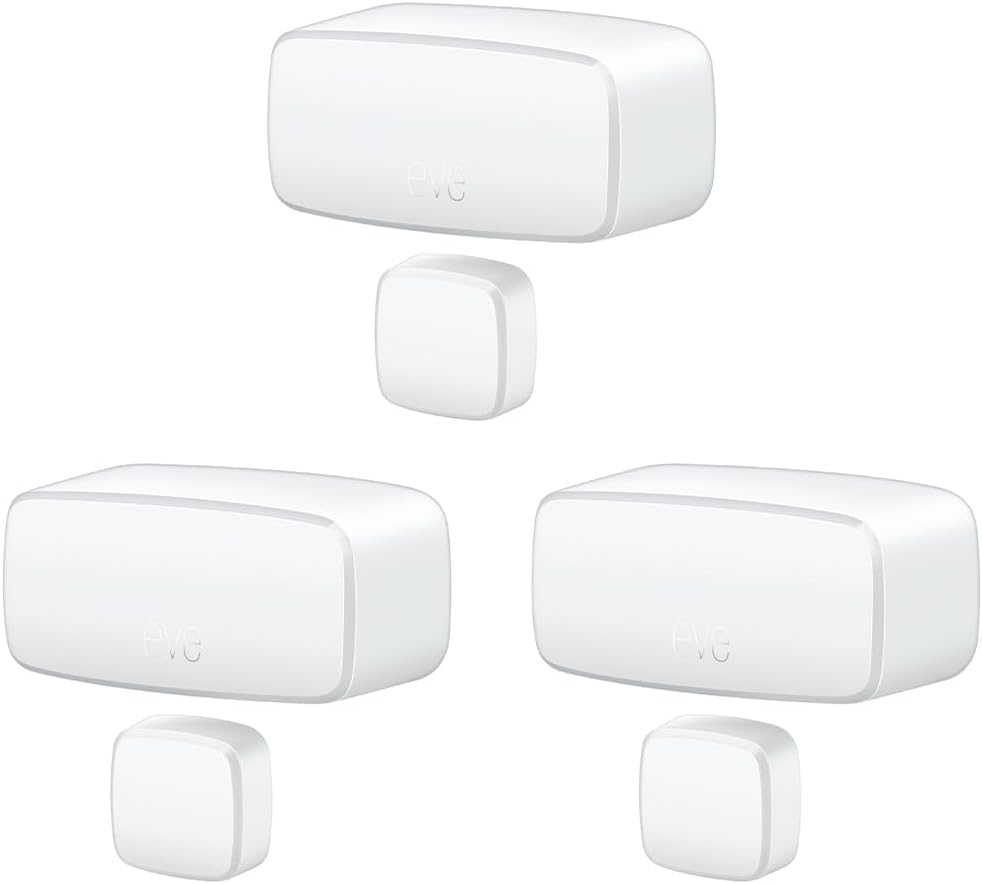
Eve Door & Window (Matter) 3 Pack – Smart Contact Sensor ...

Eve Door & Window (Matter) – Smart Contact Sensor for Doo...
As an Amazon Associate we earn from qualifying purchases.
Official Manufacturer Manual
Eve provides official product documentation through their online manual rather than downloadable PDF. Access setup guides, troubleshooting steps, and product specifications for your Eve Door & Window.
Source: evehome.com
Need More Help? Eve Support
Note: The contact information below connects you directly to Eve's official customer support team, not Trunetto. They can help with warranty claims, device replacements, and advanced technical issues.
Accessories owners commonly pair with Eve Door & Window.

Blink Mini - Compact indoor plug-in smart security camera...
Blink Mini - Compact indoor plug-in smart security camera...

Blink Mini - Compact indoor plug-in smart security camera...
As an Amazon Associate we earn from qualifying purchases.


