

Why Won't My Eve Weather Data Update?
- Bluetooth out of range (outdoor placement too far from the hub)
- Thread mesh doesn't reach the outdoor location
- No Apple home hub to relay data
Problem Description
Your Eve Weather outdoor sensor is not updating weather data in the Apple Home app. The Eve Weather connects via Bluetooth or Thread — check which protocol your sensor uses. Bluetooth requires a Home Hub (HomePod mini or Apple TV) within range. Thread provides better range through mesh networking. This guide covers checking connectivity and re-pairing.
Why This Happens in Real Homes
Eve Weather measures outdoor temperature, humidity, and barometric pressure, and 'not updating' almost always comes down to the connection between an outdoor sensor and your indoor Apple home hub. Eve Weather has no WiFi - it uses Bluetooth or Thread and relies on an Apple home hub to relay its data into Home. The catch is placement: mounted outside, the sensor can easily be out of Bluetooth range of the nearest hub, or beyond the reach of your Thread mesh, so it can only update when you happen to be near it with your phone. Knowing which protocol your unit uses tells you the fix - Bluetooth needs a hub within range, while Thread can extend farther through a mesh if there's a Thread router near an exterior wall.
The other causes are straightforward. Battery is a big one outdoors: cold weather reduces battery output, so a sensor that reads fine in summer can stop updating in winter cold - replacing the battery restores it. Confirm your Apple home hub (HomePod, HomePod mini, or Apple TV) is online and on the same network to relay the data, since without a hub there's no remote updating at all. Keep the firmware current, and if the sensor shows No Response after the connection and battery are sorted, remove and re-add it to clear a stale HomeKit pairing.
Symptoms
- Weather data not updating in Apple Home
- Temperature/humidity/pressure stuck
- Readings lag or stop when it's outdoors
- Sensor shows No Response
- Updates only when you're near it
- Data stopped after moving it outside
- Intermittent updates
- Never updates since install
Recognize these? Here's what usually causes it.
Common Causes
- Bluetooth out of range (outdoor placement too far from the hub)
- Thread mesh doesn't reach the outdoor location
- No Apple home hub to relay data
- Sensor battery dead or low
- Home hub offline or on another network
- Sensor lost HomeKit pairing
- Firmware out of date
- Extreme cold reducing battery output
Most fixes happen in the first 3 steps.
Do not rely solely on smart sensors for life-safety alerts like smoke or carbon monoxide detection. Always maintain dedicated code-compliant smoke and CO detectors. Smart water leak sensors can alert you but cannot stop a leak so know where your water shut-off valve is located.
Tools & Requirements
These tools will help you complete this fix.

As an Amazon Associate we earn from qualifying purchases.
Step-by-Step Solution
Check Bluetooth or Thread connection
The Eve Weather transmits readings via Bluetooth (older models) or Thread (2021+ models). For Bluetooth models, you must be within 30 feet to see real-time data in the Eve app. For remote access, you need a HomePod, HomePod mini, or Apple TV as a home hub. Thread models connect through the Thread mesh network — if you have a HomePod mini or Apple TV 4K nearby, data updates route automatically. Check the Eve app > device info to see the connection type.
Verify the sensor is reporting
The Eve Weather E Ink display shows current temperature, humidity, and barometric pressure on the device itself. If the display is blank, the battery is dead. If the display shows data but the Eve app does not update: the connection between the sensor and your home hub is broken. Restart the home hub (unplug HomePod for 10 seconds, replug). After the hub restarts, check the Eve app — data should begin updating within 2-3 minutes.
Replace the battery
The Eve Weather uses a single CR2450 coin cell battery. Battery life is approximately 1 year. When the battery runs low, data updates become infrequent and eventually stop. Pop off the back cover of the Eve Weather, remove the old battery, and insert a new CR2450 with the + side facing up. The sensor restarts automatically and begins transmitting within 60 seconds. No re-pairing is needed after a battery swap.
Check data update frequency
The Eve Weather reports temperature, humidity, and air pressure readings every 10 minutes (some models every 15 minutes). This is by design — more frequent readings would drain the battery faster. The Eve app displays the timestamp of the last reading. If the last update was more than 30 minutes ago, the sensor may be out of range or the battery is low. Thread-connected sensors typically update more reliably because the mesh network is always connected.
Fix incorrect readings
If temperature seems off: check the sensor placement. Direct sunlight heats the sensor body and inflates the reading — place it in a shaded outdoor location. Proximity to building walls retains heat and gives a higher reading than open air. The Eve Weather is rated ±0.3°C for temperature and ±3% for humidity. If readings deviate more than that, perform a factory reset (press and hold the button 10 seconds) and let the sensor recalibrate for 24 hours in a stable environment.
Quick Solutions
Still having issues? This is usually the deeper cause below.
If the device became unresponsive after a firmware update, a factory reset usually clears the corrupted state — the update itself is rarely the root cause.
Pair motion sensors with smart lights to create automatic lighting that turns on when you enter a room and off after a few minutes of no motion. This is one of the simplest and most useful smart home automations you can set up.
Range tests in open air are useless for predicting real-world Z-Wave performance — a single concrete wall or appliance can cut effective range by more than half.
- Bluetooth out of range (outdoor placement too far from
- Thread mesh doesn't reach the outdoor location
- No Apple home hub to relay data
- Sensor battery dead or low
- Home hub offline or on another network
Before you go — try one of these (they fix most cases).
Most popular upgrades chosen by Eve Weather owners.
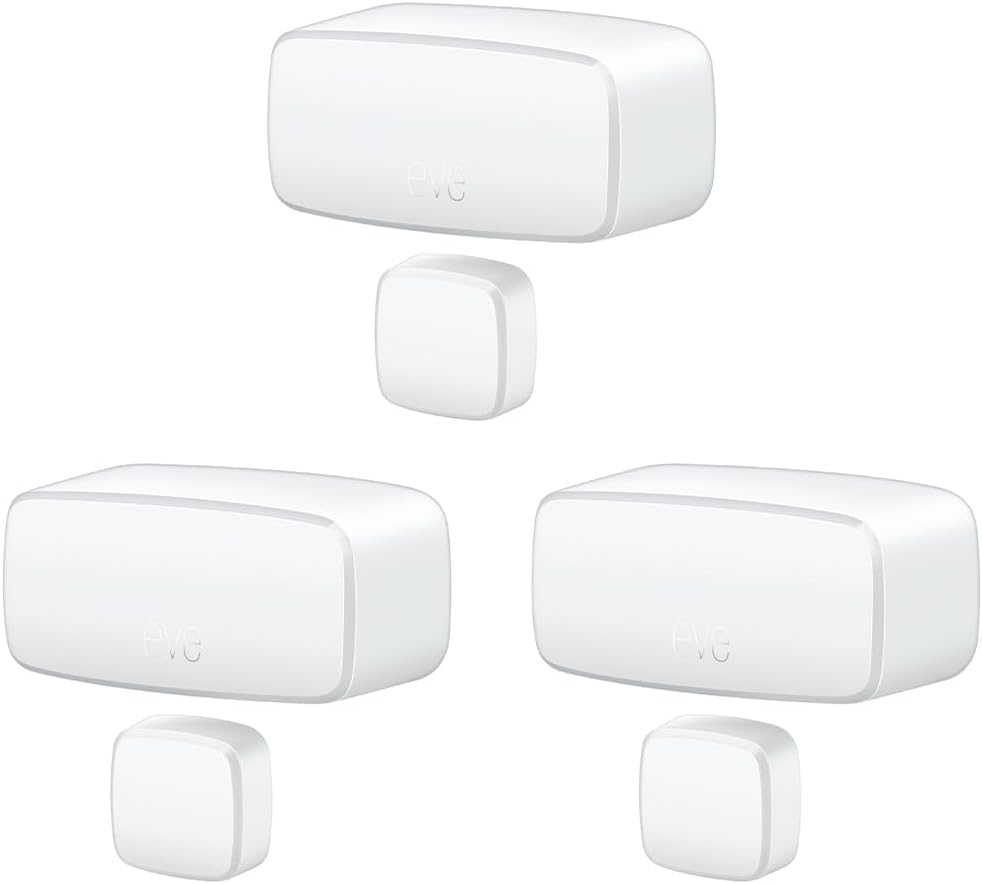
Eve Door & Window (Matter) 3 Pack – Smart Contact Sensor ...

Eve Door & Window (Matter) – Smart Contact Sensor for Doo...
As an Amazon Associate we earn from qualifying purchases.
Official Manufacturer Manual
Eve provides official product documentation through their online manual rather than downloadable PDF. Access setup guides, troubleshooting steps, and product specifications for your Eve Weather.
Source: evehome.com
Need More Help? Eve Support
Note: The contact information below connects you directly to Eve's official customer support team, not Trunetto. They can help with warranty claims, device replacements, and advanced technical issues.
Accessories owners commonly pair with Eve Weather.

As an Amazon Associate we earn from qualifying purchases.


