

Why Won't My Nest Learning Thermostat Activate Stage 2 Heating?
- W2 or Aux wire not mapped correctly in Nest equipment settings
- Two-stage equipment not configured in Nest installation settings
- Heat pump auxiliary heat locked out by outdoor temperature sensor setting
Problem Description
Your Nest Learning Thermostat activates Stage 1 heating but never engages Stage 2 even during very cold weather when Stage 2 should be needed to reach the target temperature. Stage 2 of a two-stage heating system is the secondary or emergency heat stage that provides additional capacity. It requires the W2 or AUX wire to be correctly connected to the Nest and the equipment type to be configured for two-stage operation in the Nest settings.
Why This Happens in Real Homes
Two-stage heating systems (common with high-efficiency furnaces and heat pumps that have auxiliary or emergency heat) rely on a second wire — usually W2 or AUX/E — being mapped in the Nest's equipment settings. In real homes, Stage 2 fails to fire most often because the installer left W2 unconnected, or the Nest never detected the second stage during setup and drives Stage 1 forever. On heat pumps, an outdoor "aux lockout" temperature can also block backup heat until it gets very cold.
Start in the Nest app under Settings > Equipment to confirm both stages are wired and detected, then check whether an AUX lockout temperature is set too low for your climate.
Symptoms
- Nest thermostat calls for Stage 1 heat only but never Stage 2
- Home does not reach target temperature in cold weather
- Nest app shows heat running but auxiliary or emergency heat never activates
- Stage 2 was working before and stopped after thermostat reset
- W2 wire connected but thermostat settings do not show two-stage heat
- Temperature keeps climbing past Stage 1 threshold but Stage 2 never turns on
Recognize these? Here's what usually causes it.
Common Causes
- W2 or Aux wire not mapped correctly in Nest equipment settings
- Two-stage equipment not configured in Nest installation settings
- Heat pump auxiliary heat locked out by outdoor temperature sensor setting
- Nest Stage 2 lockout period set too long after Stage 1 activation
- W2 wire connection loose at Nest base terminals
- Stage 2 lockout enabled as energy saving feature in Nest settings
Most fixes happen in the first 3 steps.
Do not disable Stage 2 entirely during winter as an energy-saving measure on heat pump systems. In extreme cold weather Stage 2 is necessary to prevent the heat pump from running in a defrost-only cycle that cannot heat the home.
Tools & Requirements
These tools will help you complete this fix.

As an Amazon Associate we earn from qualifying purchases.
Step-by-Step Solution
Verify W2 Wire Connection and Mapping
Remove the Nest thermostat from its base and check that the W2 wire is inserted into the W2 terminal and making good contact. In the Nest app go to Settings then Equipment then Wiring and confirm W2 is shown as connected. If W2 shows as not detected the wire is not making contact at the terminal. Reinsert the wire ensuring at least 1 centimetre of bare copper is in the terminal and the locking tab has engaged.
Configure Two-Stage Equipment in Nest
In the Nest app go to Settings then Equipment then System type. Confirm that Two-Stage Heating or Conventional Two-Stage is selected rather than Single Stage. If Single Stage is selected Nest will never activate the W2 terminal regardless of how cold it gets. Changing to Two-Stage adds W2 activation logic to the heating algorithm and sets the Stage 2 lockout timer to the Nest default.
Adjust the Stage 2 Lockout Period
Go to Nest Settings then Equipment then Stage 2 Lockout or Compressor Lockout. The default lockout period is 30 minutes meaning Stage 2 will not activate until Stage 1 has been running for at least 30 minutes without reaching the target temperature. If your home has poor insulation and needs Stage 2 sooner reduce the lockout to 15 minutes. If the lockout period is very long such as 60 minutes Stage 2 may never activate in mild cold weather.
Check Outdoor Lockout Temperature
On heat pump systems Stage 2 auxiliary heat is sometimes restricted to activate only when outdoor temperature falls below a lockout threshold. In Nest Settings look for Outdoor Lockout Temperature or Heat Pump Balance. If the lockout is set above your current outdoor temperature Stage 2 is blocked by this setting. Adjust the outdoor lockout threshold or disable it to allow Stage 2 to activate based purely on indoor temperature shortfall rather than outdoor conditions.
Run the Equipment Test for Stage 2
Go to Nest Settings then Equipment then Test then Stage 2 Heating. Nest will energise the W2 terminal directly and activate Stage 2 for a short test period. Listen at the air handler or furnace for the second stage burner or compressor to activate. If you hear Stage 2 activate during the test but not during normal operation the wiring and equipment are functional and the issue is a Nest configuration or lockout setting preventing automatic Stage 2 calls.
Quick Solutions
Still having issues? This is usually the deeper cause below.
Schedules that skip randomly are usually a daylight-saving holdover — delete and recreate the schedule to clear the corrupted entry.
Enable Nest Airwave or Smart A/C setting if your system includes heat pump Stage 2 auxiliary heat. This setting optimises Stage 2 activation frequency and can reduce heating costs by using Stage 1 longer before calling Stage 2.
Thermostat issues that keep returning are often caused by stale backup-battery memory holding old settings across power cycles without the user realising.
- W2 or Aux wire not mapped correctly in Nest
- Two-stage equipment not configured in Nest installation settings
- Heat pump auxiliary heat locked out by outdoor temperature
- Nest Stage 2 lockout period set too long
- W2 wire connection loose at Nest base terminals
Before you go — try one of these (they fix most cases).
Most popular upgrades chosen by Nest Learning Thermostat owners.

Google Nest Learning Thermostat (4th Gen, 2024) with 2 Te...

Google Nest Temperature Sensor 3 Count Pack - Nest Thermo...
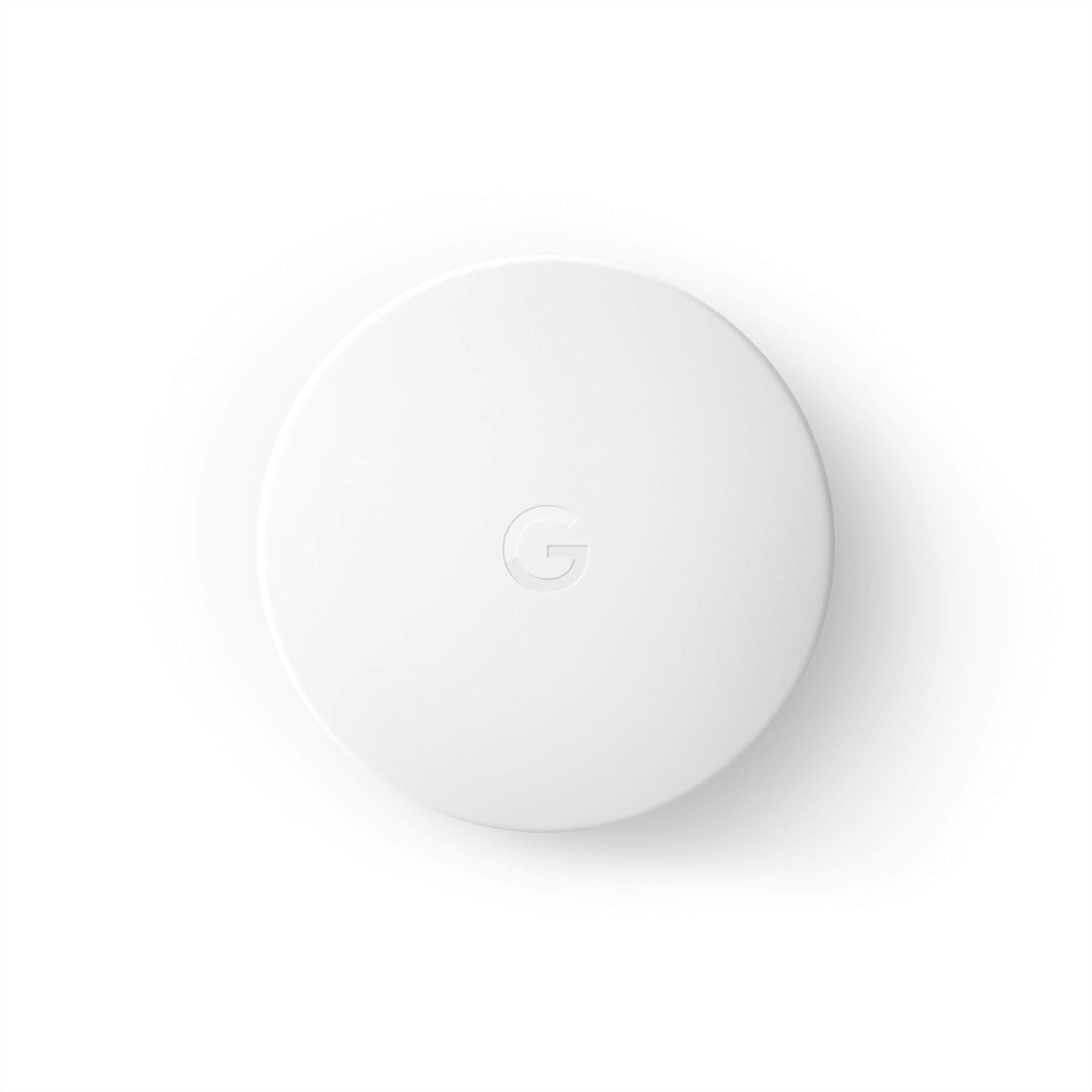
Google Nest Temperature Sensor- That Works with Nest Lear...
As an Amazon Associate we earn from qualifying purchases.
Official Manufacturer Manual
Google Nest provides official product documentation through their online manual rather than downloadable PDF. Access setup guides, troubleshooting steps, and product specifications for your Nest Learning Thermostat.
Source: support.google.com
Need More Help? Google Nest Support
Note: The contact information below connects you directly to Google Nest's official customer support team, not Trunetto. They can help with warranty claims, device replacements, and advanced technical issues.
How Does Google Nest Compare?
Before replacing your Google Nest device, see how it stacks up against alternatives in our full comparison guides.
Accessories owners commonly pair with Nest Learning Thermostat.

Google Nest Wifi - AC2200 - Mesh WiFi System - Wifi Route...

Google Nest WiFi Pro - Wi-Fi 6E - Reliable Home Wi-Fi Sys...

Google Nest WiFi Pro - 6E - Reliable Home Wi-Fi System wi...
As an Amazon Associate we earn from qualifying purchases.


