

Why Does My Nest Thermostat Have a Delayed Start?
- True Radiant or early-start feature learning ramp-up time
- Nest predicting a long time-to-temperature in extreme weather
- Radiant or slow-response heating needing a long lead time
Problem Description
Your Nest thermostat starts the HVAC earlier than you expect, or shows an "In X min" message before a scheduled setpoint. This is usually the Nest's early-start behavior (True Radiant on some systems, or time-to-temperature learning) working as designed — it predicts how long your home takes to reach the target and begins early so the room hits temperature at the scheduled time, not after. Understanding the setting lets you keep it or turn it off.
Why This Happens in Real Homes
"Delayed start" trips people up because the Nest is doing the opposite of stalling — it is starting early on purpose. Using True Radiant and time-to-temperature learning, it predicts how long your home needs to reach the target and fires the system ahead of the scheduled time so you hit temperature exactly when planned, not twenty minutes late. In cold snaps or with slow radiant heat, that lead time gets longer and more noticeable.
Start by opening the thermostat's settings to find True Radiant or the early-start option; leave it on for comfort, or switch it off if you want the system to run strictly on the clock. Don't confuse this with the power-related "Delayed" countdown.
Symptoms
- HVAC turns on before the scheduled time
- Thermostat shows In X minutes before a setpoint change
- System seems to run earlier in cold or hot weather
- Not sure why heating starts ahead of schedule
- Early-start behavior unclear
- Room reaches temperature right at the scheduled time
- Want to disable the early-start behavior
- Behavior differs between heating and cooling
Recognize these? Here's what usually causes it.
Common Causes
- True Radiant or early-start feature learning ramp-up time
- Nest predicting a long time-to-temperature in extreme weather
- Radiant or slow-response heating needing a long lead time
- Auto-Schedule setpoint being met exactly by an early start
- Feature enabled by default and unnoticed
- Confusion between early start and the Delayed power message
- System size affecting how early the Nest must begin
- Learning period still calibrating your home's response
Most fixes happen in the first 3 steps.
Always turn off your HVAC system at the breaker before removing the thermostat or touching wires. Incorrect wiring can damage both the thermostat and your HVAC equipment resulting in expensive repairs. If unsure about wiring consult an HVAC technician.
Tools & Requirements
Step-by-Step Solution
Understand Delayed Start
Delayed Start is an intentional Nest feature, not a malfunction. The Nest thermostat learns how long your HVAC system takes to reach the target temperature and starts the system early enough to hit the target at the scheduled time. For example, if your schedule says 72°F at 7 AM and the system takes 30 minutes to heat up, the Nest starts heating at 6:30 AM. The display shows Delayed and the time it plans to start.
Differentiate from the Delayed power issue
Delayed Start shows a future start time (In 30 min) and is a scheduling feature. The Delayed power issue shows a countdown from 2-5 minutes and means the battery is low. If you see a short countdown (2-5 min), that is a power problem — see the Nest thermostat delayed message guide. If you see a longer lead time, that is the normal Delayed Start feature working as designed.
Adjust if the pre-heating time is wrong
If the Nest starts the system too early or too late, it has not yet learned your system response time accurately. This improves over the first 2 weeks of use. If it consistently starts too early (home gets warm before the scheduled time), the system heats faster than the Nest estimates. If it starts too late, the system is slower. The Nest adjusts automatically — give it time.
Disable Delayed Start if you prefer immediate operation
If you want the system to turn on exactly at the scheduled time rather than pre-conditioning, you can adjust this behavior. In the Google Home app, go to the thermostat settings and look for Early-On (the feature that controls Delayed Start). Disable Early-On to have the system start exactly at the scheduled time rather than pre-heating to reach the target on time.
Check the schedule for conflicts
If Delayed Start activates at unexpected times, your thermostat schedule may have set points you did not intend. Check the schedule in the Google Home app — the Nest may have learned patterns from your manual adjustments and created schedule entries you are not aware of. Clear any unwanted schedule entries and manually set only the temperatures you want at specific times.
Quick Solutions
Still having issues? This is usually the deeper cause below.
Schedules that skip randomly are usually a daylight-saving holdover — delete and recreate the schedule to clear the corrupted entry.
Use the thermostat energy reports to find patterns in your heating and cooling usage. Setting back the temperature just 3 degrees when you leave for work can save 5 to 10 percent on your annual energy bill without any comfort sacrifice. **Product Intelligence:** - C-wire required for most models - 2.4GHz WiFi only - Nest Aware subscription for history
Notification delays over 2 minutes are almost never the device's fault — background app restrictions quietly re-enable themselves after every OS update.
- True Radiant or early-start feature learning ramp-up time
- Nest predicting a long time-to-temperature in extreme weather
- Radiant or slow-response heating needing a long lead time
- Auto-Schedule setpoint being met exactly by an early start
- Feature enabled by default and unnoticed
Before you go — try one of these (they fix most cases).
Most popular upgrades chosen by Nest Learning Thermostat owners.

Google Nest Learning Thermostat (4th Gen, 2024) with 2 Te...

Google Nest Temperature Sensor 3 Count Pack - Nest Thermo...
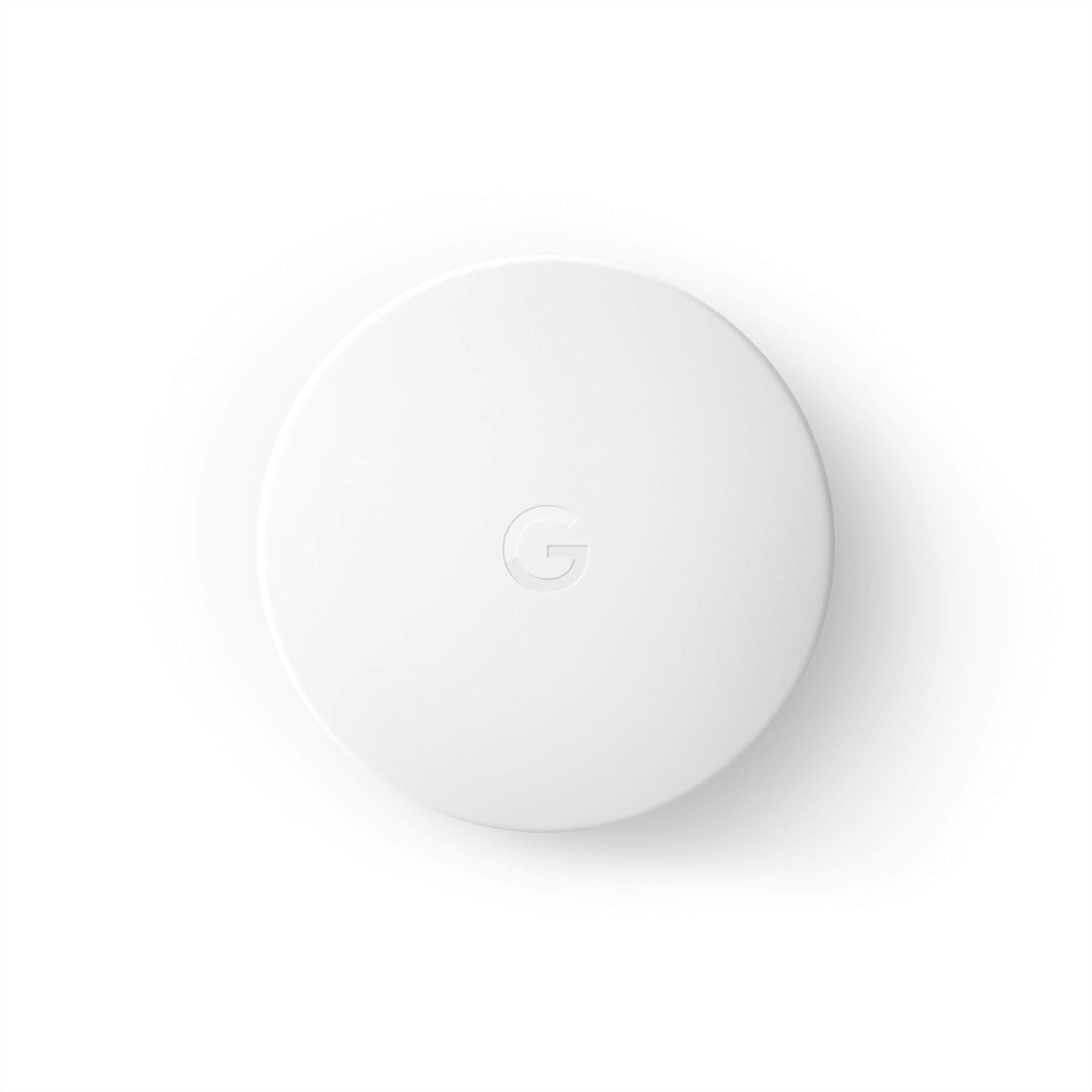
Google Nest Temperature Sensor- That Works with Nest Lear...
As an Amazon Associate we earn from qualifying purchases.
Official Manufacturer Manual
Google Nest provides official product documentation through their online manual rather than downloadable PDF. Access setup guides, troubleshooting steps, and product specifications for your Nest Learning Thermostat.
Source: support.google.com
Need More Help? Google Nest Support
Note: The contact information below connects you directly to Google Nest's official customer support team, not Trunetto. They can help with warranty claims, device replacements, and advanced technical issues.
How Does Google Nest Compare?
Before replacing your Google Nest device, see how it stacks up against alternatives in our full comparison guides.
Accessories owners commonly pair with Nest Learning Thermostat.

Google Nest Wifi - AC2200 - Mesh WiFi System - Wifi Route...

Google Nest WiFi Pro - Wi-Fi 6E - Reliable Home Wi-Fi Sys...

Google Nest WiFi Pro - 6E - Reliable Home Wi-Fi System wi...
As an Amazon Associate we earn from qualifying purchases.


