

Why My Nest Thermostat E Is Not Cooling
- Mode set to Heat
- Cooling setpoint too high
- HVAC breaker tripped
Problem Description
Cooling can fail when the system is in the wrong mode or the outdoor unit is not powered. This guide checks mode, setpoints, and wiring to restore cooling.
Why This Happens in Real Homes
Cooling can fail when the system is in the wrong mode or the outdoor unit is not powered. This guide checks mode, setpoints, and wiring to restore cooling. In day-to-day use, this usually looks like AC not running; Fan runs but air is warm; Thermostat shows Cooling.
Most cases trace back to Mode set to Heat; Cooling setpoint too high; HVAC breaker tripped. The fix works best when you go step by step instead of changing multiple settings at once.
A practical order for this issue is: Verify Mode -> Check Breaker -> Inspect Wiring -> Wait for Delay. After each step, test the exact behavior that was failing so you can confirm what actually solved it.
Symptoms
- AC not running
- Fan runs but air is warm
- Thermostat shows Cooling
- Outdoor unit silent
- Recent power outage
- Schedule changed recently
Recognize these? Here's what usually causes it.
Common Causes
- Mode set to Heat
- Cooling setpoint too high
- HVAC breaker tripped
- Compressor protection delay
- Loose Y wire
- Outdoor unit disconnect off
Most fixes happen in the first 3 steps.
Avoid rapid mode changes; allow a few minutes between tests.
Tools & Requirements
These tools will help you complete this fix.

As an Amazon Associate we earn from qualifying purchases.
Step-by-Step Solution
Verify Mode
Set the thermostat mode to Cool and confirm the target temperature is below room temperature.
Check Breaker
Verify the HVAC and outdoor unit breakers are on.
Inspect Wiring
Remove the display and confirm the Y wire is seated firmly.
Wait for Delay
Allow 5 minutes for compressor protection to clear after a power event.
Test Cooling
Run cooling and confirm cold air at a supply vent.
Quick Solutions
Still having issues? This is usually the deeper cause below.
Schedules that skip randomly are usually a daylight-saving holdover — delete and recreate the schedule to clear the corrupted entry.
Set the fan to Auto after testing so the system cycles normally.
Thermostat issues that keep returning are often caused by stale backup-battery memory holding old settings across power cycles without the user realising.
- Mode set to Heat
- Cooling setpoint too high
- HVAC breaker tripped
- Compressor protection delay
- Loose Y wire
Before you go — try one of these (they fix most cases).
Most popular upgrades chosen by Nest Thermostat E owners.

Google Nest Temperature Sensor 3 Count Pack - Nest Thermo...
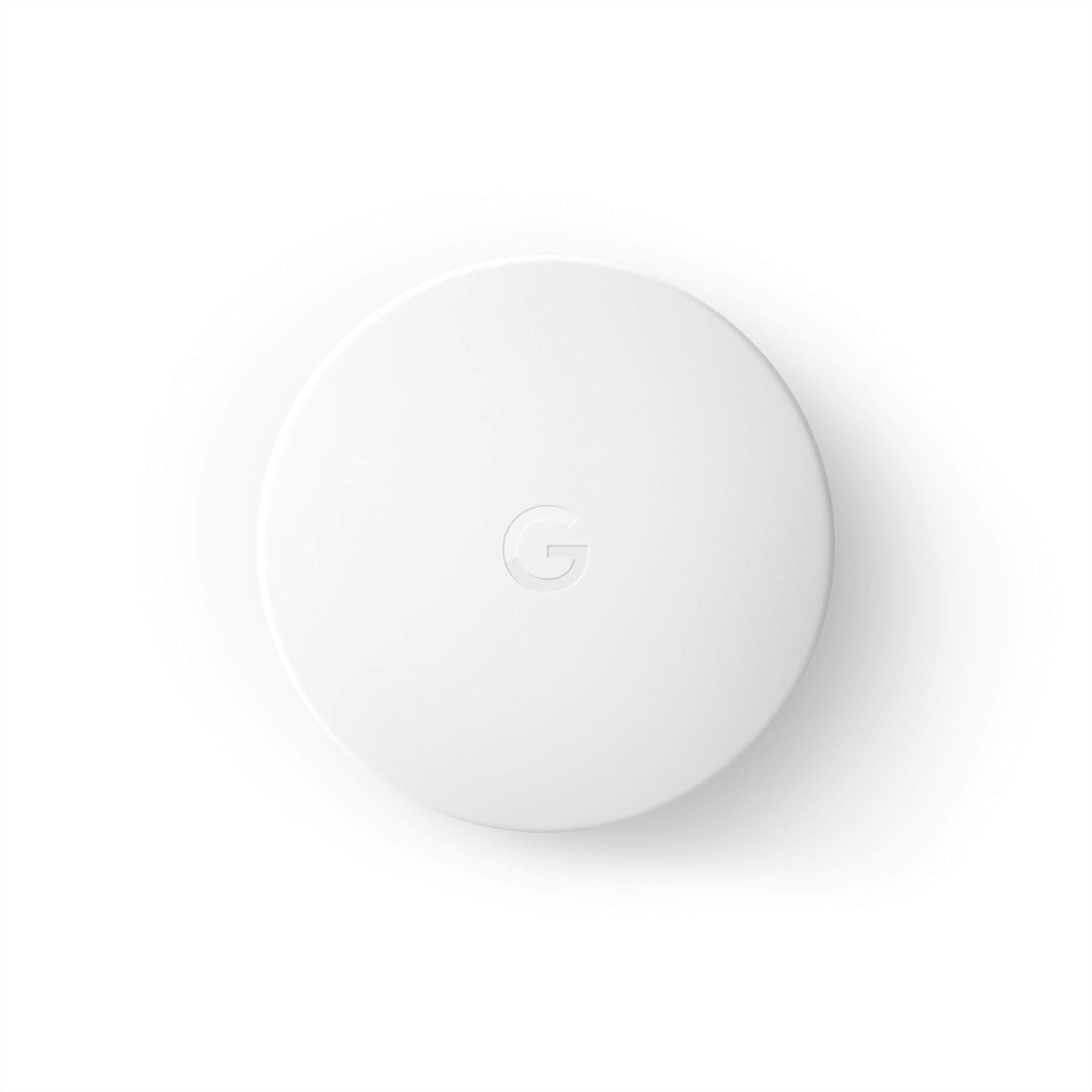
Google Nest Temperature Sensor- That Works with Nest Lear...
Google Nest Temperature Sensor 3 Count Pack - Nest Thermo...
As an Amazon Associate we earn from qualifying purchases.
Official Manufacturer Manual
Google Nest provides official product documentation through their online manual rather than downloadable PDF. Access setup guides, troubleshooting steps, and product specifications for your Nest Thermostat E.
Source: google.com
Need More Help? Google Nest Support
Note: The contact information below connects you directly to Google Nest's official customer support team, not Trunetto. They can help with warranty claims, device replacements, and advanced technical issues.
How Does Google Nest Compare?
Before replacing your Google Nest device, see how it stacks up against alternatives in our full comparison guides.
Accessories owners commonly pair with Nest Thermostat E.

Ring Rechargeable Quick Release Battery Pack
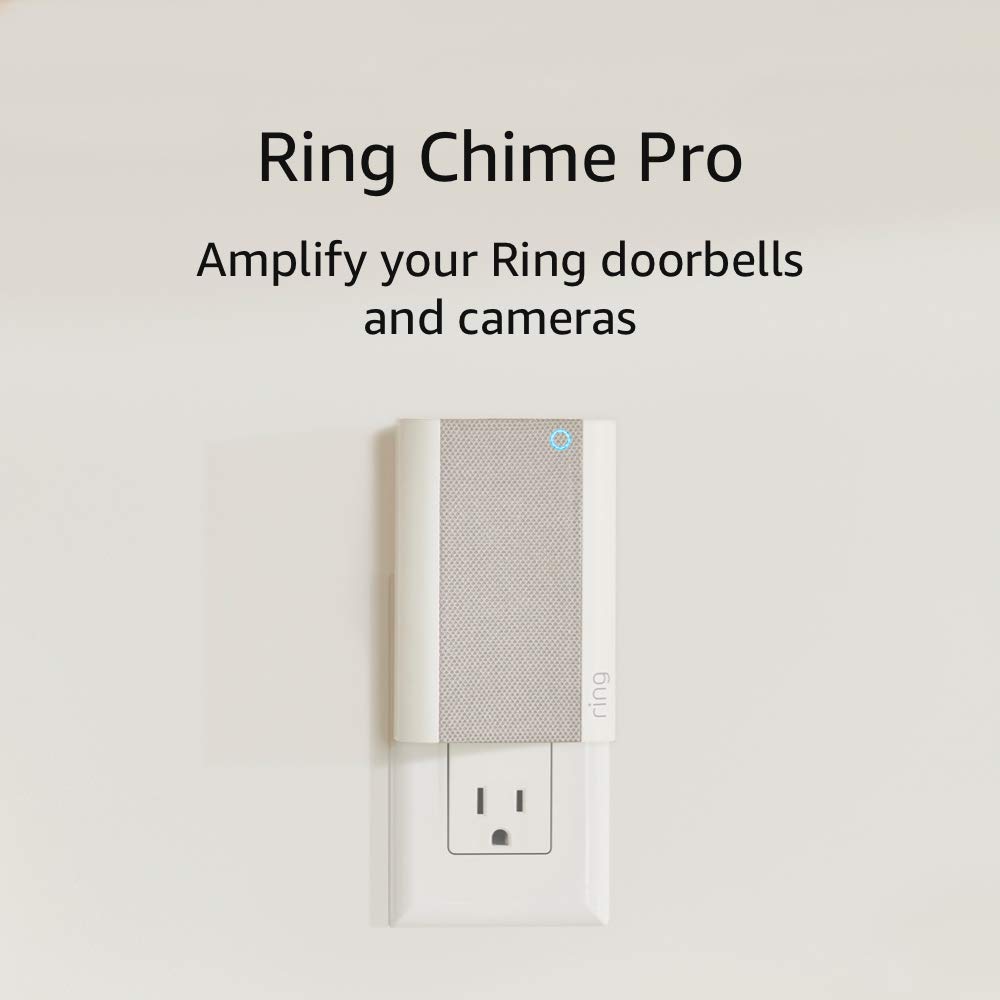
Ring Chime Pro

SwitchBot Hub Mini Smart Remote - IR Universal Remote, Wi...
As an Amazon Associate we earn from qualifying purchases.


