

Why Won't My Nest Thermostat Fan Turn Off?
- Fan mode set to On instead of Auto in Nest settings
- Fan schedule configured to run every hour for circulation
- Airwave feature running fan after cooling cycle ends
Problem Description
Your Nest thermostat HVAC fan runs continuously even when heating or cooling is not active wasting energy and creating constant background noise. The fan may run 24/7 or cycle on every hour without any heating or cooling demand.
Why This Happens in Real Homes
A Nest fan that runs constantly is far more often a setting than a fault. The usual culprits are Fan set to On rather than Auto, a fan schedule configured to circulate air every hour, or Airwave finishing a cooling cycle by running the fan on residual cold. Each is doing exactly what it was told.
Start in the app: switch the fan to Auto and review the fan schedule, turning off circulation if you don't want it. If it still won't stop, the cause is usually wiring — a G (fan) wire tied to R from a previous thermostat install forces continuous fan and needs correcting at the base.
Symptoms
- Fan runs nonstop even with HVAC completely off
- Fan will not shut off after reaching target temperature
- Fan schedule seems stuck running continuously
- Nest app will not let you turn fan to off state
- Fan starts automatically every hour for circulation
- Constant airflow even when system shows idle
Recognize these? Here's what usually causes it.
Common Causes
- Fan mode set to On instead of Auto in Nest settings
- Fan schedule configured to run every hour for circulation
- Airwave feature running fan after cooling cycle ends
- Cooling Fan Delay setting extending fan runtime after AC stops
- Wiring issue causing G wire to stay energized continuously
- System fan wired incorrectly during thermostat installation
Most fixes happen in the first 3 steps.
If the fan physically will not turn off regardless of any Nest setting the fan relay in your furnace or air handler may be stuck closed. This requires HVAC technician repair.
Tools & Requirements
These tools will help you complete this fix.
As an Amazon Associate we earn from qualifying purchases.
Step-by-Step Solution
Check Fan Mode Setting
On Nest thermostat tap the ring to open quick settings. Look for the fan icon and tap it. If it shows On the fan runs constantly. Change it to Auto so fan only runs during heating or cooling. You can also set a specific timer like 15 minutes. Setting to Auto is the most common fix for continuous fan.
Needed for this step
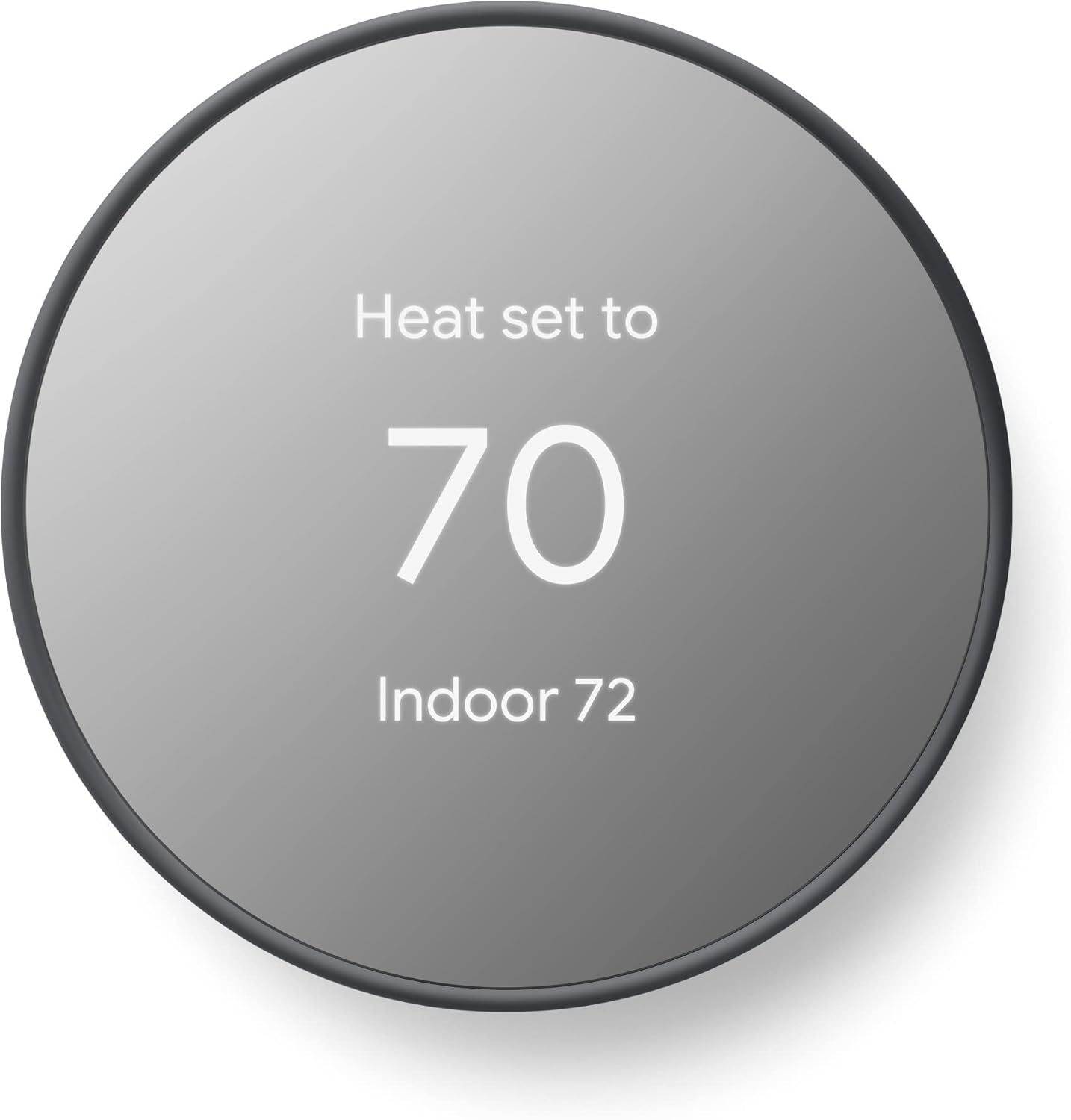
Google Nest Thermostat - Smart Thermostat for H...
This helps complete the fix you are currently reading.
$68.50Review Fan Schedule
Open Nest app on your phone. Select your thermostat then tap Fan Schedule. Check if there is a schedule set like 15 minutes per hour. This schedule runs the fan periodically for air circulation. Reduce the schedule duration or disable it entirely. If you do not want periodic circulation set to zero.
Disable Airwave Feature
Airwave runs the fan after AC turns off to extract remaining cool air. Open Nest app and tap Settings for your thermostat. Tap Nest Sense then tap Airwave. If enabled toggle it off. This prevents extended fan runtime after cooling cycles. Airwave can make fan seem to run too long after AC stops.
Check Cooling Fan Delay Setting
Go to Nest Settings then Equipment. Tap Continue Running Fan setting. This controls how long fan runs after heating or cooling stops. Set it to 0 or 30 seconds if the current value is high. High values like 5 minutes keep the fan running after each cycle. Reducing this setting stops the extended fan runtime.
Quick Solutions
Still having issues? This is usually the deeper cause below.
Schedules that skip randomly are usually a daylight-saving holdover — delete and recreate the schedule to clear the corrupted entry.
Running fan 15 to 30 minutes per hour can help even out temperatures between rooms but constant fan wastes significant energy. Use scheduled circulation instead of always-on mode.
Thermostat issues that keep returning are often caused by stale backup-battery memory holding old settings across power cycles without the user realising.
- Fan mode set to On instead of Auto in
- Fan schedule configured to run every hour for circulation
- Airwave feature running fan after cooling cycle ends
- Cooling Fan Delay setting extending fan runtime
- Wiring issue causing G wire to stay energized continuously
Before you go — try one of these (they fix most cases).
Most popular upgrades chosen by Google Nest Thermostat owners.

Google Nest Thermostat Trim Kit - Made for the Nest Therm...

Google Nest Thermostat Trim Kit - Made for the Nest Therm...

Google Nest Thermostat - Smart Thermostat for Home - Prog...
As an Amazon Associate we earn from qualifying purchases.
Official Manufacturer Manual
Google Nest provides official product documentation through their online manual rather than downloadable PDF. Access setup guides, troubleshooting steps, and product specifications for your Google Nest Thermostat.
Source: google.com
Need More Help? Google Nest Support
Note: The contact information below connects you directly to Google Nest's official customer support team, not Trunetto. They can help with warranty claims, device replacements, and advanced technical issues.
How Does Google Nest Compare?
Before replacing your Google Nest device, see how it stacks up against alternatives in our full comparison guides.
Accessories owners commonly pair with Google Nest Thermostat.

Google Nest Wifi - AC2200 - Mesh WiFi System - Wifi Route...

Google Nest WiFi Pro - Wi-Fi 6E - Reliable Home Wi-Fi Sys...

Google Nest WiFi Pro - 6E - Reliable Home Wi-Fi System wi...
As an Amazon Associate we earn from qualifying purchases.


