

How Does the Nest Thermostat Farsight Display Work?
- Farsight not enabled in settings
- Model does not support Farsight (entry Nest Thermostat)
- Proximity sensor obstructed or dirty
Problem Description
You want to understand and set up Farsight, the Nest feature that lights up the thermostat display when you walk near it so you can read the time, temperature, or weather from across the room. This guide covers enabling Farsight, choosing a display face, and fixing it when the screen stays dark. Farsight is on the Nest Learning Thermostat (3rd and 4th gen); the entry-level Nest Thermostat does not have it.
Why This Happens in Real Homes
Farsight is one of the Nest's nicest touches — the display wakes as you approach and shows a clock, temperature, or weather readable across the room — but two things trip people up. It's only on the Nest Learning Thermostat (3rd and 4th gen), not the basic Nest Thermostat, and its proximity sensor needs you to walk toward it, not parallel along a wall.
Start by confirming your model supports it and that it's enabled under Settings > Farsight, then pick a face and info to show. If the screen stays dark, clean the sensor, raise the brightness, and check the approach angle — the display dimming when nobody's near is normal and protects against burn-in.
Symptoms
- Display stays dark when you walk by
- Unsure how to turn Farsight on
- Want to change what the display shows
- Farsight face options unclear
- Screen too dim to read across the room
- Proximity sensor not detecting approach
- Farsight missing on your model
- Display seems always off
Recognize these? Here's what usually causes it.
Common Causes
- Farsight not enabled in settings
- Model does not support Farsight (entry Nest Thermostat)
- Proximity sensor obstructed or dirty
- Thermostat in a low-traffic spot, walked past parallel
- Display brightness set very low
- Wrong display face selected
- Approach angle not toward the thermostat
- Display dimming to prevent burn-in
Most fixes happen in the first 3 steps.
Always turn off your HVAC system at the breaker before removing the thermostat or touching wires. Incorrect wiring can damage both the thermostat and your HVAC equipment resulting in expensive repairs. If unsure about wiring consult an HVAC technician.
Tools & Requirements
These tools will help you complete this fix.
As an Amazon Associate we earn from qualifying purchases.
Step-by-Step Solution
Enable Farsight on your Nest thermostat
Farsight lights up the thermostat display when you walk nearby, showing information readable from across the room. In the Google Home app, tap the thermostat, then Settings, then Farsight. Toggle it on and choose what to display. Farsight is available on the Nest Learning Thermostat 3rd Gen and 4th Gen. The basic Nest Thermostat does not support Farsight.
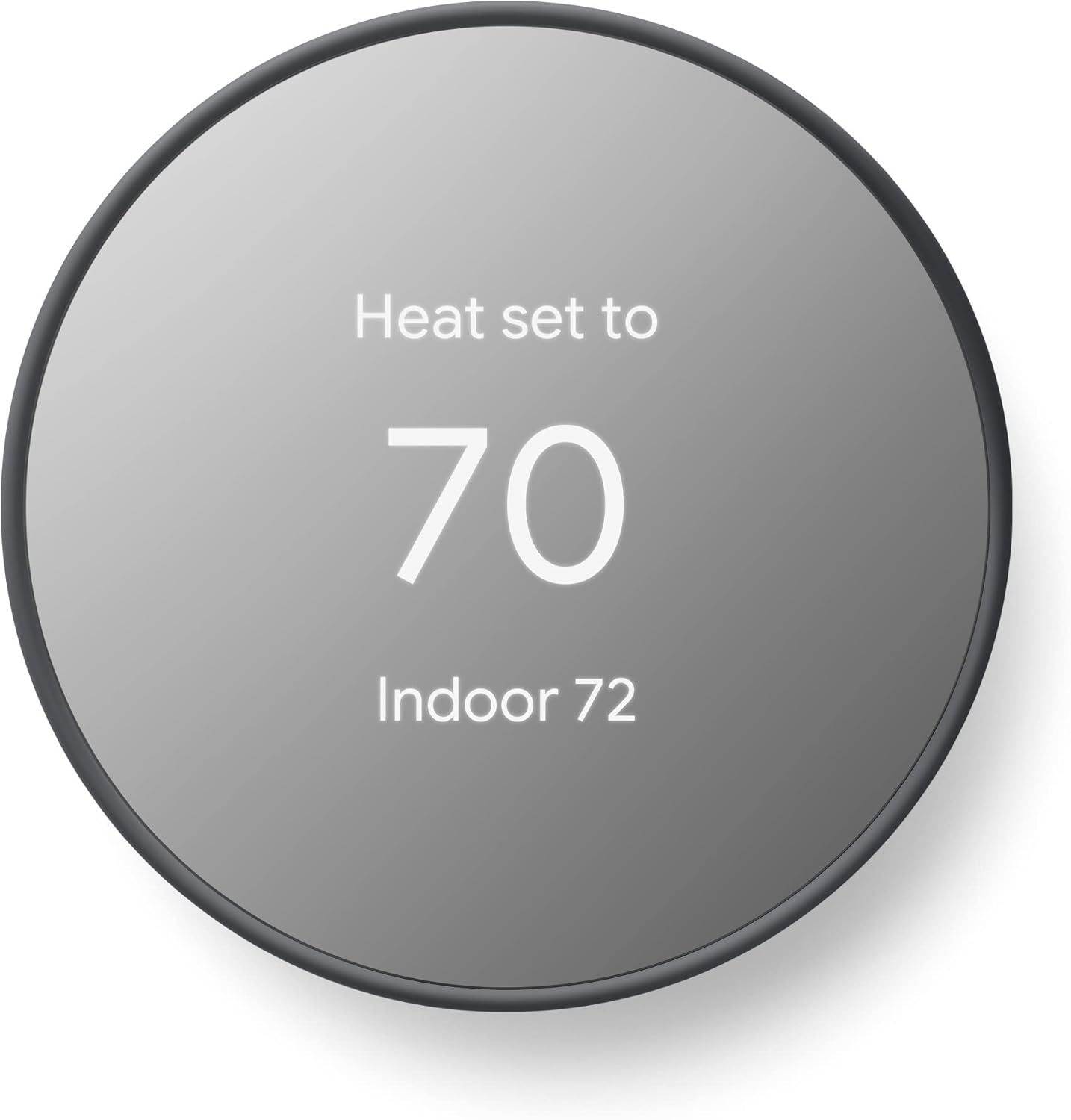
Needed for this step
Google Nest Thermostat - Smart Thermostat for H...
This helps complete the fix you are currently reading.
$68.50Choose a Farsight display face
The 4th Gen offers 8 face options: analog clock, digital clock, indoor temperature, weather, and newer faces including a seasonal illustration that changes monthly, a minimal line-art face reflecting the current HVAC mode, and a temperature controller face for quick at-a-glance adjustments. The 3rd Gen has fewer options — analog clock, digital clock, weather, and current temperature.
Customize the information shown
In the Google Home app under Farsight settings, tap Customize to choose what information appears. Options include indoor temperature, outdoor temperature, humidity, air quality, and time. The display shows more detail as you get closer — from across the room you see the main reading (temperature or clock), and as you approach, additional details like humidity and weather appear.
Fix Farsight not activating
If the display stays dark when you walk by, the proximity sensor may be obstructed. Clean the thermostat face. Check that Farsight is enabled in settings. If the thermostat is in a low-traffic hallway, the proximity sensor may not detect your approach if you walk parallel to the wall. The sensor works best when you walk toward the thermostat. Also check the display brightness setting — if set to very low, the display may appear off.
Manage Farsight and screen burn-in
The Nest display uses an LCD that can experience image retention if the same static image is displayed for extended periods. The thermostat automatically dims and turns off the display when no one is nearby to prevent this. Do not manually set the display to always-on at full brightness. The Farsight proximity activation is designed to protect the display while providing information when you need it.
Quick Solutions
Still having issues? This is usually the deeper cause below.
Schedules that skip randomly are usually a daylight-saving holdover — delete and recreate the schedule to clear the corrupted entry.
Use the thermostat energy reports to find patterns in your heating and cooling usage. Setting back the temperature just 3 degrees when you leave for work can save 5 to 10 percent on your annual energy bill without any comfort sacrifice. **Product Intelligence:** - C-wire required for most models - 2.4GHz WiFi only - Nest Aware subscription for history
Thermostat issues that keep returning are often caused by stale backup-battery memory holding old settings across power cycles without the user realising.
- Farsight not enabled in settings
- Model does not support Farsight (entry Nest Thermostat)
- Proximity sensor obstructed or dirty
- Thermostat in a low-traffic spot, walked past parallel
- Display brightness set very low
Before you go — try one of these (they fix most cases).
Most popular upgrades chosen by Nest Learning Thermostat owners.

Google Nest Learning Thermostat (4th Gen, 2024) with 2 Te...

Google Nest Temperature Sensor 3 Count Pack - Nest Thermo...
Google Nest Temperature Sensor- That Works with Nest Lear...
As an Amazon Associate we earn from qualifying purchases.
Official Manufacturer Manual
Google Nest provides official product documentation through their online manual rather than downloadable PDF. Access setup guides, troubleshooting steps, and product specifications for your Nest Learning Thermostat.
Source: support.google.com
Need More Help? Google Nest Support
Note: The contact information below connects you directly to Google Nest's official customer support team, not Trunetto. They can help with warranty claims, device replacements, and advanced technical issues.
How Does Google Nest Compare?
Before replacing your Google Nest device, see how it stacks up against alternatives in our full comparison guides.
Accessories owners commonly pair with Nest Learning Thermostat.

Google Nest Wifi - AC2200 - Mesh WiFi System - Wifi Route...

Google Nest WiFi Pro - Wi-Fi 6E - Reliable Home Wi-Fi Sys...

Google Nest WiFi Pro - 6E - Reliable Home Wi-Fi System wi...
As an Amazon Associate we earn from qualifying purchases.


