

Why Is My Nest Thermostat Learning the Wrong Schedule?
- One-time manual changes learned as preferences
- Irregular adjustments during vacations or guests
- Multiple people setting different temperatures
Problem Description
Your Nest learned a schedule that does not match your routine — heating or cooling changes at times you do not want, like a set-point at 3 AM or midday. Because the Nest treats every manual adjustment as a preference to learn from, a one-off change can become a permanent schedule entry. This guide covers cleaning up the schedule and getting it to learn the right pattern.
Why This Happens in Real Homes
The Nest learns from what you do, so a wrong schedule almost always comes from adjustments it misread as preferences — turning the heat up one cold evening becomes a nightly warm-up, or a vacation week teaches it a pattern you never use. Multiple people setting different temperatures adds noise the algorithm can't resolve.
Start by opening Schedule and deleting the entries that don't match your routine, then make deliberate, consistent changes for about a week so it relearns cleanly. If it's too tangled to fix point by point, reset the schedule, build a manual baseline, and re-enable Auto-Schedule so it refines from a good starting point.
Symptoms
- Schedule has changes at odd hours
- Temperature shifts when you do not want it to
- Learned points do not match your routine
- One-off adjustments became permanent
- Heating/cooling at 3 AM or midday
- Schedule looks cluttered with entries
- Nest keeps re-adding wrong points
- Comfort worse since learning kicked in
Recognize these? Here's what usually causes it.
Common Causes
- One-time manual changes learned as preferences
- Irregular adjustments during vacations or guests
- Multiple people setting different temperatures
- Learning during an unusual week
- Old or previous-owner patterns retained
- Erratic changes confusing the algorithm
- Auto-Schedule left on during atypical periods
- Bad historical bias not fully cleared
Most fixes happen in the first 3 steps.
Always turn off your HVAC system at the breaker before removing the thermostat or touching wires. Incorrect wiring can damage both the thermostat and your HVAC equipment resulting in expensive repairs. If unsure about wiring consult an HVAC technician.
Tools & Requirements
These tools will help you complete this fix.

As an Amazon Associate we earn from qualifying purchases.
Step-by-Step Solution
Review the current learned schedule
In the Google Home app, go to the thermostat and tap Schedule. The Nest shows its learned schedule with temperature set points throughout the day. Look for entries that do not match your actual routine — a heating entry at 3 AM when you are sleeping, or a cooling change at noon when you are at work. These are learned from past manual adjustments that the thermostat interpreted as preferences.
Delete incorrect schedule entries
Tap on any schedule entry you did not intend and delete it. The Nest treats manual adjustments as preferences to learn from, so a one-time adjustment (turning up the heat because you felt cold one evening) can become a permanent schedule entry. Delete any entries that do not represent your regular routine. The thermostat will not re-add them unless you make the same manual adjustment again.
Be consistent with manual adjustments during relearning
After cleaning up the schedule, the thermostat continues to learn from your manual adjustments. Be deliberate: set your preferred wake temperature every morning at the same time, your away temperature when you leave, your return temperature when you get home, and your sleep temperature at bedtime. Do this consistently for 5-7 days. Avoid random adjustments during this period.
Disable learning for specific time periods
If the Nest keeps learning incorrect patterns during vacations, guests visiting, or unusual schedules, consider temporarily disabling Auto-Schedule during those periods. In settings, turn off Auto-Schedule before the irregular period begins. Turn it back on when your routine returns to normal. This prevents temporary behavior from corrupting the learned schedule.
Start fresh with a schedule reset
If the schedule is too far off to fix incrementally, reset it completely. In the Google Home app, clear all schedule entries. Disable Auto-Schedule temporarily. Create a manual schedule with your ideal temperatures for each time of day. Live with this manual schedule for a week to confirm it works. Then re-enable Auto-Schedule — the thermostat will use your manual schedule as a baseline and make small refinements from there.
Quick Solutions
Still having issues? This is usually the deeper cause below.
Schedules that skip randomly are usually a daylight-saving holdover — delete and recreate the schedule to clear the corrupted entry.
Use the thermostat energy reports to find patterns in your heating and cooling usage. Setting back the temperature just 3 degrees when you leave for work can save 5 to 10 percent on your annual energy bill without any comfort sacrifice. **Product Intelligence:** - C-wire required for most models - 2.4GHz WiFi only - Nest Aware subscription for history
Thermostat issues that keep returning are often caused by stale backup-battery memory holding old settings across power cycles without the user realising.
- One-time manual changes learned as preferences
- Irregular adjustments during vacations or guests
- Multiple people setting different temperatures
- Learning during an unusual week
- Old or previous-owner patterns retained
Before you go — try one of these (they fix most cases).
Most popular upgrades chosen by Nest Learning Thermostat owners.

Google Nest Learning Thermostat (4th Gen, 2024) with 2 Te...

Google Nest Temperature Sensor 3 Count Pack - Nest Thermo...
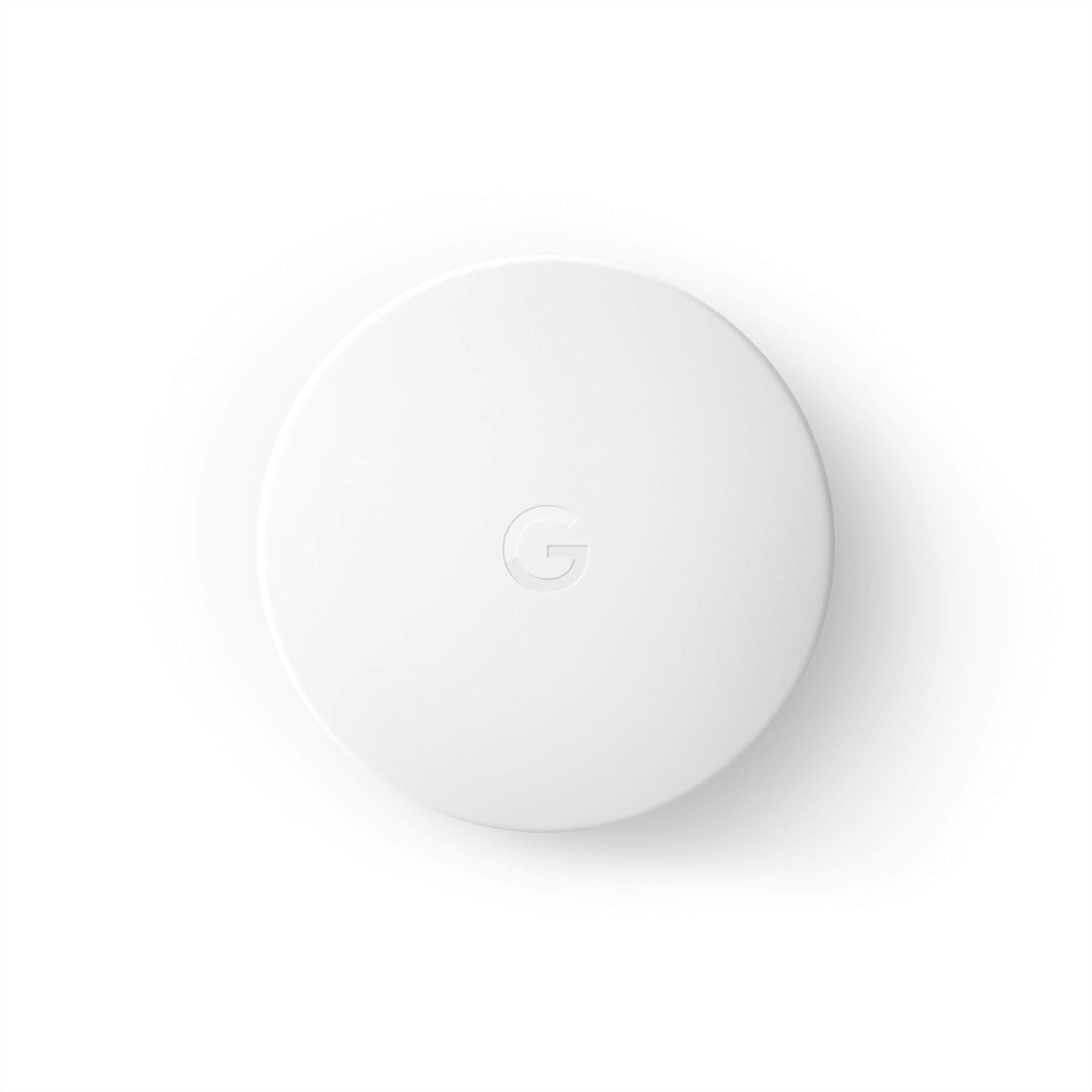
Google Nest Temperature Sensor- That Works with Nest Lear...
As an Amazon Associate we earn from qualifying purchases.
Official Manufacturer Manual
Google Nest provides official product documentation through their online manual rather than downloadable PDF. Access setup guides, troubleshooting steps, and product specifications for your Nest Learning Thermostat.
Source: support.google.com
Need More Help? Google Nest Support
Note: The contact information below connects you directly to Google Nest's official customer support team, not Trunetto. They can help with warranty claims, device replacements, and advanced technical issues.
How Does Google Nest Compare?
Before replacing your Google Nest device, see how it stacks up against alternatives in our full comparison guides.
Accessories owners commonly pair with Nest Learning Thermostat.

Google Nest Wifi - AC2200 - Mesh WiFi System - Wifi Route...

Google Nest WiFi Pro - Wi-Fi 6E - Reliable Home Wi-Fi Sys...

Google Nest WiFi Pro - 6E - Reliable Home Wi-Fi System wi...
As an Amazon Associate we earn from qualifying purchases.


