Why Does My Amazon Fire TV Have No Sound or Audio Out of Sync?
- HDMI-CEC audio settings incorrect
- Surround sound format not supported by speaker
- Dolby audio passthrough enabled but TV does not support it
Problem Description
Your Amazon Fire TV has no sound during playback or the audio is noticeably out of sync with the video. Lips move but words come later, or sound plays but the screen is silent. This affects apps like Netflix, Prime Video, Disney Plus, and others.
Why This Happens in Real Homes
No sound or out-of-sync audio on Fire TV is usually an audio-format or HDMI/CEC setting mismatch — a surround format the TV or soundbar can't decode, or ARC/eARC/CEC misconfigured in the chain.
Start in Settings > Display & Audio: try setting audio to Stereo/PCM to rule out an unsupported surround format, and check ARC/eARC and CEC on the TV and soundbar. For lip-sync drift, use the TV or soundbar's audio-delay adjustment; a mismatched surround setting is the most common cause of silence.
Symptoms
- No audio at all during video playback
- Sound is delayed behind the video
- Audio works in menus but not in apps
- Sound only comes from TV speakers not soundbar
- Dolby Atmos content has no audio
- Audio cuts in and out during playback
Recognize these? Here's what usually causes it.
Common Causes
- HDMI-CEC audio settings incorrect
- Surround sound format not supported by speaker
- Dolby audio passthrough enabled but TV does not support it
- HDMI cable not supporting ARC
- Fire TV audio output set to wrong device
- App-specific audio bug
Most fixes happen in the first 3 steps.
Forcing Dolby Atmos on a device that does not support it will result in no sound at all. Only enable surround formats your equipment supports.
Tools & Requirements
These tools will help you complete this fix.
As an Amazon Associate we earn from qualifying purchases.
Step-by-Step Solution
Change Audio Output to Stereo
Go to Settings then Display and Sounds then Audio. Change Surround Sound from Auto or Best Available to Stereo. This forces compatible audio output that works with all TVs and soundbars. Test playback. If sound works you can try other formats one at a time.
Check HDMI Connection
If using a soundbar make sure the Fire TV is connected to the TV HDMI ARC or eARC port. The TV should pass audio to the soundbar through this port. Try a different HDMI cable. Swap to a different HDMI port to test if the port itself is faulty.

Needed for this step
Certified HDMI 2.1 Cable 6FT, 8K HDMI eARC Cord...
This helps complete the fix you are currently reading.
$9.90Disable Dolby Processing
Go to Settings then Display and Sounds then Audio. Turn off Dolby Digital Plus and Dolby Atmos if your TV or soundbar does not support these formats. Unsupported audio formats result in complete silence during playback.
Fix Audio Sync Issues
If audio is delayed go to Settings then Display and Sounds then Audio then AV Sync Tuning. Use the adjustment slider to align audio with video. Play a test clip and fine tune until lips match the spoken words.
Restart and Update
Restart the Fire TV by holding Select and Play for 5 seconds. After reboot check for system updates under Settings then My Fire TV then About then Check for Updates. Also update the specific app that had audio issues.
Quick Solutions
Still having issues? This is usually the deeper cause below.
If pairing fails after multiple attempts, the device may still be registered to a previous account — factory-reset it before trying to add it to a new one.
If you use a soundbar connect the Fire TV directly to the soundbar HDMI input rather than the TV for the most reliable audio passthrough.
Pairing failures almost always come down to distance during the initial handshake — manufacturers seriously understate how close you actually need to be.
- HDMI-CEC audio settings incorrect
- Surround sound format not supported by speaker
- Dolby audio passthrough enabled but TV does not support
- HDMI cable not supporting ARC
- Fire TV audio output set to wrong device
Before you go — try one of these (they fix most cases).
Most popular upgrades chosen by Amazon Fire TV owners.

Amazon eero Pro 6E mesh wifi router (1-pack) with Amazon ...

Amazon Fire TV Stick 4K (newest model)
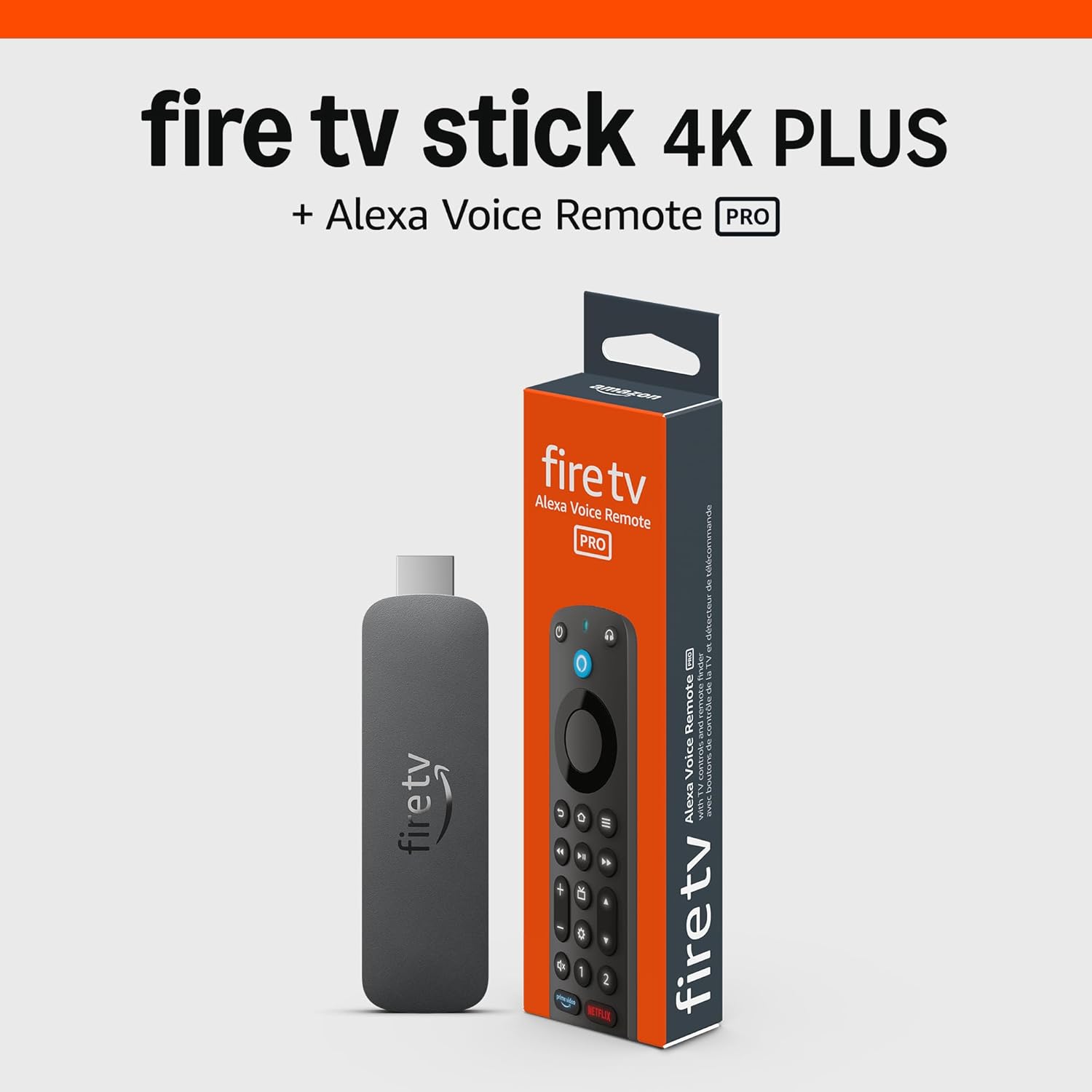
Amazon Fire TV Stick 4K Plus (newest model) with AI-power...
As an Amazon Associate we earn from qualifying purchases.
Official Manufacturer Manual
Amazon provides official product documentation through their online manual rather than downloadable PDF. Access setup guides, troubleshooting steps, and product specifications for your Amazon Fire TV.
Source: amazon.com
Need More Help? Amazon Support
Note: The contact information below connects you directly to Amazon's official customer support team, not Trunetto. They can help with warranty claims, device replacements, and advanced technical issues.
How Does Amazon Compare?
Before replacing your Amazon device, see how it stacks up against alternatives in our full comparison guides.
Accessories owners commonly pair with Amazon Fire TV.

Amazon Basics microSDXC Memory Card with Full Size Adapte...

Amazon Basics microSDXC Memory Card with Full Size Adapte...

Amazon eero 6 mesh wifi system - Supports internet plans ...
As an Amazon Associate we earn from qualifying purchases.