

Why Is My Ring Video Doorbell 4 Live View Delayed?
- Doorbell waking from battery sleep to save power
- Weak WiFi at the front door
- Low upload bandwidth for video
Problem Description
Your Ring Video Doorbell 4 has a noticeable delay when you open live view — it takes several seconds before video appears. Live view delay comes from the doorbell waking up, connecting to WiFi, and establishing a video stream. Battery-powered mode has more delay than wired. WiFi signal strength at the doorbell location is the biggest factor.
Why This Happens in Real Homes
Some live-view delay on a battery doorbell is normal — to preserve battery, the Doorbell 4 sleeps and has to wake and connect when you open live view, which takes a couple of seconds. Beyond that, it's WiFi: sitting at the front door, the farthest corner of coverage, a weak or congested signal drags the load time out.
Start by improving the signal at the door — reposition the router or add a mesh point/Chime Pro nearby — and keep the doorbell on 2.4GHz for range. Enough upload bandwidth and current firmware handle the rest; a long delay only when you're away usually means low home upload speed.
Symptoms
- Live view takes several seconds to load
- Delay opening the camera feed
- Lag when answering the door
- Slow to wake from sleep
- Choppy first few seconds
- Delay worse away from home
- Buffering on open
- Notification-to-view lag
Recognize these? Here's what usually causes it.
Common Causes
- Doorbell waking from battery sleep to save power
- Weak WiFi at the front door
- Low upload bandwidth for video
- Distance from the router
- Band-steering to a weak 5GHz
- Router/ISP latency
- Firmware out of date
- App cache issues
Most fixes happen in the first 3 steps.
Hardwired installation involves working with electrical wiring. Turn off the breaker before touching any wires. If you are not comfortable with basic wiring hire a licensed electrician. Some older homes may need a transformer upgrade from 10V to the 16-24V required by modern video doorbells.
Tools & Requirements
These tools will help you complete this fix.
As an Amazon Associate we earn from qualifying purchases.
Step-by-Step Solution
Understand the source of live view delay
When you tap Live View in the Ring app, the doorbell wakes from sleep (if on battery), establishes a connection to the Ring cloud, and starts streaming video to your phone. This sequence takes 3-10 seconds depending on WiFi speed, cellular connection on your phone, and whether the doorbell is on battery or hardwired. A 3-5 second delay is normal. Over 10 seconds indicates a connectivity problem.

Needed for this step
TP-Link WiFi Extender with Ethernet Port, Dual ...
This helps complete the fix you are currently reading.
$14.49Improve doorbell WiFi signal
The biggest factor in live view delay is WiFi signal strength at the doorbell. Check Device Health for the RSSI value. Better than -50 dBm is excellent (2-3 second delay). Between -50 and -65 is good. Worse than -65 causes noticeable delays and buffering. Improve signal by moving the router closer, adding a WiFi extender, or installing a Ring Chime Pro near the doorbell.
Hardwire the doorbell to eliminate wake-up delay
On battery power, the Doorbell 4 sleeps between events to conserve power. When you tap Live View, it wakes up first, which adds 2-4 seconds. When hardwired, the doorbell stays in a low-power active state and responds to live view requests much faster. If you have existing doorbell wiring, connect it for improved responsiveness.
Check your phone connection
Live view delay also depends on your phone network speed. On a slow cellular connection (1-2 bars, congested network), the video stream takes longer to start. On WiFi at home, it is usually faster. If live view is slow only when you are on cellular data away from home, the bottleneck is your phone connection, not the doorbell.
Enable Snapshot Capture for instant preview
The Doorbell 4 supports Snapshot Capture — it takes periodic still images and stores them. When you open the Ring app, the latest snapshot appears immediately while the live stream loads. This gives you an instant preview of who is at the door without waiting for the full live view. Enable Snapshot Capture in Video Settings and set the interval (every 30 seconds to every 3 minutes).
Quick Solutions
Still having issues? This is usually the deeper cause below.
Camera issues that start suddenly almost always trace back to an upload bandwidth drop — run a speed test before assuming hardware failure.
Set up motion scheduling or snooze alerts during times when regular activity is expected like when kids come home from school. Use pre-recorded quick replies so the doorbell can respond to visitors automatically when you cannot answer.
Notification delays over 2 minutes are almost never the device's fault — background app restrictions quietly re-enable themselves after every OS update.
- Doorbell waking from battery sleep to save power
- Weak WiFi at the front door
- Low upload bandwidth for video
- Distance from the router
- Band-steering to a weak 5GHz
Before you go — try one of these (they fix most cases).
Official Manufacturer Manual
Ring provides official product documentation through their online manual rather than downloadable PDF. Access setup guides, troubleshooting steps, and product specifications for your Ring Video Doorbell 4.
Source: support.ring.com
Need More Help? Ring Support
Note: The contact information below connects you directly to Ring's official customer support team, not Trunetto. They can help with warranty claims, device replacements, and advanced technical issues.
How Does Ring Compare?
Before replacing your Ring device, see how it stacks up against alternatives in our full comparison guides.
Accessories owners commonly pair with Ring Video Doorbell 4.
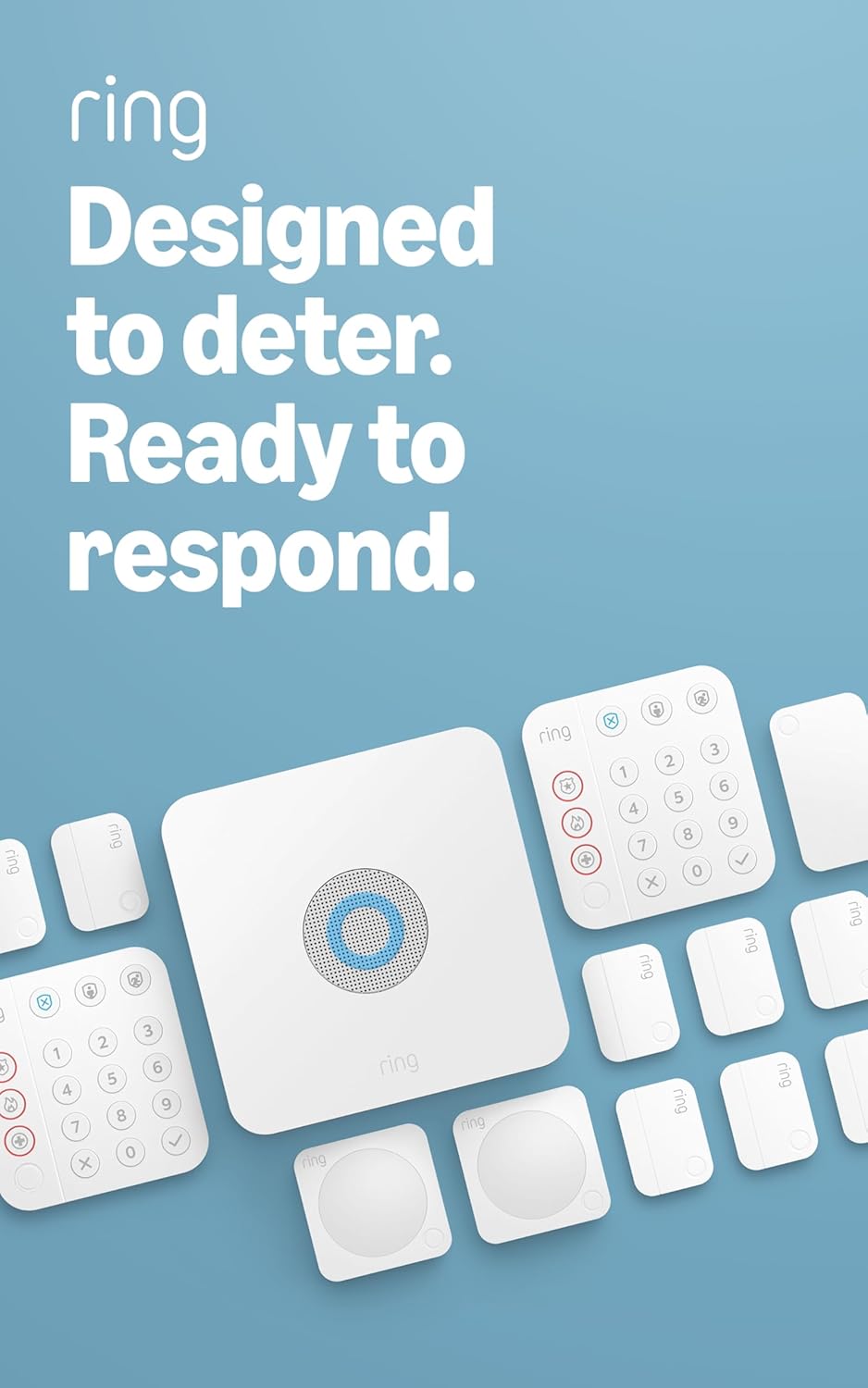
Ring Alarm 14-Piece Kit – Wireless Smart Home Security Sy...

Ring Alarm 5-Piece Kit – Wireless Smart Home Security Sys...

Ring Alarm 10-Piece Kit – Wireless Smart Home Security Sy...
As an Amazon Associate we earn from qualifying purchases.



