

Coway Airmega Won't Connect to WiFi or the IoCare App
- A 5GHz-only network or 2.4GHz disabled
- WiFi password over 24 characters or with symbols
- Stuck WiFi communication chip
Problem Description
Your Coway Airmega will not pair with the IoCare app or keeps failing during WiFi setup. On the Airmega the cause is nearly always the 2.4GHz requirement, a WiFi password the unit cannot handle, or the phone dropping off WiFi mid-setup.
Why This Happens in Real Homes
The Airmega joins 2.4GHz only, so pairing failures are almost always the band, the WiFi password, or the phone dropping off WiFi mid-setup. In real homes the sneaky ones are a password with a special character or longer than 24 characters, and mobile data staying on so the phone reaches Coway over cellular while the unit is still offline.
Use 2.4GHz with a simple password, reset the comm chip with a five-minute unplug, and follow the setup chimes at their own pace.
Symptoms
- Airmega will not pair with the IoCare app
- Pairing fails partway through setup
- The app cannot find the purifier
- Setup errors at the final step
- Unit shows offline after pairing
- Pairing stalls after entering the password
- Will not connect after a router change
- Repeated communication errors
Recognize these? Here's what usually causes it.
Common Causes
- A 5GHz-only network or 2.4GHz disabled
- WiFi password over 24 characters or with symbols
- Stuck WiFi communication chip
- Mobile data on during pairing
- Advancing screens before the chime prompt
- An open or merged network confusing setup
- Weak signal far from the router
- Wrong password entered
Most fixes happen in the first 3 steps.
Step-by-Step Solution
Use a 2.4GHz network
Coway Airmega joins 2.4GHz WiFi only and does not support 5GHz. If your router merges both bands under one name, or has 2.4GHz turned off, split the bands or enable and select the 2.4GHz network, and connect your phone to that same 2.4GHz network for the setup. Pairing on a 5GHz-only network never completes.
Fix the WiFi password
Airmega setup fails on long passwords or ones with special characters. Make sure the WiFi password you are pairing against is 24 characters or fewer and uses no special symbols. If your main network breaks those limits, temporarily simplify it or set up a plain 2.4GHz guest network with a simple password just for pairing, then the unit stays connected afterward.
Reset the communication chip
Unplug the Airmega for a full 5 minutes to reset its WiFi communication chip, then plug it back in and retry pairing. This clears a stuck radio that leaves the unit un-findable in IoCare even when your network is working fine, and it is the step that fixes most pair failures on a unit that connected before.
Turn off mobile data during pairing
With IoCare open, turn off your phone's cellular or mobile data so the phone stays on WiFi and does not try to reach Coway over cellular while the purifier still has no internet. That split between WiFi and cellular is a common reason pairing stalls right at the final confirmation step.
Follow the on-screen chime prompts exactly
IoCare walks you through pairing with timed prompts, including waiting for the unit to chime. If you tap ahead to the next screen before that chime or before the light reaches the state the app describes, the process breaks silently. Restart pairing and follow each on-screen instruction at its own pace rather than rushing through the screens.
Reboot the router and retry, then escalate
Reboot your router by unplugging it for 10 seconds, stand near both the purifier and the router, and run pairing again from the start. If it still will not connect on a confirmed 2.4GHz network with a simple password, Coway has IoCare pairing support at cowaymega.com. The purifier still runs normally on its own buttons while offline.
Quick Solutions
Still having issues? This is usually the deeper cause below.
This usually happens right after a router reboot or ISP change — the device rejoins the network but drops its cloud session silently.
Coway's IoCare pairing help is at cowaymega.com. If pairing gets almost to the end then errors, the usual culprit is the phone silently switching to 5GHz or to cellular, so lock the phone onto the 2.4GHz network and disable mobile data before the final step.
Most WiFi drop-offs happen right after a router reboot or ISP swap — the device reconnects to the network but silently loses its cloud registration.
- A 5GHz-only network or 2.4GHz disabled
- WiFi password over 24 characters or with symbols
- Stuck WiFi communication chip
- Mobile data on during pairing
- Advancing screens before the chime prompt
Before you go — try one of these (they fix most cases).
Official Manufacturer Manual
Coway provides official product documentation through their online manual rather than downloadable PDF. Access setup guides, troubleshooting steps, and product specifications for your Coway Airmega Air Purifier.
Source: cowaymega.com
Need More Help? Coway Support
Note: The contact information below connects you directly to Coway's official customer support team, not Trunetto. They can help with warranty claims, device replacements, and advanced technical issues.
Accessories owners commonly pair with Coway Airmega Air Purifier.

Ring Rechargeable Quick Release Battery Pack
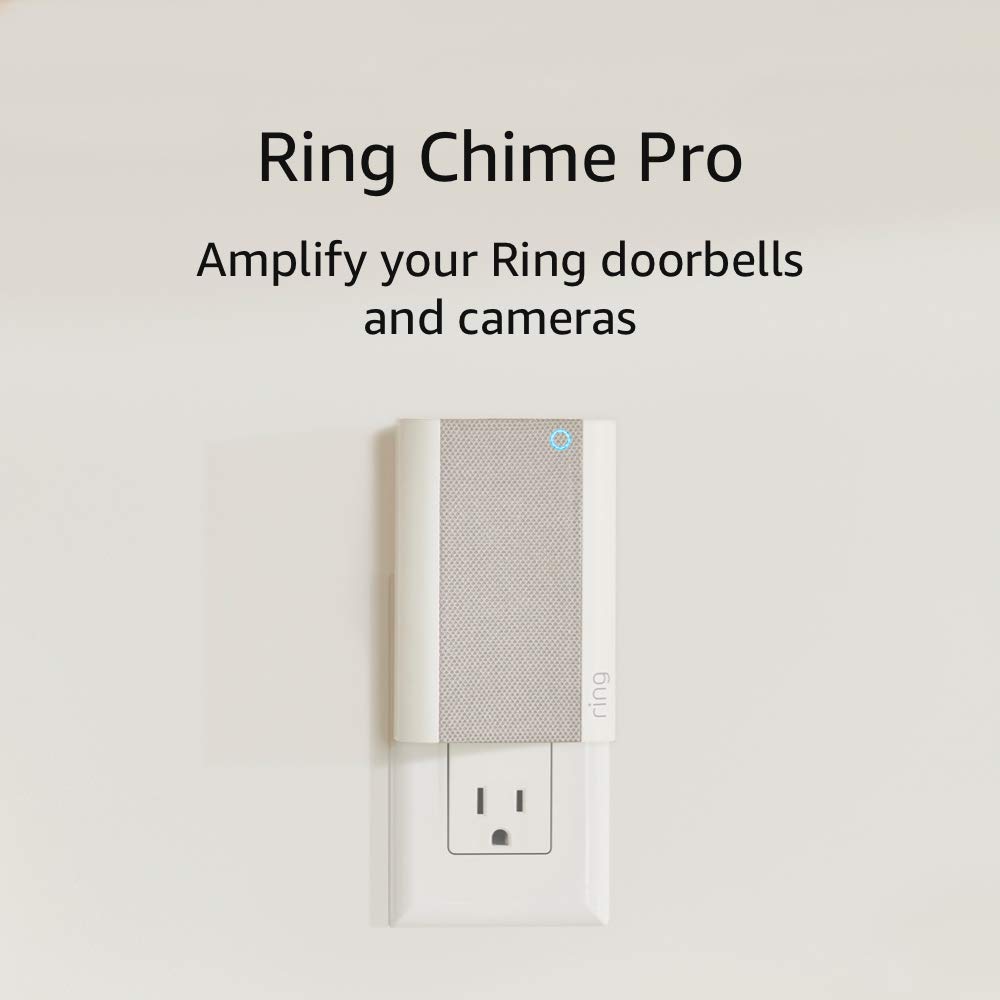
Ring Chime Pro

SwitchBot Hub Mini Smart Remote - IR Universal Remote, Wi...
As an Amazon Associate we earn from qualifying purchases.

