

Why Won't My Dyson Air Purifier Connect to WiFi or the Dyson Link App
- Router broadcasting only 5GHz instead of 2.4GHz
- WPA3 encryption that older Dyson models can't support
- MAC address filtering blocking the purifier
Problem Description
Your Dyson purifier refuses to connect to your home WiFi network or pair with the Dyson Link app. The app may show connection errors, get stuck on the pairing screen, or fail to discover the purifier during setup. This commonly occurs after router changes, firmware updates, or when using 5GHz-only networks.
Why This Happens in Real Homes
Dyson purifiers connect over 2.4GHz WiFi through the Dyson Link/MyDyson app, and nearly every 'won't connect' case comes back to the 2.4GHz band. Modern routers that broadcast a combined 2.4/5GHz SSID (band steering) frequently push the purifier toward the 5GHz signal it can't use, and a phone on 5GHz during setup breaks the pairing handoff. The reliable fix is to give the machine a clean 2.4GHz network - enable a dedicated 2.4GHz SSID or temporarily disable 5GHz during setup - and make sure your phone is on it. That a purifier will pair to a phone hotspot (usually 2.4GHz) but not the home router is a strong clue the router is the issue, not the machine.
Router security and housekeeping account for the rest. WPA3-only security isn't supported by older Dyson models, so drop to WPA2 (or WPA2/WPA3 mixed) at least for pairing, and disable MAC address filtering, which silently blocks a new device. On the app side, an outdated app or a corrupted cache causes discovery failures, so update or reinstall it. A crowded network that's out of DHCP addresses can also refuse the machine - expanding the DHCP pool helps. If it still won't join or keeps dropping after a router change, factory reset the purifier's WiFi and re-pair on a strong 2.4GHz signal near the router before moving it.
Symptoms
- Dyson app can't find the purifier during WiFi setup
- App shows a connection error or times out during pairing
- WiFi icon has an exclamation mark or is missing
- Pairs successfully but immediately disconnects
- App says the device is offline while it's powered on
- Connects to a phone hotspot but not the home router
- Setup stuck on the pairing screen
- Drops off after a router change
Recognize these? Here's what usually causes it.
Common Causes
- Router broadcasting only 5GHz instead of 2.4GHz
- WPA3 encryption that older Dyson models can't support
- MAC address filtering blocking the purifier
- Dual-band router auto-switching it to 5GHz
- Dyson app needs an update or has corrupted cache
- Too many devices exceeding the router's DHCP pool
- Band-steered single SSID hiding 2.4GHz
- Weak 2.4GHz signal at the purifier
Most fixes happen in the first 3 steps.
Never attempt to open the purifier or modify internal components. WiFi issues are always resolved through software settings on the purifier, app, or router.
Tools & Requirements
Step-by-Step Solution
Verify Router 2.4GHz Band
Log into your router admin panel and confirm you have a separate 2.4GHz SSID enabled. Dyson purifiers only connect to 2.4GHz WiFi. If you have a mesh system or dual-band router that combines both bands under one SSID, create a separate 2.4GHz-only network for the purifier. Name it something distinct like HomeWiFi-2G so you can easily select it during setup.
Check Router Security Settings
In your router settings, verify the security protocol is set to WPA2-PSK (AES). Some newer routers default to WPA3 or WPA2/WPA3 transitional mode, which certain Dyson models cannot negotiate. Also disable any MAC address filtering, AP isolation, or client isolation features that could prevent the purifier from communicating on your network.
Reset Purifier WiFi and Clear App
On the Dyson purifier, press and hold the power button for 20 seconds until the LCD screen shows a countdown. This resets the WiFi module without erasing other settings. On your phone, delete the Dyson Link app completely, restart your phone, then reinstall the app from the App Store or Google Play. Sign back in and start the setup process fresh.
Pair Using Correct Process
Open the Dyson Link app, tap the plus icon to add a device, and select your purifier model. When prompted, point your phone camera at the sticker on the body of the purifier to scan the pairing code. Stay within 3 feet of the purifier during the entire pairing process. When the app asks you to select a WiFi network, choose your 2.4GHz SSID and enter the password carefully.
Verify Connection and Test
Once paired, wait 60 seconds for the purifier to fully register on your network. Open the Dyson Link app and check that the purifier shows as online with real-time air quality data updating. Test remote control by adjusting fan speed from the app. If the connection drops again within a few minutes, your router may need a firmware update or the DHCP lease time may need extending.
Quick Solutions
Still having issues? This is usually the deeper cause below.
This usually happens right after a router reboot or ISP change — the device rejoins the network but drops its cloud session silently.
If your router has a guest network on 2.4GHz, try connecting the Dyson to that first as a quick test to isolate whether the issue is band-related or security-related.
Most WiFi drop-offs happen right after a router reboot or ISP swap — the device reconnects to the network but silently loses its cloud registration.
- Router broadcasting only 5GHz instead of 2.4GHz
- WPA3 encryption that older Dyson models can't support
- MAC address filtering blocking the purifier
- Dual-band router auto-switching it to 5GHz
- Dyson app needs an update or has corrupted cache
Before you go — try one of these (they fix most cases).
Most popular upgrades chosen by Dyson Air Purifier owners.
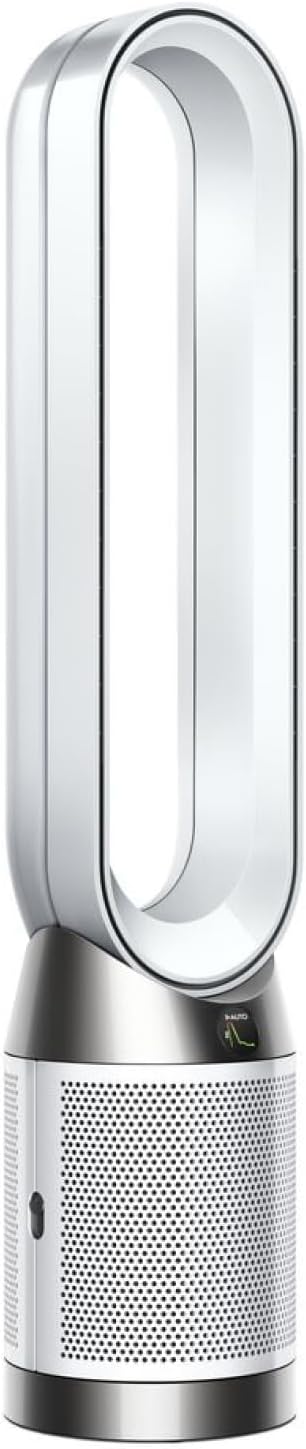
As an Amazon Associate we earn from qualifying purchases.
Official Manufacturer Manual
Dyson provides official product documentation through their online manual rather than downloadable PDF. Access setup guides, troubleshooting steps, and product specifications for your Dyson Air Purifier.
Source: dyson.com
Need More Help? Dyson Support
Note: The contact information below connects you directly to Dyson's official customer support team, not Trunetto. They can help with warranty claims, device replacements, and advanced technical issues.
Accessories owners commonly pair with Dyson Air Purifier.

Ring Rechargeable Quick Release Battery Pack
Ring Chime Pro

SwitchBot Hub Mini Smart Remote - IR Universal Remote, Wi...
As an Amazon Associate we earn from qualifying purchases.

