

Why Won't My Dyson Purifier Big+Quiet BP03 Complete WiFi Setup?
- Machine too far from the router during setup (weak provisioning signal)
- Network on 5GHz or combined-band not supported
- WPA3 security incompatible with the BP03 WiFi firmware
Problem Description
Your Dyson Purifier Big+Quiet BP03 will not complete the WiFi setup in the MyDyson app. The app may freeze at the provisioning step, show an error after you enter your WiFi credentials, or the purifier may connect briefly then appear offline. The BP03 uses the MyDyson app for setup and requires a 2.4GHz WPA2 network. Its large form factor means it is often placed far from the router where the WiFi signal during provisioning is marginal.
Why This Happens in Real Homes
The Dyson Big+Quiet BP03 sets up through the MyDyson app on a 2.4GHz WPA2 network like other Dyson machines, but its large form factor introduces a specific trap: it's usually placed in a big open room far from the router, and people run the WiFi setup right there, where the signal during provisioning is marginal. The single most effective fix is to do the initial setup within about two metres of the router - complete the pairing there, then move the BP03 to its permanent location. That alone resolves most 'connects then immediately offline' cases, because a successful provisioning needs a strong signal even if daily operation can tolerate a weaker one.
The rest are the standard Dyson WiFi constraints. The BP03 needs 2.4GHz, so a 5GHz-only or band-steered combined SSID trips it up - temporarily disabling 5GHz or splitting off a dedicated 2.4GHz network during setup avoids connecting to the wrong band. WPA3-only security isn't supported, so use WPA2. Keep the MyDyson app updated, since provisioning bugs get patched there. And a machine left in a stuck state from a previous half-finished attempt needs a factory reset (via the reset button on the base) before it will accept a clean setup. Once it's paired near the router and moved, verify it holds the connection at its final spot, and improve coverage there if the signal is weak.
Symptoms
- MyDyson setup fails after entering WiFi credentials
- BP03 connects during setup then shows offline
- App freezes at the 'connecting your machine' step
- LED shows WiFi searching but setup never completes
- Setup completes but the machine disappears within minutes
- Setup fails specifically in the room it will live in
- Provisioning stalls
- Machine won't stay on the network
Recognize these? Here's what usually causes it.
Common Causes
- Machine too far from the router during setup (weak provisioning signal)
- Network on 5GHz or combined-band not supported
- WPA3 security incompatible with the BP03 WiFi firmware
- Previous incomplete setup left it in a stuck state
- MyDyson app outdated with a provisioning bug
- Machine needs a factory reset to clear the failed state
- Large unit placed in a WiFi-marginal spot
- Band-steering connecting it to the wrong band
Most fixes happen in the first 3 steps.
Do not place the Dyson BP03 directly against a wall during setup. The air inlet on the back requires 30cm of clearance and blocking it during setup can trigger a motor fault that appears as a WiFi error.
Tools & Requirements
Step-by-Step Solution
Move the BP03 Close to Router for Setup
Temporarily place the Dyson BP03 within 2 metres of your router before starting the MyDyson app setup wizard. The initial WiFi provisioning requires a stronger signal than normal operation because the purifier must negotiate a secure setup channel in addition to the regular WiFi connection. After the setup wizard completes successfully and the purifier appears online in the MyDyson app you can move it to its intended location.
Use a Dedicated 2.4GHz WPA2 Network
The Dyson BP03 only supports 2.4GHz WiFi with WPA2 security. If your router broadcasts a combined 2.4GHz and 5GHz network under the same name the phone may connect to 5GHz while the purifier tries to connect to 2.4GHz causing a provisioning mismatch. Log into your router and temporarily create a separate 2.4GHz SSID with WPA2 Personal security. Connect your phone to this network before opening MyDyson and use it exclusively during setup.
Update MyDyson App First
Open the App Store or Google Play and update MyDyson to the latest version before attempting setup. Several MyDyson versions have had provisioning bugs specific to the BP03 that caused the setup wizard to freeze or fail silently. After updating force close the app and reopen it. Delete any incomplete entries from previous failed setup attempts in the app before starting a fresh wizard.
Factory Reset the BP03
On the bottom of the BP03 there is a small reset pinhole. Insert a straightened paper clip and hold for 10 seconds until the LED changes pattern. This clears any incomplete or corrupt setup state from previous attempts. After the reset the LED will enter setup mode with a slow blink pattern. Run the MyDyson setup wizard from the beginning within 3 minutes of the reset to pair with the freshly cleared purifier.
Disable WPA3 on Router During Setup
If your router is configured with WPA3 or mixed WPA2/WPA3 security the BP03 may fail to complete the 4-way handshake during provisioning. Log into your router admin and temporarily set the 2.4GHz security mode to WPA2 Personal only. Complete the MyDyson setup wizard and confirm the purifier is online. Then restore WPA3 on the router. The BP03 retains the WPA2 credentials and maintains a stable connection even when WPA3 is re-enabled for other devices.
Quick Solutions
Still having issues? This is usually the deeper cause below.
This usually happens right after a router reboot or ISP change — the device rejoins the network but drops its cloud session silently.
After the Dyson BP03 is successfully set up create a Daily Clean schedule in the MyDyson app to run the purifier at low speed continuously. The large volume airflow of the BP03 benefits from extended low-speed operation.
Most WiFi drop-offs happen right after a router reboot or ISP swap — the device reconnects to the network but silently loses its cloud registration.
- Machine too far from the router during setup (weak
- Network on 5GHz or combined-band not supported
- WPA3 security incompatible with the BP03 WiFi firmware
- Previous incomplete setup left it in a stuck state
- MyDyson app outdated with a provisioning bug
Before you go — try one of these (they fix most cases).
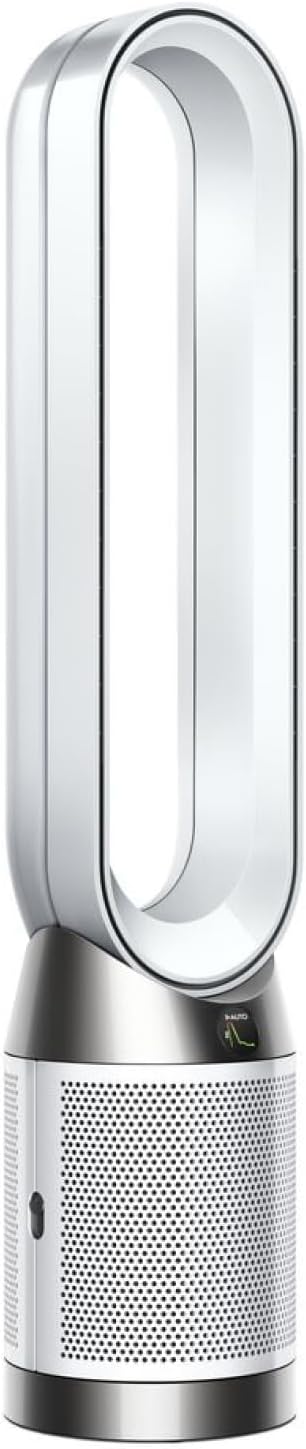
Most popular upgrades chosen by Dyson Purifier Big+Quiet owners.
As an Amazon Associate we earn from qualifying purchases.
Official Manufacturer Manual
Dyson provides official product documentation through their online manual rather than downloadable PDF. Access setup guides, troubleshooting steps, and product specifications for your Dyson Purifier Big+Quiet.
Source: dyson.com
Need More Help? Dyson Support
Note: The contact information below connects you directly to Dyson's official customer support team, not Trunetto. They can help with warranty claims, device replacements, and advanced technical issues.
Accessories owners commonly pair with Dyson Purifier Big+Quiet.

Ring Rechargeable Quick Release Battery Pack
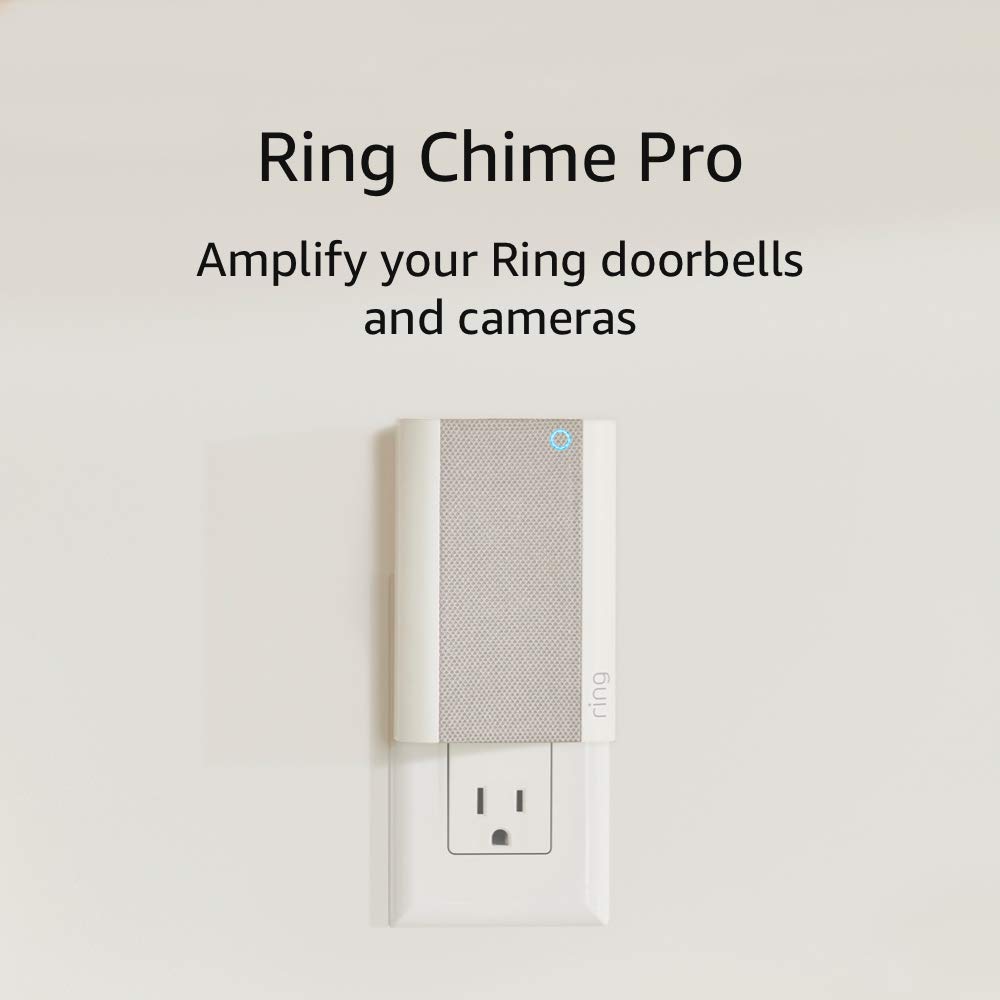
Ring Chime Pro

SwitchBot Hub Mini Smart Remote - IR Universal Remote, Wi...
As an Amazon Associate we earn from qualifying purchases.


