

Why Won't My Dyson Pure Cool Link Connect to the Dyson Link App?
- Pointed at a 5GHz network the Pure Cool Link doesn't support
- Router using WPA3, incompatible with its firmware
- Dyson Link app outdated (missing fixes for this model)
Problem Description
Your Dyson Pure Cool Link fan or desk purifier will not complete WiFi setup in the Dyson Link app. The app cannot find the purifier during setup or it connects then immediately drops offline. Pure Cool Link models use the older Dyson Link app and only support 2.4GHz WPA2 networks, making them incompatible with newer router security modes and combined band SSIDs.
Why This Happens in Real Homes
Your Dyson Pure Cool Link fan or desk purifier will not complete WiFi setup in the Dyson Link app. The app cannot find the machine during setup or the machine connects then immediately drops offline. Pure Cool Link models use the older Dyson Link app and only.. In real usage this appears as Dyson Link app cannot detect Pure Cool Link during WiFi setup, Machine connects briefly then drops offline in the Dyson Link app, and Setup wizard shows error after entering WiFi credentials
The pattern in this case points to Machine pointed at 5GHz network which Pure Cool Link does not support, Router using WPA3 security incompatible with Pure Cool Link firmware, and Dyson Link app outdated and missing bug fixes for this model. The repair usually holds when done in order: Verify 2.4GHz WPA2 Network, then Set Router Channel Width to 20MHz, then Factory Reset and Re-pair Machine. After applying the fix, validate behavior with repeated command tests and at least one full automation cycle to confirm stability.
Symptoms
- Dyson Link app can't detect the Pure Cool Link during setup
- Connects briefly then drops offline
- Setup wizard errors after entering WiFi credentials
- Machine LED solid white but app can't find it
- App shows it online but fan controls are unresponsive
- Disconnects every time the router reboots
- Setup never completes
- Repeated drops on the older app
Recognize these? Here's what usually causes it.
Common Causes
- Pointed at a 5GHz network the Pure Cool Link doesn't support
- Router using WPA3, incompatible with its firmware
- Dyson Link app outdated (missing fixes for this model)
- IP address changed after a router reboot
- Router channel width at 40MHz causing instability
- Machine firmware outdated
- Combined-band SSID steering it wrong
- Older model on the legacy Dyson Link app
Most fixes happen in the first 3 steps.
Do not attempt to update Pure Cool Link firmware over a weak WiFi connection. A failed firmware update can leave the machine unresponsive and require a service repair.
Tools & Requirements
Step-by-Step Solution
Verify 2.4GHz WPA2 Network
Dyson Pure Cool Link models only support 2.4GHz WiFi with WPA2 Personal security. Log into your router admin panel and confirm the 2.4GHz band is active and broadcasting with a separate network name from the 5GHz band. Temporarily change the 2.4GHz security mode to WPA2 only if it is set to WPA2/WPA3 mixed or WPA3. Connect your phone to this 2.4GHz WPA2 network before opening the Dyson Link app to begin the setup process.
Set Router Channel Width to 20MHz
Some routers set the 2.4GHz channel width to 40MHz for higher throughput but Pure Cool Link hardware is only stable on 20MHz width. Log into your router admin panel, find the 2.4GHz wireless settings, and change the channel width from Auto or 40MHz to 20MHz only. Save the setting and wait for the router to restart its wireless radio. Then retry the Dyson Link app setup with the purifier within 3 metres of the router.
Factory Reset and Re-pair the Purifier
Hold the Standby button on the Pure Cool Link remote for 10 seconds until the display shows a countdown to zero. This performs a factory reset clearing all stored WiFi credentials. Open the Dyson Link app and tap the plus icon to add a new device. Follow the setup wizard entering your 2.4GHz WPA2 network credentials. Keep the phone and purifier within 2 metres of the router throughout the entire pairing process.
Assign Static IP in Router
If the purifier connects successfully but drops offline after router reboots, the IP address is changing each time. Log into your router admin panel and find the DHCP reservations section. Add a reservation for the Dyson purifier using its MAC address printed on the label on the base of the unit. Assign it a fixed IP address outside the dynamic DHCP pool. This ensures the Dyson Link app always finds the purifier at the same address after reboots.
Check for Firmware Update via USB
Older Pure Cool Link firmware versions have known WiFi stack bugs that prevent stable app connectivity. Some firmware updates for this model require a USB stick rather than an over-the-air update. Visit the Dyson support website and search for your model number (TP02, TP03, DP01, or DP03). Download the latest firmware file and follow the instructions to apply it via the USB port on the base of the purifier. After updating retry the WiFi setup in the Dyson Link app.
Quick Solutions
Still having issues? This is usually the deeper cause below.
If this comes back after following these steps, check whether a recent app or firmware update reset a default setting — the fix works, but the setting gets reverted silently.
For newer Dyson purifiers consider the MyDyson app which replaced Dyson Link and offers improved connectivity with modern WPA3 routers.
This issue almost always looks more complex than it is — the majority of cases trace back to a single setting, a stale credential, or a default that shipped wrong.
- Pointed at a 5GHz network the Pure Cool Link
- Router using WPA3, incompatible with its firmware
- Dyson Link app outdated (missing fixes for this model)
- IP address changed after a router reboot
- Router channel width at 40MHz causing instability
Before you go — try one of these (they fix most cases).
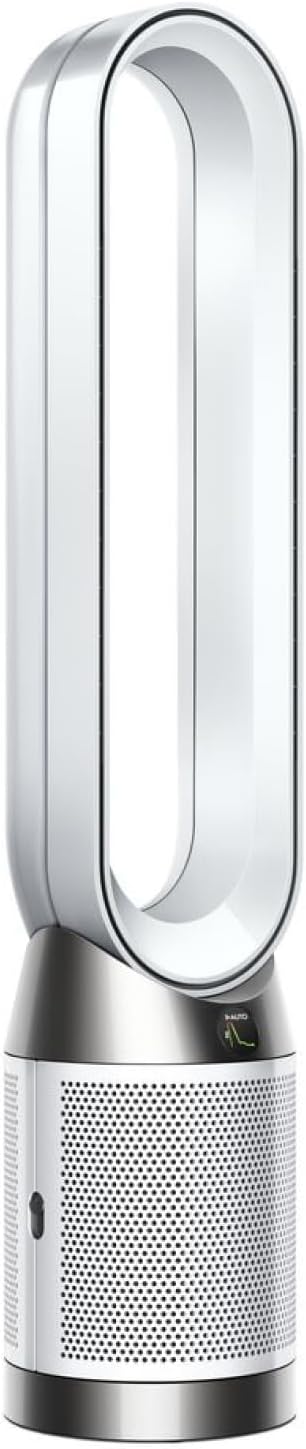
Most popular upgrades chosen by Dyson Pure Cool Link owners.
As an Amazon Associate we earn from qualifying purchases.
Official Manufacturer Manual
Dyson provides official product documentation through their online manual rather than downloadable PDF. Access setup guides, troubleshooting steps, and product specifications for your Dyson Pure Cool Link.
Source: dyson.com
Need More Help? Dyson Support
Note: The contact information below connects you directly to Dyson's official customer support team, not Trunetto. They can help with warranty claims, device replacements, and advanced technical issues.
Accessories owners commonly pair with Dyson Pure Cool Link.

Ring Rechargeable Quick Release Battery Pack
Ring Chime Pro

SwitchBot Hub Mini Smart Remote - IR Universal Remote, Wi...
As an Amazon Associate we earn from qualifying purchases.


