

How to Install Your Meross Smart WiFi Garage Door Opener
- Check Compatibility and Power Up
- Connect to the Meross App
- Wire to Your Garage Door Opener
- Install the Door Sensor
Most users complete this in under 45 minutes
Overview
This guide provides instructions for installing the Meross MSG100 Smart WiFi Garage Door Opener. It covers checking compatibility with your existing opener, wiring the device, installing the door sensor, and connecting it to the Meross app for smart control.
Why This Happens in Real Homes
The Meross smart garage opener works by wiring its relay across your opener's wall-button (push-button) terminals to trigger the door, plus a door sensor that reports whether the door is open or closed. So installation is two parts: the trigger wiring at the opener's motor unit, and mounting the sensor on the door — and it connects to 2.4GHz WiFi, which garages often have weak coverage for.
Wire the relay to the two terminals your wall button uses (a momentary contact that pulses the door), mount the door sensor where it accurately distinguishes open from closed, and connect the sensor wire. Then pair the device to a 2.4GHz network (the garage is often far from the router, so check signal). Confirm your opener is compatible — most with a standard wall button are — and install any firmware. Correct trigger wiring plus an accurately placed sensor is the whole job.
What's Included
- Installing the garage door opener
- Wiring to the opener questions
- Won't trigger the door
- Sensor mounting questions
- Won't connect to WiFi
- Compatibility concerns
- Status not reporting
- Setup unclear
Got your materials ready? Here's what to check first.
Before You Start
- Wiring to the wrong opener terminals
- Opener not compatible (wall-button type)
- Sensor not mounted/positioned correctly
- Connecting to 5GHz not 2.4GHz
- Sensor wire not connected
- Not in pairing mode
- Firmware update pending
- Weak 2.4GHz in the garage
Don't skip this step — it breaks everything if you do
Always disconnect power to your garage door opener before making any wiring connections to prevent electrical shock.
Tools & Requirements
These tools will help you complete this fix.

As an Amazon Associate we earn from qualifying purchases.
Installation Steps
Check Compatibility and Power Up
Before beginning the installation, visit the Meross website to confirm that your garage door opener model is compatible with the MSG100. Once confirmed, power up the smart opener by plugging it into a nearby power outlet using the included adapter.
Connect to the Meross App
Open the Meross app on your smartphone and tap the '+' icon to add a new device. Select 'Smart Garage Door Opener' from the list and complete the setup prompts to connect the MSG100 to your home's 2.4GHz Wi-Fi network.
Wire to Your Garage Door Opener
Connect the two signal control wires from the MSG100 to the same terminals on your garage door opener motor that your existing wall-mounted button is connected to. This allows the Meross device to send the open/close signal to the motor.
Install the Door Sensor
Securely mount the two parts of the door sensor—the magnet and the sensor—to your garage door and the door frame using the provided screws or adhesive. Make sure they are aligned and close together when the door is shut. Connect the sensor's cable to the MSG100 unit.
Installation Tips
Still stuck? This is usually the deeper cause below.
The door sensor must be properly aligned for the app to accurately report whether your garage door is open or closed.
Before you go — these Meross guides fix most remaining issues.
Most popular upgrades chosen by Meross MSG100 Smart WiFi Garage Door Opener owners.

As an Amazon Associate we earn from qualifying purchases.
Official Manufacturer Manual
Meross provides official product documentation through their online manual rather than downloadable PDF. Access setup guides, troubleshooting steps, and product specifications for your Meross MSG100 Smart WiFi Garage Door Opener.
Source: meross.com
Need More Help? Meross Support
Note: The contact information below connects you directly to Meross's official customer support team, not Trunetto. They can help with warranty claims, device replacements, and advanced technical issues.
Accessories owners commonly pair with Meross MSG100 Smart WiFi Garage Door Opener.

Blink Mini - Compact indoor plug-in smart security camera...
Blink Mini - Compact indoor plug-in smart security camera...
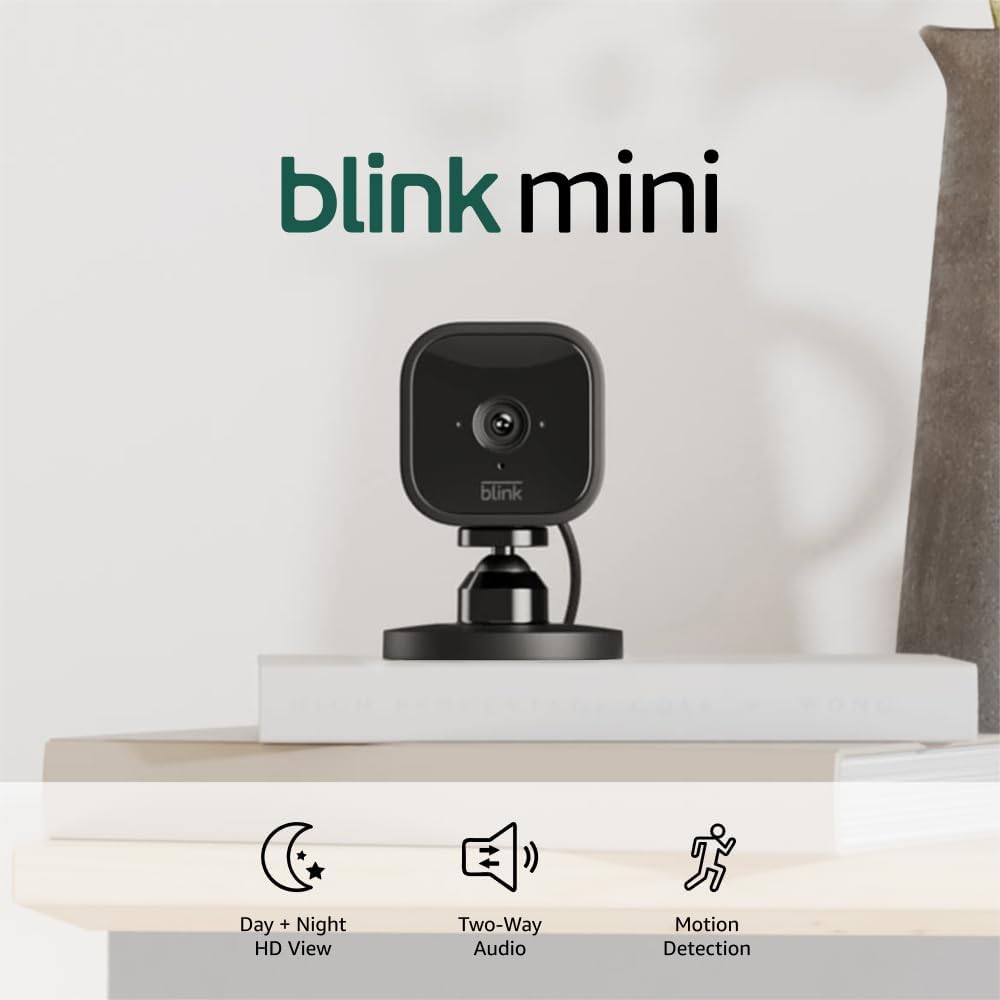
Blink Mini - Compact indoor plug-in smart security camera...
As an Amazon Associate we earn from qualifying purchases.


