

Why Won't My Echo Show 15 Recognize My Face?
- Camera shutter slider closed
- Visual ID not set up/enrolled
- Poor lighting for the camera
Problem Description
Your Echo Show 15 Visual ID (facial recognition) is not recognizing your face when you walk up to the screen. The camera shutter on the top of the Echo Show 15 must be open (slid to the left) for Visual ID to work. If the shutter is closed, the camera is physically blocked. This guide covers checking the shutter, enrolling faces, and lighting conditions.
Why This Happens in Real Homes
Visual ID uses the Echo Show 15's camera to recognize you and show personalized info as you approach — so the first thing to check is the physical camera shutter on the top edge. If it's slid closed (covering the camera), Visual ID simply can't see you, which is the most common cause.
Start by opening the shutter, then enroll (or re-enroll) your face in Visual ID setup in good lighting, and enable the feature. Have each household member enroll their own face; poor lighting and a closed or dirty camera are the usual reasons it won't recognize someone.
Symptoms
- Visual ID not recognizing your face
- No personalized greeting
- Face not enrolling
- Recognizes the wrong person
- Camera shutter closed
- Works in some light only
- Visual ID off
- Will not detect a face
Recognize these? Here's what usually causes it.
Common Causes
- Camera shutter slider closed
- Visual ID not set up/enrolled
- Poor lighting for the camera
- Face not enrolled well
- Feature disabled in settings
- Camera obstructed/dirty
- Multiple similar faces
- Firmware out of date
Most fixes happen in the first 3 steps.
Echo Show 15 can recognize up to 6 different household members.
Tools & Requirements
These tools will help you complete this fix.

Ethernet cable
Jadaol Cat 6 Ethernet Cable 25 ft, 10Gbps Support Ca...

Replacement batteries
Duracell Coppertop Double AA Batteries with Power Bo...
As an Amazon Associate we earn from qualifying purchases.
Step-by-Step Solution
Make sure the camera shutter is open
The Echo Show 15 has a physical camera shutter slider on the top edge. If the shutter is closed, Visual ID cannot see you and will never activate. Slide it to the open position — you should see the camera lens uncovered. When the shutter is closed, a small indicator appears on screen. Visual ID requires the camera to be on at all times to detect faces as people walk past.
Check that Visual ID is enabled and enrolled
Open the Alexa app on your phone, go to More > Settings > Device Settings, select your Echo Show 15, then tap Visual ID. Make sure it is turned on. If you have not enrolled your face yet, tap Set Up Visual ID and follow the prompts to capture your face from five different angles. Stand about 2 feet from the screen in a well-lit room during enrollment. Each household member needs to enroll separately from their own Alexa profile.
Improve lighting in the room
Visual ID uses the front camera to match faces, and it struggles in dim rooms. If the Echo Show 15 is in a hallway or kitchen with poor lighting, the camera cannot capture enough facial detail to make a match. Add a lamp or overhead light near the display. Avoid backlighting — standing in front of a bright window with the display facing you puts your face in shadow from the camera perspective.
Re-enroll your face if your appearance has changed
If you have changed glasses, grown or shaved a beard, or significantly changed your hairstyle since enrolling, Visual ID may not recognise you. Delete your existing Visual ID profile in the Alexa app (Settings > Device Settings > Echo Show 15 > Visual ID > Your Name > Delete) and re-enroll with your current appearance. The enrollment captures five angles to build a reliable model, so move your head slowly during the process.
Restart the Echo Show 15
If Visual ID was working before and stopped, a software glitch may be the cause. Say "Alexa, restart" or unplug the device for 30 seconds and plug it back in. After it boots (about 90 seconds), walk past the screen and check if it greets you by name. If Visual ID still fails after a restart, check for software updates: Settings > Device Options > Check for Software Updates. Some Visual ID improvements ship in firmware updates.
Quick Solutions
Still having issues? This is usually the deeper cause below.
If this comes back after following these steps, check whether a recent app or firmware update reset a default setting — the fix works, but the setting gets reverted silently.
Visual ID works best with consistent lighting - recognition may vary by time of day.
This issue almost always looks more complex than it is — the majority of cases trace back to a single setting, a stale credential, or a default that shipped wrong.
- Camera shutter slider closed
- Visual ID not set up/enrolled
- Poor lighting for the camera
- Face not enrolled well
- Feature disabled in settings
Before you go — try one of these (they fix most cases).
Most popular upgrades chosen by Amazon Echo Show 15 owners.

Amazon eero Pro 6E mesh wifi router (1-pack) with Amazon ...

Amazon Echo Dot Kids (newest model) - Dragon including Am...
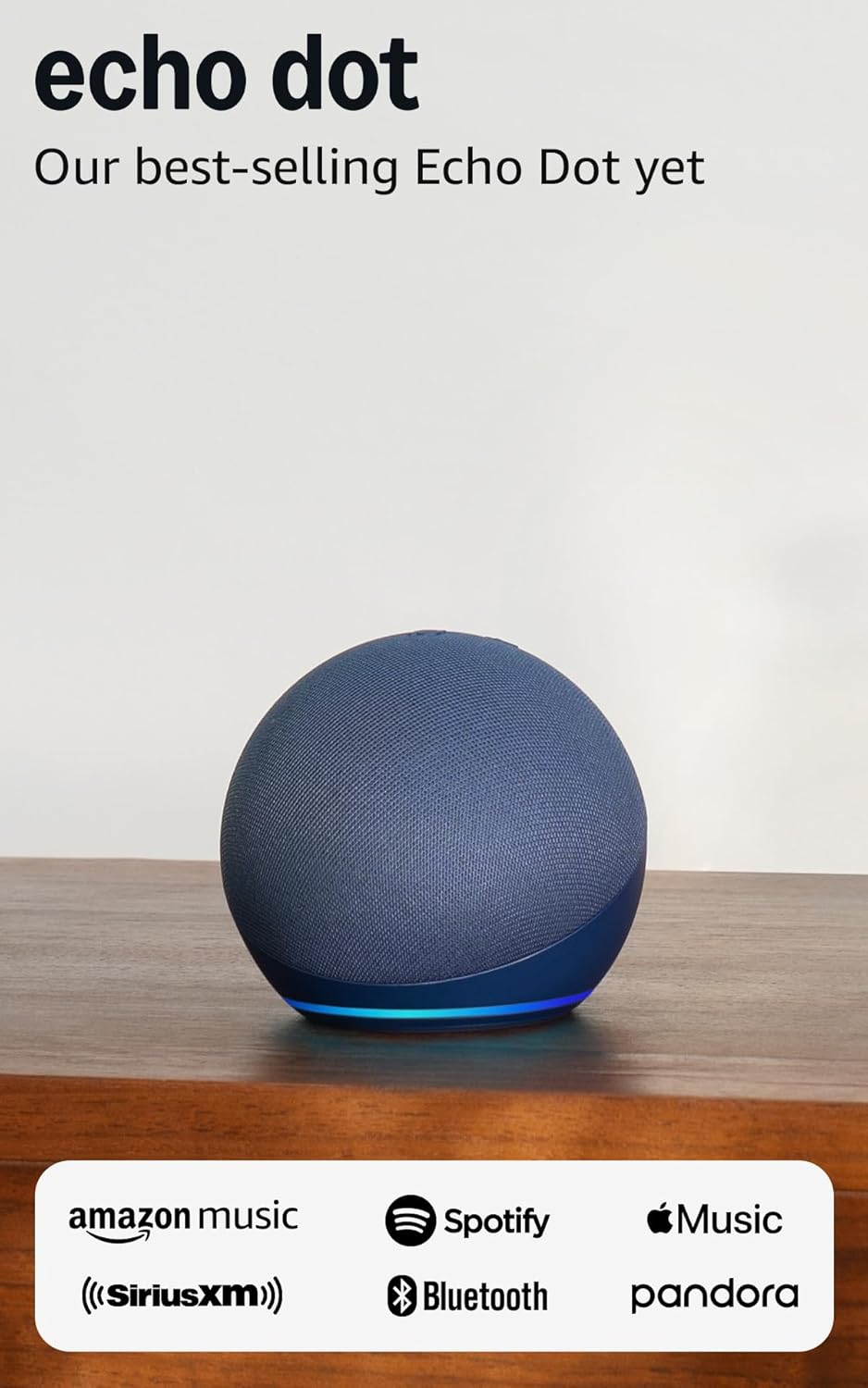
Amazon Echo Dot (newest model) - Vibrant sounding speaker...
As an Amazon Associate we earn from qualifying purchases.
Official Manufacturer Manual
Amazon provides official product documentation through their online manual rather than downloadable PDF. Access setup guides, troubleshooting steps, and product specifications for your Amazon Echo Show 15.
Source: amazon.com
Need More Help? Amazon Support
Note: The contact information below connects you directly to Amazon's official customer support team, not Trunetto. They can help with warranty claims, device replacements, and advanced technical issues.
How Does Amazon Compare?
Before replacing your Amazon device, see how it stacks up against alternatives in our full comparison guides.
Accessories owners commonly pair with Amazon Echo Show 15.

Amazon Basics 65 Piece Home Repair Tool Kit Set With Carr...

Amazon Basics Smart Plug, Matter Compatible, Compatible w...

Amazon Basics Dual Smart Plug with Motion Sensor and Nigh...
As an Amazon Associate we earn from qualifying purchases.



