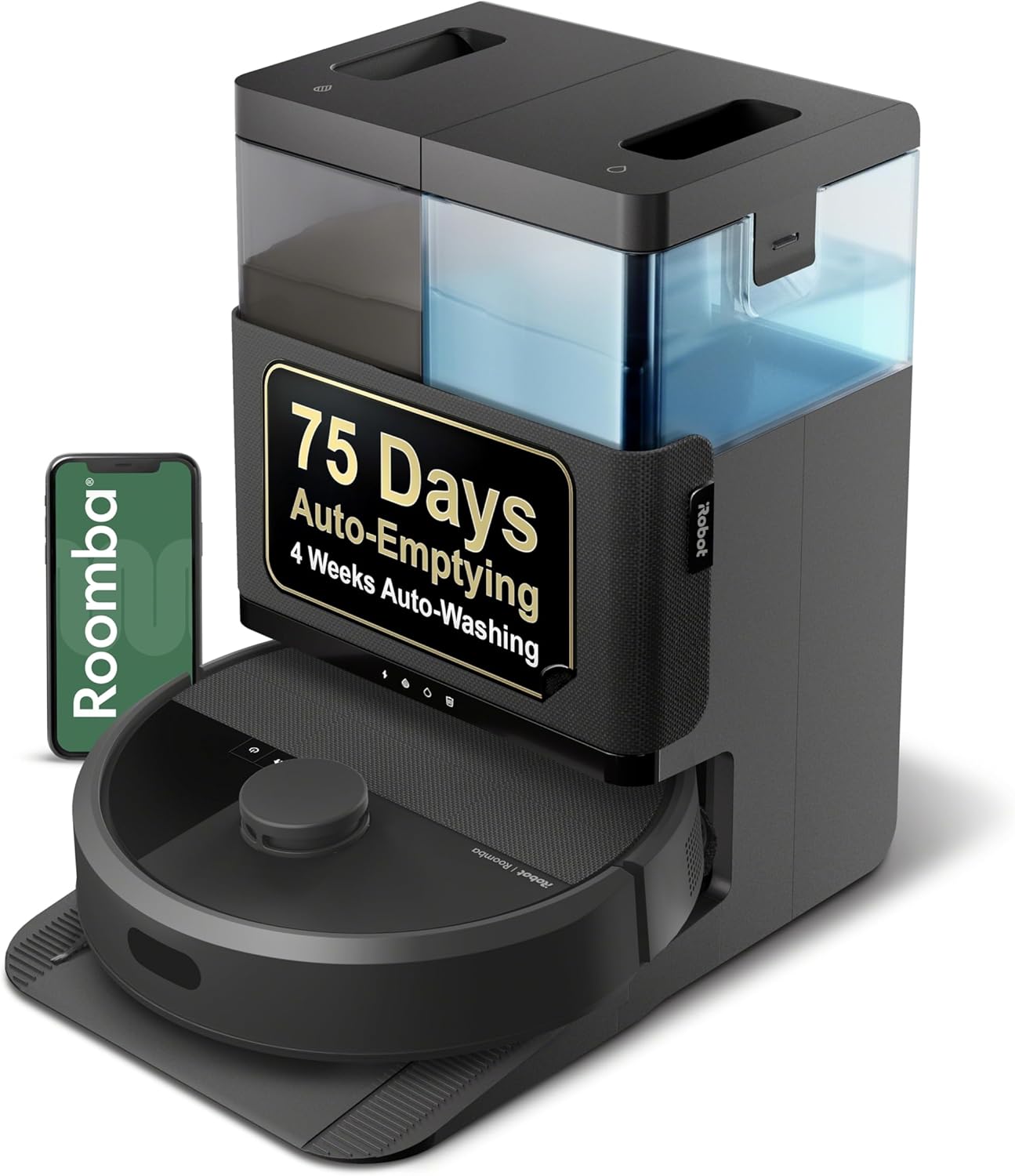
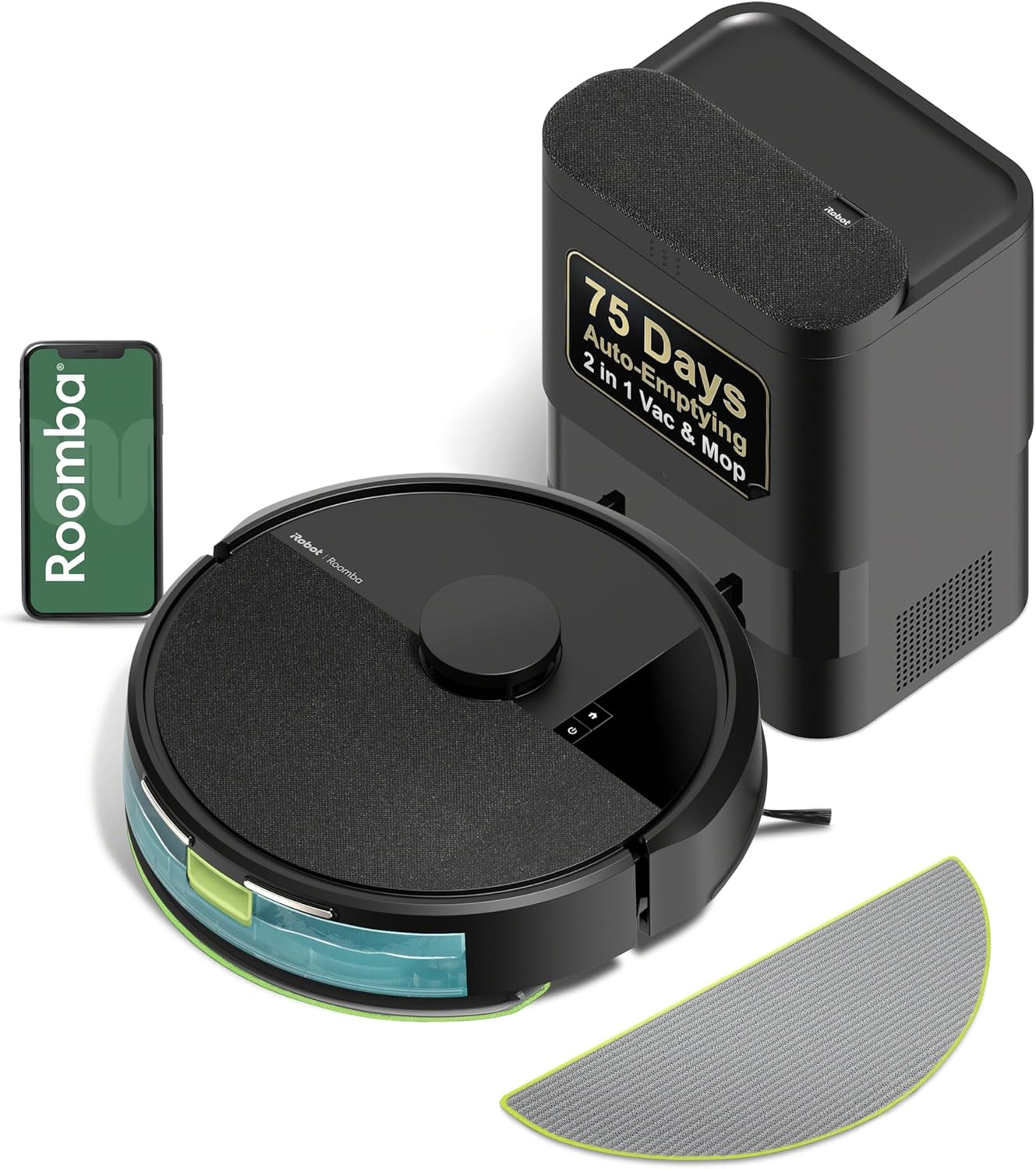
How to Relocate a Roomba j7+ Dock Without Losing the Saved Map
- Dock moved to a very different area
- Map not saved/confirmed before moving
- Robot couldn't re-localize from the new spot
Problem Description
Moving the Clean Base dock often wipes the saved Smart Map. This guide explains how Roomba j7+ handles dock relocation, the right way to move the dock, and how to recover the map if the robot flags the new location as unknown.
Why This Happens in Real Homes
The j7+ keeps its Smart Map as long as it can still recognize where it is after the dock moves, so small relocations within the same room usually preserve it — big jumps to a new area or floor are what force a re-map, because the robot can't tie the new dock spot back to the saved map.
Move the Clean Base only a modest distance within the same space, to an open and well-lit spot, and then let the robot start a clean from the dock so it can re-localize against the existing map. Confirm your Smart Maps are saved in the app first. Keep it on the same floor; moving across floors or into an unrecognizable area is what wipes the map.
Symptoms
- Moving the dock wiped the map
- Need to relocate the Clean Base
- Map lost after moving the dock
- Robot re-maps unexpectedly
- Wants to keep Smart Maps
- Dock relocation questions
- Robot confused after a move
- Zones lost after moving
Recognize these? Here's what usually causes it.
Common Causes
- Dock moved to a very different area
- Map not saved/confirmed before moving
- Robot couldn't re-localize from the new spot
- Large layout change with the move
- Moved to a different floor
- New location poorly lit or obscured
- Robot started before it re-localized
- Multiple maps not managed
Most fixes happen in the first 3 steps.
Do not move the dock to a location where the robot must climb a threshold to reach it. Threshold attempts cause dock failures at end of job.
Tools & Requirements
These tools will help you complete this fix.

As an Amazon Associate we earn from qualifying purchases.
Step-by-Step Solution
Plan New Dock Location
Pick a location with at least 1.5 feet of open space on each side and 4 feet in front of the Clean Base. Face the dock into the room rather than toward a wall. Avoid reflective surfaces nearby that can confuse robot navigation during docking attempts.
Move Dock With Robot Present
Start with the robot on the dock. Unplug the Clean Base, carry both together to the new location, and plug in. Keeping robot and dock together preserves the spatial reference for the j7+ so it knows its new starting point relative to the saved Smart Map.
Open App and Verify
Open the iRobot Home app and confirm the robot reports online and docked. Check that the saved map is still shown. If the app prompts to retrain mapping, do so with a full training run rather than a standard cleaning to refresh orientation.
Run Mapping or Spot Clean
Send the robot on a short cleaning job so it re-verifies its map against the new dock reference. The robot compares current observations to the stored map and patches minor drift. If the map is lost, run a full Smart Mapping run to regenerate it cleanly.
Label Keepout Zones
Once the map is stable, redraw any keepout zones that moved along with the dock. Confirm scheduled jobs still make sense after relocation. Test one full cleaning job to validate the j7+ returns to the new dock reliably when finished or when battery is low.
Quick Solutions
Still having issues? This is usually the deeper cause below.
If this comes back after following these steps, check whether a recent app or firmware update reset a default setting — the fix works, but the setting gets reverted silently.
Before moving the dock, screenshot your current map from the iRobot app. That reference helps confirm the map survived the move without changes.
Robot vacuums that 'stop working' are usually fighting a corrupted map from moved furniture — a fresh floor scan fixes the majority of reported failures.
- Dock moved to a very different area
- Map not saved/confirmed before moving
- Robot couldn't re-localize from the new spot
- Large layout change with the move
- Moved to a different floor
Before you go — try one of these (they fix most cases).
Most popular upgrades chosen by iRobot Roomba j7+ owners.

iRobot® Authentic Replacement Parts- Braava Jet® m Series...

iRobot® Roomba® Authentic Replacement Parts - DualClean™ ...

iRobot® Authentic Replacement Parts - Washable Mop Pads R...
As an Amazon Associate we earn from qualifying purchases.
Official Manufacturer Manual
If you need the complete manufacturer documentation for advanced setup, wiring diagrams, or detailed specifications, you can download the official manual below. The manual includes full technical instructions directly from the manufacturer and may help if your issue requires deeper troubleshooting.
Download the Official iRobot Roomba j7+ ManualSource: irobot.com
Need More Help? iRobot Support
Note: The contact information below connects you directly to iRobot's official customer support team, not Trunetto. They can help with warranty claims, device replacements, and advanced technical issues.
How Does iRobot Compare?
Before replacing your iRobot device, see how it stacks up against alternatives in our full comparison guides.
Accessories owners commonly pair with iRobot Roomba j7+.

Amazon Basics 20-Pack AA Alkaline High-Performance Batter...

Amazon Basics CR2032 3V Lithium Coin Cell Batteries for K...

Duracell Coppertop Double AA Batteries with Power Boost I...
As an Amazon Associate we earn from qualifying purchases.