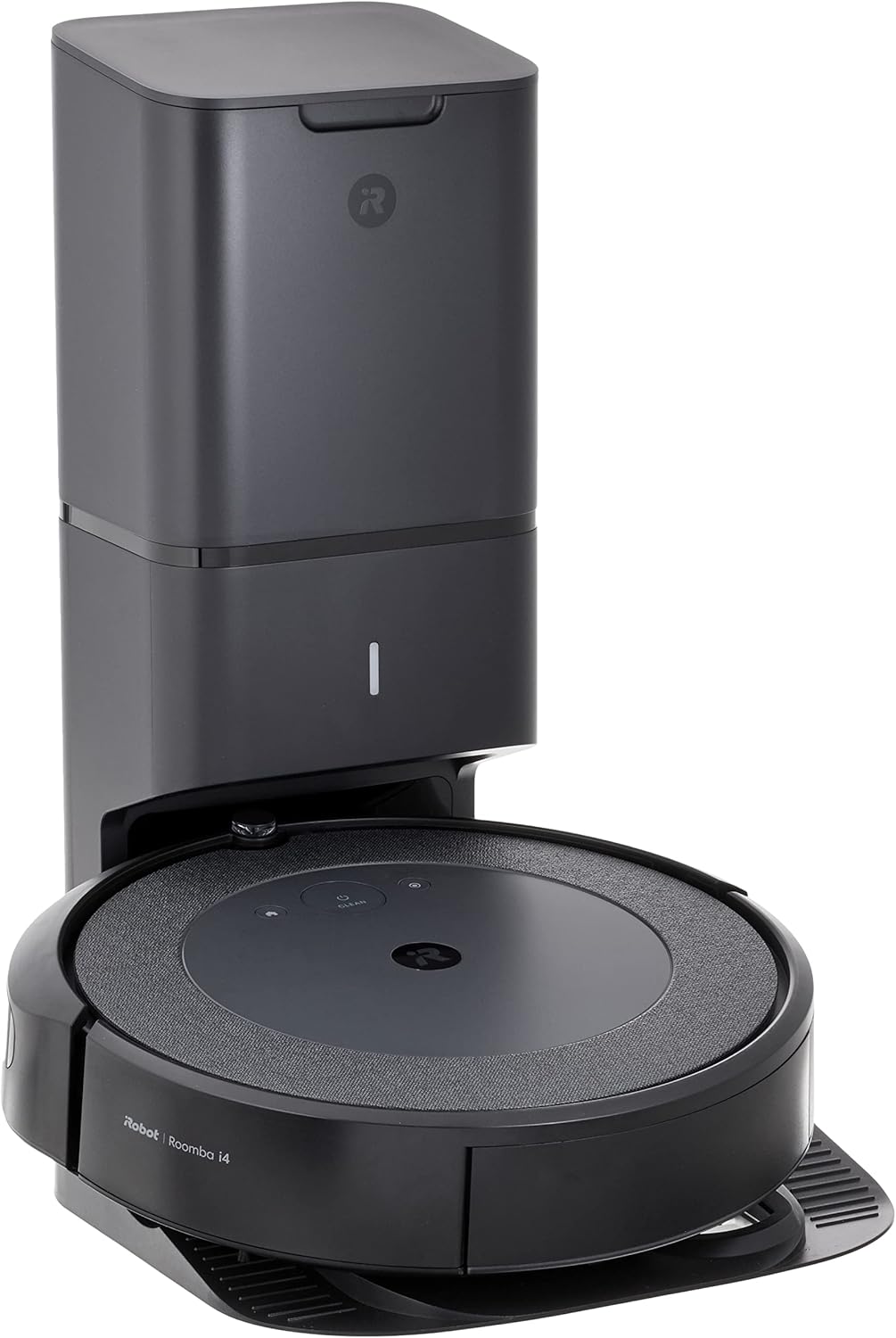
How to Set Up iRobot Roomba j9+ Robot Vacuum
- Place the Clean Base and Home Base in an Accessible Location
- Download the iRobot Home App and Connect the j9+
- Run the First Mapping Run Without Interruption
- Label Rooms and Configure Mop Settings
- Set Cleaning Schedules and Test Integration
Most users complete this in under 65 minutes
Overview
IRobot Roomba j9+ Robot Vacuum setup takes under 15 minutes for most users — if you're stuck, the steps below target the specific points where installs stall.
This guide covers the setup of the iRobot Roomba j9+, including Clean Base automatic dirt disposal station placement, initial mapping configuration, and iRobot Home app setup for smart recommendations, room division, and recharge-and-resume scheduling. The j9+ learns your home layout over multiple runs and improves cleaning path efficiency with each session.
Why This Happens in Real Homes
The j9+ builds on the j7's PrecisionVision obstacle avoidance with stronger suction and Dirt Detective, which prioritizes dirtier rooms — but the setup fundamentals are the same: a well-placed Clean Base, a 2.4GHz WiFi connection, and a mapping run so it learns your home before the smart features kick in.
Place and plug in the Clean Base on hard floor against a wall with clearance, seat the robot to charge, and pair it in the iRobot Home app on 2.4GHz, installing any firmware. Run a Mapping Run in reasonably lit rooms to build the Smart Map, then label rooms. With the map done, Dirt Detective can route it to the dirtiest areas first and it empties itself at the base.
What's Included
- Setting up the j9+
- Clean Base setup
- Dirt Detective/PrecisionVision
- Won't connect to WiFi
- App can't find the robot
- First mapping run
- Dock placement
- Room labeling
Got your materials ready? Here's what to check first.
Before You Start
- Clean Base not placed or plugged in correctly
- Connecting to 5GHz instead of 2.4GHz WiFi
- Robot not seated to charge
- Setup incomplete in the app
- No mapping run done yet
- Dim lighting for the front camera
- Dock crowded by walls or furniture
- Firmware update pending
Don't skip this step — it breaks everything if you do
Allow 2-3 weeks for AI learning period to optimize. Keep firmware updated for latest recognition capabilities. Monitor Dirt Detective suggestions.
Installation Steps
Place the Clean Base and Home Base in an Accessible Location
Position the Clean Base against a wall on hard flooring with at least 1.5 feet of clearance on each side and 4 feet of open space in front. The j9+ docks here for automatic dirt disposal, recharging, and water tank refilling between cleaning sessions. Keep the dock away from stairs and direct sunlight that could interfere with the docking infrared sensors. Plug the Clean Base into a wall outlet that remains powered at all times.
Download the iRobot Home App and Connect the j9+
Install the iRobot Home app on iOS or Android and create an iRobot account. Tap the plus icon and select Add a Robot then choose Roomba Combo j9+. The app walks you through connecting your phone to the j9+ temporary WiFi hotspot, entering your home WiFi password, and transferring credentials to the robot. Make sure your phone is on 2.4GHz WiFi during setup — the j9+ supports 2.4GHz only and will not appear if your phone is on 5GHz during this step.
Run the First Mapping Run Without Interruption
Before starting, close doors to rooms you do not want mapped and pick up loose cables, socks, or small rugs that could tangle the robot. Tap Clean in the app to begin the first run. The j9+ maps the floor plan as it cleans — this initial run is longer than regular cleaning sessions. Do not pick up or move the robot during this run. If the battery runs low the robot returns to dock automatically, recharges, and resumes mapping from where it stopped.
Label Rooms and Configure Mop Settings
After the first complete run, open the app and review the generated floor map under the Maps section. Tap within each room area and assign a name — Kitchen, Living Room, Primary Bedroom. Draw keep-out zones around areas you never want the robot to enter. For mopping, configure which rooms should receive mopping and which are carpet-only. The j9+ automatically raises the mop pad when entering carpet areas, so you can allow it to clean both floor types in a single run.
Set Cleaning Schedules and Test Integration
Go to Schedule in the iRobot app and create your preferred cleaning routine — select which rooms to clean on which days and at what time. The j9+ supports different schedules for different rooms. To add voice control, open the Alexa or Google Home app and link your iRobot account — then say Alexa ask iRobot to clean the kitchen to trigger room-specific cleaning by voice. Test the first scheduled run to confirm the robot starts, cleans the correct rooms, and returns to dock automatically.
Installation Tips
Still stuck? This is usually the deeper cause below.
j9+ includes latest AI improvements and Dirt Detective for intelligent cleaning prioritization. Enhanced object detection over j7+ series.
Before you go — these iRobot guides fix most remaining issues.
Most popular upgrades chosen by Roomba j9+ Robot Vacuum owners.

iRobot® Authentic Replacement Parts- Braava Jet® m Series...

iRobot® Roomba® Authentic Replacement Parts - DualClean™ ...

iRobot® Authentic Replacement Parts - Washable Mop Pads R...
As an Amazon Associate we earn from qualifying purchases.
Official Manufacturer Manual
If you need the complete manufacturer documentation for advanced setup, wiring diagrams, or detailed specifications, you can download the official manual below. The manual includes full technical instructions directly from the manufacturer and may help if your issue requires deeper troubleshooting.
Download the Official Roomba j9+ Robot Vacuum ManualSource: irobot.com
Need More Help? iRobot Support
Note: The contact information below connects you directly to iRobot's official customer support team, not Trunetto. They can help with warranty claims, device replacements, and advanced technical issues.
How Does iRobot Compare?
Before replacing your iRobot device, see how it stacks up against alternatives in our full comparison guides.