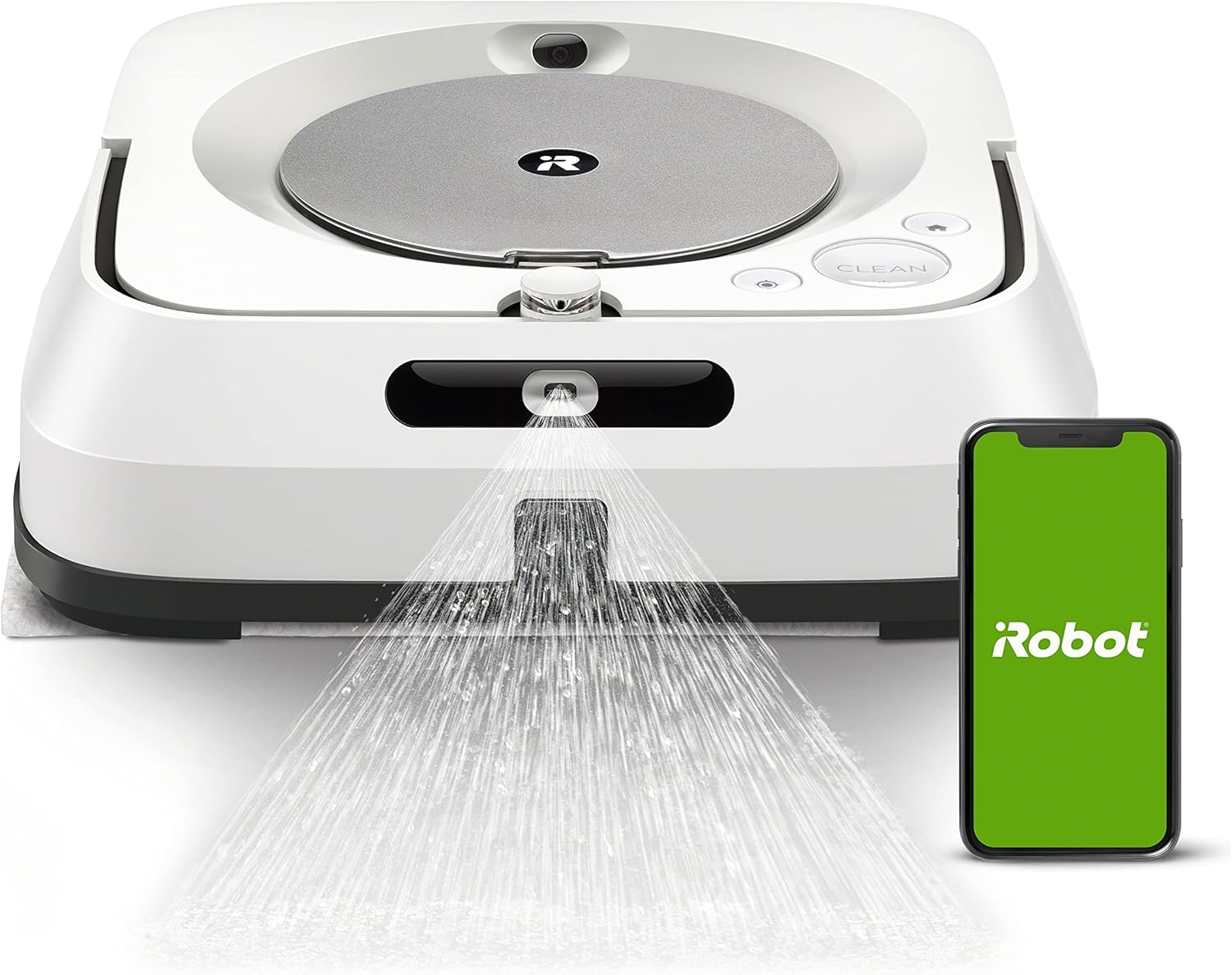
Why Won't My iRobot Braava jet m6 Create or Save a Map?
- Not run in Mapping/Training Run mode first
- Dock moved between runs
- Robot picked up or relocated mid-run
Problem Description
Your Braava jet m6 mops your floors but never creates a saved map. It starts from scratch every time missing rooms or repeating areas. You cannot use features like room selection or keep-out zones because there is no map. The robot should learn your home layout but it never does.
Why This Happens in Real Homes
The Braava jet m6 builds a persistent Smart Map only when it can complete uninterrupted runs from a fixed dock — if it's picked up mid-run, the dock keeps moving, or the room is too dim for its camera, it can't tie runs together and starts fresh each time, so no map ever saves.
Start with a dedicated Mapping (Training) Run and let it finish without lifting or moving the robot, keeping the Home Base in one open, well-lit location between runs. Clean the navigation camera and keep firmware current. Once it completes a few stable, uninterrupted runs from the same dock, the Smart Map persists and you can add zones.
Symptoms
- m6 never saves a map
- Re-maps every run
- No Smart Map created
- Map lost after cleaning
- Can't set zones
- Map won't persist
- Mapping run fails
- No saved map in the app
Recognize these? Here's what usually causes it.
Common Causes
- Not run in Mapping/Training Run mode first
- Dock moved between runs
- Robot picked up or relocated mid-run
- Poor lighting for the camera
- Layout changing between runs
- Dirty navigation sensor
- Firmware out of date
- Home Base in a cramped spot
Most fixes happen in the first 3 steps.
Moving the charging dock after mapping may cause navigation issues. Keep the dock in the same location or remap after moving it.
Step-by-Step Solution
Start Dedicated Mapping Run
In the iRobot app instead of starting a regular mop job look for Map or Training Run option. This tells the robot to explore and map rather than clean efficiently. Let the robot run until it returns to dock on its own without interruption.
Allow Uninterrupted Mapping
Mapping requires the robot to explore your entire home. Do not pick it up, move it, or stop it during mapping. Keep doors open to all areas you want mapped. The robot may take 1-2 hours for larger homes. Let it finish completely.
Keep Layout Consistent
During mapping keep furniture and objects in their normal positions. Close doors to areas you do not want mapped. If the robot sees drastically different layouts between runs it cannot create a consistent map.
Improve Navigation Conditions
The m6 uses cameras to navigate. Make sure adequate lighting in all rooms. Reduce reflections from mirrors or glass. Add contrast to plain walls with furniture or art. The robot needs visual landmarks to build accurate maps.
Handle Multiple Floors
If you have multiple floors the m6 creates separate maps for each. Carry the robot to each floor and run a mapping session on each. The app will show multiple maps. Select the correct floor before starting a job.
Quick Solutions
Still having issues? This is usually the deeper cause below.
If the robot returns to the dock mid-clean, moved furniture may have invalidated its map — a fresh floor scan resolves the majority of navigation failures.
The m6 can store up to 10 floor plans. Label each map clearly in the app to avoid confusion.
This issue almost always looks more complex than it is — the majority of cases trace back to a single setting, a stale credential, or a default that shipped wrong.
- Not run in Mapping/Training Run mode first
- Dock moved between runs
- Robot picked up or relocated mid-run
- Poor lighting for the camera
- Layout changing between runs
Before you go — try one of these (they fix most cases).
Most popular upgrades chosen by iRobot Braava jet m6 owners.

iRobot® Authentic Replacement Parts- Braava Jet® m Series...

iRobot® Roomba® Authentic Replacement Parts - DualClean™ ...

iRobot® Authentic Replacement Parts - Washable Mop Pads R...
As an Amazon Associate we earn from qualifying purchases.
Official Manufacturer Manual
iRobot provides official product documentation through their online manual rather than downloadable PDF. Access setup guides, troubleshooting steps, and product specifications for your iRobot Braava jet m6.
Source: irobot.com
Need More Help? iRobot Support
Note: The contact information below connects you directly to iRobot's official customer support team, not Trunetto. They can help with warranty claims, device replacements, and advanced technical issues.
How Does iRobot Compare?
Before replacing your iRobot device, see how it stacks up against alternatives in our full comparison guides.
Accessories owners commonly pair with iRobot Braava jet m6.

Amazon Basics 20-Pack AA Alkaline High-Performance Batter...

Amazon Basics CR2032 3V Lithium Coin Cell Batteries for K...

Duracell Coppertop Double AA Batteries with Power Boost I...
As an Amazon Associate we earn from qualifying purchases.