Roomba Error 14: Why Is Bin Not Detected and How Do I Fix It?
- Bin not fully seated or clicked in
- Bin contacts dirty or blocked
- Filter or bin door not closed
Problem Description
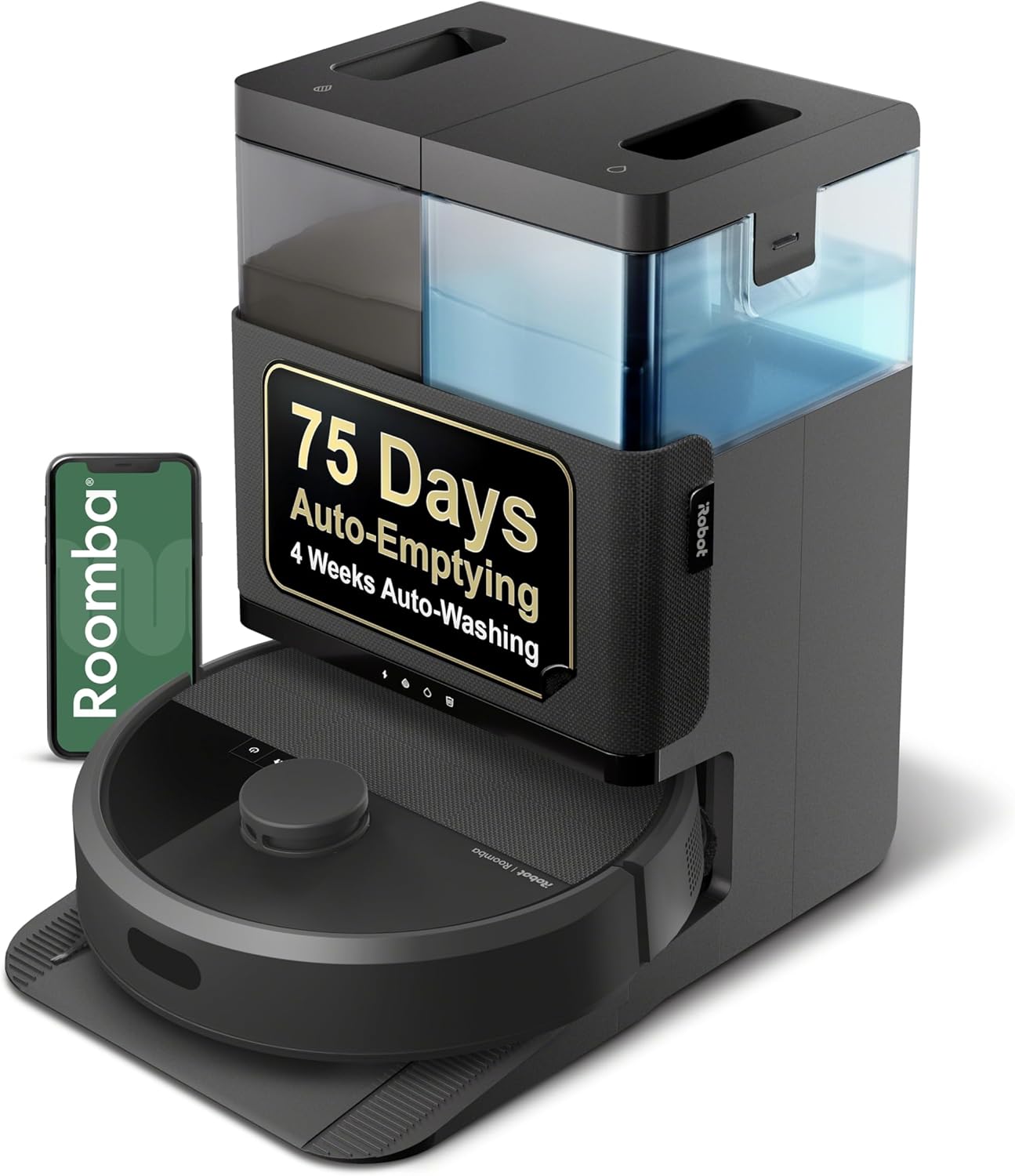
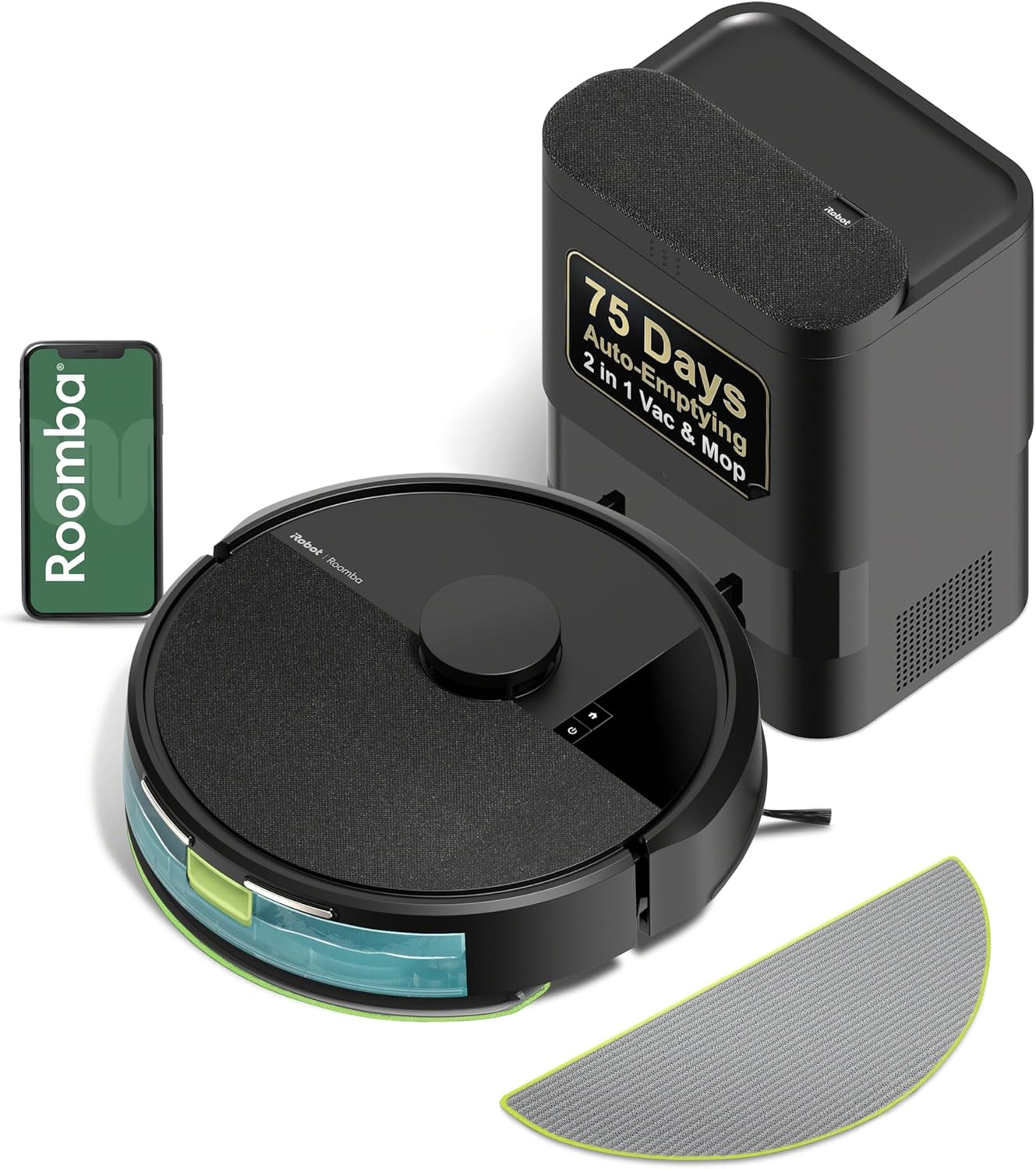
Roomba error 14 means the dustbin is not being detected. Roomba cannot confirm the bin is properly installed, even if it appears to be in place.
Why This Happens in Real Homes
Error 14 simply means Roomba can't detect its bin — usually because the bin isn't clicked all the way in, or the small metal contacts that tell the robot the bin is present are dirty. It often appears right after emptying the bin, when it wasn't reseated fully.
Take the bin out and push it back in firmly until it clicks, making sure the filter is in and its door is closed. If it still errors, wipe the bin's metal contact points and the matching contacts inside the robot, since a little grime breaks the connection. A clean, fully seated bin that still reports Error 14 points to a bin sensor fault needing iRobot service.
Symptoms
- Error 14 announced
- Bin not detected
- Robot won't start a clean
- Prompt to reinstall the bin
- Error right after emptying
- Recurs after reinserting
- Bin seems fully seated
- Won't run even when docked
Recognize these? Here's what usually causes it.
Common Causes
- Bin not fully seated or clicked in
- Bin contacts dirty or blocked
- Filter or bin door not closed
- Debris blocking the bin sensor
- Bin contacts corroded
- Wrong bin for the model
- Bin sensor fault
- Bin cracked or warped
Most fixes happen in the first 3 steps.
Never run Roomba without the bin installed. It can damage internal components and void warranty.
Step-by-Step Solution
Remove and Inspect Bin
Press the bin release button and pull the bin out completely. Check that the bin is empty and the filter is properly installed. A missing or loose filter can cause Error 14.
Clean Bin Contacts
Look at the back of the bin where it connects to Roomba. You will see metal contacts. Wipe these with a dry cloth to remove any dust or debris that could block the connection.
Clean Roomba Bin Slot
Look inside the bin compartment on Roomba. Wipe the metal contacts inside with a dry cloth. Remove any debris that might be blocking the bin from seating fully.
Reseat Bin Firmly
Slide the bin back into Roomba. Push it in firmly until you hear and feel it click into place. The bin must be fully seated for the contacts to connect properly.
Check Filter
Remove the filter from the bin and reinstall it properly. Some models require the filter to be correctly positioned for bin detection to work. Tap out excess debris from filter.
Quick Solutions
Still having issues? This is usually the deeper cause below.
If the sensor still misses events after repositioning, check whether a scheduled 'home' or 'away' mode is overriding the sensitivity setting silently.
If bin contacts look corroded or damaged, the bin may need replacement. Contact iRobot for genuine replacement parts.
This issue almost always looks more complex than it is — the majority of cases trace back to a single setting, a stale credential, or a default that shipped wrong.
- Bin not fully seated or clicked in
- Bin contacts dirty or blocked
- Filter or bin door not closed
- Debris blocking the bin sensor
- Bin contacts corroded
Before you go — try one of these (they fix most cases).
Most popular upgrades chosen by iRobot Roomba owners.

iRobot® Roomba® Authentic Replacement Parts - DualClean™ ...

iRobot® Authentic Replacement Parts - Washable Mop Pads R...
As an Amazon Associate we earn from qualifying purchases.
Official Manufacturer Manual
iRobot provides official product documentation through their online manual rather than downloadable PDF. Access setup guides, troubleshooting steps, and product specifications for your iRobot Roomba.
Source: irobot.com
Need More Help? iRobot Support
Note: The contact information below connects you directly to iRobot's official customer support team, not Trunetto. They can help with warranty claims, device replacements, and advanced technical issues.
How Does iRobot Compare?
Before replacing your iRobot device, see how it stacks up against alternatives in our full comparison guides.