

Why Is My Wyze Robot Vacuum Not Cleaning Effectively or Missing Spots?
- Clogged brush or filter
- Full dustbin
- Navigation sensor issues
Problem Description
Your Wyze Robot Vacuum is failing to clean effectively, leaving dirt behind, or consistently missing certain areas of your home. This can be due to clogged components, navigation issues, or incorrect settings.
Why This Happens in Real Homes
Poor cleaning is usually maintenance, not a failing vacuum: a brush wound with hair, a clogged filter, or a full bin all cut suction and pickup fast. Navigation problems from dirty sensors make it miss areas even when suction is fine.
Start by emptying the bin, clearing hair from the main and side brushes, and washing or replacing the filter — this restores most of the lost performance. Then wipe the navigation sensors and check your cleaning settings (suction level and no-go zones) so it's actually covering the rooms you expect.
Symptoms
- Vacuum leaves streaks or dirt
- Dustbin fills up quickly but floor is still dirty
- Vacuum gets stuck frequently
- Misses entire rooms or sections
- Cleaning path is erratic
- Happens after emptying dustbin
Recognize these? Here's what usually causes it.
Common Causes
- Clogged brush or filter
- Full dustbin
- Navigation sensor issues
- Incorrect cleaning mode
- Outdated firmware
- Physical damage to brushes
Most fixes happen in the first 3 steps.
Do not use water to clean the HEPA filter; tap it clean or replace it as needed. Using water can damage the filter.
Tools & Requirements
These tools will help you complete this fix.
As an Amazon Associate we earn from qualifying purchases.
Step-by-Step Solution
Clean Main Brush, Side Brush, and Filter
Hair, debris, and dust can get tangled in the main brush and side brush, reducing cleaning effectiveness. Remove the main brush and side brush and clean them thoroughly. Tap out or replace the HEPA filter if it"s clogged. A clogged filter significantly reduces suction power.

Needed for this step
WHOOSH! Pro 16.9 fl oz Refillable TV Screen Cle...
This helps complete the fix you are currently reading.
$19.99Empty the Dustbin
A full dustbin will prevent the vacuum from picking up more debris. Make sure the dustbin is emptied regularly, ideally after every cleaning cycle, to maintain best suction and prevent dirt from being redistributed.
Clean Navigation Sensors
Dust or smudges on the LiDAR sensor (on top) and cliff sensors (4 small clear windows on the underside along the front and side edges) can impair the vacuum"s navigation, causing it to miss spots or clean erratically. Gently wipe all sensors with a clean, dry cloth to make sure they are clear.
Adjust Cleaning Mode and Suction Power
In the Wyze app, check the selected cleaning mode. Make sure it"s appropriate for your floor type and desired cleanliness. Increase the suction power setting if you need a deeper clean, but note that higher suction will consume more battery.
Update Wyze Robot Vacuum Firmware
Make sure your Wyze app is up to date, as firmware updates for your Robot Vacuum are often pushed automatically through the app and can include improvements to cleaning algorithms, navigation, and overall performance. If an update is pending, make sure your vacuum has a stable Wi-Fi connection to allow it to complete.
Quick Solutions
Still having issues? This is usually the deeper cause below.
If the robot returns to the dock mid-clean, moved furniture may have invalidated its map — a fresh floor scan resolves the majority of navigation failures.
Schedule regular cleaning cycles in the Wyze app to maintain a consistently clean home and prevent excessive dirt buildup.
Robot vacuums that 'stop working' are usually fighting a corrupted map from moved furniture — a fresh floor scan fixes the majority of reported failures.
- Clogged brush or filter
- Full dustbin
- Navigation sensor issues
- Incorrect cleaning mode
- Outdated firmware
Before you go — try one of these (they fix most cases).
Most popular upgrades chosen by Wyze Robot Vacuum owners.
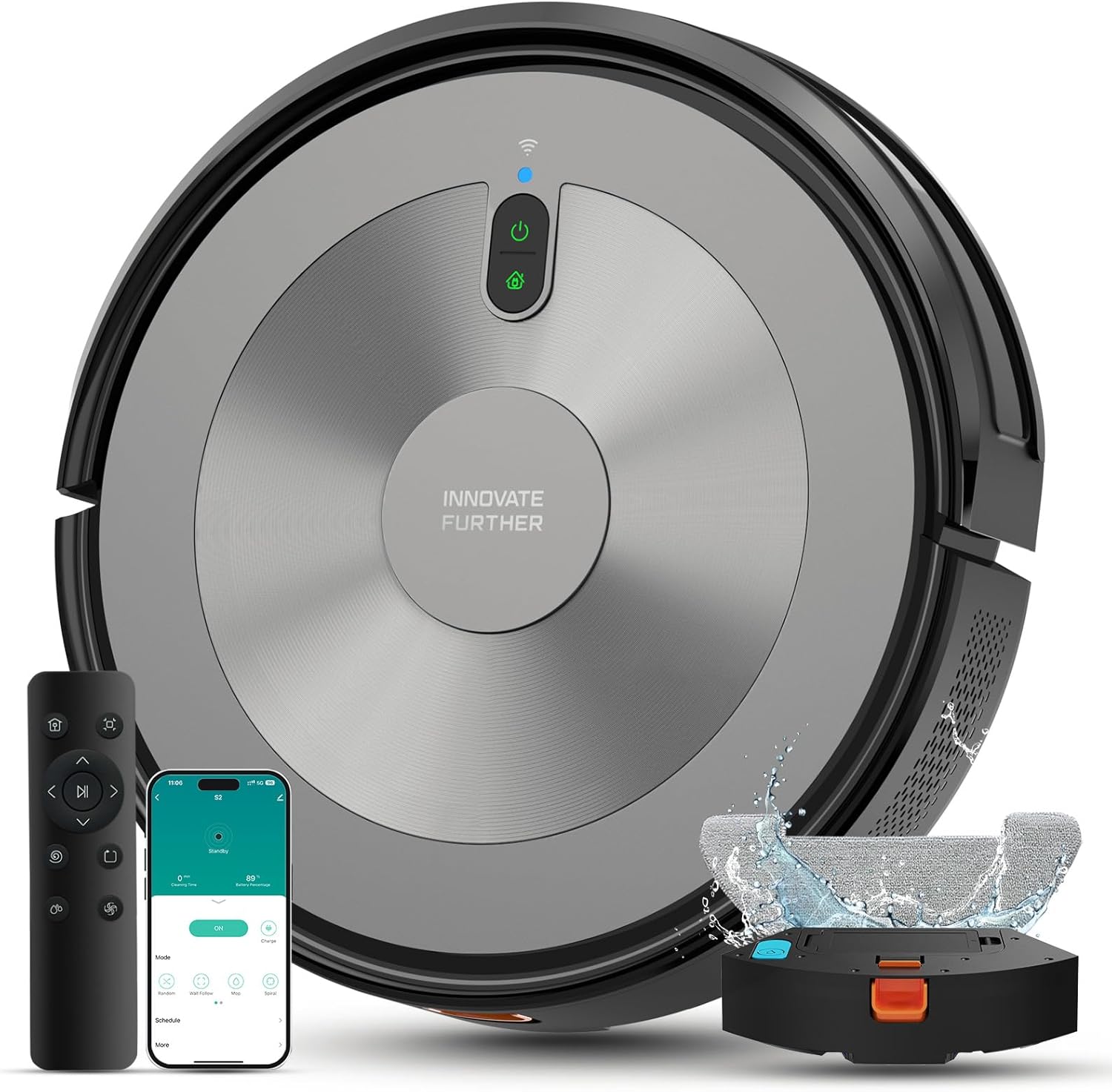
Robot Vacuum and Mop Combo, 5000Pa 3-in-1 Robotic Vacuum ...

Robot Vacuum and Mop Combo, 90 Days Self-Emptying, 6000Pa...
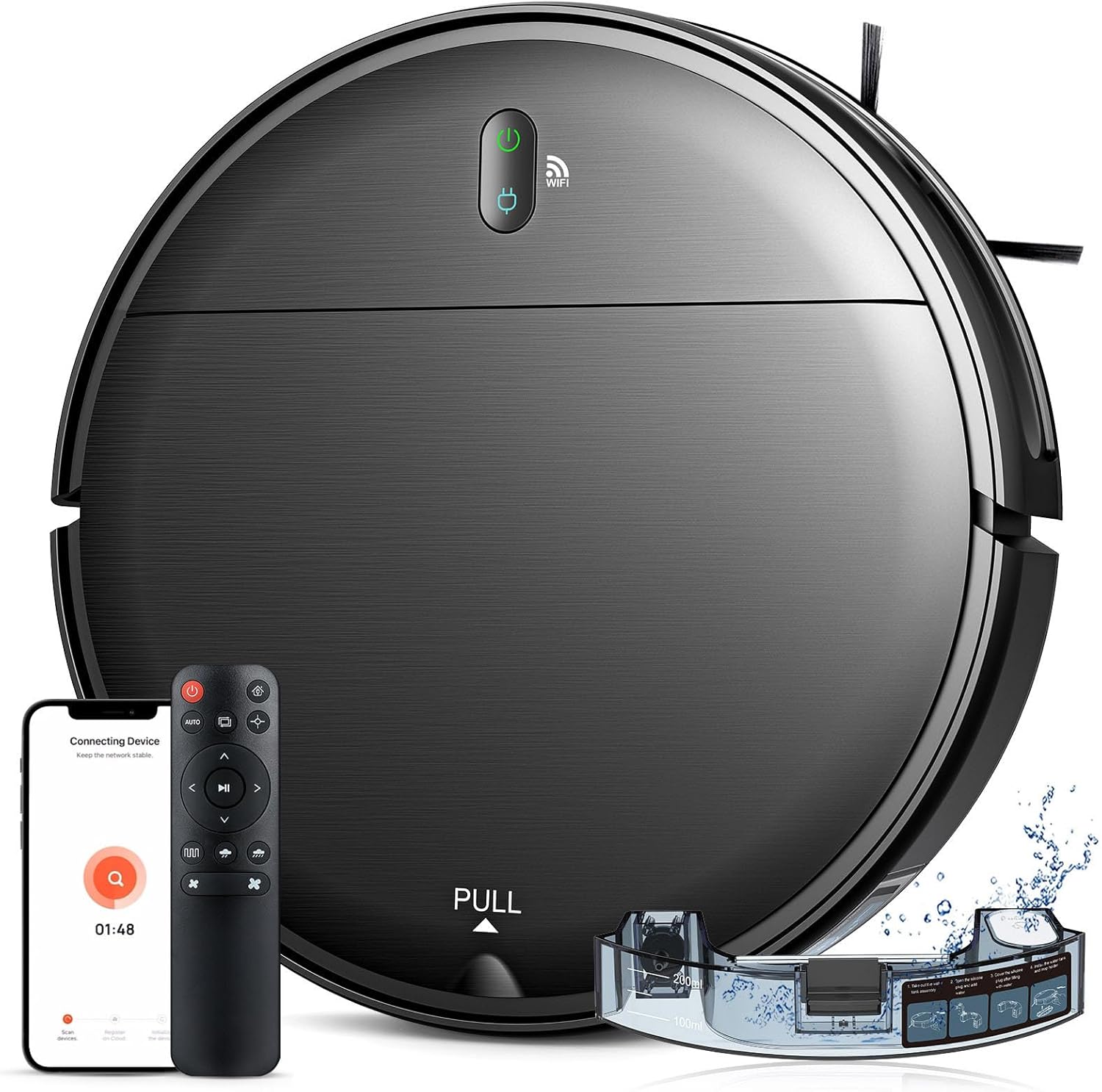
Robot Vacuum and Mop Combo, 2 in 1 Robotic Vacuum Cleaner...
As an Amazon Associate we earn from qualifying purchases.
Official Manufacturer Manual
Wyze provides official product documentation through their online manual rather than downloadable PDF. Access setup guides, troubleshooting steps, and product specifications for your Wyze Robot Vacuum.
Source: support.wyze.com
Need More Help? Wyze Support
Note: The contact information below connects you directly to Wyze's official customer support team, not Trunetto. They can help with warranty claims, device replacements, and advanced technical issues.
How Does Wyze Compare?
Before replacing your Wyze device, see how it stacks up against alternatives in our full comparison guides.


