

Why Is My Wyze Robot Vacuum Not Mapping My Home Correctly?
- Lidar sensor obstruction or dirt
- Poor lighting conditions
- Frequent changes in home layout
Problem Description
Your Wyze Robot Vacuum is failing to create or update an accurate map of your home, leading to inefficient cleaning, missed areas, or getting stuck. This can be due to sensor issues, navigation problems, or environmental factors.
Why This Happens in Real Homes
Wyze's vacuum maps with a spinning LiDAR turret on top, so mapping fails when that turret is obstructed, dirty, or can't spin freely — a strand of hair or dust on it is enough. Very reflective or glass-heavy rooms and constantly-moving furniture also confuse the map.
Start by cleaning the LiDAR turret and making sure it spins without obstruction, then run a fresh mapping pass with doors open and clutter cleared. Unlike some vacuums, LiDAR doesn't need room light, but stable furniture and a clear first run are what let it build a map it can keep.
Symptoms
- Map is incomplete or distorted
- Vacuum gets lost or stuck frequently
- Misses certain rooms or areas
- Map resets unexpectedly
- Vacuum bumps into objects often
- Cleaning path is erratic
Recognize these? Here's what usually causes it.
Common Causes
- Lidar sensor obstruction or dirt
- Poor lighting conditions
- Frequent changes in home layout
- Weak Wi-Fi signal
- Outdated firmware
- Physical damage to navigation sensors
Most fixes happen in the first 3 steps.
Do not pick up and move the robot vacuum during a mapping or cleaning cycle, as this can disorient it and corrupt the map data, requiring a full re-mapping.
Tools & Requirements
These tools will help you complete this fix.
As an Amazon Associate we earn from qualifying purchases.
Step-by-Step Solution
Clean the LiDAR Turret and Bumper Sensors
The Wyze Robot Vacuum has a round LiDAR turret on top of the robot — it is the raised cylindrical dome that rotates during operation. Wipe the exterior of the turret with a dry cloth and make sure the turret spins freely (gently rotate it with your finger). On the front bumper, there are IR proximity sensor windows — small dark lenses near the bottom edge of the bumper. Clean these with a dry cloth. Also press the bumper to confirm it springs back freely.

Needed for this step
WHOOSH! Pro 16.9 fl oz Refillable TV Screen Cle...
This helps complete the fix you are currently reading.
$19.99Provide Adequate Lighting During Mapping
The Wyze vacuum's LiDAR works in the dark, but the cliff sensors on the underside (4 small windows along the front bottom edge) use infrared and can be affected by very dark flooring or reflective surfaces. During the first full mapping run, keep rooms normally lit and avoid rapidly changing light conditions. This helps the robot build a more accurate map on the first attempt.
Keep Furniture Stationary During Mapping
During the initial mapping run, do not move large furniture or open/close doors. The LiDAR builds a map by measuring wall and furniture positions — moving objects during mapping creates distorted or incomplete maps. Let the robot complete its full mapping run in one uninterrupted session. Rearrange furniture only after the map is saved.
Check WiFi Connection
The Wyze vacuum stores map data both locally and in the Wyze cloud via WiFi. If the WiFi signal is weak at the dock location, map uploads can fail. In the Wyze app, check the robot's WiFi signal strength. If weak, move your router closer or add a WiFi extender within 15 feet of the dock. The robot connects to 2.4GHz WiFi only.
Factory Reset and Remap
If mapping keeps failing, perform a factory reset. Open the top lid of the robot (the dustbin cover) and locate the small reset button near the WiFi indicator LED. Press and hold it with a paperclip for 5 seconds until you hear a voice prompt. This clears all saved maps and settings. Re-add the robot in the Wyze app and run a complete mapping clean with all doors open.
Quick Solutions
Still having issues? This is usually the deeper cause below.
If the robot returns to the dock mid-clean, moved furniture may have invalidated its map — a fresh floor scan resolves the majority of navigation failures.
Before the first mapping run, clear clutter from the floor and open all doors to rooms you want mapped. This allows the vacuum to create a comprehensive and accurate initial map.
Robot vacuums that 'stop working' are usually fighting a corrupted map from moved furniture — a fresh floor scan fixes the majority of reported failures.
- Lidar sensor obstruction or dirt
- Poor lighting conditions
- Frequent changes in home layout
- Weak Wi-Fi signal
- Outdated firmware
Before you go — try one of these (they fix most cases).
Most popular upgrades chosen by Wyze Robot Vacuum owners.
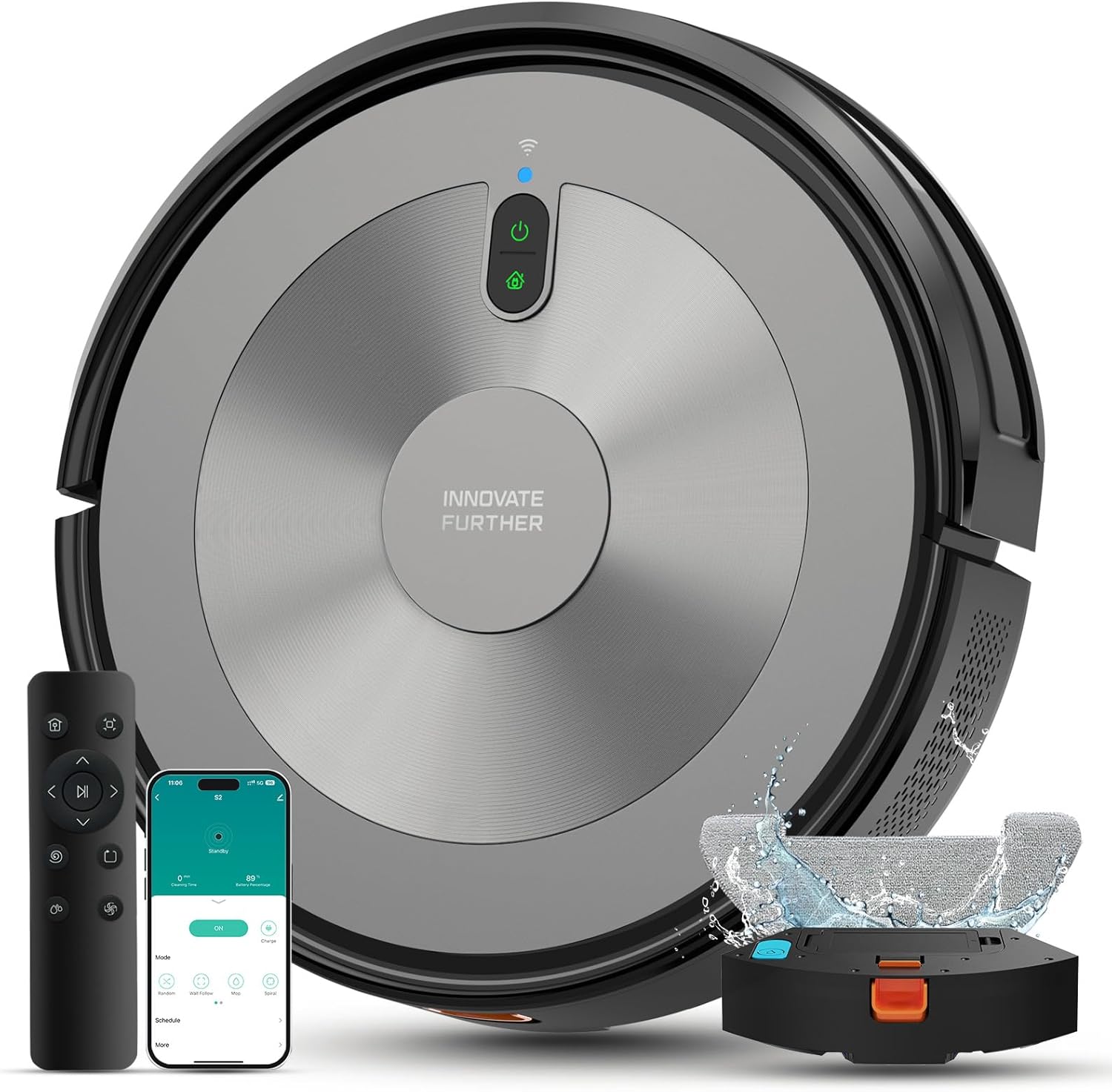
Robot Vacuum and Mop Combo, 5000Pa 3-in-1 Robotic Vacuum ...

Robot Vacuum and Mop Combo, 90 Days Self-Emptying, 6000Pa...
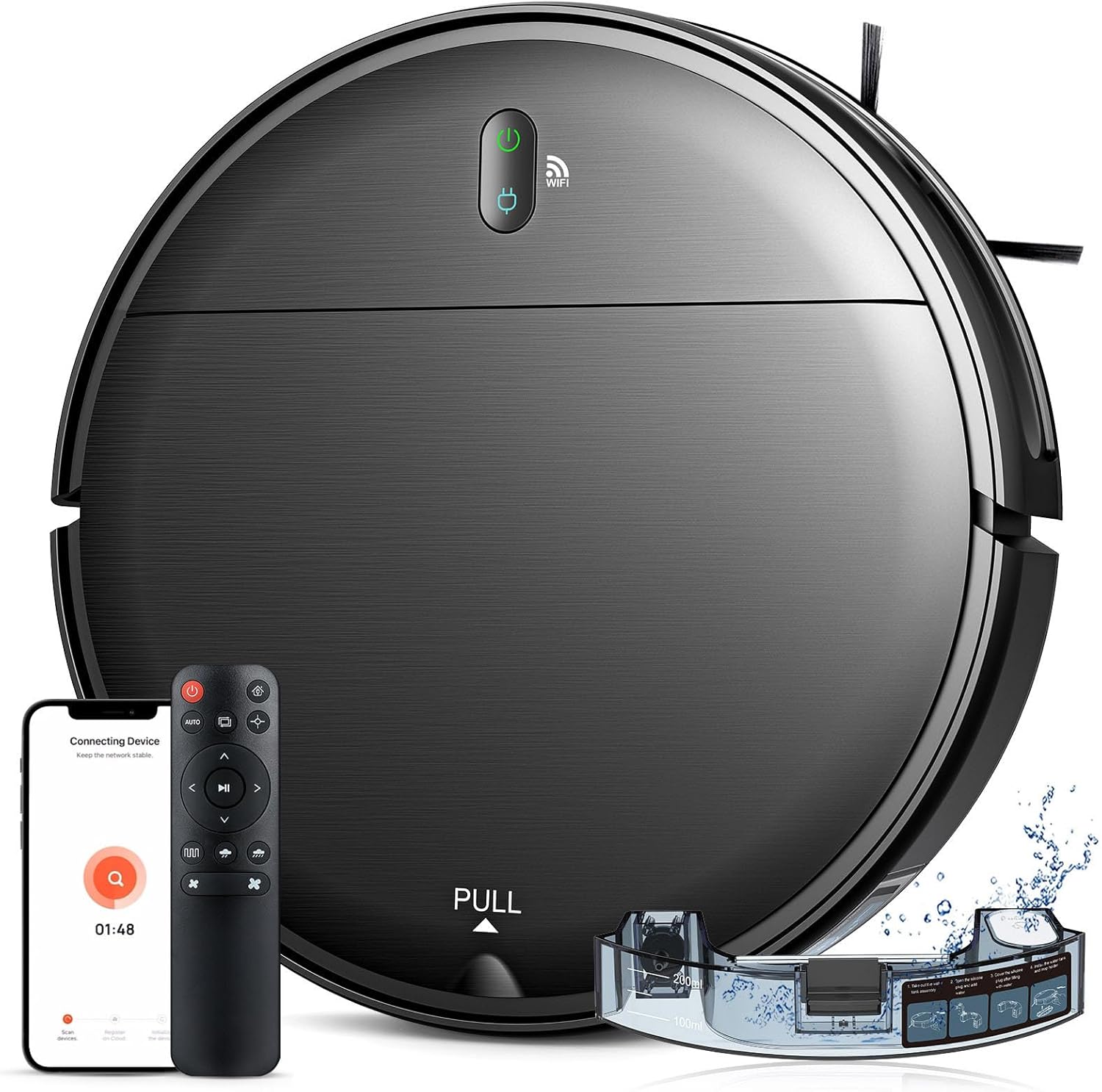
Robot Vacuum and Mop Combo, 2 in 1 Robotic Vacuum Cleaner...
As an Amazon Associate we earn from qualifying purchases.
Official Manufacturer Manual
Wyze provides official product documentation through their online manual rather than downloadable PDF. Access setup guides, troubleshooting steps, and product specifications for your Wyze Robot Vacuum.
Source: support.wyze.com
Need More Help? Wyze Support
Note: The contact information below connects you directly to Wyze's official customer support team, not Trunetto. They can help with warranty claims, device replacements, and advanced technical issues.
How Does Wyze Compare?
Before replacing your Wyze device, see how it stacks up against alternatives in our full comparison guides.


