

Why Is My Arlo Secure Subscription Not Activating or Showing Correctly?
- Payment processing issues
- Incorrect account linked to subscription
- App caching issues
Problem Description
Your Arlo Secure subscription is not activating or displaying correctly in the Arlo app, preventing you from accessing premium features like cloud recording, rich notifications, or advanced object detection. This can be due to payment issues, account discrepancies, or app glitches.
Why This Happens in Real Homes
When the Arlo Secure subscription won't activate, it's a billing or account-link problem: a payment that failed to process, or the subscription tied to a different account than your cameras.
Start by verifying the payment went through and updating any expired card, then confirm the subscription and the cameras are under the same Arlo account. After billing clears, sign out and back in to refresh; the plan's features then switch on.
Symptoms
- App shows 'No Plan' or 'Trial Expired'
- Premium features are unavailable
- Cloud recordings are missing
- Rich notifications not working
- Payment confirmed but plan not active
- Happens after new subscription purchase
Recognize these? Here's what usually causes it.
Common Causes
- Payment processing issues
- Incorrect account linked to subscription
- App caching issues
- Subscription not fully processed
- Outdated Arlo app
- Arlo server synchronization delay
Most fixes happen in the first 3 steps.
Avoid purchasing multiple Arlo Secure plans for the same account unless specifically needed for different locations, as this can lead to confusion and unnecessary charges.
Tools & Requirements
Step-by-Step Solution
Verify Payment and Arlo Account
First, confirm that your payment for Arlo Secure was successful and that the subscription is linked to the correct Arlo account. Check your email for a confirmation receipt from Arlo. Log in to my.arlo.com on a web browser and go to 'Settings' > 'Subscription' to verify your plan status and associated cameras.
Refresh Arlo App Data
Sometimes the Arlo app may not immediately reflect changes. Close the Arlo app completely (force quit it from your phone's recent apps list) and then reopen it. Log out of your Arlo account in the app and log back in. This can force the app to refresh its data and display the correct subscription status.
Check Subscription Status on Arlo Website
Access your Arlo account through a web browser at my.arlo.com. Go to 'Settings' > 'Subscription' and carefully review the details of your Arlo Secure plan. Make sure it's active, covers the correct number of cameras, and is assigned to the right location. If there are discrepancies, take screenshots.
Clear Arlo App Cache and Data
If refreshing the app doesn't work, try clearing the app's cache and data on your smartphone. For Android: Go to 'Settings' > 'Apps' > 'Arlo' > 'Storage' > 'Clear Cache' and 'Clear Data'. For iOS: Uninstall and reinstall the Arlo app. This removes corrupted data that might be causing display issues.
Update Arlo App and Camera Firmware
Make sure your Arlo app is updated to the latest version from the camera's app store. Outdated app versions can have bugs that prevent proper subscription display. Also, make sure your Arlo cameras have the latest firmware, as some features may require up-to-date device software.
Quick Solutions
Still having issues? This is usually the deeper cause below.
If this comes back after following these steps, check whether a recent app or firmware update reset a default setting — the fix works, but the setting gets reverted silently.
If you have multiple Arlo accounts, ensure you are logged into the account that has the active Arlo Secure subscription. This is a common oversight.
This issue almost always looks more complex than it is — the majority of cases trace back to a single setting, a stale credential, or a default that shipped wrong.
- Payment processing issues
- Incorrect account linked to subscription
- App caching issues
- Subscription not fully processed
- Outdated Arlo app
Before you go — try one of these (they fix most cases).
Most popular upgrades chosen by Arlo Secure Plan owners.

Arlo Essential Security Camera 2K (2025 Release) - Contin...

Arlo Essential Security Camera 2K (2025 Release) - Contin...
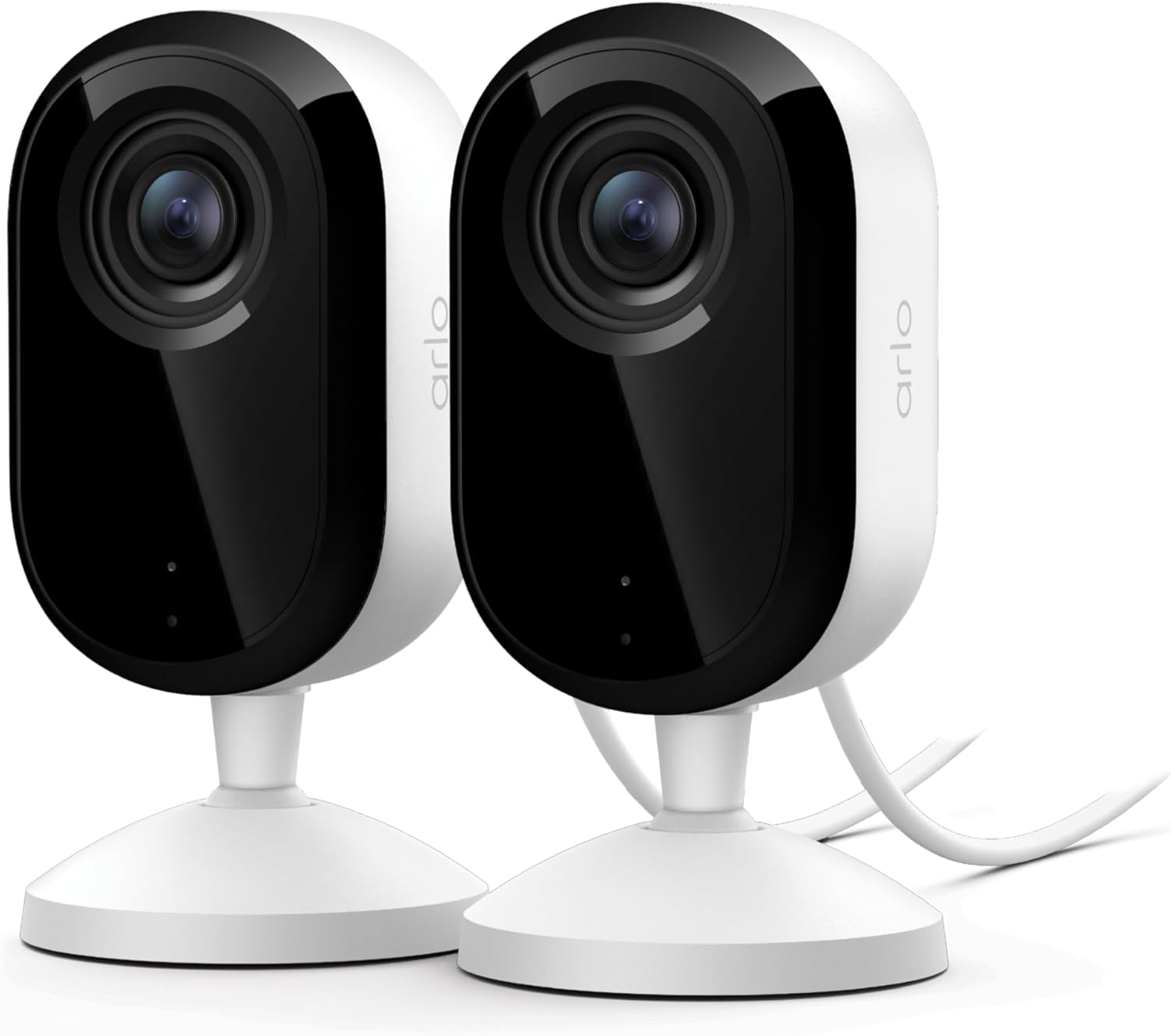
Arlo Essential Indoor Security Camera 2K (3rd Gen, 2025 R...
As an Amazon Associate we earn from qualifying purchases.
Official Manufacturer Manual
Arlo provides official product documentation through their online manual rather than downloadable PDF. Access setup guides, troubleshooting steps, and product specifications for your Arlo Secure Plan.
Source: arlo.com
Need More Help? Arlo Support
Note: The contact information below connects you directly to Arlo's official customer support team, not Trunetto. They can help with warranty claims, device replacements, and advanced technical issues.
How Does Arlo Compare?
Before replacing your Arlo device, see how it stacks up against alternatives in our full comparison guides.
Accessories owners commonly pair with Arlo Secure Plan.

SANDISK 64GB Extreme microSDXC UHS-I Memory Card with Ada...

SANDISK 128GB Ultra microSDXC UHS-I Memory Card with Adap...

SANDISK 64GB Ultra microSDXC UHS-I Memory Card with Adapt...
As an Amazon Associate we earn from qualifying purchases.



