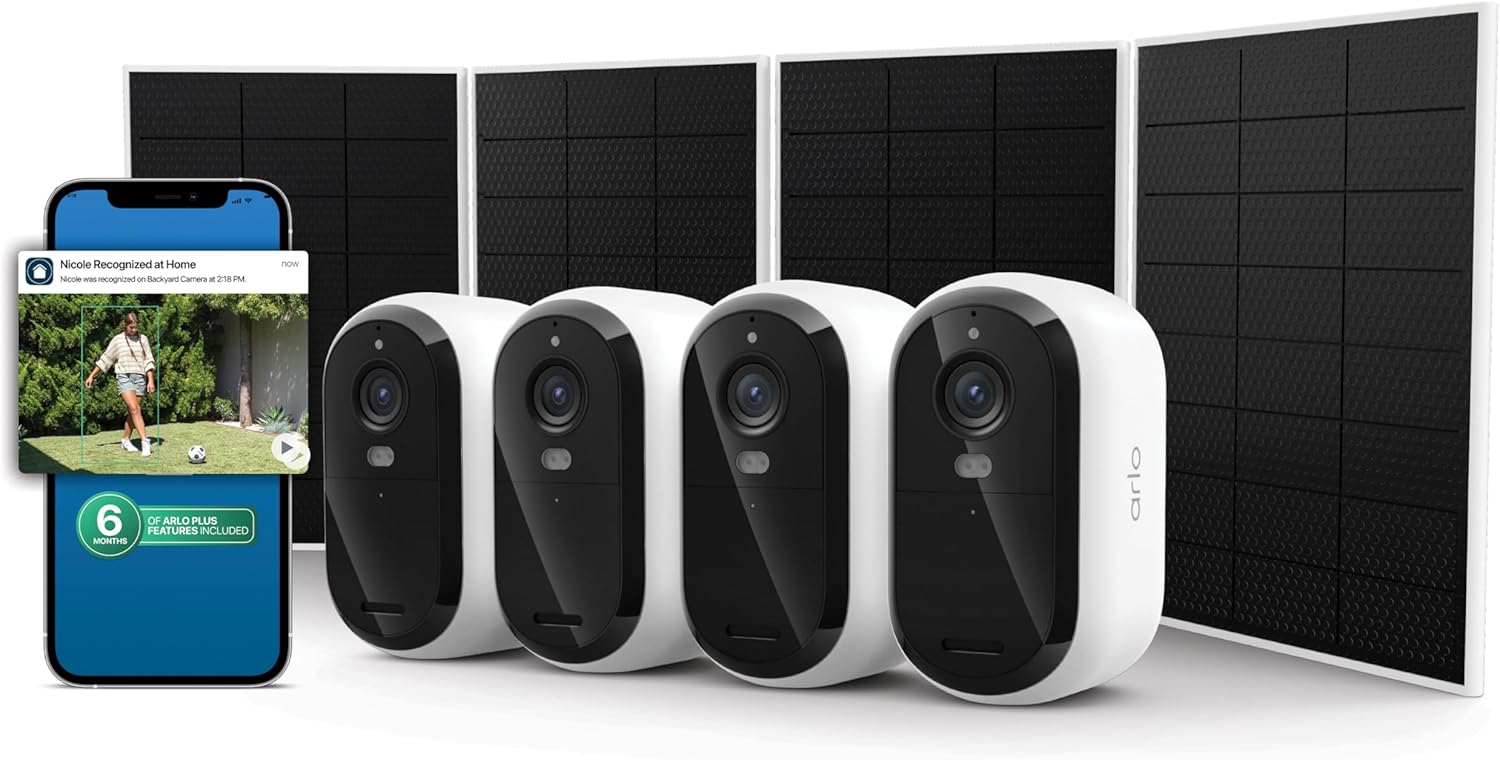
How to Install Your Arlo Camera with a SmartHub or Base Station
- Connect the SmartHub to your router
- Add the hub to your Arlo account
- Sync each camera to the hub
- Mount the cameras outdoors or indoors
- Configure settings and test
Most users complete this in under 30 minutes
Overview
You are setting up an Arlo camera that requires a SmartHub or Base Station — this includes the Arlo Pro 2, Pro 3, Ultra, and Ultra 2. These cameras do not connect to WiFi directly. Instead, they communicate with the Arlo SmartHub over a proprietary wireless signal, and the hub connects to your router via ethernet. Setup involves connecting the hub to your router, adding the hub to your Arlo account, and then syncing each camera to the hub. For WiFi-direct cameras like the Arlo Essential, Pro 4, or Pro 5S that do not need a hub, see our Arlo Essential setup guide.
Why This Happens in Real Homes
Arlo Pro 2 and Pro 3 are still widely installed but are being phased out in favor of WiFi-direct models. The SmartHub is the reliability advantage of these older models — the proprietary wireless protocol handles interference better than standard WiFi. However, the hub is also a single point of failure: if the hub goes offline, all cameras go dark. Users setting up new Arlo systems should consider the Essential or Pro 5S line which do not have this single point of failure, unless they need specific features only available on hub models like 4K resolution (Ultra 2).
What's Included
- Arlo wire-free camera
- Rechargeable battery pack
- Camera mount and screw kit
- Magnetic charging cable
- User manual and Arlo window decal
- Your smartphone with the Arlo Secure app
Got your materials ready? Here's what to check first.
Before You Start
- A high-speed internet connection
- An available power outlet for charging
- Smartphone with Arlo Secure app installed
- A fully charged battery before starting
- A strong Wi-Fi signal at the camera location
- An Arlo SmartHub (optional for some models)
Don't skip this step — it breaks everything if you do
Fully charge the battery before the first use for optimal performance. A partially charged battery may not provide accurate battery life estimates.
Tools & Requirements
These tools will help you complete this fix.

Power drill
DEWALT 20V MAX Cordless Drill and Impact Driver, Pow...

Screwdriver
STREBITO 155 in 1 Electric Screwdriver Set, Small El...
As an Amazon Associate we earn from qualifying purchases.
Installation Steps
Connect the SmartHub to your router
Unbox the Arlo SmartHub and connect it to your router using the included ethernet cable. Plug one end into the hub ethernet port and the other into an available port on your router. Plug in the hub power adapter. The hub LED will turn amber during boot and settle to solid green when connected to the internet — this takes 2-3 minutes. Place the hub in a central location in your home, not in a closet or behind furniture. The hub communicates wirelessly with cameras and needs clear air space for the best range. If your router is in a corner of the house and your cameras are on the opposite side, use a longer ethernet cable to position the hub more centrally.
Needed for this step
DEWALT 20V MAX Cordless Drill and Impact Driver...
This helps complete the fix you are currently reading.
$139.00Add the hub to your Arlo account
Open the Arlo Secure app and tap Add New Device, then select SmartHub. The app will search for the hub on your local network — make sure your phone is on the same WiFi network that the hub ethernet cable is connected to. When the app finds the hub, it will show the hub serial number. Confirm it matches the serial on the hub sticker. The app registers the hub to your account. If the app cannot find the hub, verify the hub LED is solid green and your phone is on the same network. Some mesh WiFi systems create separate subnets — the hub and phone must be on the same one.
Sync each camera to the hub
Charge each camera battery fully before syncing — this takes about 3-4 hours per battery. Insert the charged battery into the camera. Press the Sync button on the top or back of the hub — the LED will blink. Within 2 minutes, press the Sync button on the camera. The camera LED blinks blue during sync and goes solid blue when paired. In the Arlo app, the camera appears in the camera list. Repeat for each camera. Sync cameras one at a time — do not try to sync multiple cameras simultaneously. After syncing, give each camera a descriptive name in the app (Front Door, Backyard, Garage).
Mount the cameras outdoors or indoors
Arlo Pro and Ultra cameras come with adjustable magnetic mounts. For outdoor mounting: choose locations 7-10 feet high with a clear view of the area you want to monitor. Use the included screw mount for permanent installation. Drill pilot holes, insert anchors, and screw in the mount plate. The camera attaches magnetically and can be aimed in any direction. For indoor use: the magnetic mount sticks to any flat surface. Avoid mounting cameras facing windows — the IR night vision reflects off glass and creates a white glare. After mounting, open the Arlo app and check the live view to verify the angle and framing before tightening everything down.
Configure settings and test
In the Arlo app, configure each camera: set motion sensitivity (start at 80%), draw activity zones to focus detection on key areas, enable audio detection if desired, and set the recording resolution (1080p for Pro 2/3, 4K for Ultra — note that 4K uses more storage and battery). Arm the system by toggling the mode to Armed. Walk through each camera detection zone and verify you receive alerts and clips are recorded. Test night vision by checking the live feed after dark — Arlo cameras switch to infrared automatically. For Arlo Ultra and Ultra 2, test the spotlight and color night vision features.
Installation Tips
Still stuck? This is usually the deeper cause below.
Use Position Mode in the Arlo app to check Wi-Fi signal strength at your desired mounting location before drilling any holes.
Before you go — these Arlo guides fix most remaining issues.
Most popular upgrades chosen by Arlo Pro 4/Pro 5S/Essential Spotlight Camera owners.

Arlo Pro 5S Spotlight Security Camera 2K HDR | Outdoor | ...

Arlo Pro 5S Spotlight Security Camera 2K HDR | Outdoor | ...

Arlo Pro 5S 2K Spotlight Camera VMC4060B (Renewed)
As an Amazon Associate we earn from qualifying purchases.
Official Manufacturer Manual
If you need the complete manufacturer documentation for advanced setup, wiring diagrams, or detailed specifications, you can download the official manual below. The manual includes full technical instructions directly from the manufacturer and may help if your issue requires deeper troubleshooting.
Download the Official Arlo Pro 4/Pro 5S/Essential Spotlight Camera ManualSource: downloads.arlo.com
Need More Help? Arlo Support
Note: The contact information below connects you directly to Arlo's official customer support team, not Trunetto. They can help with warranty claims, device replacements, and advanced technical issues.
How Does Arlo Compare?
Before replacing your Arlo device, see how it stacks up against alternatives in our full comparison guides.
Accessories owners commonly pair with Arlo Pro 4/Pro 5S/Essential Spotlight Camera.

SANDISK 64GB Extreme microSDXC UHS-I Memory Card with Ada...

SANDISK 128GB Ultra microSDXC UHS-I Memory Card with Adap...

SANDISK 64GB Ultra microSDXC UHS-I Memory Card with Adapt...
As an Amazon Associate we earn from qualifying purchases.
Guide Improvements
- Updated June 18, 2026
Rewrote to focus on SmartHub/base station camera setup specifically, differentiated from direct WiFi Essential camera setup
Source: SEO cannibalization fix