

Why Is My Nest Cam Recording Clips but Missing Events
- Cooldown period between clips
- Activity zones too small
- Motion sensitivity too low
Problem Description
Your Nest Cam is missing motion events — someone walks past, a package arrives, a car pulls in — but no clip appears in the event history. This happens for one of three main reasons: the Nest Aware subscription tier controls how many events are captured and the gap between them, activity zones exclude the relevant area, or motion sensitivity is set too low for slower or distant movement. Without Nest Aware, the free tier enforces a 5-minute cooldown between clips — any motion during that window is simply not recorded. With Nest Aware, that cooldown drops to 30 seconds. Identifying which factor applies to your setup determines the fix.
Why This Happens in Real Homes
A Nest Cam recording some clips but missing events is usually the cooldown between clips, activity zones too small, or sensitivity too low. In real homes a short cooldown skips a second person right behind the first. Widen the activity zones, raise sensitivity a step, and understand the cooldown gap between recorded clips.
Symptoms
- Some events recorded others missed
- Person walked by with no clip
- Gaps in timeline
- Subscription active but gaps
- Activity zones seem correct
- Camera online and working
Recognize these? Here's what usually causes it.
Common Causes
- Cooldown period between clips
- Activity zones too small
- Motion sensitivity too low
- Familiar face detected and filtered
- WiFi interruption during event
- Camera bandwidth limited
Most fixes happen in the first 3 steps.
Increasing sensitivity may increase false alerts from trees shadows and animals. Balance sensitivity with usefulness.
Step-by-Step Solution
Check Cooldown Period
The free Nest tier enforces a 5-minute cooldown between clips — motion during that window is not saved. Open Google Home, tap your camera, then Settings, and check your subscription tier. Verify this is not the cause by checking the event timeline and noting time gaps between saved clips. Nest Aware reduces the cooldown to 30 seconds and is the only way to shorten this gap. If you see 5-minute spacing between all saved events, cooldown is the cause.
Review Activity Zones
Activity zones define which areas trigger recording. If the person, package, or vehicle you are missing is not walking through an active zone, no clip is recorded even though the camera sees the motion. In Google Home tap your camera then Camera settings then Activity zones. Expand any zones that cut off a doorway, path edge, or driveway entrance. Zones that look complete on screen often clip the edge of an approach path — err on the side of making zones larger.
Increase Motion Sensitivity
Open Google Home, tap your camera, then Settings then Sensitivity. A low setting only captures fast or close movement. Slower motion such as someone walking at distance, a car pulling in gradually, or an animal may not cross the threshold. Set sensitivity to High and review whether previously missed events now appear. If you receive too many false alerts, reduce one step at a time to find the right balance for your location.
Disable Familiar Faces Filtering
If you have Nest Aware with Familiar Faces enabled, the camera may suppress alerts for recognized people. Open camera Settings then Notifications and check whether Familiar Face alerts are silenced. This feature is intended to reduce noise but can suppress clips you actually want — including a family member the camera has incorrectly learned to ignore. Temporarily disable Familiar Faces filtering and check if the missing clips start appearing.
Check WiFi Signal Strength
A weak WiFi signal can cause the camera to record an event locally but fail to upload the clip before it is overwritten. Open Google Home, tap your camera, then Settings, and review the WiFi signal indicator. If signal is poor, move the router closer, add a WiFi extender, or check whether the camera supports a 5GHz band. Clips that appear briefly in the timeline then disappear, or clips that start but cut off early, almost always point to an upload failure caused by signal instability.
Quick Solutions
Still having issues? This is usually the deeper cause below.
If this comes back after following these steps, check whether a recent app or firmware update reset a default setting — the fix works, but the setting gets reverted silently.
For critical areas disable Familiar Face filtering so all person events record regardless of who it is.
This issue almost always looks more complex than it is — the majority of cases trace back to a single setting, a stale credential, or a default that shipped wrong.
- Cooldown period between clips
- Activity zones too small
- Motion sensitivity too low
- Familiar face detected and filtered
- WiFi interruption during event
Before you go — try one of these (they fix most cases).
Most popular upgrades chosen by Google Nest Cam owners.

Google Nest Cam Indoor (Wired, 3rd Gen) - Security Camera...

Google Nest Cam Indoor (Wired, 3rd Gen) - Security Camera...
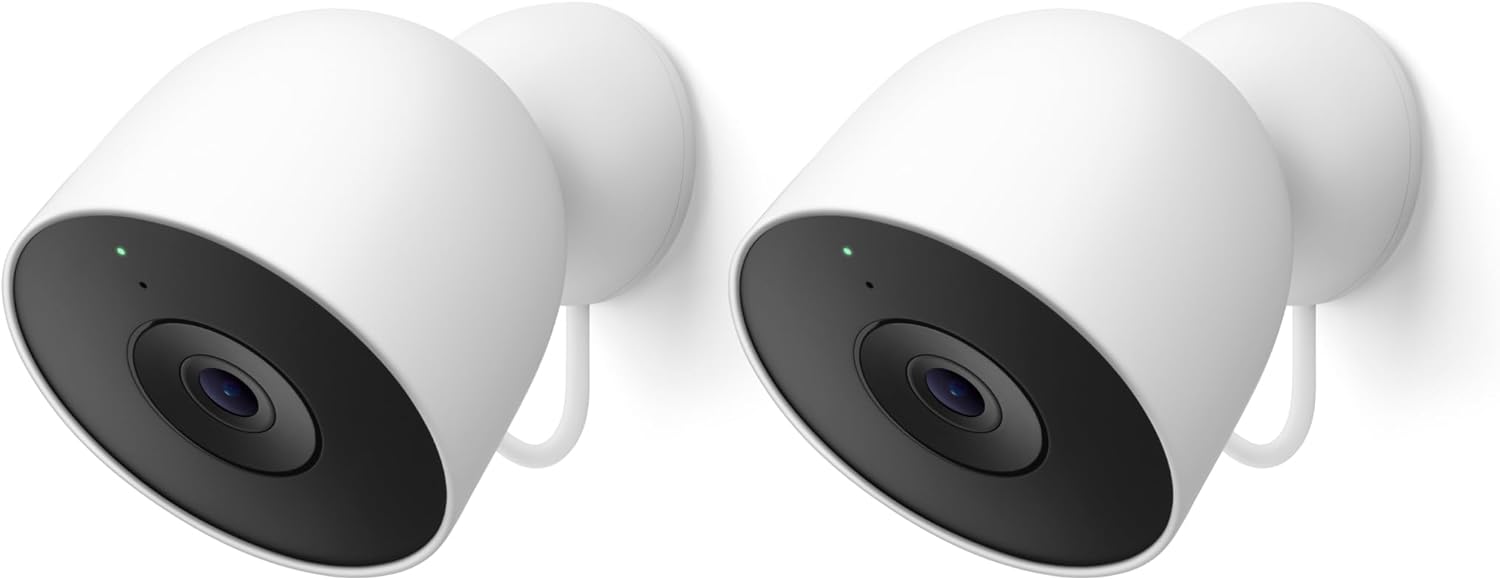
Google Nest Cam Outdoor (Wired, 2nd Gen) - 2 Pack - Secur...
As an Amazon Associate we earn from qualifying purchases.
Official Manufacturer Manual
If you need the complete manufacturer documentation for advanced setup, wiring diagrams, or detailed specifications, you can download the official manual below. The manual includes full technical instructions directly from the manufacturer and may help if your issue requires deeper troubleshooting.
Download the Official Google Nest Cam ManualSource: support.google.com
Need More Help? Google Nest Support
Note: The contact information below connects you directly to Google Nest's official customer support team, not Trunetto. They can help with warranty claims, device replacements, and advanced technical issues.
How Does Google Nest Compare?
Before replacing your Google Nest device, see how it stacks up against alternatives in our full comparison guides.
Accessories owners commonly pair with Google Nest Cam.

SANDISK 64GB Extreme microSDXC UHS-I Memory Card with Ada...

SANDISK 128GB Ultra microSDXC UHS-I Memory Card with Adap...

SANDISK 64GB Ultra microSDXC UHS-I Memory Card with Adapt...
As an Amazon Associate we earn from qualifying purchases.





