

Why Does My Nest Camera Keep Going Offline?
- Weak WiFi signal at the camera
- Router reassigning the IP on DHCP renewal
- Bandwidth too low to sustain the stream
Problem Description
Your Google Nest camera keeps going offline in the Google Home app. Check your WiFi connection first — the camera needs a stable internet connection to stream video. The camera LED indicates status: solid green = online, pulsing = connecting. Weak WiFi signal at the camera location is the most common cause of frequent disconnections.
Why This Happens in Real Homes
A Nest camera that keeps going offline is almost always weak WiFi at the camera, an IP being reassigned, or insufficient upload bandwidth, not a dying camera. In real homes an outdoor camera at the edge of WiFi range drops repeatedly. Improve WiFi with a mesh point, reserve the camera IP, and confirm enough upload bandwidth before assuming hardware failure.
Symptoms
- Camera shows offline in the app
- Live view fails to load or times out
- Motion detection not triggering alerts
- Night vision appears too dark or washed out
- Recorded clips are missing or corrupted
- Two-way audio not working
- Camera keeps disconnecting from WiFi
Recognize these? Here's what usually causes it.
Common Causes
- Weak WiFi signal at the camera
- Router reassigning the IP on DHCP renewal
- Bandwidth too low to sustain the stream
- Power interruption to a wired camera
- 2.4GHz interference or channel congestion
- Camera too far from the router
- Firmware or router firmware out of date
- ISP or Google service outage
Most fixes happen in the first 3 steps.
During outages you'll miss events. Consider UPS backup.
Tools & Requirements
Step-by-Step Solution
Check your WiFi connection first
The Nest Cam requires a stable WiFi connection to stream video. Open the Google Home app, tap the camera, and check its connection status. If it shows offline, check whether other devices on the same WiFi network are working. If your whole network is down, restart your router and modem. Wait 2-3 minutes for them to fully boot before checking the camera again.
Restart the camera
For wired Nest Cams, unplug the power cable, wait 10 seconds, and plug it back in. For battery models, press and hold the reset button on the back for 5 seconds until the status light blinks. The camera takes about 1-2 minutes to reconnect after restarting. Check the Google Home app for live view once the status light shows a steady green.
Move the camera closer to your router or add a WiFi extender
Nest Cams need consistent bandwidth for streaming — at least 2 Mbps upload for 1080p. If the camera is far from your router or separated by thick walls, the signal may drop intermittently. Check the WiFi signal strength in the camera settings in Google Home. If it shows weak signal, either move the camera closer, reposition the router, or add a WiFi mesh point near the camera.
Check for IP address conflicts or network issues
If multiple devices share the same IP address, the camera can go offline randomly. Log into your router admin page and check for duplicate IP assignments. Set a static IP or DHCP reservation for your Nest Cam to prevent conflicts. Also check that your router is not blocking the camera — some routers with strict firewall settings or MAC filtering can interfere with Nest Cam connections.
Check Google service status and app version
Nest Cams depend on Google cloud servers for streaming. If Google services are experiencing an outage, your camera may show as offline even though it is connected to WiFi. Check the Google Home status page or DownDetector for current outages. Also update the Google Home app to the latest version — older app versions can lose compatibility with camera firmware updates.
Quick Solutions
Still having issues? This is usually the deeper cause below.
This usually happens right after a router reboot or ISP change — the device rejoins the network but drops its cloud session silently.
Set up activity zones to monitor only the areas that matter like your front porch and driveway and exclude the street. This dramatically reduces false alerts while ensuring you never miss an actual event at your property.
Most WiFi drop-offs happen right after a router reboot or ISP swap — the device reconnects to the network but silently loses its cloud registration.
- Weak WiFi signal at the camera
- Router reassigning the IP on DHCP renewal
- Bandwidth too low to sustain the stream
- Power interruption to a wired camera
- 2.4GHz interference or channel congestion
Before you go — try one of these (they fix most cases).
Most popular upgrades chosen by Google Nest Cam owners.

Google Nest Cam Indoor (Wired, 3rd Gen) - Security Camera...

Google Nest Cam Indoor (Wired, 3rd Gen) - Security Camera...
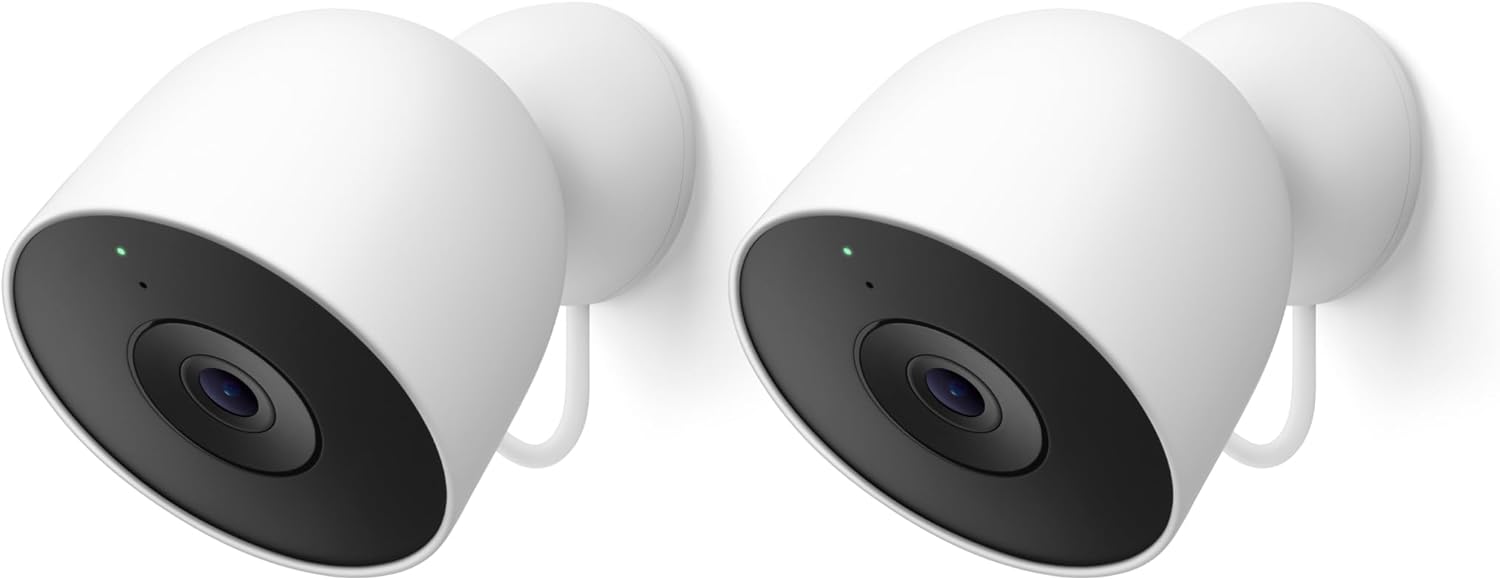
Google Nest Cam Outdoor (Wired, 2nd Gen) - 2 Pack - Secur...
As an Amazon Associate we earn from qualifying purchases.
Official Manufacturer Manual
If you need the complete manufacturer documentation for advanced setup, wiring diagrams, or detailed specifications, you can download the official manual below. The manual includes full technical instructions directly from the manufacturer and may help if your issue requires deeper troubleshooting.
Download the Official Google Nest Cam ManualSource: support.google.com
Need More Help? Google Nest Support
Note: The contact information below connects you directly to Google Nest's official customer support team, not Trunetto. They can help with warranty claims, device replacements, and advanced technical issues.
How Does Google Nest Compare?
Before replacing your Google Nest device, see how it stacks up against alternatives in our full comparison guides.
Accessories owners commonly pair with Google Nest Cam.

Google Nest Cam Outdoor or Indoor, Battery - 2nd Generati...

Google Nest Cam Outdoor or Indoor/Battery - 2nd Generatio...
As an Amazon Associate we earn from qualifying purchases.





