

Why Is My Nest Outdoor Camera Night Vision So Bad?
- Night vision mode needs adjustment
- Lens dirty or foggy
- Bandwidth too low
Problem Description
Your Nest outdoor camera night vision quality is poor — blurry, washed out, or too dark. Clean the camera lens and the IR LED array around the lens with a soft dry cloth. Dust, spider webs, and moisture on the lens housing degrade the image. IR reflection from nearby walls or eaves also causes glare. This guide covers cleaning and repositioning.
Why This Happens in Real Homes
Poor Nest night vision is almost always a physical or placement problem, not a camera fault. The most common cause in real installs is IR glare — the infrared LEDs bounce off a nearby wall, eave, glass storm door, or spider webs right in front of the lens, washing the whole image white. A dirty or fogged lens does the same.
Start by wiping the lens and the IR ring with a dry microfiber cloth, then check what's within a few feet of the camera's field of view. Cameras mounted behind glass will always struggle at night because the IR reflects straight back.
Symptoms
- Night video is very grainy
- IR lights causing glare
- Daytime video blurry
- HDR not working properly
- Motion blur at night
Recognize these? Here's what usually causes it.
Common Causes
- Night vision mode needs adjustment
- Lens dirty or foggy
- Bandwidth too low
- IR reflecting off surfaces
- Camera settings wrong
Most fixes happen in the first 3 steps.
For best outdoor placement, position camera under an eave or overhang to protect lens from rain and direct sun.
Tools & Requirements
These tools will help you complete this fix.

Clean microfiber cloth
MR.SIGA Microfiber Cleaning Cloth,Pack of 12,Size:12...

Ethernet cable
Jadaol Cat 6 Ethernet Cable 25 ft, 10Gbps Support Ca...

Level
9 Inch Torpedo Level Magnetic, Shock-Proof Small Lev...

Power adapter
JcBlaon Outlet Extender Surge Protector - 6 Outlet S...

Replacement batteries
Duracell Coppertop Double AA Batteries with Power Bo...
As an Amazon Associate we earn from qualifying purchases.
Step-by-Step Solution
Clean the camera lens and IR sensors
Outdoor cameras accumulate dirt, pollen, rain spots, and cobwebs that significantly degrade night vision. The infrared LEDs around the lens need a clear path to illuminate the scene. Spider webs are the worst offender — they glow bright white under IR and wash out the entire image. Clean the front face of the camera with a soft cloth every few weeks, especially during spider season.
Needed for this step
MR.SIGA Microfiber Cleaning Cloth,Pack of 12,Si...
This helps complete the fix you are currently reading.
$13.99Eliminate IR reflection sources
If your night vision image has a white haze or bright spots, infrared light is bouncing off something near the camera. Common culprits: the camera is mounted too close to a wall or under an eave with the IR LEDs hitting the overhang, reflective surfaces like metal trim or glass in the frame, or rain droplets on the lens creating glare. Angle the camera slightly downward and away from nearby surfaces.
Adjust camera position for best IR coverage
The built-in IR LEDs on the Nest Cam Outdoor have an effective range of about 15-20 feet. Objects beyond that range appear very dark. Position the camera to cover the area you care about within that range. If you need to monitor a larger area at night, add separate IR illuminators (available on Amazon for $15-30) to extend the night vision range without relying solely on the camera LEDs.
Add ambient lighting for color night vision
The Nest Cam Outdoor supports color night vision when there is enough ambient light. Even a small amount of light from a porch lamp, landscape lighting, or motion-activated floodlight dramatically improves night image quality — sharper details, less grain, and color instead of grayscale. A 5-10 watt LED fixture near the camera provides enough light for color night vision.
Check video quality settings and bandwidth
In the Google Home app, verify that video quality is not set to a lower resolution. For wired models, select the highest quality option. For battery models, higher quality drains the battery faster, so balance quality against battery life. Also check your upload bandwidth — night vision video can require more bandwidth than daytime because the increased noise creates more data for the encoder to process.
Quick Solutions
Still having issues? This is usually the deeper cause below.
Camera issues that start suddenly almost always trace back to an upload bandwidth drop — run a speed test before assuming hardware failure.
Nest Cam Outdoor automatically switches between color and IR night vision based on available light.
Live view problems that start suddenly usually trace back to an upload speed drop — the camera itself is fine, the bandwidth path to the cloud isn't.
- Night vision mode needs adjustment
- Lens dirty or foggy
- Bandwidth too low
- IR reflecting off surfaces
- Camera settings wrong
Before you go — try one of these (they fix most cases).
Most popular upgrades chosen by Google Nest Cam owners.

Google Nest Cam Indoor (Wired, 3rd Gen) - Security Camera...

Google Nest Cam Indoor (Wired, 3rd Gen) - Security Camera...
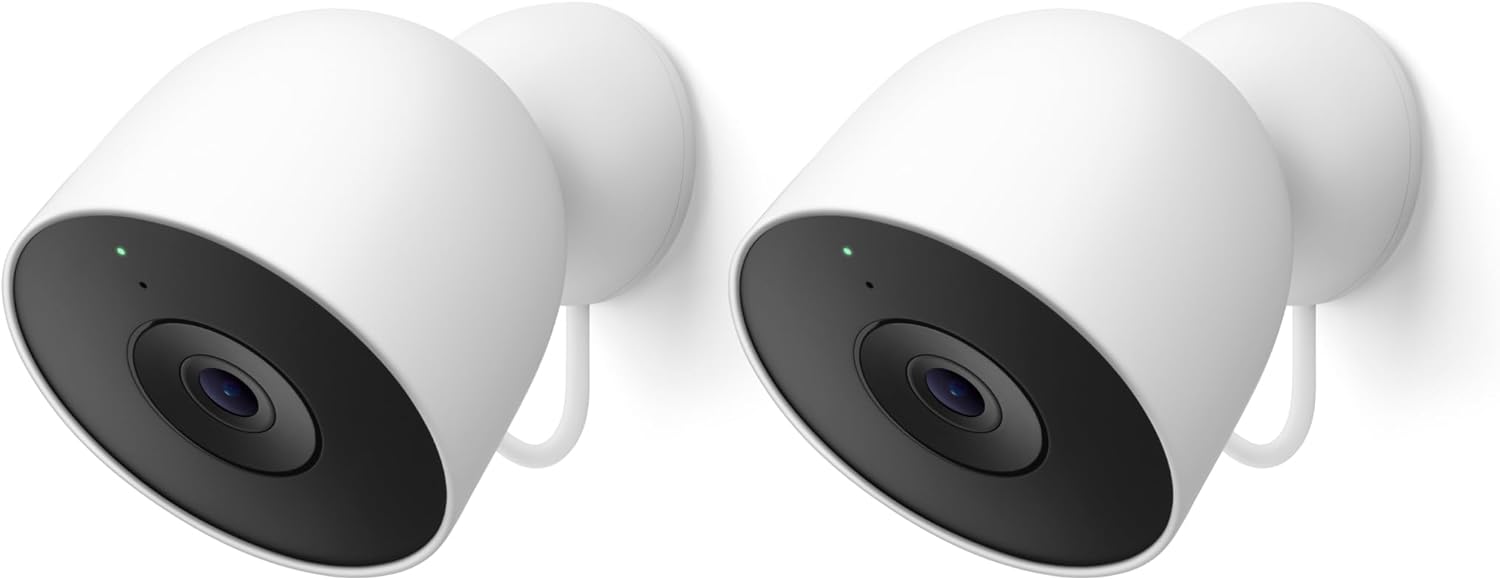
Google Nest Cam Outdoor (Wired, 2nd Gen) - 2 Pack - Secur...
As an Amazon Associate we earn from qualifying purchases.
Official Manufacturer Manual
If you need the complete manufacturer documentation for advanced setup, wiring diagrams, or detailed specifications, you can download the official manual below. The manual includes full technical instructions directly from the manufacturer and may help if your issue requires deeper troubleshooting.
Download the Official Google Nest Cam ManualSource: support.google.com
Need More Help? Google Nest Support
Note: The contact information below connects you directly to Google Nest's official customer support team, not Trunetto. They can help with warranty claims, device replacements, and advanced technical issues.
How Does Google Nest Compare?
Before replacing your Google Nest device, see how it stacks up against alternatives in our full comparison guides.
Accessories owners commonly pair with Google Nest Cam.

SANDISK 64GB Extreme microSDXC UHS-I Memory Card with Ada...

SANDISK 128GB Ultra microSDXC UHS-I Memory Card with Adap...

SANDISK 64GB Ultra microSDXC UHS-I Memory Card with Adapt...
As an Amazon Associate we earn from qualifying purchases.





