

How Do I Set Up the Amazon Echo Hub?
- Power (PoE or adapter) not connected
- Expecting a speaker/camera (it has neither)
- Weak WiFi at the wall location
Problem Description
You are setting up the Amazon Echo Hub for the first time. The Echo Hub is a wall-mountable smart home control panel with a touchscreen. It supports Zigbee, Thread, Matter, and Bluetooth devices. You can mount it on a wall or place it on a table with the included stand. This guide covers placement, network setup, and device pairing.
Why This Happens in Real Homes
The Echo Hub is a wall-mounted smart-home control panel — importantly, it has no camera and only a small speaker, so it's not an Echo Show. Setup is about mounting and power (adapter or Power-over-Ethernet), a strong WiFi signal at the wall, and having your smart-home devices already on your Alexa account so they populate the dashboard.
Start by powering it as installed, adding it in the Alexa app, and confirming your lights, locks, and cameras are linked to the same account. If the panel is blank of devices, they're not linked yet; the Hub only displays what Alexa already knows.
Symptoms
- Echo Hub will not set up
- Will not mount/power
- App cannot find it
- No speaker/camera confusion
- Will not connect to WiFi
- Smart home devices not showing
- Touch panel unresponsive
- Setup stalls
Recognize these? Here's what usually causes it.
Common Causes
- Power (PoE or adapter) not connected
- Expecting a speaker/camera (it has neither)
- Weak WiFi at the wall location
- Smart home devices not linked to the account
- Not in setup mode
- Wrong WiFi password
- Wall mounting/power routing issue
- Firmware update pending
Most fixes happen in the first 3 steps.
Smart displays have always-on microphones and cameras. Use the physical camera shutter when privacy is needed. Review your voice and video call history periodically in the app privacy settings. Keep the display away from steam and grease which damage the screen.
Tools & Requirements
These tools will help you complete this fix.

Power adapter
JcBlaon Outlet Extender Surge Protector - 6 Outlet S...
As an Amazon Associate we earn from qualifying purchases.
Step-by-Step Solution
Choose wall mount or tabletop placement
The Echo Hub is designed primarily as a wall-mounted smart home control panel, but it includes a stand for tabletop use. For wall mounting, choose a central location in your home where you frequently walk past — a hallway or kitchen works well. The Echo Hub has an 8-inch touchscreen with no camera, so privacy is not a concern for placement. Mount it at chest height (about 4 feet) for comfortable touch interaction. Use the included wall mount template to mark and drill screw holes.
Connect power and start setup
The Echo Hub powers via USB-C. Run the included cable to a nearby outlet. For wall mounting, plan the cable route before mounting — some people run it behind the wall for a clean look. Plug in the device and it boots to the setup screen in about 60 seconds. Open the Alexa app on your phone to complete setup — the app walks you through WiFi connection, Amazon account linking, and room assignment.
Needed for this step
JcBlaon Outlet Extender Surge Protector - 6 Out...
This helps complete the fix you are currently reading.
$9.99Connect your smart home devices
The Echo Hub has built-in Zigbee, Thread, Matter, and Bluetooth radios, so it works as a smart home hub — not just a display. It can directly control Zigbee devices (Philips Hue bulbs, many sensors) and Thread devices (newer Eve and Nanoleaf products) without needing their separate hubs. Go to Devices in the Alexa app and add new devices, or say "Alexa, discover my devices." Matter devices pair by scanning the Matter QR code through the Alexa app.
Customize the dashboard layout
The Echo Hub home screen shows a dashboard with widgets for your most-used devices and scenes. Tap and hold the screen to enter edit mode. Add widgets for individual devices (lights, locks, thermostats), device groups (all living room lights), routines, and information cards (weather, calendar). Arrange them by priority — put the controls you use most often in thumb-reach position. The bottom bar shows quick-access icons for media, security, locks, and lights.
Set up routines and automations
The Echo Hub is ideal for triggering multi-device routines with one tap. In the Alexa app, go to More > Routines and create routines like "Goodnight" that locks doors, turns off all lights, sets the thermostat to 68°F, and arms the security system. Add the routine as a widget on the Echo Hub dashboard. You can also use the Echo Hub as a trigger device — for example, a routine that turns on hallway lights when you tap a widget as you walk past.
Quick Solutions
Still having issues? This is usually the deeper cause below.
If the hub reconnects then drops every few minutes, check for an IP conflict — two devices sharing the same DHCP address fight each other continuously.
Use Do Not Disturb mode or set a nighttime schedule so the display dims automatically and stops announcements during sleeping hours. Place it where you can see the screen from across the room for at-a-glance weather, time, and calendar.
Hub disconnections that cycle repeatedly are almost always IP conflicts — two devices fighting over the same DHCP lease after a router restart.
- Power (PoE or adapter) not connected
- Expecting a speaker/camera (it has neither)
- Weak WiFi at the wall location
- Smart home devices not linked to the account
- Not in setup mode
Before you go — try one of these (they fix most cases).
Most popular upgrades chosen by Amazon Echo Hub owners.

Amazon eero Pro 6E mesh wifi router (1-pack) with Amazon ...

Amazon Echo Dot Kids (newest model) - Dragon including Am...
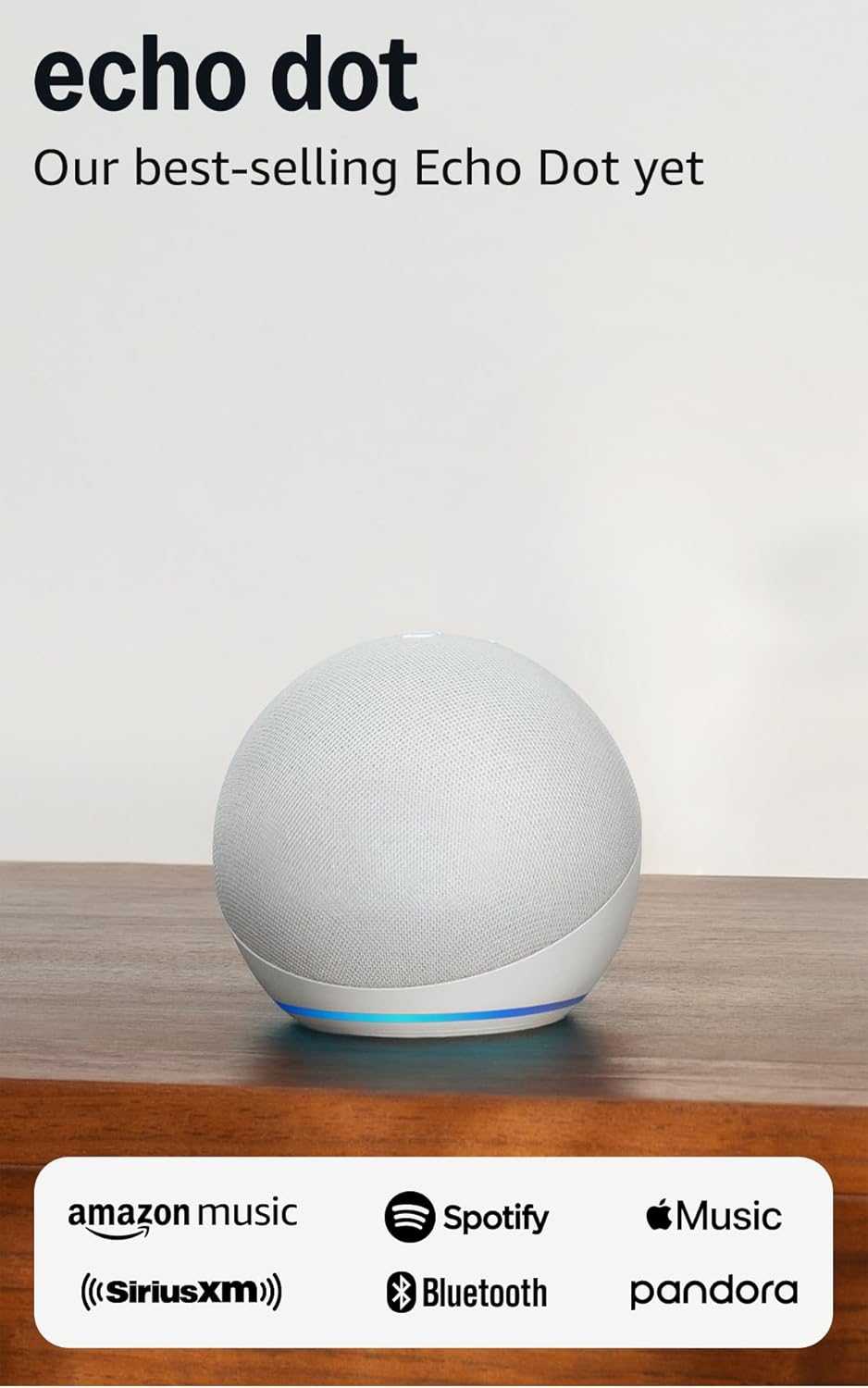
Amazon Echo Dot (newest model) - Vibrant sounding speaker...
As an Amazon Associate we earn from qualifying purchases.
Official Manufacturer Manual
Amazon provides official product documentation through their online manual rather than downloadable PDF. Access setup guides, troubleshooting steps, and product specifications for your Amazon Echo Hub.
Source: amazon.com
Need More Help? Amazon Support
Note: The contact information below connects you directly to Amazon's official customer support team, not Trunetto. They can help with warranty claims, device replacements, and advanced technical issues.
How Does Amazon Compare?
Before replacing your Amazon device, see how it stacks up against alternatives in our full comparison guides.
Accessories owners commonly pair with Amazon Echo Hub.

Amazon Basics 65 Piece Home Repair Tool Kit Set With Carr...

Amazon Basics Smart Plug, Matter Compatible, Compatible w...

Amazon Basics Dual Smart Plug with Motion Sensor and Nigh...
As an Amazon Associate we earn from qualifying purchases.





