

Why Isn't My Amazon Echo Show 5 Responding to Voice Commands?
- Microphone muted via top panel button showing red LED
- Do Not Disturb mode active silencing all Alexa interactions
- Alexa voice service fault requiring device restart
Problem Description
Your Amazon Echo Show 5 does not respond when you say Alexa even though the device is powered on, the screen is active, and other Echo devices in the home work normally. The Echo Show 5 has a built-in microphone array and a physical microphone mute button on the top. Voice detection failures are caused by the microphone being muted, the Do Not Disturb schedule being active, or the Alexa voice service experiencing a firmware or account issue.
Why This Happens in Real Homes
An Echo Show 5 that ignores "Alexa" usually has its mic muted (the top button, with a red bar/indicator), or it can't hear you over noise or a weak connection. The mic mute is the number-one cause — it's easy to bump.
Start by checking the mic/camera button on top: if there's a red indicator, the mics are off. Then reduce background noise, confirm it's on WiFi, and reboot if needed. If it hears you but responds wrong, retrain Voice ID; a muted mic explains a device that lights up for touch but never answers your voice.
Symptoms
- Saying Alexa to Echo Show 5 produces no LED ring response
- Microphone LED shows red on Echo Show 5 top
- Echo Show 5 screen is on but completely ignores voice
- Touching the screen produces response but voice is ignored
- Echo Show 5 was responding then stopped suddenly
- Voice response stopped after a firmware update
Recognize these? Here's what usually causes it.
Common Causes
- Microphone muted via top panel button showing red LED
- Do Not Disturb mode active silencing all Alexa interactions
- Alexa voice service fault requiring device restart
- Echo Show 5 WiFi connection dropped causing Alexa to lose cloud access
- Wake word detection service crashed in firmware
- Volume muted preventing audio response which appears as non-response
Most fixes happen in the first 3 steps.
Do not set a Do Not Disturb schedule that covers your entire day as a workaround for notification noise. This effectively disables Alexa voice response for hours at a time. Use the notification settings to silence specific alert types instead.
Tools & Requirements
These tools will help you complete this fix.

Power adapter
JcBlaon Outlet Extender Surge Protector - 6 Outlet S...
As an Amazon Associate we earn from qualifying purchases.
Step-by-Step Solution
Unmute the Microphone
The Echo Show 5 has a microphone mute button on the top panel. When muted the LED indicator on the top glows red and the screen may show a microphone crossed-out icon. Press the microphone button once to toggle the microphone back to active. The red LED should turn off. Say Alexa and watch for the orange ring to activate. This is the most common cause of sudden voice unresponsiveness on Echo Show devices, especially when the device is placed where the button may be accidentally pressed.
Disable Do Not Disturb Mode
Swipe down from the top of the Echo Show 5 screen. If a crescent moon icon is highlighted Do Not Disturb is active. Tap the moon icon to toggle it off. Do Not Disturb mode prevents Alexa from responding to wake words and incoming calls. A schedule in the Alexa app may be activating Do Not Disturb automatically. Open the Alexa app and go to Device Settings for the Echo Show 5 then Do Not Disturb Schedule to check if a schedule is configured and modify it if needed.
Restart the Echo Show 5
Unplug the Echo Show 5 power adapter from the wall for 30 seconds then reconnect it. After the device boots and the home screen loads wait 2 minutes for all Alexa services to fully initialise. Say Alexa to test voice response. A restart clears the Alexa voice service process which can crash silently after firmware updates without restarting the entire device. If voice response returns after restart the issue was a recoverable firmware service crash.
Needed for this step
JcBlaon Outlet Extender Surge Protector - 6 Out...
This helps complete the fix you are currently reading.
$9.99Check WiFi Connection
Swipe down from the top of the Echo Show 5 and tap Settings then WiFi. Confirm the device shows as connected to your network with a valid IP address. If the WiFi shows disconnected or limited Alexa cannot reach its cloud service and will not respond to voice commands. Reconnect to WiFi by tapping your network name and entering the password if required. After reconnecting test the wake word response.
Check Volume Level
Swipe down from the Echo Show 5 home screen and look at the volume indicator. If volume is set to zero or near zero Alexa processes voice commands but makes no audible response which can appear as if Alexa is not hearing you. Increase volume by pressing the volume button on the top of the device. Also check that the Alexa response volume has not been set separately in the Alexa app under Device Settings for the Echo Show 5.
Quick Solutions
Still having issues? This is usually the deeper cause below.
If voice commands stopped working after relinking the account, check that the skill or action is still enabled — relinking sometimes disables it silently.
Place the Echo Show 5 at least 1 metre from the TV speaker. TV audio played near the microphone makes wake word detection unreliable because the microphone array cannot distinguish your voice from the television speech.
This issue almost always looks more complex than it is — the majority of cases trace back to a single setting, a stale credential, or a default that shipped wrong.
- Microphone muted via top panel button showing red LED
- Do Not Disturb mode active silencing all Alexa interactions
- Alexa voice service fault requiring device restart
- Echo Show 5 WiFi connection dropped
- Wake word detection service crashed in firmware
Before you go — try one of these (they fix most cases).
Most popular upgrades chosen by Amazon Echo Show 5 owners.
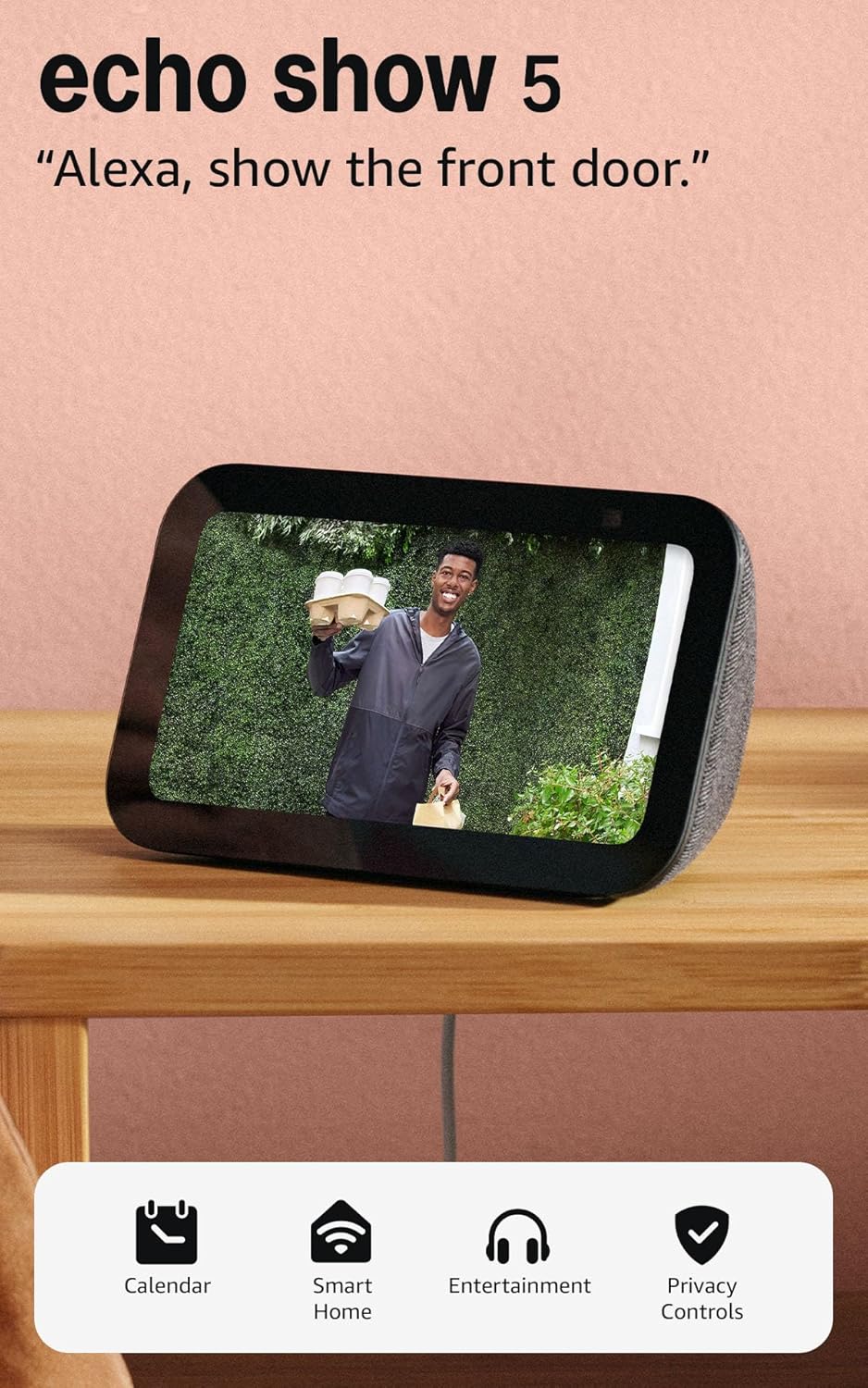
Like-New Amazon Echo Show 5 (newest model), Smart display...

Amazon Echo Show 5 (newest model), Smart display, Designe...

Amazon Echo Show 5 (newest model), Smart display, Designe...
As an Amazon Associate we earn from qualifying purchases.
Official Manufacturer Manual
Amazon provides official product documentation through their online manual rather than downloadable PDF. Access setup guides, troubleshooting steps, and product specifications for your Amazon Echo Show 5.
Source: amazon.com
Need More Help? Amazon Support
Note: The contact information below connects you directly to Amazon's official customer support team, not Trunetto. They can help with warranty claims, device replacements, and advanced technical issues.
How Does Amazon Compare?
Before replacing your Amazon device, see how it stacks up against alternatives in our full comparison guides.
Accessories owners commonly pair with Amazon Echo Show 5.

Amazon Echo Show 5 Kids (newest model), Designed for kids...

Amazon Basics 65 Piece Home Repair Tool Kit Set With Carr...

Amazon Basics Smart Plug, Matter Compatible, Compatible w...
As an Amazon Associate we earn from qualifying purchases.



