

How Do I Set Up the Amazon Fire TV Cube 3rd Gen?
- Wrong HDMI input selected
- Weak WiFi (or use Ethernet)
- Remote not paired
Problem Description
You are setting up the Amazon Fire TV Cube 3rd Generation for the first time. The Fire TV Cube connects to your TV via HDMI and provides 4K streaming with hands-free Alexa voice control. It also has an Ethernet port on the back for wired internet. This guide covers connecting to your TV, WiFi or Ethernet setup, and signing into your Amazon account.
Why This Happens in Real Homes
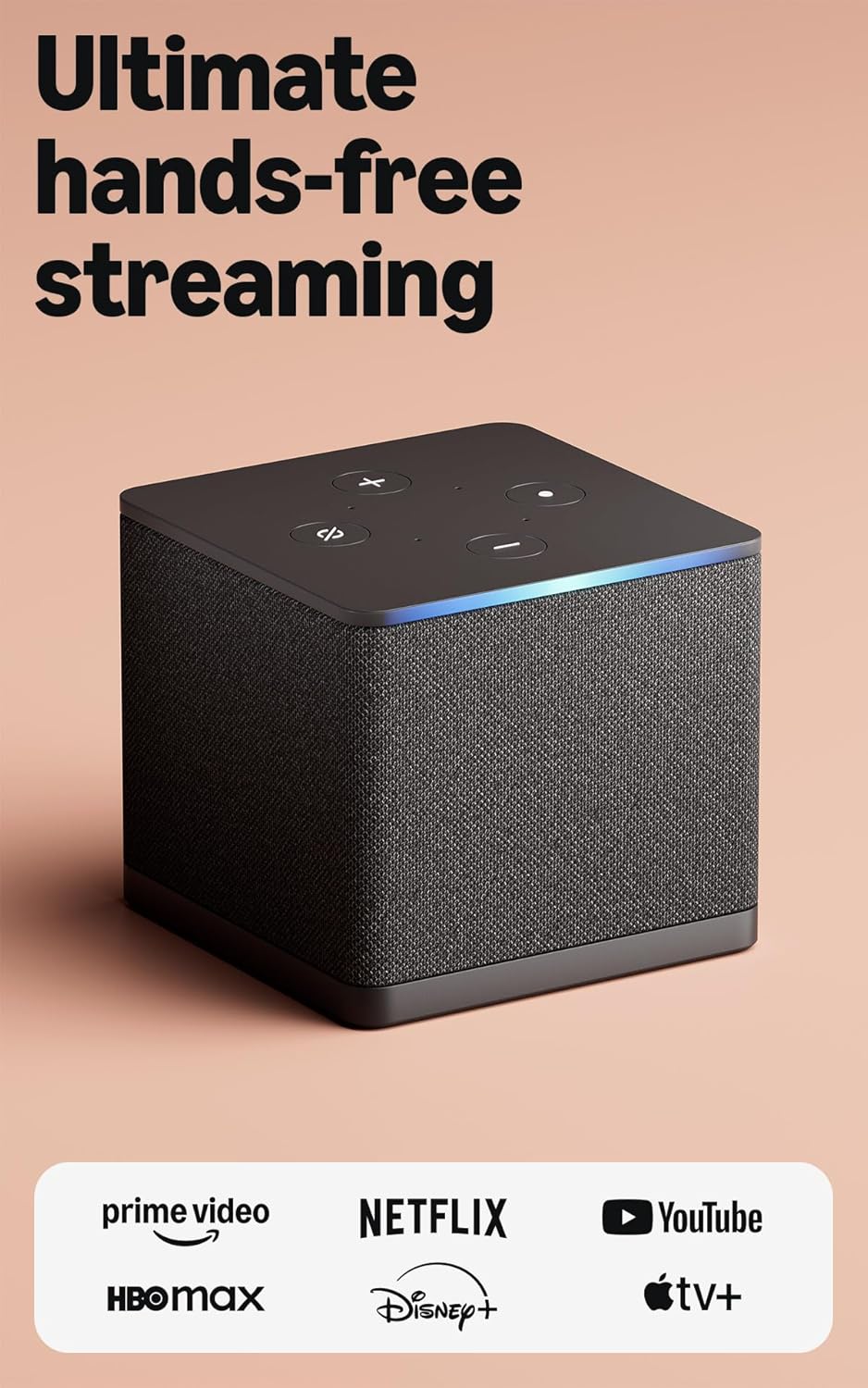
The Fire TV Cube 3rd Gen connects to your TV over HDMI and can use WiFi or wired Ethernet, and it controls your TV/soundbar hands-free over HDMI-CEC. Setup snags are the familiar ones: the TV on the wrong input, the remote not paired, or CEC disabled so it can't control the TV.
Start by selecting the right HDMI input, connecting to a strong network (Ethernet is great for a Cube), and pairing the remote by holding Home. Enable HDMI-CEC on the TV so the Cube can switch inputs and control volume, and unmute the top mic if the wake word isn't responding.
Symptoms
- Cube will not set up
- No signal on TV
- Will not connect to WiFi
- Remote will not pair
- HDMI-CEC not controlling TV
- Voice not responding
- Setup stalls
- Ethernet vs WiFi question
Recognize these? Here's what usually causes it.
Common Causes
- Wrong HDMI input selected
- Weak WiFi (or use Ethernet)
- Remote not paired
- HDMI-CEC off on the TV
- Mic muted (voice)
- Not enough power/ventilation
- Router AP isolation
- Firmware update pending
Most fixes happen in the first 3 steps.
Smart displays have always-on microphones and cameras. Use the physical camera shutter when privacy is needed. Review your voice and video call history periodically in the app privacy settings. Keep the display away from steam and grease which damage the screen.
Tools & Requirements
These tools will help you complete this fix.

Power adapter
JcBlaon Outlet Extender Surge Protector - 6 Outlet S...
As an Amazon Associate we earn from qualifying purchases.
Step-by-Step Solution
Connect the Fire TV Cube to your TV
The Fire TV Cube 3rd Gen connects via the included HDMI cable to any TV with an HDMI port. Plug the HDMI cable into the Cube and into your TV — use an HDMI 2.1 port if your TV has one for 4K 60fps support. Connect the included power adapter to the Cube and plug it in. The Cube also has an Ethernet port for wired internet, a USB-A port for external storage, and an IR extender port for controlling other AV equipment.
Needed for this step
JcBlaon Outlet Extender Surge Protector - 6 Out...
This helps complete the fix you are currently reading.
$9.99Complete the on-screen setup
Power on your TV and switch to the correct HDMI input. The Fire TV Cube boots and displays a language selection screen. Pair the included Alexa Voice Remote by holding the Home button for 10 seconds. Connect to your WiFi network (or use the Ethernet port for a more stable connection), sign into your Amazon account, and register the device. The setup wizard walks you through linking streaming services and configuring Alexa.
Set up hands-free Alexa and device control
The Fire TV Cube has built-in far-field microphones for hands-free Alexa — no remote needed. Say "Alexa, turn on the TV" and it powers your TV on via HDMI-CEC or the built-in IR blaster. To control other devices (soundbar, cable box, AV receiver), go to Settings > Equipment Control and follow the setup for each device. The Cube can power on your TV, switch inputs, control volume on a soundbar, and tune channels on a cable box — all by voice.
Configure 4K HDR and audio output
The 3rd Gen Cube supports 4K Ultra HD, Dolby Vision, HDR10+, and Dolby Atmos audio. Go to Settings > Display & Sounds. Set resolution to Auto to let the Cube match your TV capabilities. For audio, if you have a Dolby Atmos soundbar or AV receiver, set audio output to Dolby Atmos. If you use TV speakers only, set it to Stereo. Check that HDMI-CEC (called Anynet+ on Samsung, SimpLink on LG) is enabled on your TV for power and volume control.
Use the Cube as a smart home hub
The Fire TV Cube 3rd Gen includes a built-in Zigbee and Matter hub. It can directly control compatible smart home devices without needing separate hubs. Go to Settings > Connected Devices to pair Zigbee devices (many smart plugs, sensors, and bulbs). For Matter devices, scan the Matter QR code through the Alexa app. Say "Alexa, discover devices" to find devices on your network. You can overlay smart home controls on your TV screen by saying "Alexa, show my devices."
Quick Solutions
Still having issues? This is usually the deeper cause below.
If this comes back after following these steps, check whether a recent app or firmware update reset a default setting — the fix works, but the setting gets reverted silently.
Use Do Not Disturb mode or set a nighttime schedule so the display dims automatically and stops announcements during sleeping hours. Place it where you can see the screen from across the room for at-a-glance weather, time, and calendar.
This issue almost always looks more complex than it is — the majority of cases trace back to a single setting, a stale credential, or a default that shipped wrong.
- Wrong HDMI input selected
- Weak WiFi (or use Ethernet)
- Remote not paired
- HDMI-CEC off on the TV
- Mic muted (voice)
Before you go — try one of these (they fix most cases).
Most popular upgrades chosen by Fire TV Cube owners.
As an Amazon Associate we earn from qualifying purchases.
Official Manufacturer Manual
Amazon provides official product documentation through their online manual rather than downloadable PDF. Access setup guides, troubleshooting steps, and product specifications for your Fire TV Cube.
Source: amazon.com
Need More Help? Amazon Support
Note: The contact information below connects you directly to Amazon's official customer support team, not Trunetto. They can help with warranty claims, device replacements, and advanced technical issues.
How Does Amazon Compare?
Before replacing your Amazon device, see how it stacks up against alternatives in our full comparison guides.
Accessories owners commonly pair with Fire TV Cube.

Amazon Basics microSDXC Memory Card with Full Size Adapte...

Amazon Basics microSDXC Memory Card with Full Size Adapte...

Amazon eero 6 mesh wifi system - Supports internet plans ...
As an Amazon Associate we earn from qualifying purchases.





