

How Do I Set Up the Echo Hub Smart Display?
- Expecting an Echo Show (it is not one)
- Smart home devices not on the account
- Weak WiFi at the wall
Problem Description
You are setting up the Echo Hub smart display for controlling your smart home. Unlike other Echo devices, the Echo Hub is designed as a dedicated smart home control panel — it has a touchscreen for managing devices but no built-in speaker. It supports Zigbee, Thread, Matter, and Bluetooth protocols. This guide covers what makes it different and how to set it up.
Why This Happens in Real Homes
The Echo Hub is a dedicated smart-home dashboard — no camera, minimal speaker — so it's not a smaller Echo Show. Its whole job is to display and control the devices already on your Alexa account, which is why an empty panel usually means your devices aren't linked yet.
Start by powering and mounting it, connecting to WiFi (a strong signal at the wall matters), and confirming your lights, locks, thermostats, and cameras are on the same Alexa account. Then customize the dashboard; the Hub shows what Alexa knows, so link devices first and lay out the panel second.
Symptoms
- Setting up the Echo Hub display
- No camera/speaker confusion
- Devices not showing on the panel
- Will not connect to WiFi
- Touch panel issues
- Dashboard empty
- Will not mount/power
- Setup stalls
Recognize these? Here's what usually causes it.
Common Causes
- Expecting an Echo Show (it is not one)
- Smart home devices not on the account
- Weak WiFi at the wall
- Power (adapter/PoE) issue
- Not in setup mode
- Dashboard not customized
- Router AP isolation
- Firmware update pending
Most fixes happen in the first 3 steps.
Smart displays have always-on microphones and cameras. Use the physical camera shutter when privacy is needed. Review your voice and video call history periodically in the app privacy settings. Keep the display away from steam and grease which damage the screen.
Tools & Requirements
These tools will help you complete this fix.

Power adapter
JcBlaon Outlet Extender Surge Protector - 6 Outlet S...
As an Amazon Associate we earn from qualifying purchases.
Step-by-Step Solution
Understand what the Echo Hub does differently
The Echo Hub is not an Echo Show — it has no camera and no speaker. It is a dedicated 8-inch touchscreen control panel for your smart home. Think of it as a wall-mounted remote control for all your Alexa-compatible devices. It connects to existing Echo speakers for voice feedback and music playback. If you need a device that plays music, makes video calls, and shows recipes, you want an Echo Show instead.
Set up and connect to your network
Plug in the Echo Hub via USB-C and let it boot to the setup screen. Open the Alexa app on your phone and follow the guided setup: connect to WiFi, link your Amazon account, and assign the Hub to a room. During setup, link it to a nearby Echo speaker so Alexa responses play through that speaker. The Hub has built-in Zigbee, Thread, and Matter radios — these activate automatically after setup.
Add smart home devices through the Hub
The Echo Hub acts as a hub for Zigbee and Thread devices, meaning those devices connect directly to it without needing their own brand-specific hub. In the Alexa app, go to Devices > + > Add Device. For Zigbee devices (many smart plugs, contact sensors, motion sensors), put them in pairing mode and the Hub discovers them. For Matter devices, scan the QR code. Thread devices like newer Eve sensors pair through Matter and use the Hub as a Thread border router.
Build your control dashboard
Tap and hold the Echo Hub screen to enter edit mode. Add device tiles for individual lights, locks, thermostats, and cameras. Add scene tiles for one-tap routines (e.g., "Movie Time" dims lights and starts the TV). Group tiles by room or function. The 8-inch screen fits about 8-12 tiles comfortably. Put your most-used controls in the center where they are easiest to tap. The bottom bar has persistent icons for media, security, lighting, and locks.
Use the Hub for security monitoring
The Echo Hub integrates with Ring, Blink, and other Alexa-compatible security devices. Add camera feeds as tiles on the dashboard to check live views with one tap. If you have a Ring Alarm, the Hub displays the alarm status and lets you arm/disarm from the touchscreen. Set up Alexa Guard in the Alexa app to use Echo devices as makeshift security sensors — they listen for glass breaking or smoke alarms and send alerts to your phone.
Quick Solutions
Still having issues? This is usually the deeper cause below.
If the hub reconnects then drops every few minutes, check for an IP conflict — two devices sharing the same DHCP address fight each other continuously.
Use Do Not Disturb mode or set a nighttime schedule so the display dims automatically and stops announcements during sleeping hours. Place it where you can see the screen from across the room for at-a-glance weather, time, and calendar.
Hub disconnections that cycle repeatedly are almost always IP conflicts — two devices fighting over the same DHCP lease after a router restart.
- Expecting an Echo Show (it is not one)
- Smart home devices not on the account
- Weak WiFi at the wall
- Power (adapter/PoE) issue
- Not in setup mode
Before you go — try one of these (they fix most cases).
Most popular upgrades chosen by Amazon Echo Hub owners.

Amazon eero Pro 6E mesh wifi router (1-pack) with Amazon ...

Amazon Echo Dot Kids (newest model) - Dragon including Am...
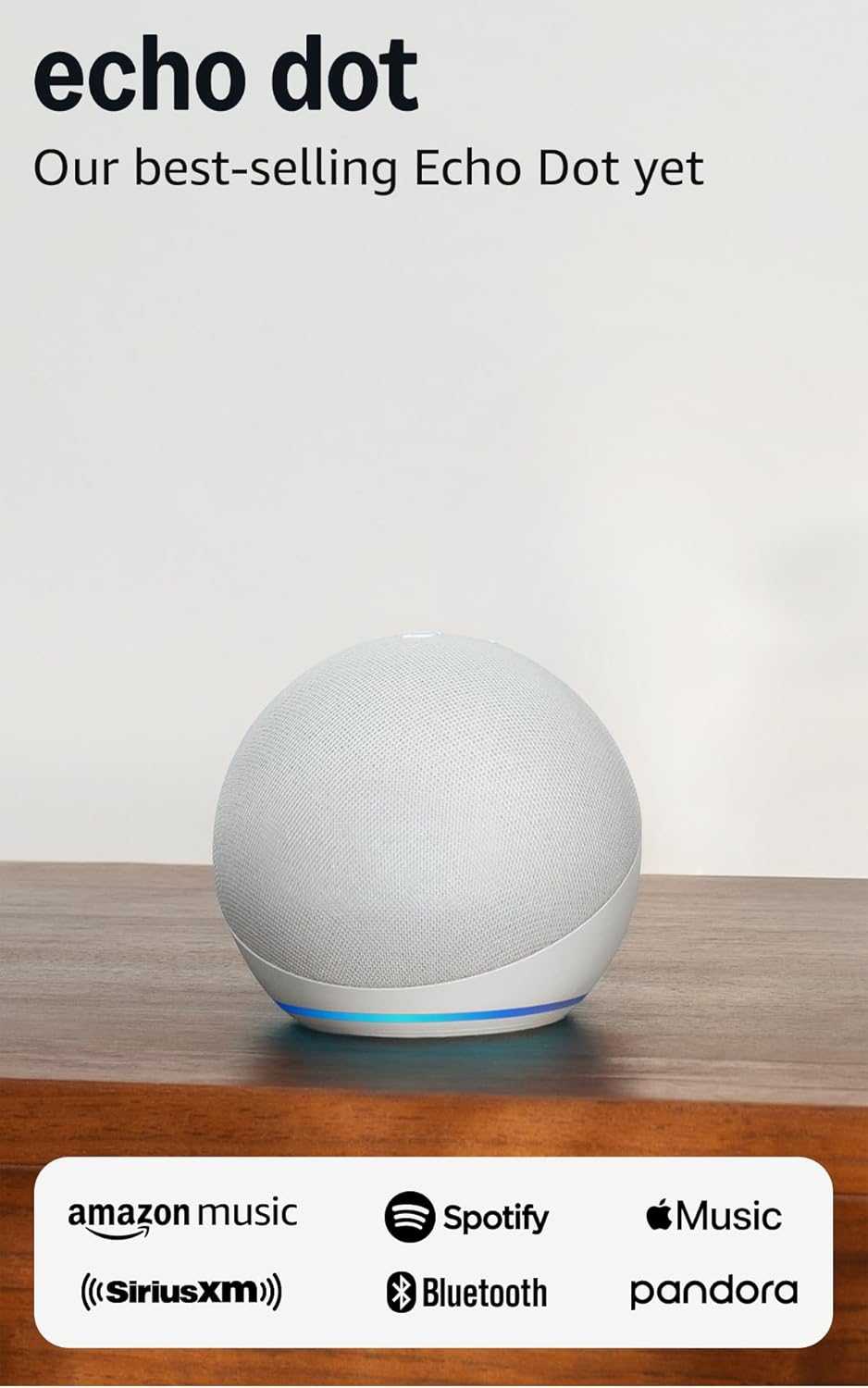
Amazon Echo Dot (newest model) - Vibrant sounding speaker...
As an Amazon Associate we earn from qualifying purchases.
Official Manufacturer Manual
Amazon provides official product documentation through their online manual rather than downloadable PDF. Access setup guides, troubleshooting steps, and product specifications for your Amazon Echo Hub.
Source: amazon.com
Need More Help? Amazon Support
Note: The contact information below connects you directly to Amazon's official customer support team, not Trunetto. They can help with warranty claims, device replacements, and advanced technical issues.
How Does Amazon Compare?
Before replacing your Amazon device, see how it stacks up against alternatives in our full comparison guides.
Accessories owners commonly pair with Amazon Echo Hub.

Amazon Basics 65 Piece Home Repair Tool Kit Set With Carr...

Amazon Basics Smart Plug, Matter Compatible, Compatible w...

Amazon Basics Dual Smart Plug with Motion Sensor and Nigh...
As an Amazon Associate we earn from qualifying purchases.





