

How Do I Set Up Photo Display on My Echo Show?
- Amazon Photos not set as home content
- No album selected
- Photos not in Amazon Photos
Problem Description
You want to set up your Echo Show to display photos as a digital photo frame when idle. The Echo Show can display photos from Amazon Photos, your phone camera roll, or Facebook. Choose your photo source in the Alexa app under the device's Home Screen settings. This guide covers selecting photo sources, creating albums, and customizing the slideshow.
Why This Happens in Real Homes
To use the Echo Show as a photo frame, it pulls images from Amazon Photos on its idle screen — so the setup is: get your photos into Amazon Photos, then set that as the device's home/ambient content and pick an album. Missing photos almost always means one of those steps is incomplete.
Start in the Alexa app under the device's Home & Clock settings: choose Amazon Photos, select an album, and turn on the slideshow. Confirm the device and Amazon Photos use the same account, and check Do Not Disturb isn't keeping the ambient screen off.
Symptoms
- Photos will not display when idle
- No slideshow
- Wrong album
- Amazon Photos not linked
- Only clock shows
- Photos will not rotate
- Low-res photos
- Home screen not cycling
Recognize these? Here's what usually causes it.
Common Causes
- Amazon Photos not set as home content
- No album selected
- Photos not in Amazon Photos
- Slideshow/rotation off
- Home content set to clock/widgets
- Account mismatch
- Do Not Disturb blanking the screen
- Firmware out of date
Most fixes happen in the first 3 steps.
Smart displays have always-on microphones and cameras. Use the physical camera shutter when privacy is needed. Review your voice and video call history periodically in the app privacy settings. Keep the display away from steam and grease which damage the screen.
Tools & Requirements
These tools will help you complete this fix.

Power adapter
JcBlaon Outlet Extender Surge Protector - 6 Outlet S...
As an Amazon Associate we earn from qualifying purchases.
Step-by-Step Solution
Choose your photo source
The Echo Show displays photos from Amazon Photos. Open the Alexa app, go to your Echo Show device settings, and tap Photo Display. You can select specific albums, favourites, or let Alexa curate automatically. Amazon Photos gives unlimited full-resolution photo storage with Prime membership. Upload photos from your phone through the Amazon Photos app, or set it to auto-backup your camera roll. The Echo Show pulls from whatever albums you select.
Create and select albums for display
For the best photo frame experience, create a dedicated album in Amazon Photos with your favourite images. Open the Amazon Photos app, tap Albums > Create Album, and add photos you want displayed. Then in the Alexa app, go to Echo Show settings > Photo Display and select that album. You can select multiple albums. Avoid selecting your entire library — the Echo Show will cycle through thousands of photos including screenshots, receipts, and blurry shots.
Adjust display settings
On the Echo Show, swipe down from the top and tap Settings > Display. Set clock style and whether to overlay the time, date, and weather on photos. Adjust the slideshow speed — how long each photo displays before transitioning. Enable Ambient Sensing to automatically dim the display in dark rooms so it does not light up the room at night. On the Echo Show 15, you can set photos as a background behind widgets instead of a full-screen slideshow.
Fix photos not appearing or showing old photos
If the photo display is blank or stuck on the same images, check your internet connection first — the Echo Show streams photos from Amazon cloud, it does not store them locally. In the Alexa app, verify the correct album is selected in Photo Display settings. If you recently added photos to the album, give it up to an hour to sync. Say "Alexa, show my photos" to force a refresh. If a specific photo will not display, check its format — the Echo Show supports JPEG and PNG but not RAW or HEIC files.
Share photo albums with household members
If multiple people want their photos on the Echo Show, each person uploads to their own Amazon Photos account, then shares albums with the Amazon account linked to the Echo Show. In the Amazon Photos app, open an album, tap Share, and enter the email address of the Echo Show account holder. The shared album then appears as a selectable source in the Echo Show Photo Display settings. This way each family member controls which of their photos appear.
Quick Solutions
Still having issues? This is usually the deeper cause below.
If this comes back after following these steps, check whether a recent app or firmware update reset a default setting — the fix works, but the setting gets reverted silently.
Use Do Not Disturb mode or set a nighttime schedule so the display dims automatically and stops announcements during sleeping hours. Place it where you can see the screen from across the room for at-a-glance weather, time, and calendar.
This issue almost always looks more complex than it is — the majority of cases trace back to a single setting, a stale credential, or a default that shipped wrong.
- Amazon Photos not set as home content
- No album selected
- Photos not in Amazon Photos
- Slideshow/rotation off
- Home content set to clock/widgets
Before you go — try one of these (they fix most cases).
Most popular upgrades chosen by Amazon Echo Show owners.

Amazon Echo Show 10 (newest model)
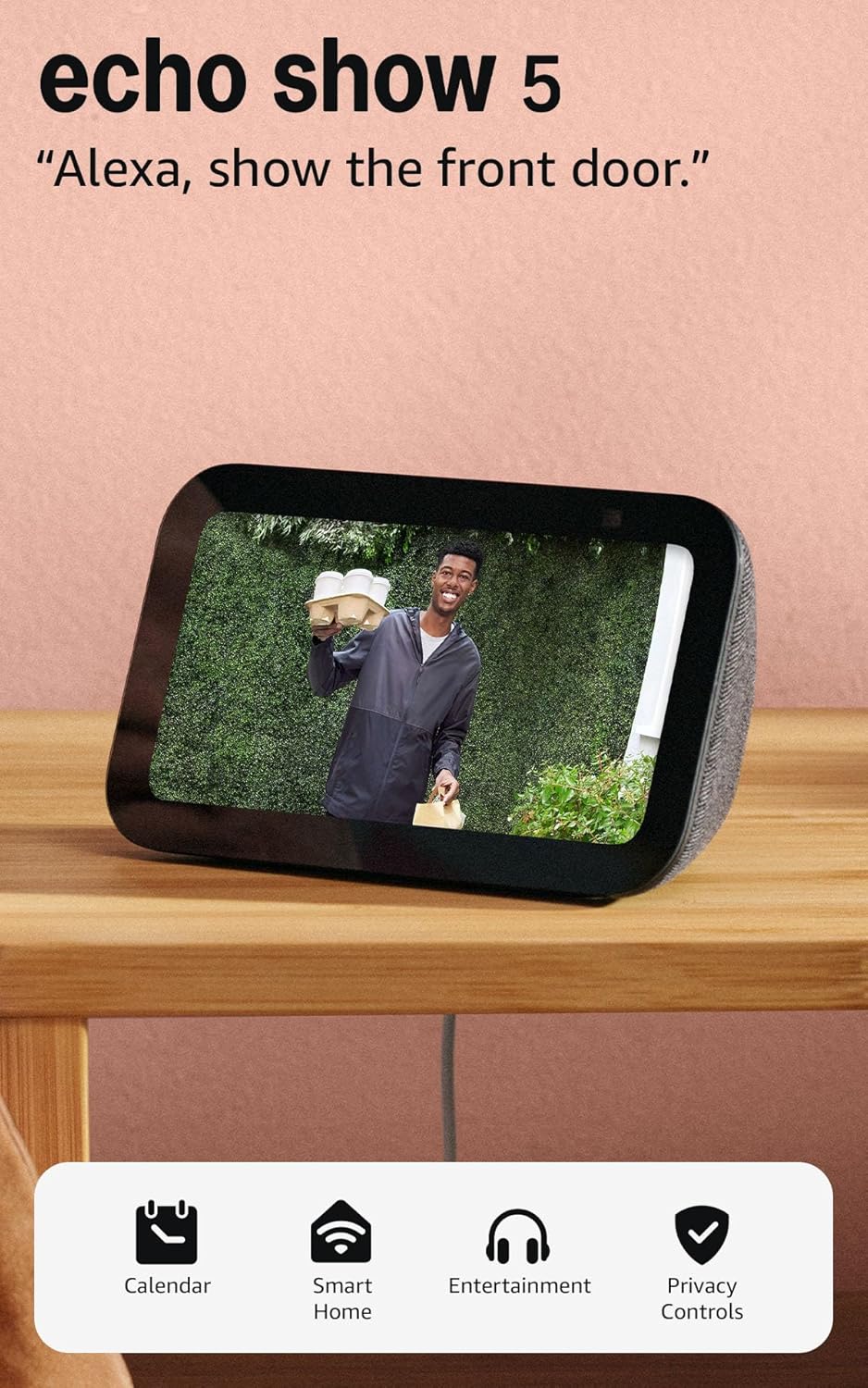
Like-New Amazon Echo Show 5 (newest model), Smart display...

Amazon Echo Show 8 (newest model)
As an Amazon Associate we earn from qualifying purchases.
Official Manufacturer Manual
Amazon provides official product documentation through their online manual rather than downloadable PDF. Access setup guides, troubleshooting steps, and product specifications for your Amazon Echo Show.
Source: amazon.com
Need More Help? Amazon Support
Note: The contact information below connects you directly to Amazon's official customer support team, not Trunetto. They can help with warranty claims, device replacements, and advanced technical issues.
How Does Amazon Compare?
Before replacing your Amazon device, see how it stacks up against alternatives in our full comparison guides.
Accessories owners commonly pair with Amazon Echo Show.

Amazon Echo Show 5 (newest model), Smart display, Designe...

Amazon Echo Show 5 (newest model), Smart display, Designe...

Amazon Echo Show 5 Kids (newest model), Designed for kids...
As an Amazon Associate we earn from qualifying purchases.



