

Why Is My Amazon Echo Show Screen Frozen or Not Responding?
- Software glitch
- Overheating
- Memory full
Problem Description
Your Amazon Echo Show screen is frozen and not responding to touch or voice commands. Force reboot by unplugging the power cable from the back of the Echo Show, waiting 10 seconds, and plugging it back in. The device takes about 2 minutes to restart. This guide covers power cycling, forced restarts, and factory reset if the freeze persists.
Why This Happens in Real Homes
A frozen Echo Show screen is usually a software glitch, occasionally overheating or memory pressure — the interface locks and won't respond to touch or voice. A reboot clears the vast majority.
Start by unplugging it for 30 seconds and back in to force a restart. If it freezes repeatedly, make sure it's ventilated (not in direct sun or a hot enclosure) and its software is current; persistent freezing after reboots and updates can mean a failing device, but a simple power cycle fixes most one-off freezes.
Symptoms
- Screen completely frozen
- Touch not registering
- Display shows artifacts or lines
- Stuck on boot screen
- Black screen but Alexa responds
Recognize these? Here's what usually causes it.
Common Causes
- Software glitch
- Overheating
- Memory full
- Corrupted update
- Hardware issue
Most fixes happen in the first 3 steps.
Factory reset erases all settings and personalizations. Your smart home devices will need to be rediscovered.
Tools & Requirements
These tools will help you complete this fix.

Power adapter
JcBlaon Outlet Extender Surge Protector - 6 Outlet S...
As an Amazon Associate we earn from qualifying purchases.
Step-by-Step Solution
Force reboot using power cycle
Unplug the Echo Show for at least 30 seconds, then reconnect and allow a full boot. Temporary software lockups are often cleared by cold restart.
Needed for this step
JcBlaon Outlet Extender Surge Protector - 6 Out...
This helps complete the fix you are currently reading.
$9.99Check device temperature and ventilation
Make sure the unit is not overheating due to blocked vents or direct sunlight. Thermal stress can cause UI freezes and sluggish touch response.
Verify WiFi stability and account sync
Confirm strong network connectivity and that device remains registered to your account. Persistent sync failures can leave the interface unresponsive.
Free storage and disable heavy background features
Reduce active widgets/video loops and clear unnecessary content if storage is constrained. Resource pressure can freeze screen rendering on older models.
Factory reset if freeze persists
Back up key settings, perform factory reset, and retest base features before restoring routines. Ongoing freezes after reset indicate hardware-level issues.
Quick Solutions
Still having issues? This is usually the deeper cause below.
If this comes back after following these steps, check whether a recent app or firmware update reset a default setting — the fix works, but the setting gets reverted silently.
Keep your Echo Show in a well-ventilated area. Avoid placing it in enclosed cabinets or areas that trap heat.
This issue almost always looks more complex than it is — the majority of cases trace back to a single setting, a stale credential, or a default that shipped wrong.
- Software glitch
- Overheating
- Memory full
- Corrupted update
- Hardware issue
Before you go — try one of these (they fix most cases).
Most popular upgrades chosen by Amazon Echo Show owners.

Amazon Echo Show 10 (newest model)
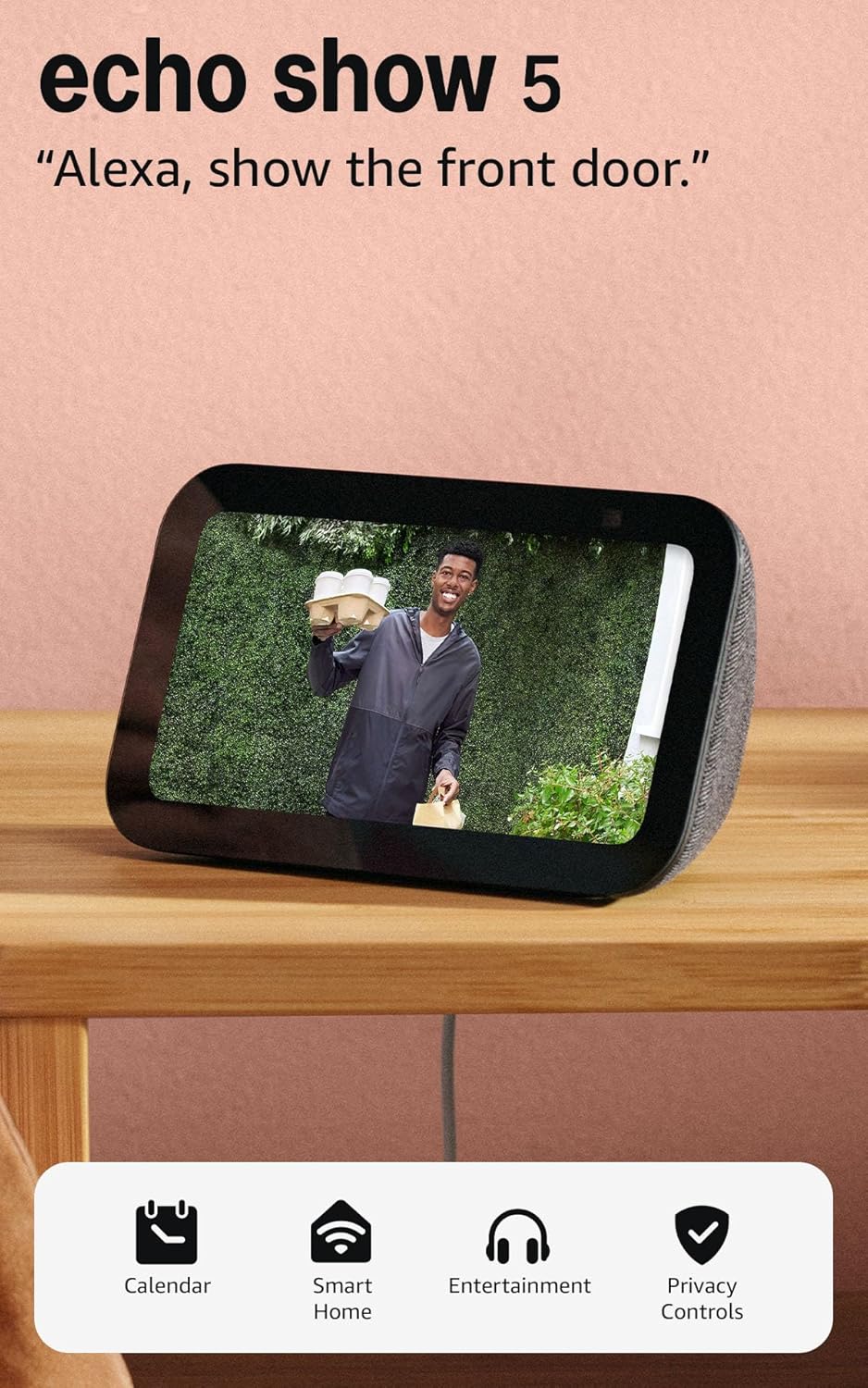
Like-New Amazon Echo Show 5 (newest model), Smart display...

Amazon Echo Show 8 (newest model)
As an Amazon Associate we earn from qualifying purchases.
Official Manufacturer Manual
Amazon provides official product documentation through their online manual rather than downloadable PDF. Access setup guides, troubleshooting steps, and product specifications for your Amazon Echo Show.
Source: amazon.com
Need More Help? Amazon Support
Note: The contact information below connects you directly to Amazon's official customer support team, not Trunetto. They can help with warranty claims, device replacements, and advanced technical issues.
How Does Amazon Compare?
Before replacing your Amazon device, see how it stacks up against alternatives in our full comparison guides.
Accessories owners commonly pair with Amazon Echo Show.

Amazon Smart Plug, Works with Alexa, Simple Setup, Endles...

Sengled Alexa Light Bulb, S1 Auto Pairing with Alexa Devi...

Sengled Smart Light Bulbs, Color Changing Alexa/Bluetooth...
As an Amazon Associate we earn from qualifying purchases.



