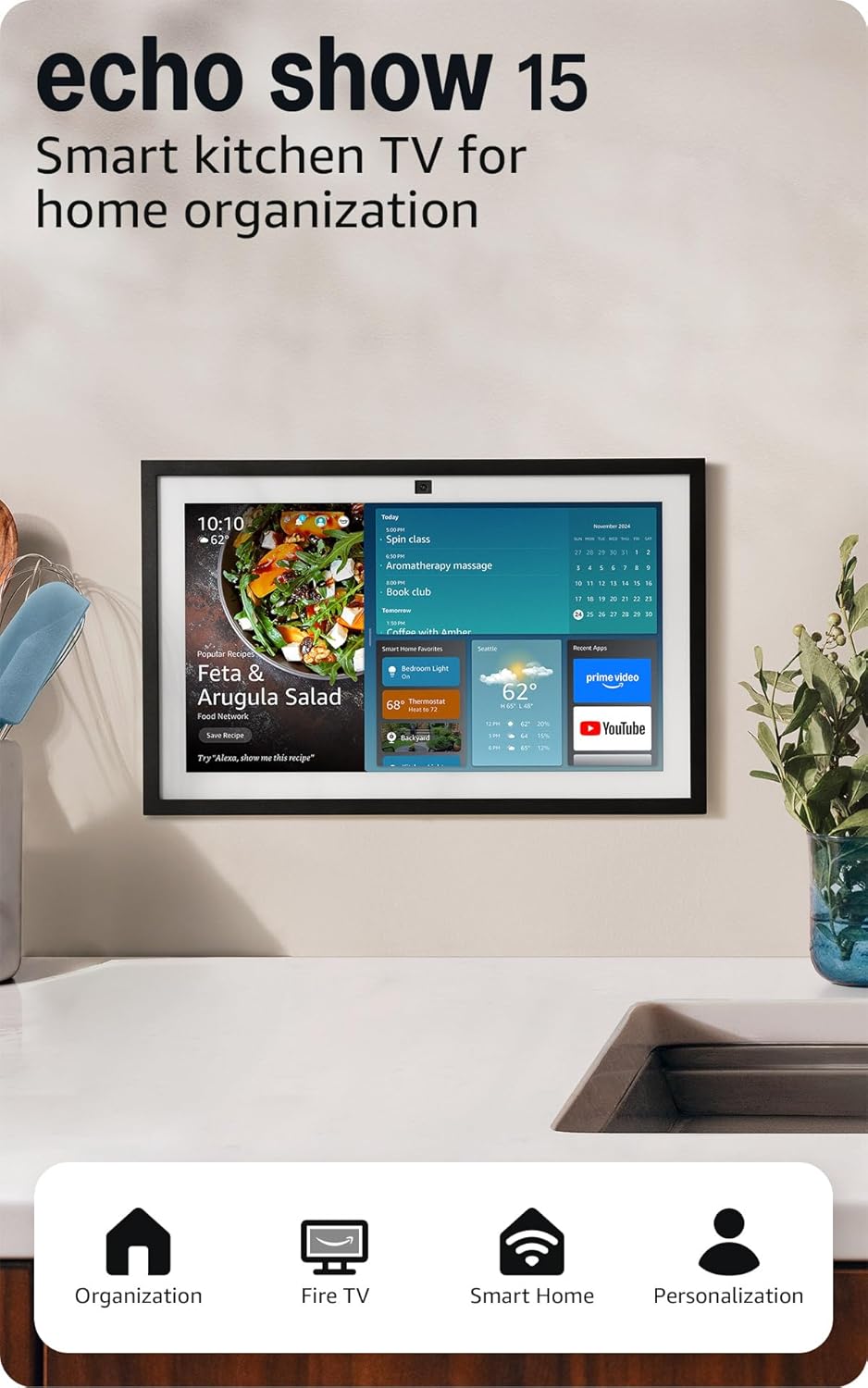
How to Set Up Amazon Echo Show 10 Drop In Between Rooms
- Enable Communications
- Enable Drop In Per Device
- Name Devices Clearly
- Test Drop In
- Create Routine
Most users complete this in under 15 minutes
Overview
Drop In on Echo Show 10 lets household devices act like an intercom. This guide configures the Alexa app, enables Drop In on each device, sets contact permissions, and adds a single-tap routine for quick intercom between rooms.
Why This Happens in Real Homes
Drop In on Echo Show 10 lets household devices act like an intercom. This guide configures the Alexa app, enables Drop In on each device, sets contact permissions, and adds a single-tap routine for quick intercom between rooms. In day-to-day use, this usually looks like Two or more Echo devices in home; Same Amazon account on all devices; Alexa app installed on phone.
Most cases trace back to Different Amazon accounts per device; Drop In disabled in device settings; Communications not activated on account. The fix works best when you go step by step instead of changing multiple settings at once.
A practical order for this issue is: Enable Communications -> Enable Drop In Per Device -> Name Devices Clearly -> Test Drop In. After each step, test the exact behavior that was failing so you can confirm what actually solved it.
What's Included
- Two or more Echo devices in home
- Same Amazon account on all devices
- Alexa app installed on phone
- Echo Show 10 set up and online
- Permissions enabled for household members
- Home WiFi reliable across rooms
Got your materials ready? Here's what to check first.
Before You Start
- Different Amazon accounts per device
- Drop In disabled in device settings
- Communications not activated on account
- Echo devices offline during Drop In
- Privacy mode left on by mistake
- Contacts list missing household members
Don't skip this step — it breaks everything if you do
Do not share Drop In with external contacts by default. Accidentally opened external Drop In can cause unexpected privacy issues at home.
Tools & Requirements
Installation Steps
Enable Communications
Open the Alexa app and tap Communicate. If prompted, enable Alexa Communications for your account and your household members. Each person needs a verified phone number tied to their own Amazon profile. Communications must be on before Drop In can work between any devices.
Enable Drop In Per Device
Open each Echo device in the Alexa app, go to Settings, Communications, and Drop In. Set Drop In to On for my Household. Repeat for every Echo. Without this, one-way Drop In from a phone or another Echo will not connect even with correct contacts.
Name Devices Clearly
Rename each Echo by the room it lives in, such as Kitchen Echo Show or Office Echo. Clear names let you use voice commands like Alexa, drop in on Kitchen without searching. Keep names short and match them to room names in the Alexa app.
Test Drop In
Say, Alexa, drop in on Kitchen, from another Echo device. The target device automatically answers with a soft tone. Confirm two-way audio. If only one direction works, recheck Drop In settings on both devices. Privacy toggles often block just one direction.
Create Routine
Build a routine named Intercom Room that triggers Drop In on a target Echo. Place the routine on your Show home screen or trigger it with a single phrase. Routines reduce friction for guests and family who prefer not to speak full Drop In commands.
Installation Tips
Still stuck? This is usually the deeper cause below.
Post a short card near each Echo with the command for Drop In. Guests use intercom features more often when the syntax is visible.
Before you go — these Amazon guides fix most remaining issues.
Most popular upgrades chosen by Amazon Echo Show 10 owners.

As an Amazon Associate we earn from qualifying purchases.
Official Manufacturer Manual
Amazon provides official product documentation through their online manual rather than downloadable PDF. Access setup guides, troubleshooting steps, and product specifications for your Amazon Echo Show 10.
Source: amazon.com
Need More Help? Amazon Support
Note: The contact information below connects you directly to Amazon's official customer support team, not Trunetto. They can help with warranty claims, device replacements, and advanced technical issues.
How Does Amazon Compare?
Before replacing your Amazon device, see how it stacks up against alternatives in our full comparison guides.
Accessories owners commonly pair with Amazon Echo Show 10.

Amazon Basics 65 Piece Home Repair Tool Kit Set With Carr...

Amazon Basics Smart Plug, Matter Compatible, Compatible w...

Amazon Basics Dual Smart Plug with Motion Sensor and Nigh...
As an Amazon Associate we earn from qualifying purchases.