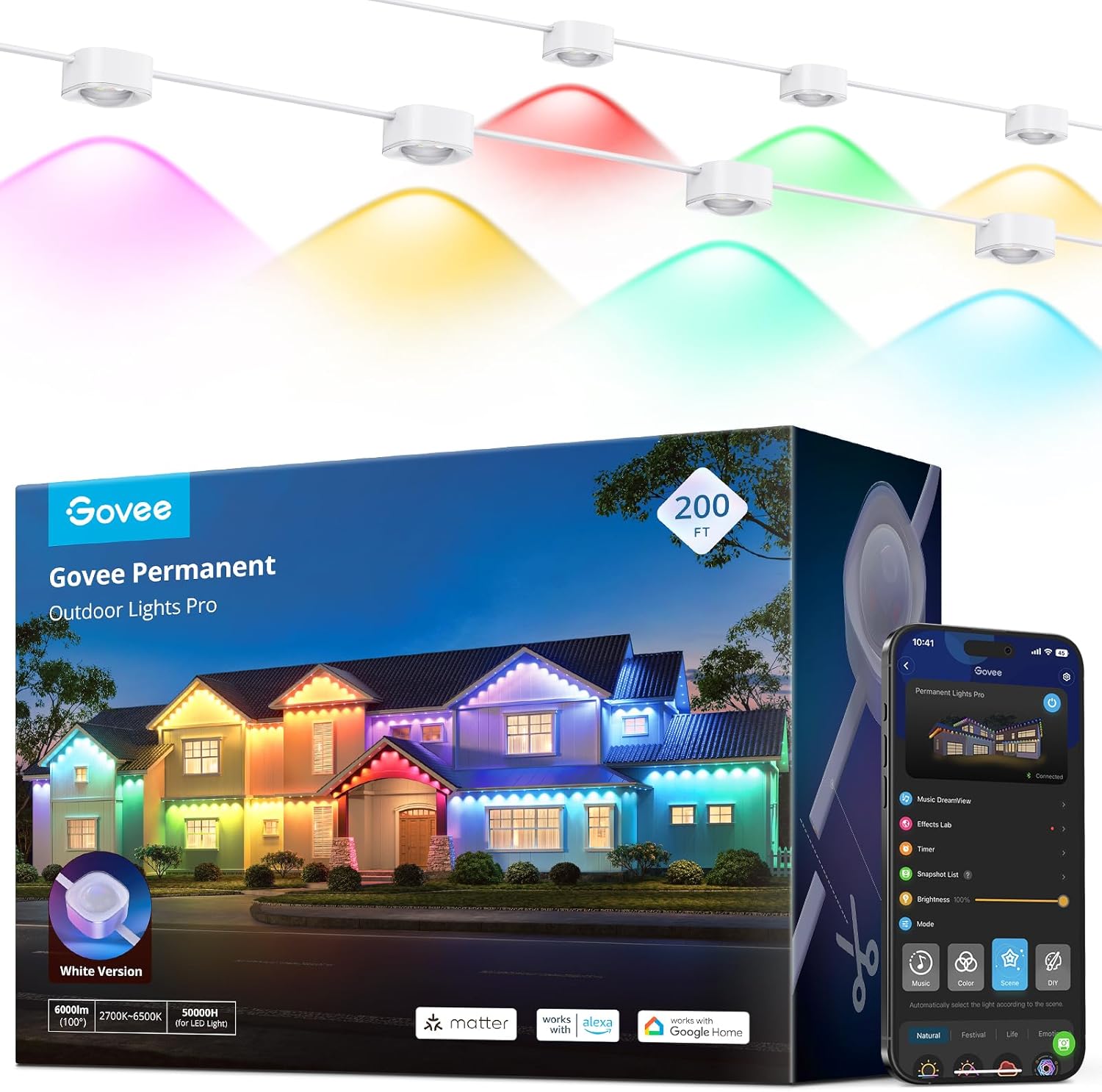
How Do I Set Up the Govee AI Gaming Light?
- On 5GHz (needs 2.4GHz)
- Not reset before pairing
- Bluetooth off during setup
Problem Description
You are setting up the Govee AI Gaming Light for ambient lighting behind your monitor. Position the light bar behind or beside your monitor for screen-syncing effects. The light connects to the Govee app via Bluetooth and uses a camera accessory to read screen colors. This guide covers positioning, Bluetooth pairing, and configuring game-sync modes.
Why This Happens in Real Homes
The Govee AI Gaming Light is a behind-the-monitor desk lamp, and like all Govee lights it pairs over Bluetooth first, then joins WiFi — 2.4GHz only, on WPA2 — for app scenes, AI effects, and voice control. Most setup snags are the WiFi band or a missed Bluetooth pairing.
Start with Bluetooth on and the phone near the lamp, add it in the Govee Home app, then connect it to a 2.4GHz network (it won't use 5GHz). The AI/reactive features run through the app once it's online; if it pairs over Bluetooth but won't take WiFi, band and password are the usual fix.
Symptoms
- Will not connect to WiFi
- App cannot find it
- Bluetooth will not pair
- AI/scene features not working
- Will not power on
- Setup stalls
- Colors wrong
- Weak signal
Recognize these? Here's what usually causes it.
Common Causes
- On 5GHz (needs 2.4GHz)
- Not reset before pairing
- Bluetooth off during setup
- Weak WiFi at the desk
- Wrong WiFi password
- USB power not connected
- Firmware update pending
- Router AP isolation
Most fixes happen in the first 3 steps.
Do not attempt to open or modify the light hardware. Smart lights contain electronic components that can be damaged by moisture or physical tampering. Always power off at the wall switch before removing or repositioning a smart light.
Step-by-Step Solution
Position the light behind or beside your monitor
The Govee AI Gaming Light is a desk lamp designed to sit behind your monitor or beside your gaming setup. Position it where the light output faces the wall behind the screen — this creates ambient backlighting that reduces eye strain and improves immersion. The base is weighted to prevent tipping and the arm adjusts to direct the light where you want it.
Connect via the Govee Home app
Download the Govee Home app, create an account, and tap + to add a device. The gaming light pairs via Bluetooth first, then connects to your 2.4GHz WiFi for ongoing control. Follow the app prompts — it walks you through the Bluetooth pairing and WiFi connection step by step. Once connected, you can control colors, brightness, and effects from the app.
Set up the AI screen sync feature
The AI gaming light can sync its colors to your screen content. Install the Govee Desktop app on your PC. The desktop app captures screen colors and sends them to the light in real time. This creates a dynamic backlight that matches your game visuals — blues when you are in water, reds during explosions, greens in forests. The sync works with any content on screen, not just games.
Customize lighting modes
The Govee Home app offers preset gaming scenes — FPS, racing, RPG — each with color palettes designed for that genre. You can also create custom static colors, gradients, or animations. Music sync mode uses the built-in microphone to react to game audio or your playlist. Adjust the sensitivity if the light is reacting too aggressively to quiet sounds.
Integrate with voice assistants and DreamView
The gaming light works with Alexa and Google Assistant for voice control. If you have other Govee DreamView products (TV backlights, light bars), you can group them in the app for synchronized whole-room lighting that all responds to the same screen capture. This creates a fully immersive gaming environment where your entire room shifts color with the game.
Quick Solutions
Still having issues? This is usually the deeper cause below.
If flickering only happens on dimming, the issue is almost always the dimmer's minimum-load setting, not the bulb — it's drawing less current than the dimmer expects.
Group your smart lights by room in the app and assign clear names like Kitchen Ceiling and Bedroom Lamp. This makes voice commands more reliable and lets you create scenes that control multiple lights at once with a single command.
This issue almost always looks more complex than it is — the majority of cases trace back to a single setting, a stale credential, or a default that shipped wrong.
- On 5GHz (needs 2.4GHz)
- Not reset before pairing
- Bluetooth off during setup
- Weak WiFi at the desk
- Wrong WiFi password
Before you go — try one of these (they fix most cases).
Most popular upgrades chosen by Govee DreamView owners.

As an Amazon Associate we earn from qualifying purchases.
Official Manufacturer Manual
Govee provides official product documentation through their online manual rather than downloadable PDF. Access setup guides, troubleshooting steps, and product specifications for your Govee DreamView.
Source: govee.com
Need More Help? Govee Support
Note: The contact information below connects you directly to Govee's official customer support team, not Trunetto. They can help with warranty claims, device replacements, and advanced technical issues.
How Does Govee Compare?
Before replacing your Govee device, see how it stacks up against alternatives in our full comparison guides.
Accessories owners commonly pair with Govee DreamView.
As an Amazon Associate we earn from qualifying purchases.