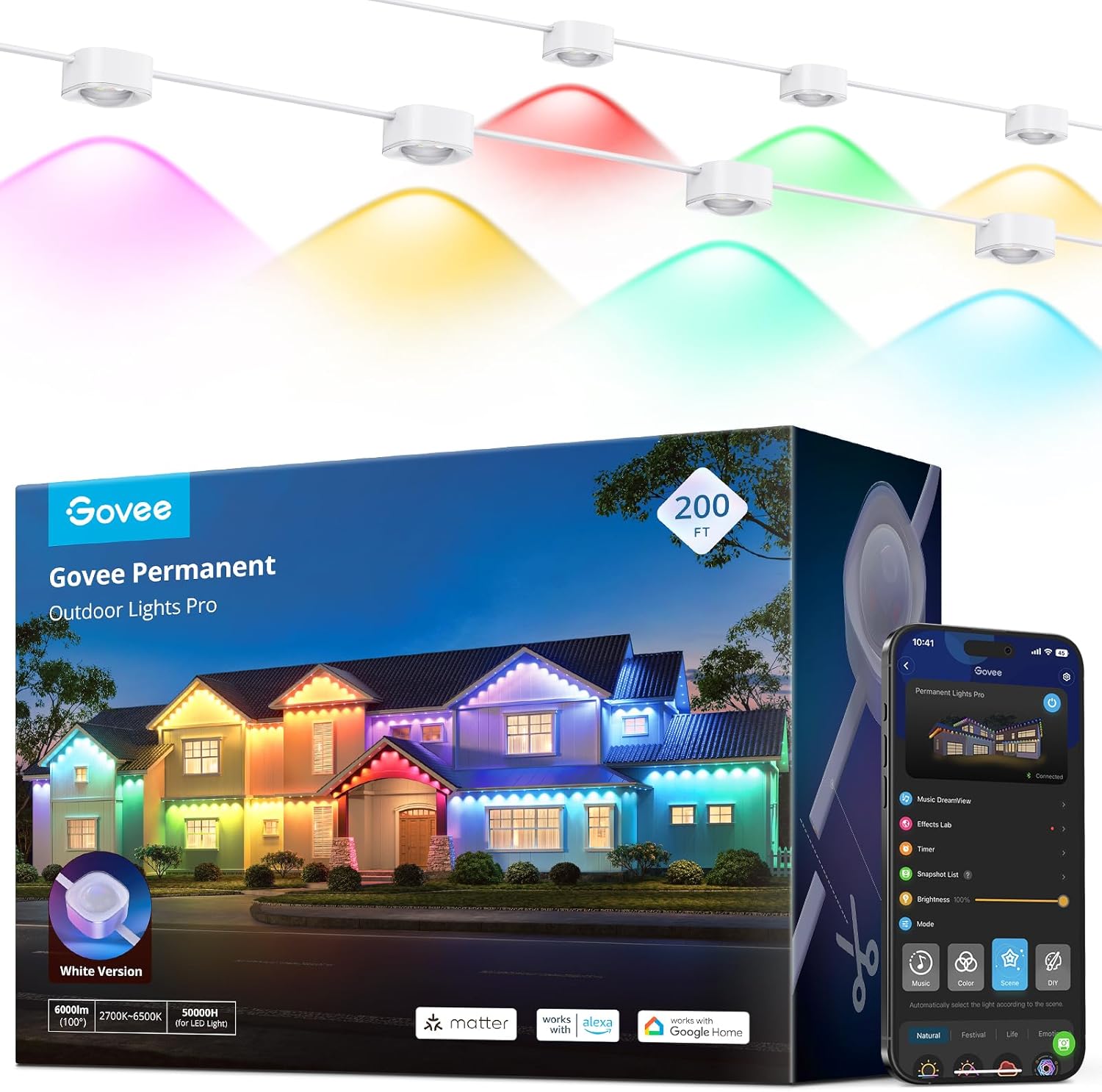
Why Does My Govee Immersion TV Backlight Camera Calibration Keep Failing
- TV showing wrong calibration image
- Ambient light interfering with detection
- Camera lens dirty or obstructed
Problem Description
Your Govee Immersion TV backlight camera calibration process fails repeatedly. The app prompts you to align the camera with your TV but cannot detect the screen edges, times out, or shows error messages. Without successful calibration, the color matching does not work correctly or the lights react to wrong screen areas.
Why This Happens in Real Homes
Your Govee Immersion TV backlight camera calibration process fails repeatedly. The app prompts you to align the camera with your TV but cannot detect the screen edges, times out, or shows error messages. Without successful calibration, the color matching does.. In real usage this appears as Camera calibration wizard fails to complete, App cannot detect TV screen edges, and Calibration times out before finishing
The pattern in this case points to TV showing wrong calibration image, Ambient light interfering with detection, and Camera lens dirty or obstructed. The repair usually holds when done in order: Display Correct Calibration Image, then Optimize Room Lighting, then Clean and Position Camera. After applying the fix, validate behavior with repeated command tests and at least one full automation cycle to confirm stability.
Symptoms
- Camera calibration wizard fails to complete
- App cannot detect TV screen edges
- Calibration times out before finishing
- Error message during calibration process
- Calibration succeeds but colors still wrong
- Camera detects wrong area of room
Recognize these? Here's what usually causes it.
Common Causes
- TV showing wrong calibration image
- Ambient light interfering with detection
- Camera lens dirty or obstructed
- Camera positioned at wrong angle to TV
- TV bezel confusing edge detection
- App version incompatible with device
Most fixes happen in the first 3 steps.
Do not move the camera after successful calibration. The calibration is specific to that exact camera position. If the camera shifts, colors will be misaligned and you will need to recalibrate.
Tools & Requirements
These tools will help you complete this fix.
As an Amazon Associate we earn from qualifying purchases.
Step-by-Step Solution
Mount calibration camera with full corner visibility
Make sure the camera can clearly see all screen corners and edge markers, because partial framing is the most common reason calibration repeatedly fails.
Eliminate glare and strong ambient reflections
Reduce direct light reflections on the screen during calibration, since glare can confuse edge detection and prevent stable marker capture.
Reset camera position and rerun guided calibration
Re-seat the camera mount and complete calibration from scratch, because small angle drift is enough to invalidate geometric mapping.
Update app and firmware before final attempt
Apply current software and firmware versions, because known calibration bugs are often resolved in recent Govee releases.
Validate with reference scenes after calibration
Test with known-color media to confirm edge mapping and color tracking quality, then fine-tune saturation only after geometry is stable.
Quick Solutions
Still having issues? This is usually the deeper cause below.
Camera issues that start suddenly almost always trace back to an upload bandwidth drop — run a speed test before assuming hardware failure.
Some Govee models allow you to manually define screen edges if automatic detection fails. Check the calibration options for a Manual mode that lets you drag corners to match your TV.
Live view problems that start suddenly usually trace back to an upload speed drop — the camera itself is fine, the bandwidth path to the cloud isn't.
- TV showing wrong calibration image
- Ambient light interfering with detection
- Camera lens dirty or obstructed
- Camera positioned at wrong angle to TV
- TV bezel confusing edge detection
Before you go — try one of these (they fix most cases).
Most popular upgrades chosen by Govee Immersion TV LED Backlights owners.

Govee RGBIC Floor Lamp, LED Corner Lamp Bundle with RGBIC...

Govee Smart LED Light Bars Bundle Table Lamp 2 Pro x Soun...

Govee 16.4t RGBIC Wi-Fi TV LED Backlights for H605C
As an Amazon Associate we earn from qualifying purchases.
Official Manufacturer Manual
Govee provides official product documentation through their online manual rather than downloadable PDF. Access setup guides, troubleshooting steps, and product specifications for your Govee Immersion TV LED Backlights.
Source: govee.com
Need More Help? Govee Support
Note: The contact information below connects you directly to Govee's official customer support team, not Trunetto. They can help with warranty claims, device replacements, and advanced technical issues.
How Does Govee Compare?
Before replacing your Govee device, see how it stacks up against alternatives in our full comparison guides.
Accessories owners commonly pair with Govee Immersion TV LED Backlights.

SANDISK 64GB Extreme microSDXC UHS-I Memory Card with Ada...

SANDISK 32GB (Pack of 2) Ultra microSDHC UHS-I Memory Car...

SANDISK 128GB Ultra microSDXC UHS-I Memory Card with Adap...
As an Amazon Associate we earn from qualifying purchases.