

Why Won't My Govee Permanent Outdoor Lights Reconnect After a Power Outage?
- Controller WiFi credentials cleared from memory during power loss
- Controller firmware corrupted during unclean power shutdown
- Router assigned different IP address after outage breaking app connection
Problem Description
Your Govee Permanent Outdoor Lights do not reconnect to WiFi or the Govee Home app after a power outage. The controller box LED may blink rapidly or show solid red. The lights may turn on to a default white color but you cannot control them from the app or change scenes. Power outages cause the controller to lose its WiFi credentials or enter a boot loop that requires manual intervention to resolve.
Why This Happens in Real Homes
Permanent outdoor lights not reconnecting after an outage usually lost their WiFi credentials from the controller's memory during the abrupt power loss, so they can't rejoin on their own.
Start by re-adding the lights in the Govee app (they may need to be put back into pairing mode after the outage) and reconnecting them to your 2.4GHz WiFi. To reduce recurrence, a small UPS on the controller rides through brief outages; a credential wipe on power loss is the usual reason they come back dark and offline.
Symptoms
- Lights turn on to default white but Govee Home app shows device offline
- Controller box LED blinks rapidly after power is restored
- App shows device offline and cannot toggle lights on or off
- Lights were working perfectly before the power outage occurred
- Controller LED is solid red indicating it cannot connect to WiFi
- Scenes and schedules do not run even though lights physically turn on
Recognize these? Here's what usually causes it.
Common Causes
- Controller WiFi credentials cleared from memory during power loss
- Controller firmware corrupted during unclean power shutdown
- Router assigned different IP address after outage breaking app connection
- Controller stuck in boot loop from sudden power restoration
- Govee Home app cache stale with pre-outage device state
- WiFi router took longer to boot than controller creating connection race
Most fixes happen in the first 3 steps.
Do not reset the controller by cutting and restoring power rapidly multiple times. This can corrupt the controller firmware and require a full factory reset which erases all custom scenes and segment colour configurations.
Step-by-Step Solution
Power Cycle Controller Correctly
Locate the Govee controller box usually mounted near your electrical panel or soffit. Unplug the controller from its power source completely. Wait a full 60 seconds. During this time confirm your WiFi router is fully booted and broadcasting. Then plug the controller back in. The controller takes approximately 90 seconds to boot. Watch the LED on the controller. It should blink blue indicating it is searching for WiFi. If it connects successfully the LED turns solid blue and the lights become controllable in the app.
Reset Controller WiFi Credentials
If the power cycle did not restore connectivity you need to reset the WiFi on the controller. Press and hold the button on the controller box for 10 seconds until the LED starts blinking rapidly in blue. This clears the stored WiFi credentials and puts the controller into pairing mode. Open the Govee Home app tap the plus icon and select Add Device. Choose your Permanent Outdoor Lights model and follow the pairing steps to reconnect the controller to your 2.4GHz WiFi network.
Remove and Re-Add in Govee Home App
If the controller shows online but the lights are not responding correctly open the Govee Home app. Go to the device page for your Permanent Outdoor Lights. Tap the gear icon then scroll to the bottom and tap Delete Device. Confirm the removal. Now add the device again by tapping the plus icon on the home screen. The app will scan for the controller via Bluetooth. Follow the on-screen prompts to reconnect. This refreshes the device token and clears any stale configuration.
Check Router and Network Configuration
Log into your router admin panel and verify the Govee controller appears in the connected devices list. If it does not appear the controller failed to connect to WiFi. Verify your 2.4GHz network is broadcasting separately from 5GHz. The Govee controller only supports 2.4GHz WiFi. If your router merged both bands into one SSID the controller may be trying to connect to 5GHz and failing. Create a dedicated 2.4GHz SSID or disable band steering temporarily during setup.
Update Controller Firmware
After successfully reconnecting the controller to WiFi check for firmware updates in the Govee Home app. Go to the device page tap the gear icon then tap Check for Updates. Govee has released firmware updates that improve power outage recovery behaviour on the Permanent Outdoor Lights controller. Install any available update and do not unplug the controller during the update process. After updating the controller should handle future power outages more gracefully.
Quick Solutions
Still having issues? This is usually the deeper cause below.
If drain continues after replacing batteries, check the event history — a stuck-open sensor or rapid polling loop burns through batteries in days.
Plug your Govee Permanent Outdoor Lights controller into a small UPS battery backup. A basic UPS costs around 40 dollars and prevents the controller from losing WiFi credentials during brief power outages that last less than 30 minutes.
Battery-related failures are almost always flagged too late — the device degrades silently for days before the app catches up to what's actually happening.
- Controller WiFi credentials cleared from memory during power loss
- Controller firmware corrupted during unclean power shutdown
- Router assigned different IP address
- Controller stuck in boot loop from sudden power restoration
- Govee Home app cache stale with pre-outage device state
Before you go — try one of these (they fix most cases).
Most popular upgrades chosen by Govee Permanent Outdoor Lights owners.

Govee Permanent Outdoor Lights 2, 100ft RGBIC Outdoor Lig...
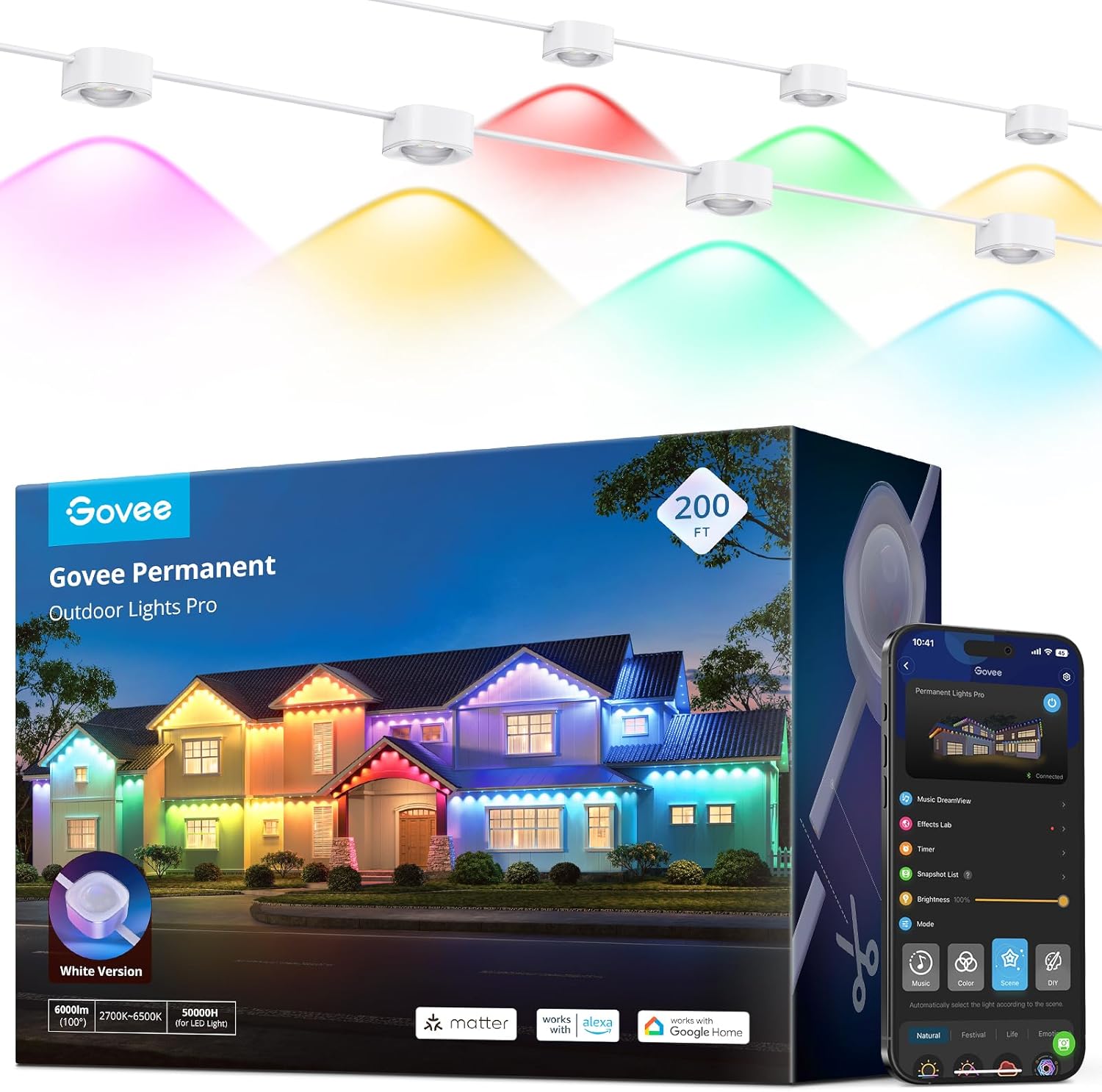
Govee Permanent Outdoor Lights Pro, 200ft with 120 RGBIC ...

Govee Permanent Outdoor Lights Prism, 100ft with 36 Tripl...
As an Amazon Associate we earn from qualifying purchases.
Official Manufacturer Manual
Govee provides official product documentation through their online manual rather than downloadable PDF. Access setup guides, troubleshooting steps, and product specifications for your Govee Permanent Outdoor Lights.
Source: govee.com
Need More Help? Govee Support
Note: The contact information below connects you directly to Govee's official customer support team, not Trunetto. They can help with warranty claims, device replacements, and advanced technical issues.
How Does Govee Compare?
Before replacing your Govee device, see how it stacks up against alternatives in our full comparison guides.
Accessories owners commonly pair with Govee Permanent Outdoor Lights.
As an Amazon Associate we earn from qualifying purchases.


