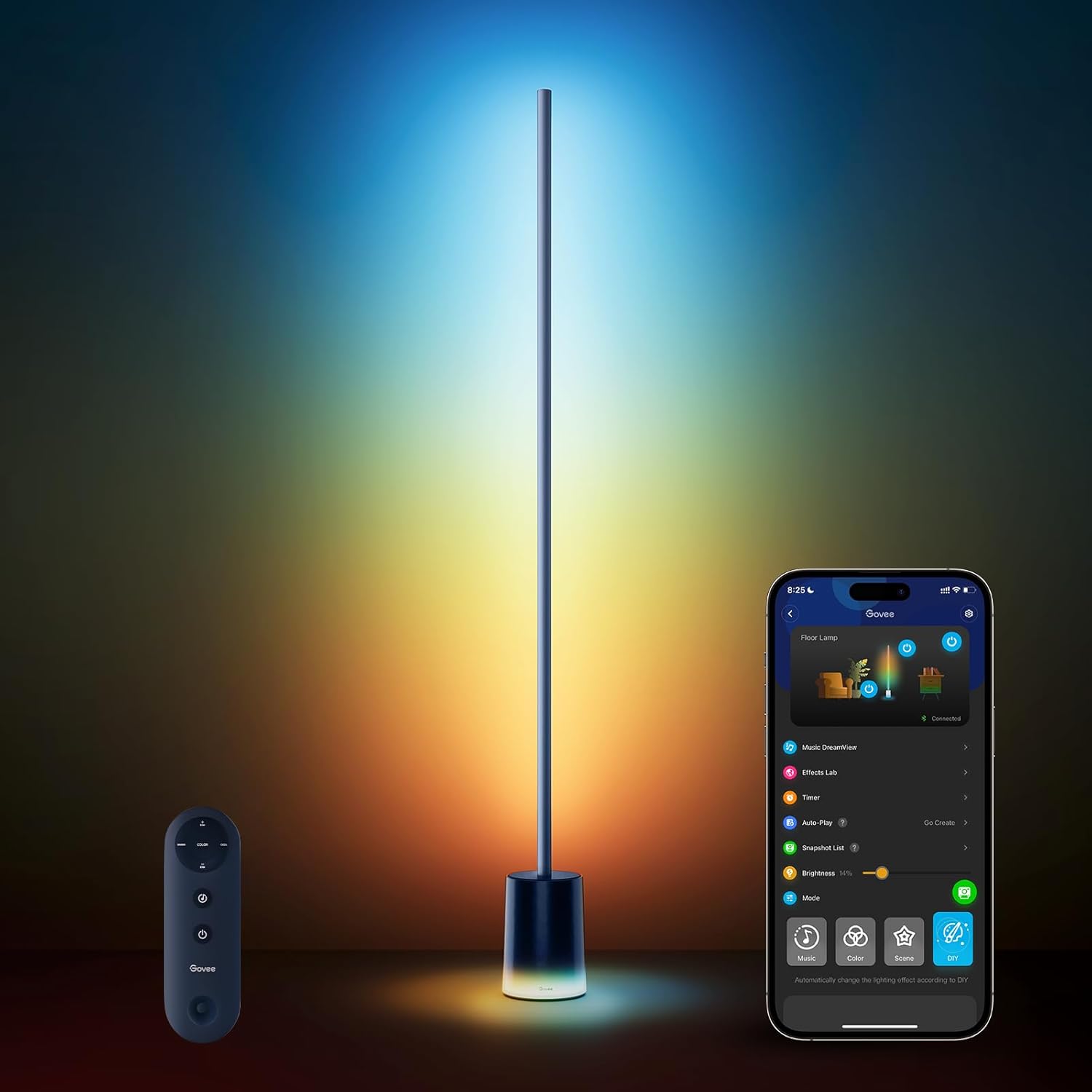
How Do I Configure My Govee Floor Lamp?
- Sections not fully joined
- On 5GHz (needs 2.4GHz)
- Not reset before pairing
Problem Description
You are setting up and configuring your Govee smart floor lamp. Assemble the lamp sections (they click together), position it in your room, and connect to the Govee app via Bluetooth. The lamp connects to 2.4GHz WiFi for app and voice control. This guide covers assembly, WiFi pairing, and customizing light scenes and schedules.
Why This Happens in Real Homes
Govee floor lamps assemble from sections that screw or click together — a section not fully seated can leave part of it dark — then set up like any Govee light: Bluetooth pairing, then a 2.4GHz WiFi join for app control and scenes.
Start by making sure the sections are firmly joined and powered, then add it in the Govee Home app over Bluetooth and connect it to 2.4GHz WiFi. Scenes and music sync are configured in the app once online; assembly and the WiFi band are where setup usually trips.
Symptoms
- Assembly questions
- Will not power on
- Will not connect to WiFi
- Bluetooth will not pair
- Scenes not working
- Sections not lighting
- Setup stalls
- App cannot find it
Recognize these? Here's what usually causes it.
Common Causes
- Sections not fully joined
- On 5GHz (needs 2.4GHz)
- Not reset before pairing
- Bluetooth off during setup
- Weak WiFi
- Wrong password
- Power not connected
- Firmware pending
Most fixes happen in the first 3 steps.
Do not attempt to open or modify the light hardware. Smart lights contain electronic components that can be damaged by moisture or physical tampering. Always power off at the wall switch before removing or repositioning a smart light.
Step-by-Step Solution
Assemble and position the lamp
Most Govee floor lamps come in sections that screw or click together. Assemble the base, pole sections, and lamp head. Position it in a corner or beside furniture where the RGBIC light column can illuminate the wall or ceiling. The lamp plugs into a standard wall outlet — position it within reach of an outlet to avoid visible extension cords.
Connect to the Govee Home app
Plug in the lamp and it powers on to a default white. Open the Govee Home app, tap +, and scan the QR code on the lamp or select it from the device list. The lamp pairs via Bluetooth first, then connects to your 2.4GHz WiFi. After WiFi setup, you have full remote control through the app and voice assistants.
Configure RGBIC color segments
Govee RGBIC floor lamps have individually addressable LED segments along the lamp column. In the Govee Home app, you can set different colors for different segments — warm white at the bottom fading to cool blue at the top, or a rainbow gradient along the full length. Tap the segment control in the app and drag colors to each zone. This is the main advantage over standard RGB lamps that only show one color at a time.
Set up scenes and schedules
Browse the Govee scene library for preset animations — campfire glow, ocean waves, aurora, and dozens more. Create schedules to turn the lamp on at sunset and off at bedtime. Set a wake-up routine that gradually brightens the lamp in the morning. Scenes and schedules work through the Govee cloud, so they execute even if your phone is not home.
Adjust brightness for the room
RGBIC floor lamps are bright — often 2000+ lumens at full power. For ambient mood lighting, 20-40% brightness is usually plenty. For reading or task lighting, 70-100% in warm white works well. The app brightness slider controls the overall output. If you find the colors wash out at low brightness, increase the saturation in the color picker.
Quick Solutions
Still having issues? This is usually the deeper cause below.
If this comes back after following these steps, check whether a recent app or firmware update reset a default setting — the fix works, but the setting gets reverted silently.
Group your smart lights by room in the app and assign clear names like Kitchen Ceiling and Bedroom Lamp. This makes voice commands more reliable and lets you create scenes that control multiple lights at once with a single command.
This issue almost always looks more complex than it is — the majority of cases trace back to a single setting, a stale credential, or a default that shipped wrong.
- Sections not fully joined
- On 5GHz (needs 2.4GHz)
- Not reset before pairing
- Bluetooth off during setup
- Weak WiFi
Before you go — try one of these (they fix most cases).
Most popular upgrades chosen by Govee Floor Lamp owners.

Govee RGBIC Floor Lamp, LED Corner Lamp Bundle with RGBIC...

Govee RGBIC Floor Lamp Basic 2-Pack, Compatible with Alex...
Govee Tree Floor Lamp Compatible with Matter, 3 Rotatable...
As an Amazon Associate we earn from qualifying purchases.
Official Manufacturer Manual
Govee provides official product documentation through their online manual rather than downloadable PDF. Access setup guides, troubleshooting steps, and product specifications for your Govee Floor Lamp.
Source: govee.com
Need More Help? Govee Support
Note: The contact information below connects you directly to Govee's official customer support team, not Trunetto. They can help with warranty claims, device replacements, and advanced technical issues.
How Does Govee Compare?
Before replacing your Govee device, see how it stacks up against alternatives in our full comparison guides.
Accessories owners commonly pair with Govee Floor Lamp.

Amazon Smart Plug, Works with Alexa, Simple Setup, Endles...

Ring Rechargeable Quick Release Battery Pack

Kasa Smart Plug HS103P2, Smart Home Wi-Fi Outlet Works wi...
As an Amazon Associate we earn from qualifying purchases.