How Do I Set Up Color Zones on My Govee LED Strip?
- Strip is RGB, not RGBIC (no zones)
- Zone/DIY mode not used
- Strip length set wrong (zones misaligned)
Problem Description
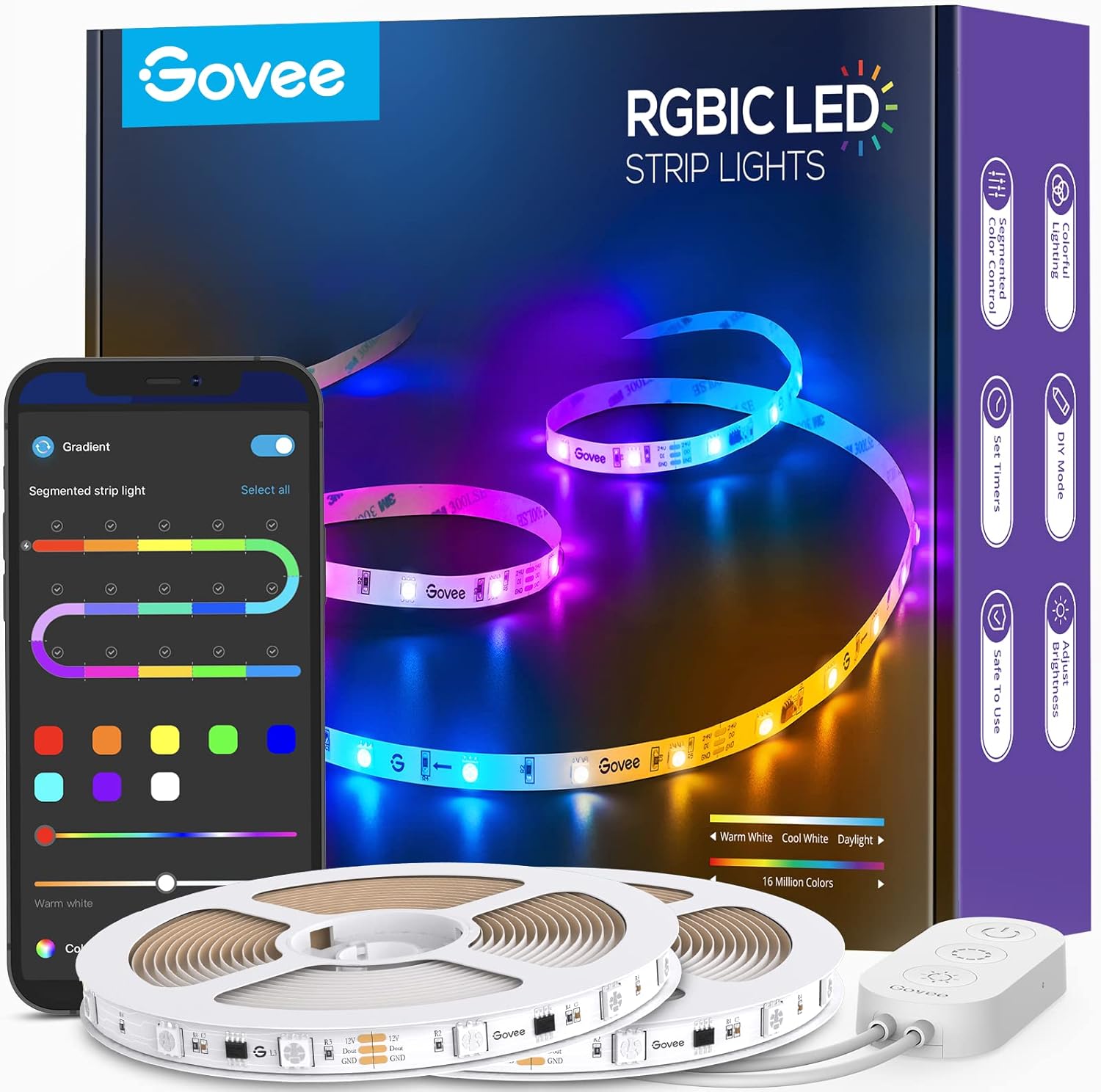
You want to set up individual color zones on your Govee LED strip so different sections display different colors. This feature requires a Govee RGBIC strip (not standard RGB). RGBIC strips have individually addressable LEDs that can show multiple colors per zone. Check your model — only RGBIC models support segmented color control in the Govee app.
Why This Happens in Real Homes
Color zones — different colors on different sections of one strip — require RGBIC hardware; a standard RGB strip can only be one color at a time, so if you can't set zones, check which type you have. On an RGBIC strip you set them in the app's DIY/segment editor.
Start by confirming it's RGBIC, then use the DIY mode to paint segments and save it (a preset scene overrides your custom zones). Set the correct strip length so the app's zones line up with the physical LEDs; a mismatch is why zones land on the wrong sections.
Symptoms
- Want different colors per section
- Zones not working
- Cannot set individual segments
- Zones on RGB vs RGBIC
- Zone editing unclear
- Zones will not save
- Whole strip one color only
- DIY mode confusion
Recognize these? Here's what usually causes it.
Common Causes
- Strip is RGB, not RGBIC (no zones)
- Zone/DIY mode not used
- Strip length set wrong (zones misaligned)
- Segments miscounted
- Scene overriding zones
- App version out of date
- Controller not addressing segments
- Firmware out of date
Most fixes happen in the first 3 steps.
Do not attempt to open or modify the light hardware. Smart lights contain electronic components that can be damaged by moisture or physical tampering. Always power off at the wall switch before removing or repositioning a smart light.
Tools & Requirements
Step-by-Step Solution
Check that your strip is RGBIC, not standard RGB
Color zones — setting different colors on different sections of the same strip — only work on Govee RGBIC strips. Standard RGB strips display one color across the entire length. Check your model number in the Govee Home app. If the app does not show a segment color control option, your strip is standard RGB and cannot do color zones.
Open the segment control in the Govee app
In the Govee Home app, select your RGBIC strip and look for DIY mode or Segment Control. The app shows your strip divided into multiple segments (typically 10-15 zones depending on strip length). Tap each segment to assign it a color. You can set each zone independently — red at one end, blue in the middle, green at the other end, or any combination you want.
Create custom DIY scenes
Beyond manual segment coloring, the DIY mode lets you create animated effects across zones. Set up a color chase that moves from one end to the other, a breathing effect that pulses different colors in different zones, or a static gradient that blends smoothly between colors. Save your custom scenes for quick access later.
Use preset multi-color scenes
The Govee scene library has hundreds of pre-made multi-color scenes optimized for RGBIC strips. Browse by category — gaming, movie, relaxation, party, seasonal — and apply with one tap. Each preset is designed to use the addressable zones for dynamic effects. Preview scenes in the app before applying to see how the colors flow.
Sync zones with music
In music mode, different zones of the strip react to different frequency ranges in the audio. Bass might trigger the left side, mids the center, and treble the right side. The result is a color organ effect across the strip. Adjust the microphone sensitivity in the app if the zones are not reacting enough or are over-reacting to background noise.
Quick Solutions
Still having issues? This is usually the deeper cause below.
If this comes back after following these steps, check whether a recent app or firmware update reset a default setting — the fix works, but the setting gets reverted silently.
Group your smart lights by room in the app and assign clear names like Kitchen Ceiling and Bedroom Lamp. This makes voice commands more reliable and lets you create scenes that control multiple lights at once with a single command.
This issue almost always looks more complex than it is — the majority of cases trace back to a single setting, a stale credential, or a default that shipped wrong.
- Strip is RGB, not RGBIC (no zones)
- Zone/DIY mode not used
- Strip length set wrong (zones misaligned)
- Segments miscounted
- Scene overriding zones
Before you go — try one of these (they fix most cases).
Most popular upgrades chosen by Govee LED Strip owners.

Govee 32.8ft LED Strip Lights RGBIC App Control, Smart LE...
Govee 65.6ft RGBIC LED Strip Lights, Color Changing LED S...

Govee Smart Wi-Fi RGBIC LED Strip Lights & Light Bars, Dr...
As an Amazon Associate we earn from qualifying purchases.
Official Manufacturer Manual
Govee provides official product documentation through their online manual rather than downloadable PDF. Access setup guides, troubleshooting steps, and product specifications for your Govee LED Strip.
Source: govee.com
Need More Help? Govee Support
Note: The contact information below connects you directly to Govee's official customer support team, not Trunetto. They can help with warranty claims, device replacements, and advanced technical issues.
How Does Govee Compare?
Before replacing your Govee device, see how it stacks up against alternatives in our full comparison guides.
Accessories owners commonly pair with Govee LED Strip.
As an Amazon Associate we earn from qualifying purchases.