Why Won't My Govee LED Strips Sync to Music?
- Music mode not selected (not automatic)
- Wrong mic source (phone vs device mic)
- Mic permission denied to the app
Problem Description
Music sync on your Govee LED strip isn't working — the lights don't react to sound, or the effect is weak or laggy. Music sync has to be turned on (it isn't automatic), uses either the phone's mic or the strip's built-in mic, and needs a mode selected, so most issues are that it's not enabled or the mic source is wrong.
Why This Happens in Real Homes
Govee music sync doesn't turn on by itself — you pick a Music mode in the app, and it reacts to sound picked up by a microphone (your phone's or the strip's built-in mic), not to the audio stream directly. So "not reacting" usually means no mode is selected or the wrong mic is chosen.
Start by selecting a Music mode and confirming the mic source, then grant the Govee app microphone permission and raise the sensitivity. Because it listens through a mic, place that mic near the music and expect it to react to room sound; a low sensitivity or a denied mic permission is behind most weak or absent sync.
Symptoms
- Lights do not react to music
- Music sync weak/laggy
- Sync mode not activating
- Wrong mic used
- Only reacts to loud sounds
- Sync stops
- No music mode options
- Reacts to the wrong audio
Recognize these? Here's what usually causes it.
Common Causes
- Music mode not selected (not automatic)
- Wrong mic source (phone vs device mic)
- Mic permission denied to the app
- Sensitivity too low
- Ambient noise or distance from music
- Streaming music mic-capture confusion
- Firmware out of date
- Bluetooth audio delay
Most fixes happen in the first 3 steps.
External music sync via Govee DreamView works better than built-in mic.
Step-by-Step Solution
Select a music mode scene
Music sync does not activate automatically — you need to select a Music mode scene in the Govee Home app. Open the app, select your strip, and browse scenes filtered by Music. Tap one to activate. The strip now reacts to audio. If you are in a static color or DIY scene, the strip ignores audio input. You must be in a music-specific scene for sync to work.
Check the microphone source
Govee strips can use either the built-in controller microphone or your phone microphone for music detection. The built-in mic picks up ambient sound in the room. If the room is quiet or the music is playing from a distant speaker, the mic may not pick up enough audio. Move the controller closer to the speaker, or switch to phone mic mode in the app if your phone is closer to the audio source.
Turn up the music
The microphone needs a minimum volume level to detect rhythm patterns. If the music is playing quietly in the background, the strip may not react or react intermittently. Turn up the volume. Music sync works best at moderate to loud volumes where the beat and bass are clearly audible. Very quiet acoustic music or spoken content does not trigger strong reactions.
Adjust sensitivity in the app
The Govee Home app has a music sensitivity slider. If the strip is not reacting enough, increase the sensitivity. If it is reacting to every background noise (conversation, HVAC, dog barking), decrease the sensitivity. Find the sweet spot where the strip reacts to music beats but ignores ambient household noise. The ideal setting depends on your room acoustics and typical volume.
Check for delay between audio and lights
If the lights react but seem delayed, the issue is usually WiFi latency. Music sync through the cloud (app control) adds a round-trip delay. Using the controller built-in microphone has the lowest latency because the audio processing happens locally on the controller. If latency is bothering you, switch to the built-in mic mode and play music from a speaker near the controller.
Quick Solutions
Still having issues? This is usually the deeper cause below.
If this comes back after following these steps, check whether a recent app or firmware update reset a default setting — the fix works, but the setting gets reverted silently.
Group your smart lights by room in the app and assign clear names like Kitchen Ceiling and Bedroom Lamp. This makes voice commands more reliable and lets you create scenes that control multiple lights at once with a single command.
This issue almost always looks more complex than it is — the majority of cases trace back to a single setting, a stale credential, or a default that shipped wrong.
- Music mode not selected (not automatic)
- Wrong mic source (phone vs device mic)
- Mic permission denied to the app
- Sensitivity too low
- Ambient noise or distance from music
Before you go — try one of these (they fix most cases).
Most popular upgrades chosen by Govee LED Strip owners.

Govee 32.8ft LED Strip Lights RGBIC App Control, Smart LE...
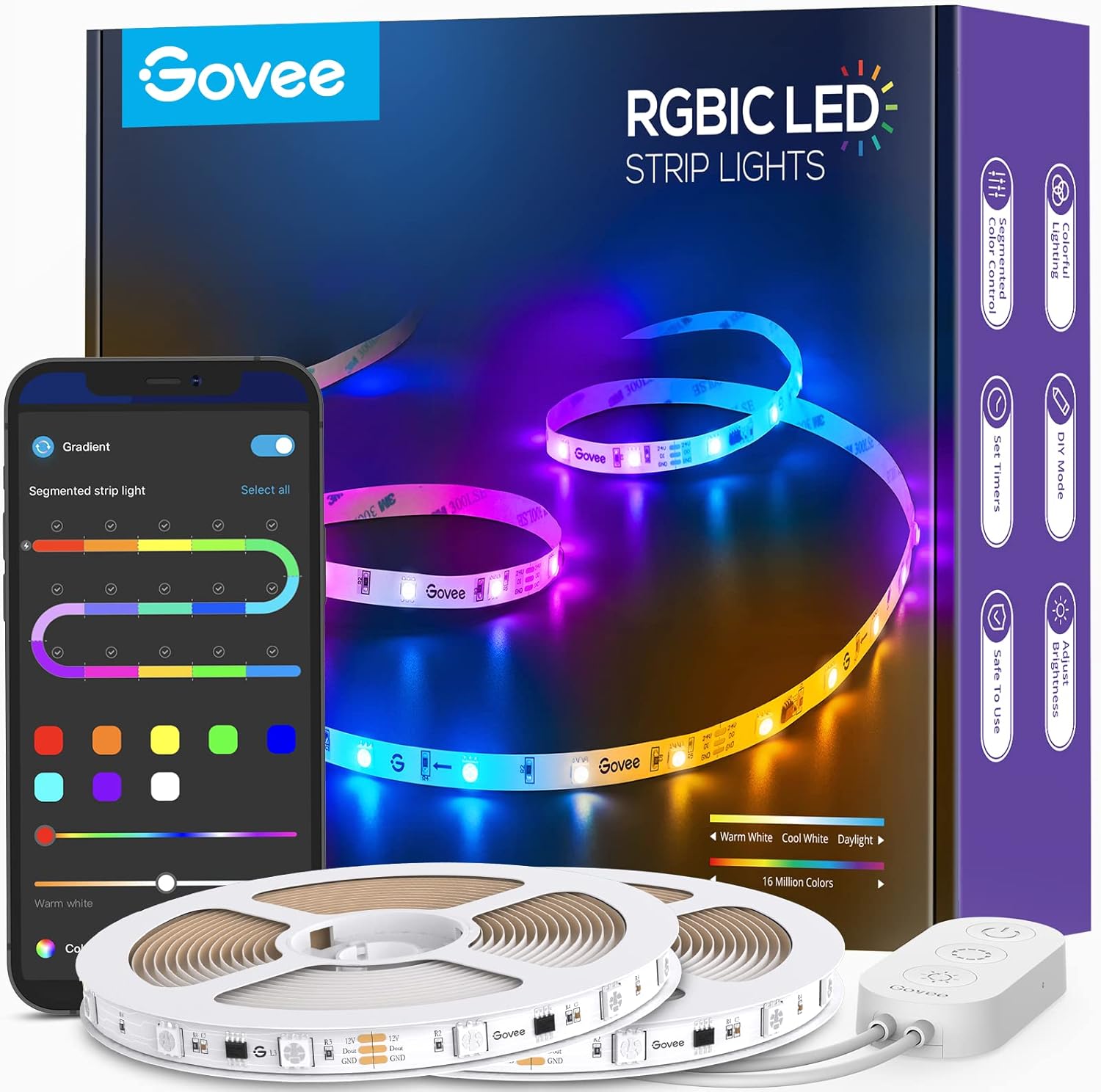
Govee 65.6ft RGBIC LED Strip Lights, Color Changing LED S...

Govee Smart Wi-Fi RGBIC LED Strip Lights & Light Bars, Dr...
As an Amazon Associate we earn from qualifying purchases.
Official Manufacturer Manual
Govee provides official product documentation through their online manual rather than downloadable PDF. Access setup guides, troubleshooting steps, and product specifications for your Govee LED Strip.
Source: govee.com
Need More Help? Govee Support
Note: The contact information below connects you directly to Govee's official customer support team, not Trunetto. They can help with warranty claims, device replacements, and advanced technical issues.
How Does Govee Compare?
Before replacing your Govee device, see how it stacks up against alternatives in our full comparison guides.
Accessories owners commonly pair with Govee LED Strip.
As an Amazon Associate we earn from qualifying purchases.