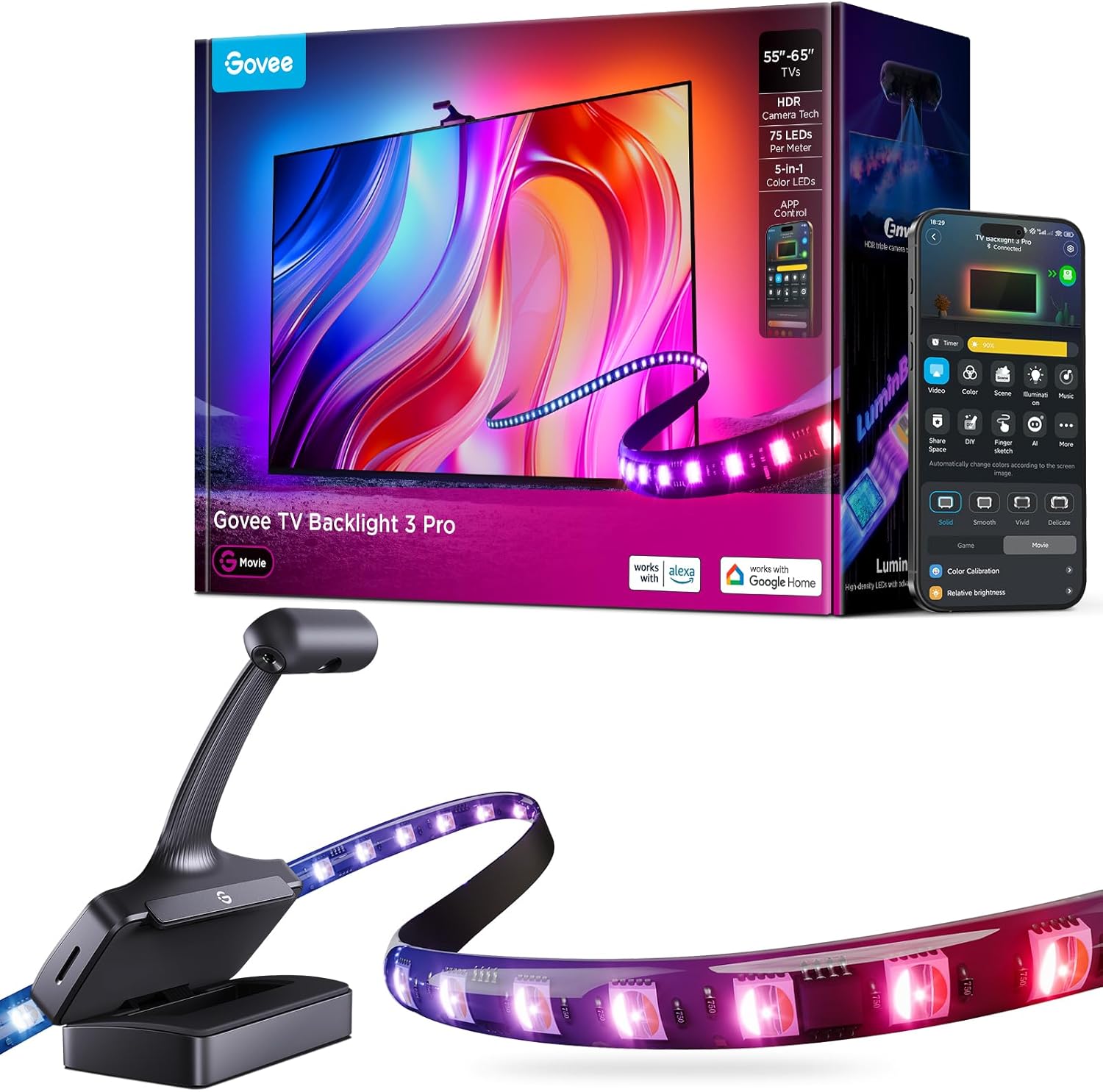
How to Install Govee LED Strip Lights Behind Your TV
- Check the TV Surface
- Plan Your Strip Layout
- Apply the LED Strip
- Connect Power and Control Box
- Pair with Govee Home App
Most users complete this in under 20 minutes
Overview
You just unboxed your Govee LED strip lights and want to mount them behind your TV for ambient bias lighting or immersive color effects. This guide covers surface preparation, adhesive application along the TV perimeter, connecting the control box, and pairing with the Govee Home app over 2.4GHz WiFi.
Why This Happens in Real Homes
The behind-TV LED install is all about surface prep, because the 3M adhesive is essentially one-shot — clean the TV back with the included alcohol wipe and let it dry, measure the perimeter, and dry-fit before peeling. Corners are where strips lift, so use the corner clips or gentle bends rather than sharp creases.
Plan the strip so the controller/power end reaches an outlet, and don't stretch a too-short strip around a large TV. Once mounted it pairs over Bluetooth then WiFi; getting the adhesive down clean and the corners handled is what keeps it from peeling off weeks later.
What's Included
- LED strip reel with pre-applied 3M adhesive backing
- Control box with built-in WiFi and Bluetooth module
- Power adapter with barrel connector or USB cable
- Mounting clips and cable ties for wire management
- Quick start guide with QR code for Govee Home app
- Connector cables for extending or linking strip sections
Got your materials ready? Here's what to check first.
Before You Start
- Measure your TV perimeter before peeling adhesive
- Clean TV back with isopropyl alcohol wipe first
- Confirm your WiFi network is 2.4GHz not 5GHz
- Download Govee Home app before starting install
- Check power outlet is within reach of adapter
- Do not stretch or kink the strip at corners
Don't skip this step — it breaks everything if you do
Do not power the LED strip until fully mounted. Handling a powered strip while applying adhesive increases short circuit risk and makes repositioning difficult.
Tools & Requirements
These tools will help you complete this fix.

microfiber cloth
BELLEMOND「Samurai Cloth」Japanese Microfiber Cleaning...

Scissors
Miller KS-1 Yellow Fiber Optic Kevlar Scissors, Easi...

Isopropyl alcohol
ForPro Professional Collection 99% Isopropyl Alcohol...
As an Amazon Associate we earn from qualifying purchases.
Installation Steps
Prepare the TV Surface
Turn off and unplug your TV. Use the included alcohol wipe or isopropyl alcohol with a lint-free cloth to clean the entire back edge perimeter of the TV where the strip will be applied. Remove all dust and grease. Let the surface dry completely for at least two minutes before touching it. A clean surface is critical for the 3M adhesive to bond properly.
Needed for this step
BELLEMOND「Samurai Cloth」Japanese Microfiber Cle...
This helps complete the fix you are currently reading.
$18.99Plan Your Strip Layout
Hold the strip reel loosely against the back of your TV without peeling the backing. Start from the bottom center and trace along each edge to estimate how much strip you need per side. Mark corners mentally. For models with a camera module like the Envisual T2 leave space at top center for the camera. Check that the control box end of the strip reaches your power outlet location.
Apply the LED Strip
Starting at the bottom center of the TV peel back about eight inches of adhesive backing at a time. Press the strip firmly against the TV edge holding for five seconds every few inches. At corners fold the strip gently at 90 degrees without creasing or kinking the circuit board. Use the included mounting clips at corners for extra hold. Continue around all four sides trimming at a marked cut line if needed.
Connect Power and Control Box
Plug the LED strip connector into the control box. Connect the power adapter to the control box and plug it into a wall outlet. The strip should light up in a default white or rainbow pattern confirming the hardware connection is working. Route the power cable neatly using the included cable ties. Position the control box where it will not block your TV stand or wall mount.
Pair with Govee Home App
Open the Govee Home app on your phone and tap the plus icon to add a device. Select your strip light model from the list. Make sure your phone is on your 2.4GHz WiFi network. Follow the on-screen pairing flow which uses Bluetooth for initial connection then links to WiFi. Once paired you can set colors create scenes schedule timers and enable Music Sync mode from the app.
Installation Tips
Still stuck? This is usually the deeper cause below.
Apply the strip with your TV standing upright not laying flat. Gravity shows you the natural drape of the strip and prevents adhesive from pulling away at corners after mounting.
Before you go — these Govee guides fix most remaining issues.
Most popular upgrades chosen by Govee LED Strip Lights owners.

Govee 32.8ft LED Strip Lights RGBIC App Control, Smart LE...
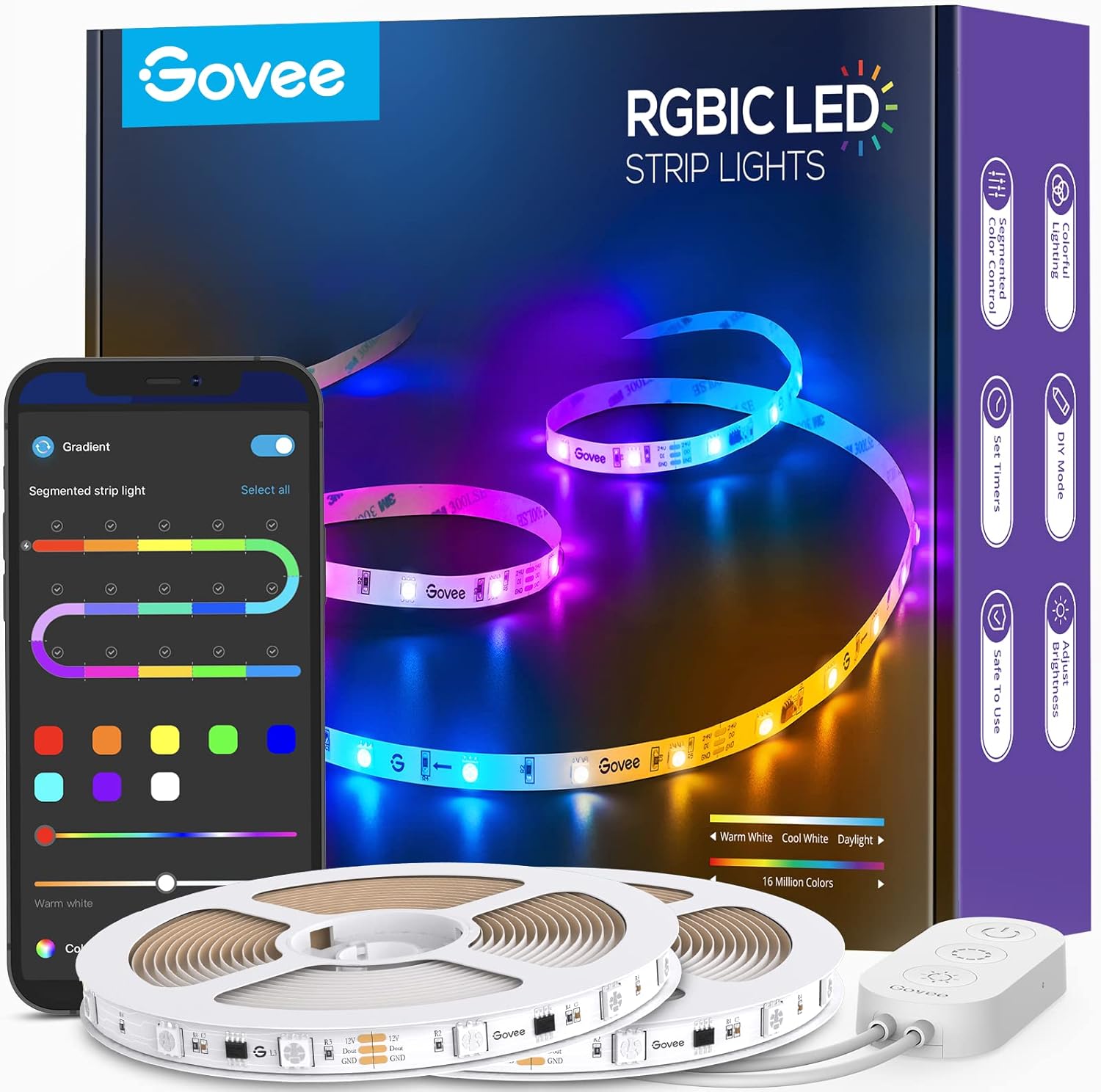
Govee 65.6ft RGBIC LED Strip Lights, Color Changing LED S...

Govee Smart Wi-Fi RGBIC LED Strip Lights & Light Bars, Dr...
As an Amazon Associate we earn from qualifying purchases.
Official Manufacturer Manual
Govee provides official product documentation through their online manual rather than downloadable PDF. Access setup guides, troubleshooting steps, and product specifications for your Govee LED Strip Lights.
Source: govee.com
Need More Help? Govee Support
Note: The contact information below connects you directly to Govee's official customer support team, not Trunetto. They can help with warranty claims, device replacements, and advanced technical issues.
How Does Govee Compare?
Before replacing your Govee device, see how it stacks up against alternatives in our full comparison guides.
Accessories owners commonly pair with Govee LED Strip Lights.
As an Amazon Associate we earn from qualifying purchases.