

How to Set Up Govee Floor Lamp 2 With the Govee Home App
- Unbox and Inspect Parts
- Assemble the Pole Sections
- Connect Power
- Position the Lamp
- Pair with Govee Home App
Most users complete this in under 15 minutes
Overview
You just received your Govee Floor Lamp 2 and want to assemble it and connect it to your smart home. This guide walks through unboxing, assembling the pole sections, plugging in the base, and pairing with the Govee Home app so you can control colors, scenes, and music sync from your phone or voice assistant.
Why This Happens in Real Homes
Floor Lamp 2 setup is assemble, then connect: lay out the sections, join them, and stand it near an outlet. Then add it in the Govee Home app — Bluetooth pairs locally, and connecting it to 2.4GHz WiFi enables remote control, Alexa/Google, and scenes.
Set it up near the router for a clean WiFi join (it's 2.4GHz, WPA2), and once online explore the scenes and music sync that are the lamp's main draw. Most setup snags are just the WiFi band/password; Bluetooth-only control works even if you skip WiFi, but you lose remote and voice.
What's Included
- Base unit with weighted bottom and power input port
- Two or three pole sections that twist-lock together
- RGBIC LED light column with diffuser cover
- Power adapter with inline controller and cord
- Quick start guide and QR code for Govee Home app
- Wall mount bracket kit for optional horizontal mounting
Got your materials ready? Here's what to check first.
Before You Start
- Choose a flat stable surface near a power outlet
- Confirm WiFi is 2.4GHz before starting setup
- Download Govee Home app in advance from app store
- Clear about 6 feet of vertical space for full lamp
- Keep all packaging until assembly is confirmed working
- Check pole sections for shipping damage before assembly
Don't skip this step — it breaks everything if you do
Do not force pole sections together if they resist. Misaligned twist-lock pins can strip the connector threads making the joint permanently loose and unsafe.
Tools & Requirements
Installation Steps
Unbox and Inspect Parts
Remove all components from the box and lay them out on a clean surface. You should have the weighted base unit two or three pole sections depending on your model the LED light column with diffuser and the power adapter. Check each pole section for cracks or dents from shipping. Confirm the twist-lock connectors on each pole end are clean and undamaged before proceeding with assembly.
Assemble the Pole Sections
Take the base unit and insert the first pole section into the top socket. Twist clockwise until you feel it click into the locked position. Add the second pole section on top using the same twist-lock method. Finally attach the LED light column to the top pole section. Each connection should feel solid with no wobble. If a section feels loose untwist and reseat it making sure the pins align with the grooves.
Connect Power
Route the power cord from the base through the cable channel on the back of the base unit if one exists. Connect the power adapter barrel connector to the input port on the base. Plug the adapter into a wall outlet. The lamp should illuminate briefly in a default color pattern confirming the electrical connection is working. If nothing lights up check that the inline controller button is pressed to on.
Position the Lamp
Place the assembled lamp in its final position. The weighted base keeps it stable on hard floors or low-pile carpet. Make sure the lamp is not leaning and has clearance from walls or furniture on all sides. If you prefer horizontal mounting use the included wall bracket kit and mount screws to secure the lamp sideways on a wall. Route excess power cord behind furniture for a clean appearance.
Pair with Govee Home App
Open the Govee Home app and tap the plus icon to add a new device. Select Floor Lamp 2 from the product list. Make sure your phone is connected to your 2.4GHz WiFi network. The app uses Bluetooth to discover the lamp then connects it to WiFi. Once paired you can control colors brightness scenes music sync and schedules. Optionally link to Alexa or Google Home for voice commands.
Installation Tips
Still stuck? This is usually the deeper cause below.
Place the floor lamp in a corner facing the room for maximum ambient effect. The RGBIC segments create the best color gradient when light bounces off two adjacent walls simultaneously.
Before you go — these Govee guides fix most remaining issues.
Most popular upgrades chosen by Govee Floor Lamp 2 owners.

Govee Floor Lamp 2 with Matter, RGBIC, Warm Cool White LE...
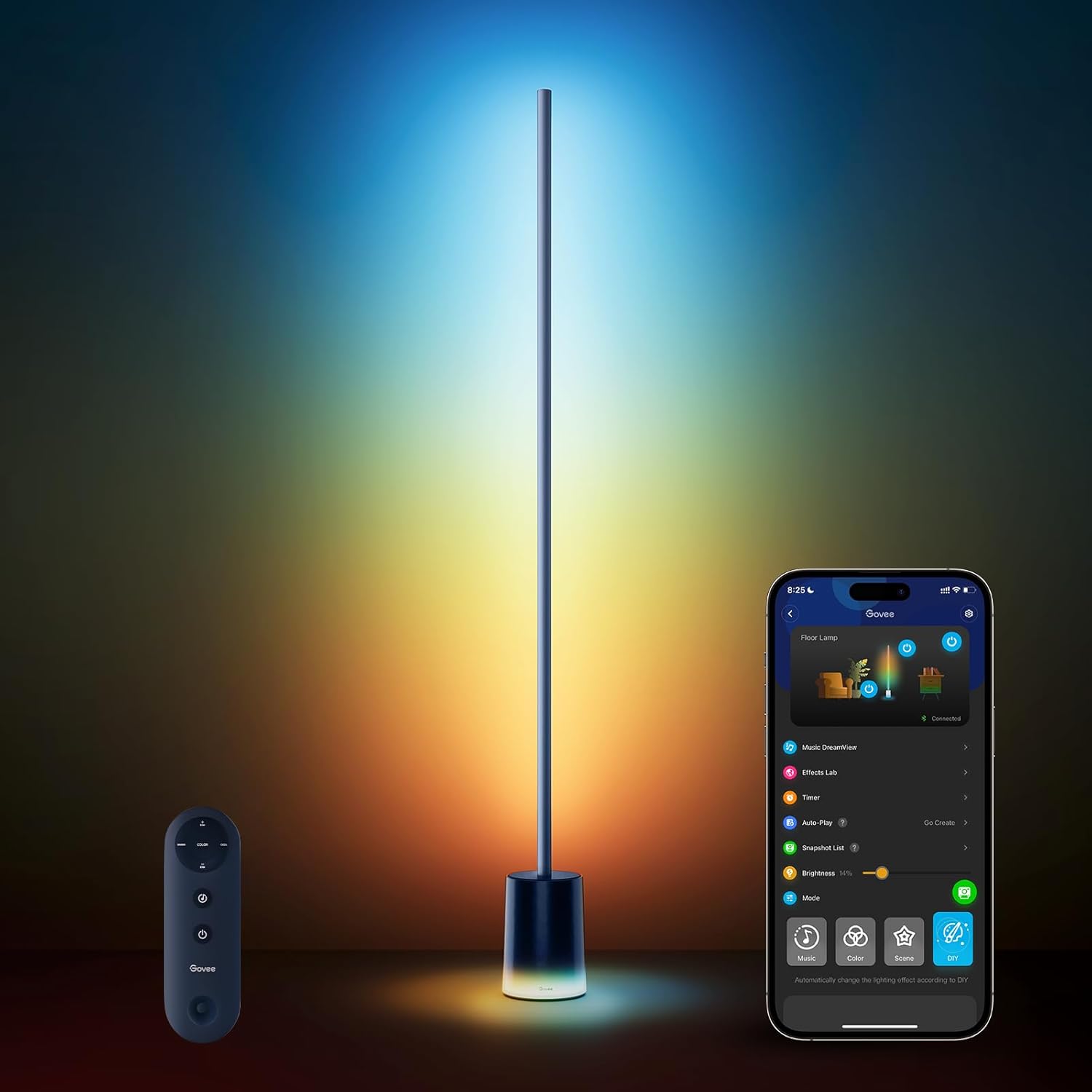
Govee Floor Lamp 2 with Matter, RGBIC, Warm Cool White LE...

Govee Floor Lamp 2 with Matter, RGBIC, Warm Cool White LE...
As an Amazon Associate we earn from qualifying purchases.
Official Manufacturer Manual
Govee provides official product documentation through their online manual rather than downloadable PDF. Access setup guides, troubleshooting steps, and product specifications for your Govee Floor Lamp 2.
Source: govee.com
Need More Help? Govee Support
Note: The contact information below connects you directly to Govee's official customer support team, not Trunetto. They can help with warranty claims, device replacements, and advanced technical issues.
How Does Govee Compare?
Before replacing your Govee device, see how it stacks up against alternatives in our full comparison guides.
Accessories owners commonly pair with Govee Floor Lamp 2.
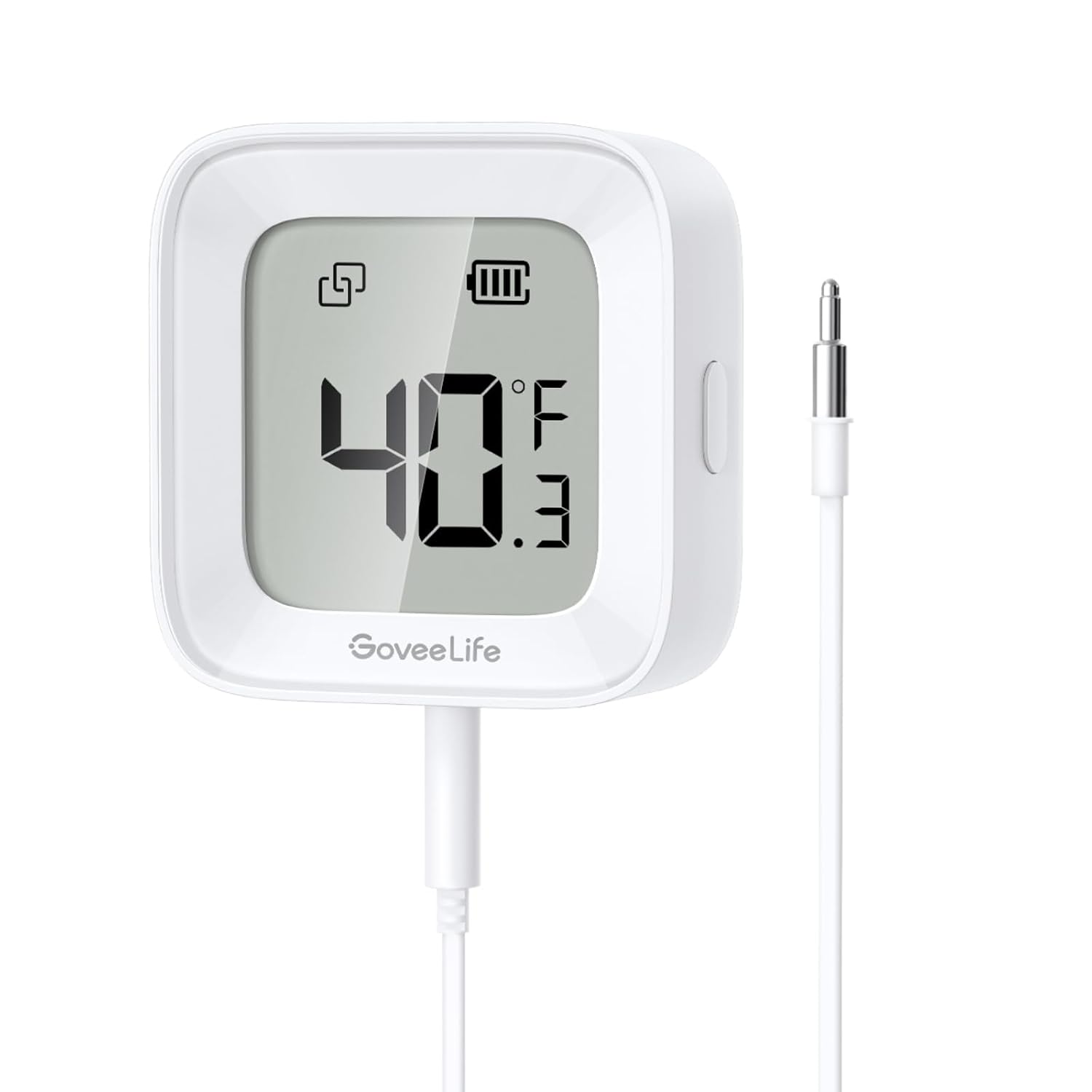
As an Amazon Associate we earn from qualifying purchases.


