

How Do I Program My Leviton Timer Switch?
- Mixing up the countdown timer and app scheduling
- Preset interval not selected correctly
- Smart timer offline so the cloud schedule can't run
Problem Description
You want to program your Leviton timer switch to automatically turn lights or a fan off after a set time. Leviton timer switches offer both a built-in countdown timer (press the button for preset intervals) and app-based scheduling through the My Leviton app for recurring on/off schedules.
Why This Happens in Real Homes
Leviton timer switches offer two different ways to control time, and knowing which one you're using clears up most programming confusion. The built-in countdown timer is the simple one: press the button to pick a preset interval (for example 30 minutes) and the load turns off when it expires — great for a bathroom fan or a closet light. That works entirely at the switch, no app needed.
For recurring on/off schedules — lights on at dusk, off at bedtime every day — you use the My Leviton app on smart timer models, and that's where the usual issues live. Because those schedules are cloud-triggered, the timer has to stay online and set to the correct timezone, or events fire at the wrong time or not at all. Save the schedule and confirm it synced, keep the timer on a solid 2.4GHz signal, and reconnect it after any power outage so its clock re-syncs. Countdown at the button, recurring schedules in the app: match the method to what you want.
Symptoms
- Programming a Leviton timer switch
- Countdown timer setup
- App schedule not running
- Lights/fan won't turn off on time
- Preset intervals unclear
- Recurring schedule questions
- Timer resets unexpectedly
- Schedule not saving
Recognize these? Here's what usually causes it.
Common Causes
- Mixing up the countdown timer and app scheduling
- Preset interval not selected correctly
- Smart timer offline so the cloud schedule can't run
- Wrong timezone set
- Schedule not saved in the app
- Device clock lost after a power blip
- 2.4GHz signal weak (smart models)
- Firmware out of date
Most fixes happen in the first 3 steps.
Do not attempt to open or modify the light hardware. Smart lights contain electronic components that can be damaged by moisture or physical tampering. Always power off at the wall switch before removing or repositioning a smart light.
Step-by-Step Solution
Choose between the built-in timer and app-based scheduling
Leviton smart switches support both on-device timer functions and app-based scheduling through the My Leviton app. The built-in timer is useful for simple on/off timing without needing your phone. App-based scheduling offers more flexibility — sunrise/sunset triggers, recurring schedules, and integration with voice assistants.
Set a simple countdown timer on the switch
Press and hold the top of the rocker (or the dedicated timer button on timer-specific models) to start a countdown. The switch turns off automatically when the timer expires. Common use: bathroom fan timers, porch lights, and garage lights where you want the light on for a fixed duration. Check your model documentation for the exact button sequence — it varies between Leviton switch models.
Create schedules in the My Leviton app
Open the My Leviton app, select the switch, and tap Schedules. Add a new schedule with a start time and end time. Set it to repeat on specific days of the week. The schedule runs on the Leviton cloud, so your phone does not need to be home or connected for the schedule to execute. As long as the switch has WiFi and internet, schedules fire reliably.
Use sunrise and sunset triggers
In the My Leviton app scheduling, you can set actions to trigger at sunrise or sunset based on your location. Add an offset to fine-tune — for example, 30 minutes before sunset so the lights are on when it starts getting dark, not after. The app calculates sunrise and sunset times daily based on your GPS location, adjusting automatically through the year.
Create vacation/away schedules
When you are away from home, create randomized schedules to simulate occupancy. Set different lights to turn on and off at slightly different times each day. The My Leviton app supports random offsets on scheduled times so the pattern does not look mechanical to an outside observer. This is more effective than leaving one light on a fixed timer.
Quick Solutions
Still having issues? This is usually the deeper cause below.
If this comes back after following these steps, check whether a recent app or firmware update reset a default setting — the fix works, but the setting gets reverted silently.
Group your smart lights by room in the app and assign clear names like Kitchen Ceiling and Bedroom Lamp. This makes voice commands more reliable and lets you create scenes that control multiple lights at once with a single command.
This issue almost always looks more complex than it is — the majority of cases trace back to a single setting, a stale credential, or a default that shipped wrong.
- Mixing up the countdown timer and app scheduling
- Preset interval not selected correctly
- Smart timer offline so the cloud schedule can't run
- Wrong timezone set
- Schedule not saved in the app
Before you go — try one of these (they fix most cases).
Most popular upgrades chosen by Leviton Timer Switch owners.

As an Amazon Associate we earn from qualifying purchases.
Official Manufacturer Manual
Leviton provides official product documentation through their online manual rather than downloadable PDF. Access setup guides, troubleshooting steps, and product specifications for your Leviton Timer Switch.
Source: leviton.com
Need More Help? Leviton Support
Note: The contact information below connects you directly to Leviton's official customer support team, not Trunetto. They can help with warranty claims, device replacements, and advanced technical issues.
Accessories owners commonly pair with Leviton Timer Switch.
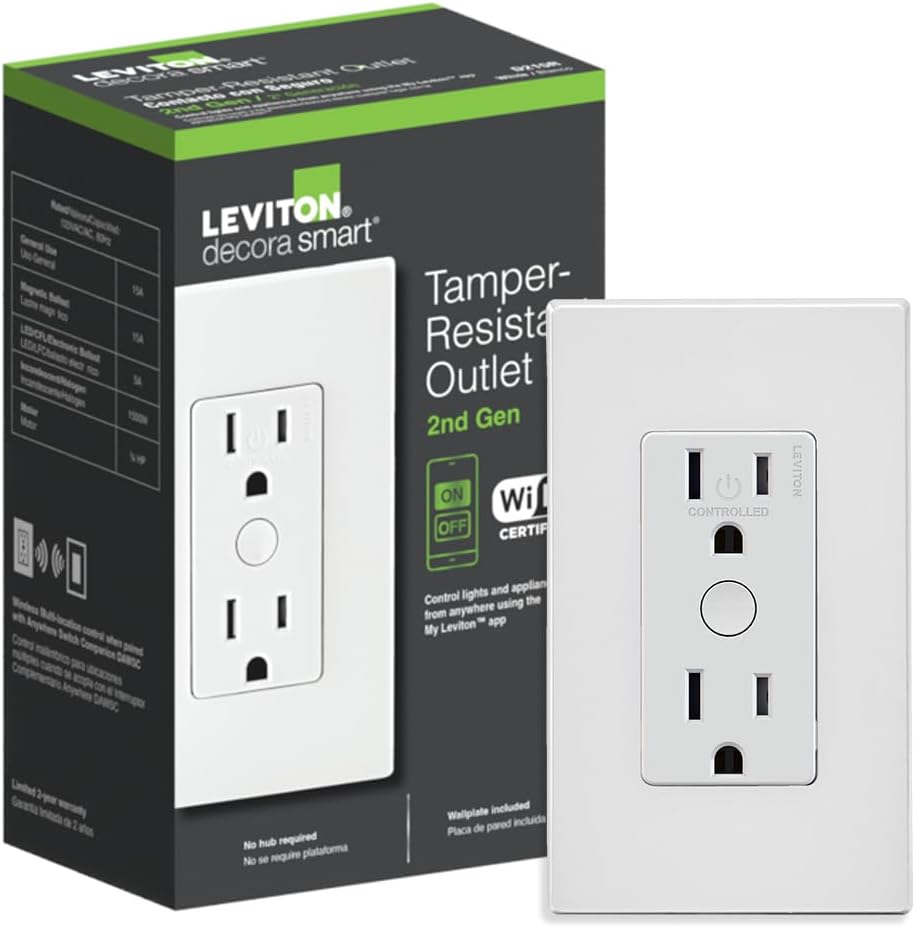
Leviton Decora Smart Outlet, Tamper-Resistant 15A, Wi-Fi ...

Leviton Decora Smart Plug, Wi-Fi 2nd Gen, Works with Matt...

Leviton Decora Smart Fan Speed Controller, Wi-Fi 2nd Gen,...
As an Amazon Associate we earn from qualifying purchases.


