

Why Does My Leviton Decora Smart Switch Keep Disconnecting?
- Weak 2.4GHz signal at the box
- Band-steering pushing it toward 5GHz
- DHCP lease expiry / IP conflict
Problem Description
Your Leviton Decora smart switch keeps disconnecting from WiFi and showing as offline in the My Leviton app. It may work for a while then drop off, requiring frequent re-setup. This intermittent connectivity is usually caused by WiFi signal issues or router settings.
Why This Happens in Real Homes
A Leviton Decora Smart switch that keeps disconnecting is usually a signal-and-router problem, not a defective unit. Because it's a 2.4GHz-only device sealed in a wall box, it often lives at the weak edge of your coverage, so it stays connected for a while and then drops — and a combined-band router can make things worse by trying to steer it onto 5GHz.
Address the signal first: improve 2.4GHz coverage near the box (a nearby mesh node makes a real difference for an in-wall device) and separate the 2.4GHz SSID so band-steering leaves it alone. Then clean up the router — reserve a DHCP IP to stop lease-renewal drops and IP conflicts, choose a less congested channel, disable aggressive idle-client timeouts, and use WPA2 or mixed mode for firmware compatibility. Updating the switch's firmware in My Leviton clears the last of the intermittent offline events so you stop re-adding it.
Symptoms
- Switch keeps disconnecting
- Shows offline in My Leviton
- Works then drops off
- Needs frequent re-setup
- Intermittent connection
- Offline at intervals
- Reconnect never sticks
- Loses WiFi after a while
Recognize these? Here's what usually causes it.
Common Causes
- Weak 2.4GHz signal at the box
- Band-steering pushing it toward 5GHz
- DHCP lease expiry / IP conflict
- 2.4GHz interference/congestion
- Router dropping idle clients
- WPA3-only mode issues
- Router firmware/config problems
- Switch firmware out of date
Most fixes happen in the first 3 steps.
If the switch is hot to the touch while disconnecting repeatedly there may be a wiring issue. Stop using it and have an electrician inspect the installation.
Tools & Requirements
Step-by-Step Solution
Check WiFi Signal Strength
Stand at the switch location with your phone connected to the same 2.4GHz network. Run a speed test or check signal bars. If the signal is weak consider adding a WiFi extender or mesh node near the switch. Smart switches need consistent 2.4GHz coverage.
Set a DHCP Reservation
Log into your router admin page. Find the connected devices list and locate your Leviton switch by its MAC address. Create a DHCP reservation or static IP assignment for it. This prevents IP conflicts that cause disconnections when the lease expires.
Update Router Firmware
Check your router manufacturer website for firmware updates. Outdated router firmware can cause intermittent disconnections with IoT devices. Update to the latest version and restart the router. Wait for all devices to reconnect.
Reset the Switch
Press and hold the top of the switch paddle for 7 seconds until the LED blinks amber. Release and wait for it to start flashing green indicating ready to pair. Open the My Leviton app and add the switch fresh to your network.
Reduce Network Congestion
If you have many smart devices consider separating your 2.4GHz and 5GHz networks with different names. Move bandwidth-heavy devices like streaming boxes to 5GHz and keep IoT devices on a less crowded 2.4GHz channel.
Quick Solutions
Still having issues? This is usually the deeper cause below.
If this comes back after following these steps, check whether a recent app or firmware update reset a default setting — the fix works, but the setting gets reverted silently.
Position WiFi access points or mesh nodes within 30 feet of switch locations for the most reliable connection.
Most WiFi drop-offs happen right after a router reboot or ISP swap — the device reconnects to the network but silently loses its cloud registration.
- Weak 2.4GHz signal at the box
- Band-steering pushing it toward 5GHz
- DHCP lease expiry / IP conflict
- 2.4GHz interference/congestion
- Router dropping idle clients
Before you go — try one of these (they fix most cases).
Most popular upgrades chosen by Leviton Decora Smart Switch owners.

Leviton Decora Digital/Decora Smart Switch Color Change K...

Leviton Decora Digital/Decora Smart Switch Color Change K...

Leviton Decora Smart Switch Z-Wave 800 Series, ZW15S-1RW
As an Amazon Associate we earn from qualifying purchases.
Official Manufacturer Manual
Leviton provides official product documentation through their online manual rather than downloadable PDF. Access setup guides, troubleshooting steps, and product specifications for your Leviton Decora Smart Switch.
Source: leviton.com
Need More Help? Leviton Support
Note: The contact information below connects you directly to Leviton's official customer support team, not Trunetto. They can help with warranty claims, device replacements, and advanced technical issues.
Accessories owners commonly pair with Leviton Decora Smart Switch.
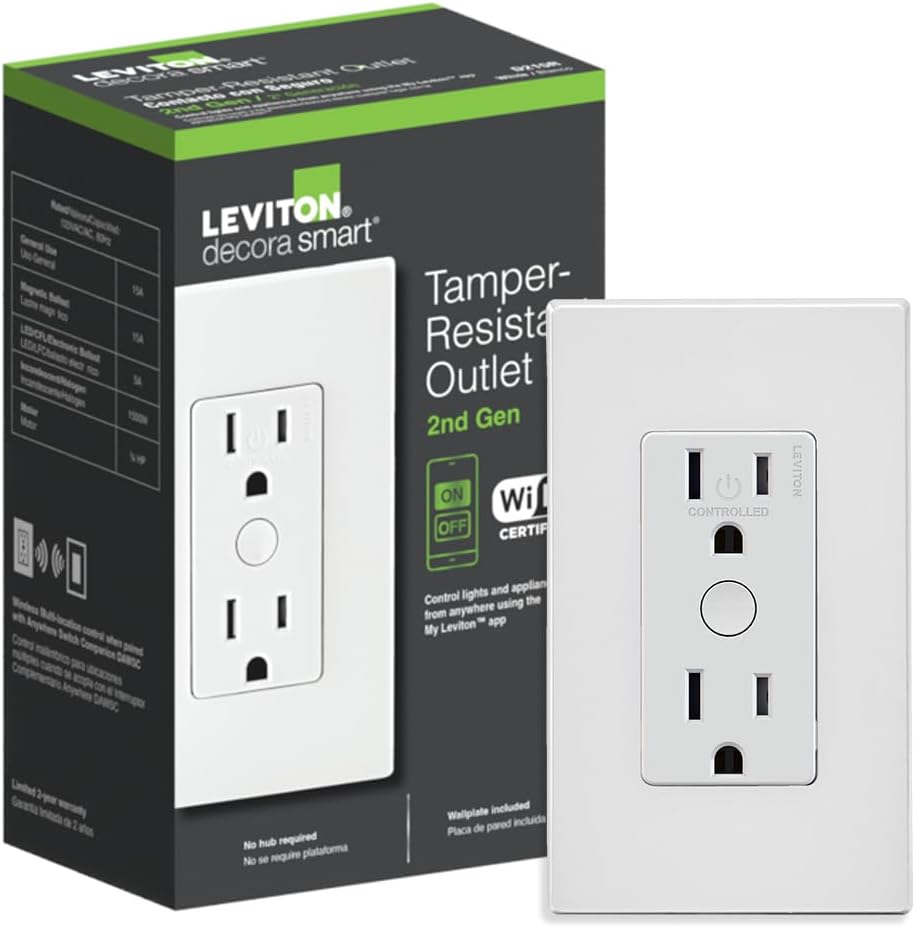
Leviton Decora Smart Outlet, Tamper-Resistant 15A, Wi-Fi ...

Leviton Decora Smart Plug, Wi-Fi 2nd Gen, Works with Matt...

Leviton Decora Smart Fan Speed Controller, Wi-Fi 2nd Gen,...
As an Amazon Associate we earn from qualifying purchases.


