

Leviton Decora Smart Switch Not Connecting to WiFi or Dropping Offline
- Trying to use 5GHz (2.4GHz only)
- Weak 2.4GHz signal at the switch box
- Band-steering / combined SSID
Problem Description
Your Leviton Decora Smart switch loses its WiFi connection regularly or fails to complete setup in the My Leviton app. The LED indicator may blink steadily while the app reports the device offline. Leviton switches connect exclusively to 2.4GHz WiFi networks — attempting to connect on a combined-band network while your phone is on 5GHz is the single most common setup failure.
Why This Happens in Real Homes
A Leviton Decora Smart switch that keeps dropping offline is almost always fighting the 2.4GHz network rather than failing as hardware. It connects on 2.4GHz only, and a switch buried in a wall box at the edge of coverage sits right where signal is marginal — so it holds for a while, then drops. Combined-band routers make it worse by steering the switch toward a 5GHz radio it can't use.
Start by confirming it's on 2.4GHz and separate that SSID so band-steering can't interfere, then improve coverage at the box (a nearby mesh node helps a wall-buried device a lot). On the router, reserve a DHCP IP to stop lease-renewal and IP-conflict drops, pick a less congested channel, and set WPA2 or mixed mode since WPA3-only locks out some older firmware. Updating the switch firmware in the My Leviton app closes the remaining intermittent disconnects.
Symptoms
- Switch drops offline regularly
- Won't complete setup in the app
- Shows offline while LED blinks
- Reconnects then drops again
- Loses connection daily
- App reports device offline
- Intermittent WiFi
- Needs frequent re-setup
Recognize these? Here's what usually causes it.
Common Causes
- Trying to use 5GHz (2.4GHz only)
- Weak 2.4GHz signal at the switch box
- Band-steering / combined SSID
- DHCP lease expiring or IP conflict
- 2.4GHz channel congestion/interference
- Router dropping idle clients
- WPA3-only mode incompatible with older firmware
- Firmware out of date
Most fixes happen in the first 3 steps.
{"The switch still works manually even when WiFi is down","Factory reset erases all schedules and scenes — reconfigure after reconnecting"}
Tools & Requirements
Step-by-Step Solution
Connect to a Dedicated 2.4GHz Network During Setup
Leviton Decora Smart switches connect exclusively to 2.4GHz WiFi. If your router combines 2.4GHz and 5GHz bands under one network name, your phone may negotiate 5GHz during the setup flow, which the switch cannot join. Log into your router and create a separate 2.4GHz SSID for IoT devices. During setup, connect your phone to that 2.4GHz network before starting the My Leviton app pairing flow.
Verify Router Security Settings Are Compatible
Leviton switches require WPA2 security. If your router is set to WPA3-only, the switch will fail to authenticate with no error message shown in the app. Log into your router admin panel and check the wireless security mode. Set it to WPA2/WPA3 mixed or WPA2-only for the 2.4GHz band. Also check that AP Isolation or Client Isolation is disabled, as these settings prevent devices on the same network from communicating.
Power Cycle the Switch at the Breaker
If the switch entered a stuck state during a previous failed setup or firmware update, a power cycle may be required before it will respond to new setup attempts. Turn off the circuit breaker controlling the switch for 10 seconds, then turn it back on. Wait for 30 seconds after power is restored before attempting to pair. Do not use the app until the switch LED stops flashing and settles into a steady state.
Factory Reset the Switch
Hold the top paddle of the Leviton Decora Smart switch for 15 seconds or more until the LED indicator flashes rapidly, indicating factory reset. This clears all stored credentials and connection state. Immediately launch the My Leviton app and begin the Add Device flow before the switch exits pairing mode. The switch has a pairing window of approximately 3 minutes after reset.
Temporarily Move Router Closer for Initial Setup
The initial WiFi setup handshake is significantly more sensitive to signal strength than normal operation. If the switch is in a room far from your router, run the initial setup with the router temporarily moved within 10 feet. After successful pairing confirmed in the My Leviton app, return the router to its normal location. The switch will continue to operate at its normal installed distance after the initial connection is established.
Quick Solutions
Still having issues? This is usually the deeper cause below.
This usually happens right after a router reboot or ISP change — the device rejoins the network but drops its cloud session silently.
{"Leviton switches need 2.4GHz — they will never connect to 5GHz","Set DHCP reservations for all smart switches to prevent IP changes","Group all smart home devices on a dedicated IoT SSID if your router supports it"}
Most WiFi drop-offs happen right after a router reboot or ISP swap — the device reconnects to the network but silently loses its cloud registration.
- Trying to use 5GHz (2.4GHz only)
- Weak 2.4GHz signal at the switch box
- Band-steering / combined SSID
- DHCP lease expiring or IP conflict
- 2.4GHz channel congestion/interference
Before you go — try one of these (they fix most cases).
Most popular upgrades chosen by Leviton Decora Smart WiFi Switch/Dimmer owners.

As an Amazon Associate we earn from qualifying purchases.
Official Manufacturer Manual
Leviton provides official product documentation through their online manual rather than downloadable PDF. Access setup guides, troubleshooting steps, and product specifications for your Leviton Decora Smart WiFi Switch/Dimmer.
Source: leviton.com
Need More Help? Leviton Support
Note: The contact information below connects you directly to Leviton's official customer support team, not Trunetto. They can help with warranty claims, device replacements, and advanced technical issues.
Accessories owners commonly pair with Leviton Decora Smart WiFi Switch/Dimmer.
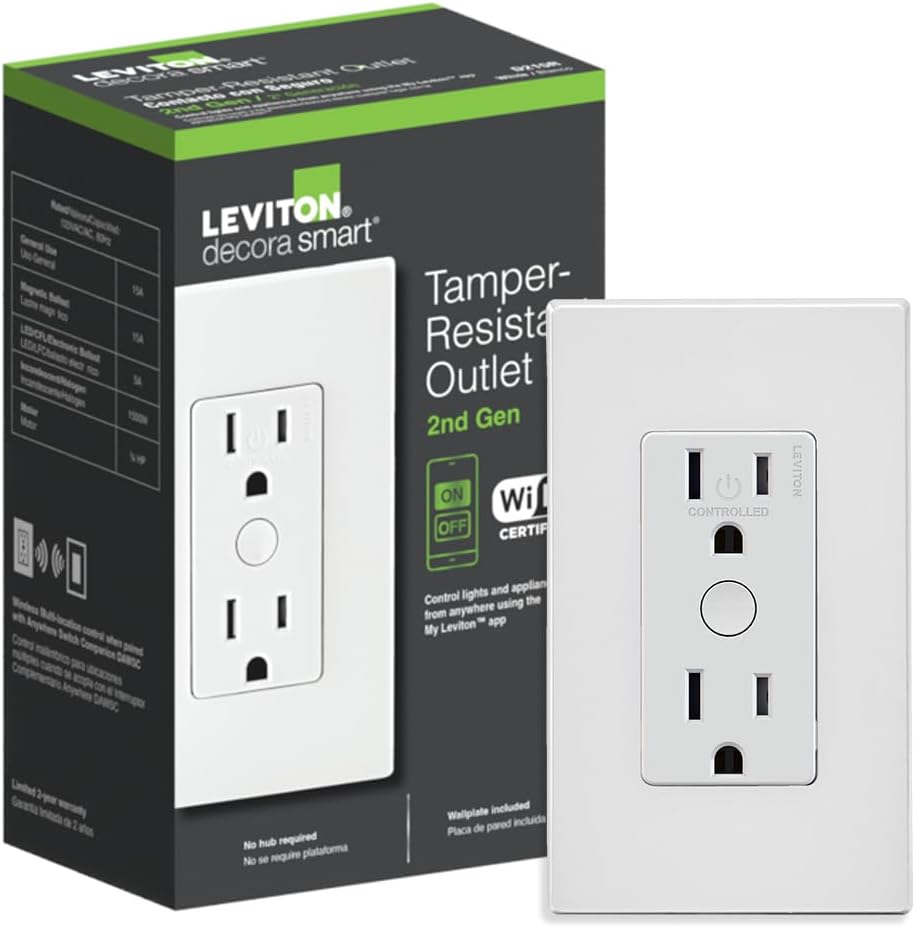
Leviton Decora Smart Outlet, Tamper-Resistant 15A, Wi-Fi ...

Leviton Decora Smart Plug, Wi-Fi 2nd Gen, Works with Matt...

Leviton Decora Smart Fan Speed Controller, Wi-Fi 2nd Gen,...
As an Amazon Associate we earn from qualifying purchases.


