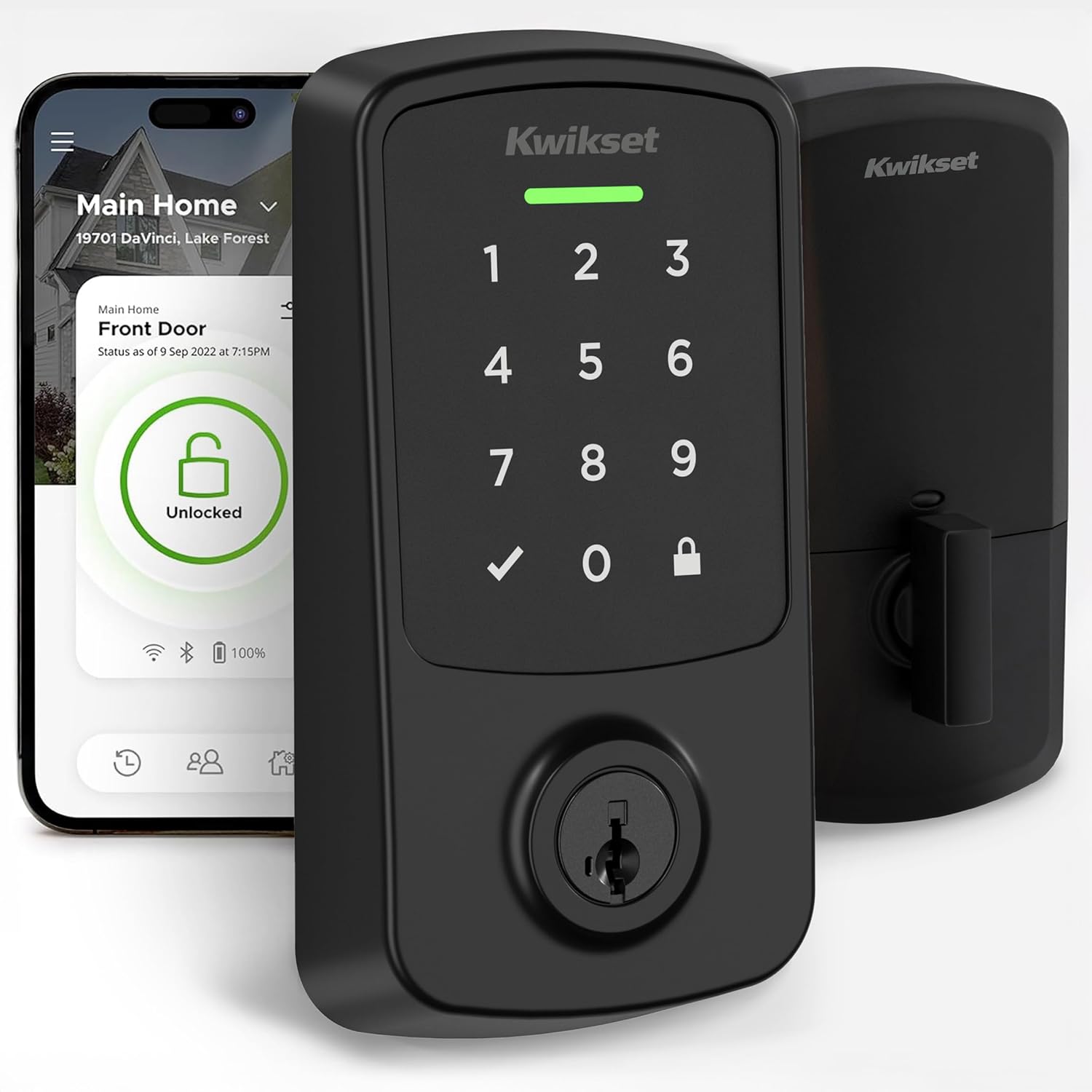
How Do I Set Up the Kwikset Aura Bluetooth Lock?
- Bluetooth off or the phone out of range during pairing
- Batteries low, reversed, or off-brand
- Deadbolt binding so calibration fails
Problem Description
You are setting up the Kwikset Aura Bluetooth smart lock for the first time. The Aura connects to your phone via Bluetooth (no WiFi hub needed) for lock/unlock control and user code management through the Kwikset app. This guide covers initial pairing and adding user access codes.
Why This Happens in Real Homes
The Kwikset Aura is a Bluetooth smart lock, and the most important thing to understand up front is that Bluetooth is all it has - there is no WiFi radio, no hub, and no bridge, so you can only control and manage it from the Kwikset app when your phone is within Bluetooth range of the door (roughly 30 to 100 feet). If you expected to lock or unlock it from work, that's not a fault to troubleshoot; the Aura simply isn't designed for remote access (the newer Aura Reach adds Matter). It does hold up to 250 user codes for family and guests.
Setup is local: turn on your phone's Bluetooth, stand next to the lock, and pair in the app. The usual snags are the phone being out of range, a deadbolt that binds and stops the calibration from completing, or handing that wasn't set so the bolt throws the wrong way. Use four fresh name-brand AA alkaline batteries, and make sure the door and strike are aligned so the bolt moves freely. As on all Kwikset keypads, each user code's first four digits must be unique. If the lock won't connect, check whether another household phone is already holding the Bluetooth link.
Symptoms
- Aura won't pair with the phone during setup
- App can't find the lock over Bluetooth
- Deadbolt binds or won't calibrate
- First user code or app control won't work
- Lock only reachable when standing right next to it
- Auto-lock not engaging
- Lock loses Bluetooth when you walk away
- Key works but keypad/app doesn't
Recognize these? Here's what usually causes it.
Common Causes
- Bluetooth off or the phone out of range during pairing
- Batteries low, reversed, or off-brand
- Deadbolt binding so calibration fails
- Handing not set during setup
- Expecting remote access - Aura is Bluetooth-only, no WiFi/hub
- Phone too far (Bluetooth range is roughly 30-100 feet)
- Another phone still paired and holding the connection
- User code shares the first 4 digits with another code
Most fixes happen in the first 3 steps.
Always keep a physical backup key accessible outside your home in case of total lock failure. Never perform a factory reset while locked out as this may disable all electronic access. Ensure battery level is above 50 percent before firmware updates to prevent corruption.
Tools & Requirements
These tools will help you complete this fix.

Door alignment tool
Door Latch Strike Plate, Stainless Steel Door Lock P...

Replacement batteries
Duracell Coppertop Double AA Batteries with Power Bo...

Screwdriver
STREBITO 155 in 1 Electric Screwdriver Set, Small El...
As an Amazon Associate we earn from qualifying purchases.
Step-by-Step Solution
Set up the Kwikset Aura in the app
Download the Kwikset app and create an account. Tap Add Lock and select Aura. Install 4 AA batteries in the interior assembly. The lock enters pairing mode automatically after battery installation. The app discovers the lock via Bluetooth and walks through calibration — it asks you to manually lock and unlock the door to teach the motor the rotation range. After calibration, set a master code on the keypad.
Needed for this step
Door Latch Strike Plate, Stainless Steel Door L...
This helps complete the fix you are currently reading.
$7.49Add user codes through the keypad or app
You can add codes directly on the keypad: press Program (interior button), enter the master code, press Lock, press 1, enter a user slot (1-30), enter the new code, press Lock. Or use the Kwikset app: connect via Bluetooth, go to Access Codes, and add a new code with a name. The app method is easier for managing many codes. You can set permanent codes, scheduled codes (active only on certain days/times), and one-time codes.
Lock and unlock via the app
Open the Kwikset app within Bluetooth range of the lock (15-25 feet indoors). The app shows the current lock status (locked/unlocked). Tap the lock icon to toggle. The lock motor engages and the deadbolt moves within 2-3 seconds. If the app shows Connecting, wait — Bluetooth takes a moment to establish the connection. There is no remote access outside Bluetooth range unless you pair the Aura with a compatible smart home hub.
Enable auto-lock
In the Kwikset app, go to lock settings and enable Auto-Lock. Set the timer (30 seconds to 5 minutes). After the door is unlocked, the lock automatically re-locks after the timer expires. This is useful to make sure the door is never left unlocked accidentally. The auto-lock timer starts from the last unlock event. If you manually lock the door before the timer expires, the auto-lock resets.
Use SmartKey to re-key the physical key
The Kwikset Aura has the SmartKey re-key feature built in. If you need to change which physical key works, insert the current key, turn 90 degrees clockwise, insert the SmartKey tool into the small hole and press, remove the current key, insert the new key, and turn back. The lock now works with the new key. This is useful after moving into a new home or if a key is lost.
Quick Solutions
Still having issues? This is usually the deeper cause below.
If the keypad rejects valid codes, a lockout timer may be running — five failed entries locks most keypads silently for 5–10 minutes.
Set up auto-lock to engage 30 seconds after the door closes so you never accidentally leave it unlocked. Create temporary access codes for guests and service workers that automatically expire after a set time period.
Most smart lock failures people label as hardware issues turn out to be a code wiped during a sync, or a setting reset nobody remembers triggering.
- Bluetooth off or the phone out of range during
- Batteries low, reversed, or off-brand
- Deadbolt binding so calibration fails
- Handing not set during setup
- Expecting remote access - Aura is Bluetooth-only, no WiFi/hub
Before you go — try one of these (they fix most cases).
Most popular upgrades chosen by Kwikset Aura owners.

Kwikset 99420-002 Aura Bluetooth Programmable Keypad Door...

Kwikset 99420-003 Aura Bluetooth Programmable Keypad Door...
As an Amazon Associate we earn from qualifying purchases.
Official Manufacturer Manual
Kwikset provides official product documentation through their online manual rather than downloadable PDF. Access setup guides, troubleshooting steps, and product specifications for your Kwikset Aura.
Source: kwikset.com
Need More Help? Kwikset Support
Note: The contact information below connects you directly to Kwikset's official customer support team, not Trunetto. They can help with warranty claims, device replacements, and advanced technical issues.